
1. Introduction
Thank you for choosing the Yoidesu T1 Universal Active Stylus Pen. This manual provides essential information for the proper setup, operation, and maintenance of your new stylus. Please read it carefully before use to ensure optimal performance and longevity of the product.
The Yoidesu T1 is designed for use with all capacitive touchscreen devices, including mobile phones and tablets running iOS, Android, and other systems. It offers a precise and efficient way to interact with your device for writing, drawing, and navigation.
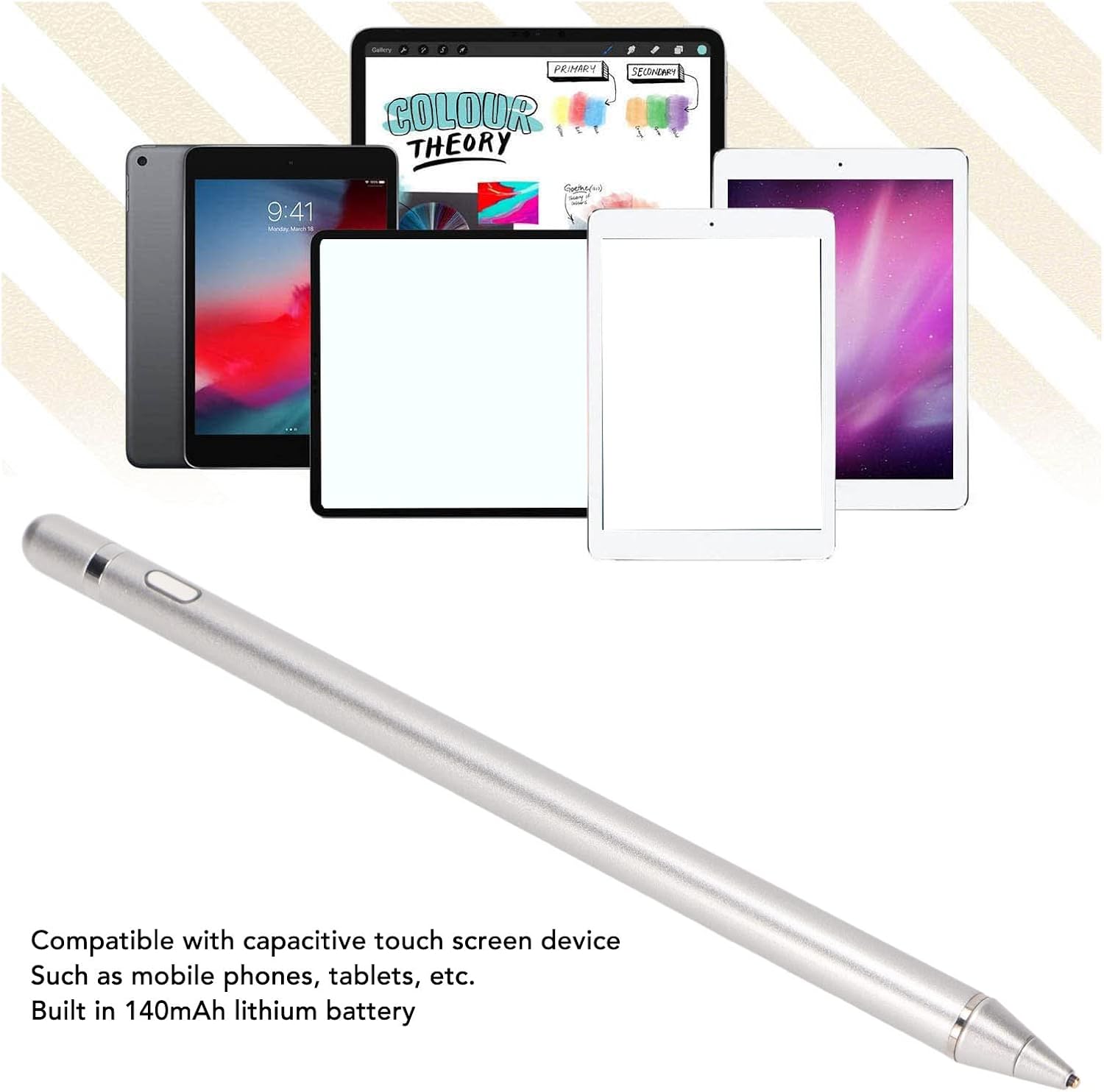
Image: The Yoidesu T1 Stylus Pen shown alongside a variety of compatible touchscreen devices, illustrating its universal compatibility.
2. Package Contents
Please check the package for the following items:
- 1 x Yoidesu T1 Active Stylus Pen
- 1 x USB Charging Cable
- 1 x User Manual (this document)

Image: The Yoidesu T1 Stylus Pen and its included USB charging cable, as found in the product package.
3. Specifications
| Feature | Detail |
|---|---|
| Model | T1 (Yoidesu6pkvo29q31-14) |
| Material | Aluminum Alloy |
| Battery Type | Built-in 140mAh Lithium Battery |
| Input Voltage | 5V 0.2A |
| Tip Size | 1-2mm |
| Compatibility | All capacitive touchscreen devices (iOS, Android, etc.) |
| Anti-Mistouch Function | No |
| Pressure Sensing | No |
| Item Weight | 1.62 ounces |
| Package Dimensions | 7.87 x 2.36 x 1.18 inches |
4. Setup
4.1 Initial Charging
Before first use, fully charge the stylus. Connect the provided USB charging cable to the charging port on the stylus and to a standard USB power source (e.g., computer USB port, wall adapter 5V 0.2A). The indicator light will show charging status (specific light behavior not detailed in product info, assume standard charging indicator).
4.2 Powering On
To power on the stylus, simply tap the top button of the pen. No pairing via Bluetooth or application installation is required. The pen is ready for use immediately after powering on.

Image: A close-up view of the power button located on the side of the Yoidesu T1 Stylus Pen.
4.3 Important Note for iOS Devices
If you experience issues with the stylus on an iOS device (iPhone/iPad), it may be due to a previously paired Apple Pencil or similar stylus via Bluetooth.
- Go to your iOS device's Settings.
- Select Bluetooth.
- Locate any previously paired styluses (e.g., "Apple Pencil").
- Tap the "i" icon next to the device name and select Forget This Device.
- Turn off Bluetooth on your iOS device.
This action ensures that no other Bluetooth stylus interferes with the Yoidesu T1's operation, as it does not require Bluetooth pairing.
5. Operating Instructions
5.1 Basic Usage
Once powered on, the Yoidesu T1 stylus is ready for immediate use on your touchscreen device. Simply touch the pen tip to the screen to begin writing, drawing, or navigating. The 1-2mm fine tip allows for precise input.

Image: A user demonstrating the Yoidesu T1 Stylus Pen in action on a tablet, highlighting its use for precise input.
5.2 Powering Off
To conserve battery, tap the top button again to power off the stylus when not in use. The stylus may also have an automatic power-off feature after a period of inactivity (not specified, but common for such devices).
5.3 Tip Accuracy
The stylus features an accurate tip, enabling detailed work in sketches and drawings. Hold the pen naturally as you would a regular pen for best results.
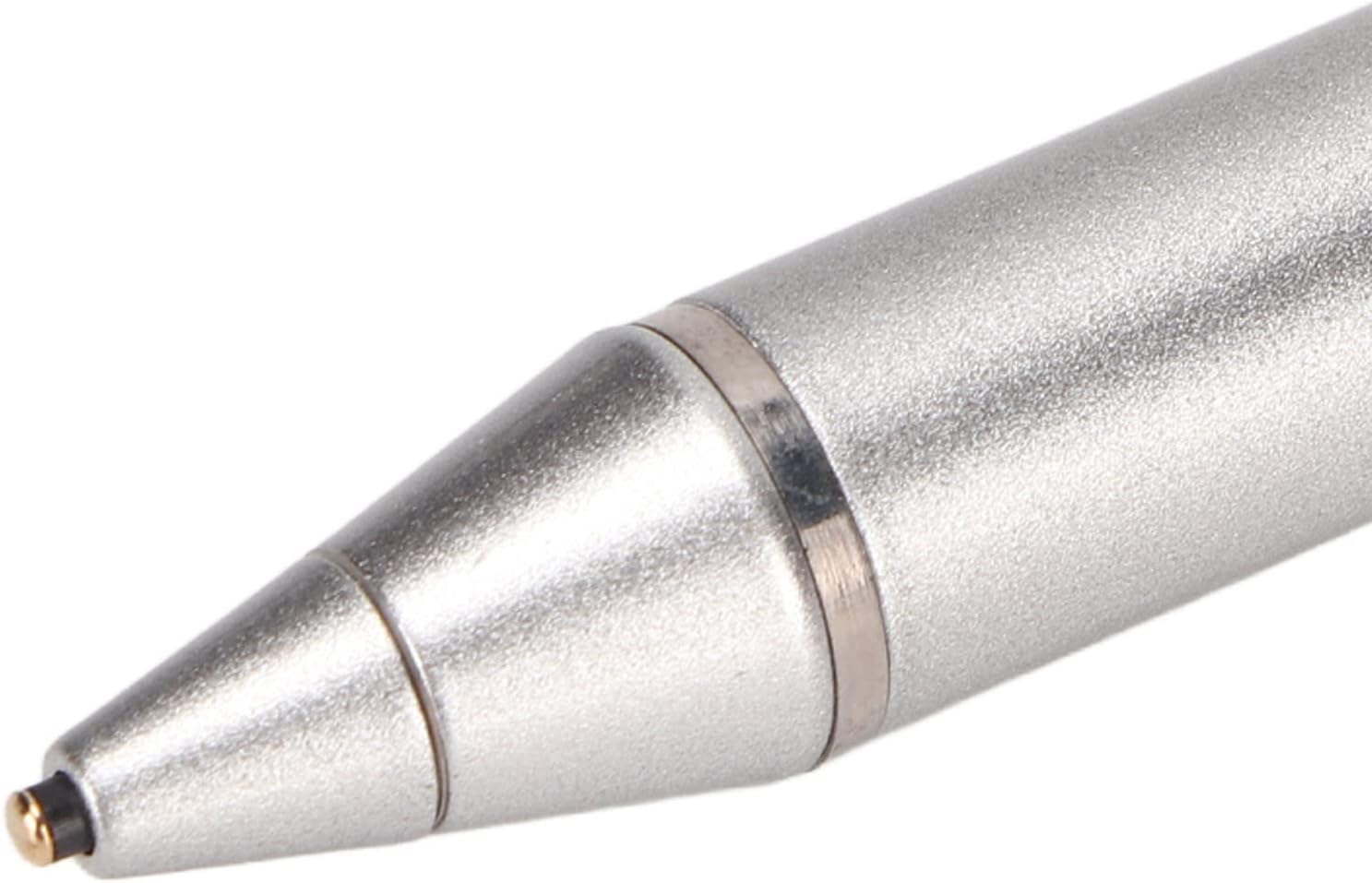
Image: A detailed close-up of the fine tip of the Yoidesu T1 Stylus Pen, emphasizing its precision.
6. Maintenance
6.1 Cleaning
To clean the stylus, gently wipe the body with a soft, dry, lint-free cloth. Do not use abrasive cleaners, solvents, or immerse the pen in water. For the tip, a very lightly dampened cloth can be used if necessary, ensuring no moisture enters the pen body.
6.2 Storage
Store the stylus in a cool, dry place away from direct sunlight and extreme temperatures. Avoid placing heavy objects on the pen or storing it in a way that could bend or damage the tip.
6.3 Battery Care
To prolong battery life, avoid fully discharging the pen frequently. Charge the pen regularly, even if not in constant use. Do not attempt to replace the built-in battery yourself.
7. Troubleshooting
- Pen not responding:
- Ensure the pen is powered on (tap the top button).
- Check battery level and charge if necessary.
- Verify your device's screen is clean and free of debris.
- If using an iOS device, refer to "4.3 Important Note for iOS Devices" regarding Bluetooth interference.
- Restart your touchscreen device.
- Charging issues:
- Ensure the USB cable is securely connected to both the pen and the power source.
- Try a different USB port or power adapter.
- Confirm the power source is active.
- Inaccurate or inconsistent input:
- Ensure the pen tip is clean.
- Check for any screen protectors that might interfere with touch sensitivity.
- Some apps may have specific stylus settings; check app preferences.
8. Warranty and Support
For warranty information or technical support, please refer to the product packaging or contact Yoidesu customer service directly. Contact details can typically be found on the official Yoidesu website or through your purchase platform.
You can visit the Yoidesu store for more products and support: Yoidesu Store