
1. Introduction
Thank you for choosing the FOSA Portable FM Radio. This device offers a versatile listening experience with support for FM, DAB, and Internet Radio. It also features Bluetooth 5.0 connectivity, USB and TF card playback, and convenient functions such as sleep timers and alarm settings. This manual provides detailed instructions for setup, operation, and maintenance to ensure optimal performance.

Figure 1.1: Overview of key features including various radio modes and playback options.
2. Safety Information
- Do not expose the device to rain, moisture, or extreme temperatures.
- Avoid disassembling the unit. Refer all servicing to qualified personnel.
- Use only the specified power adapter (US Plug 100-240V) or 4xAA batteries.
- Keep the device away from strong magnetic fields.
- Ensure proper ventilation during operation.
3. Product Overview
Familiarize yourself with the main components and controls of your radio.
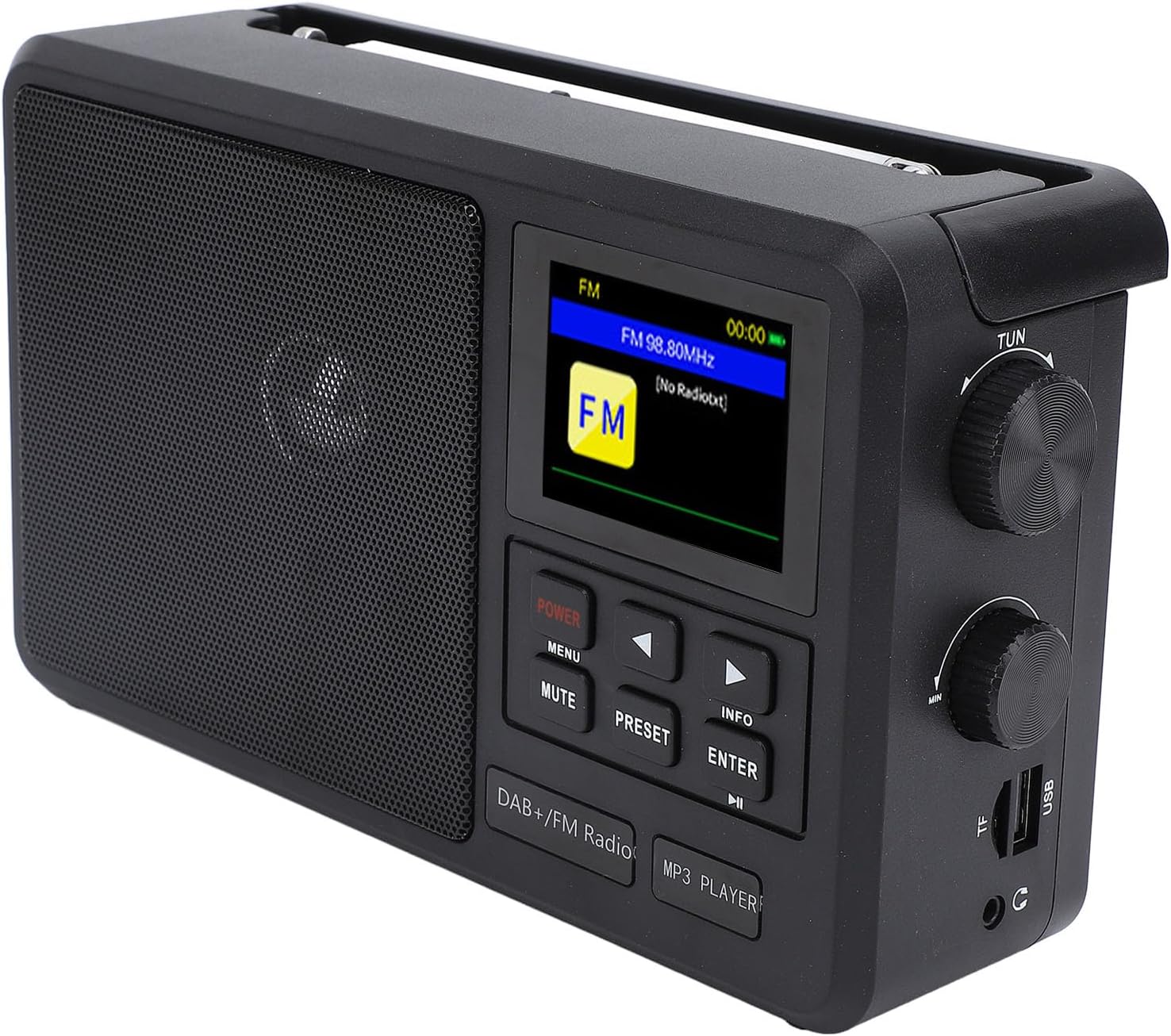
Figure 3.1: Front view of the radio with display and control panel.
3.1 Controls and Ports
- Power Button: Turns the device on/off.
- Menu Button: Accesses system settings and options.
- Mute Button: Mutes/unmutes audio output.
- Preset Button: Manages saved radio stations.
- Info Button: Displays current station or track information.
- Enter Button: Confirms selections.
- Navigation Buttons (Up/Down/Left/Right): Navigates menus and adjusts settings.
- Tuning Knob (TUN): Adjusts radio frequency or navigates lists.
- Volume Knob (MIN/MAX): Controls audio volume.
- USB Port: For USB drive playback.
- TF Card Slot: For MicroSD card playback.
- Headphone Jack: For private listening.
- Antenna: Extend for optimal radio reception.

Figure 3.2: Side view illustrating connectivity ports.
4. Setup
4.1 Powering the Device
The radio can be powered by the included AC adapter or by 4xAA batteries (not included).
- AC Power: Connect the provided power adapter to the DC IN port on the back of the radio and plug it into a standard 100-240V AC outlet.
- Battery Power: Open the battery compartment on the back of the radio and insert 4xAA batteries, ensuring correct polarity.

Figure 4.1: Radio with power adapter for AC operation.
4.2 Initial Power On
- Press the Power button to turn on the radio.
- Extend the telescopic antenna for optimal reception, especially for FM and DAB modes.
- The display will light up, showing the current mode or time.
5. Operating Instructions
5.1 Mode Selection
Press the Menu button or use the navigation buttons to cycle through available modes: FM, DAB, Internet Radio, Bluetooth, USB, and TF Card.
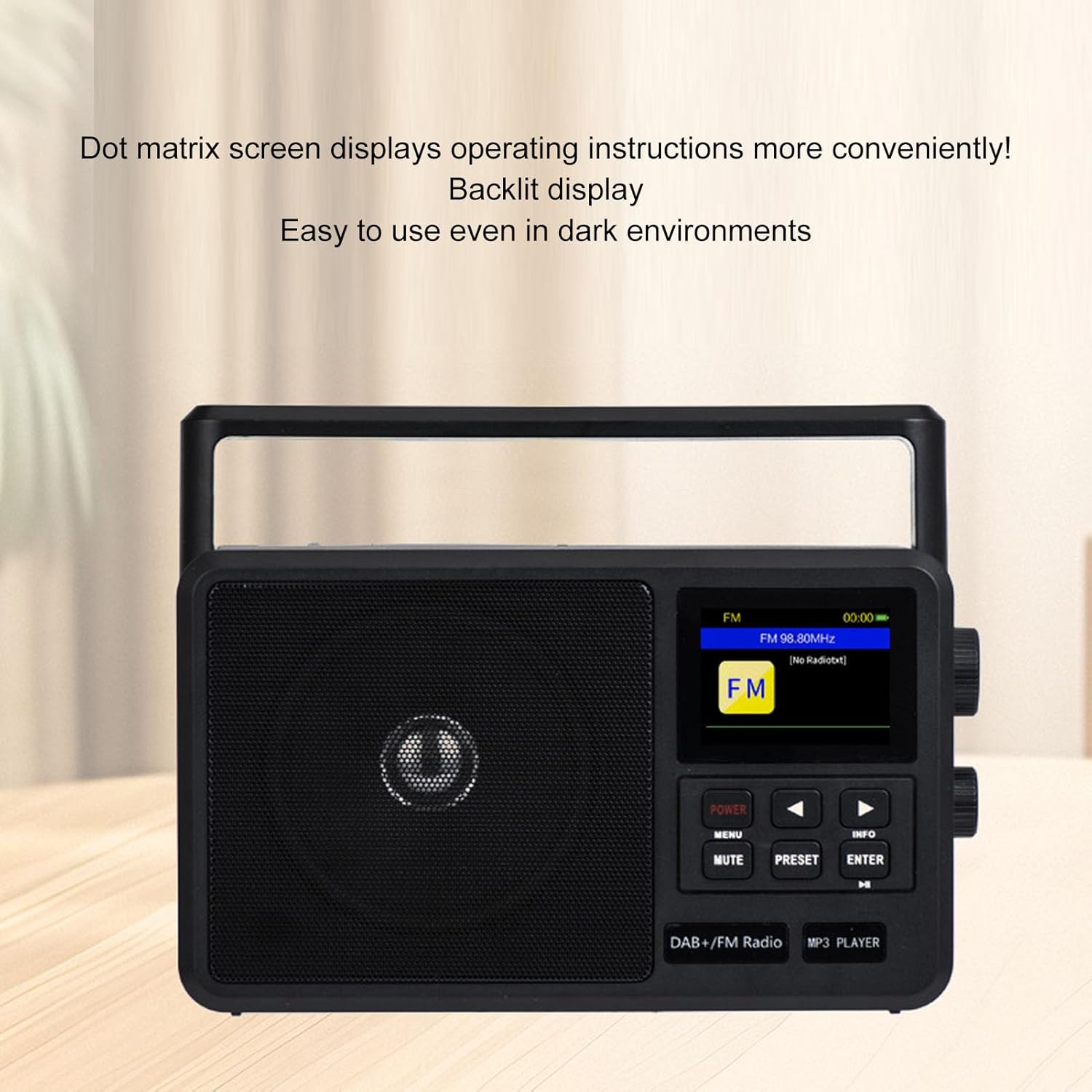
Figure 5.1: Dot matrix display showing current radio frequency.
5.2 Radio Tuning (FM/DAB)
- Automatic Scan: In FM or DAB mode, press and hold the Preset button to initiate an automatic scan for available stations. The radio will store found stations.
- Manual Tuning: Rotate the TUN knob to manually adjust the frequency. Press Enter to confirm a station.
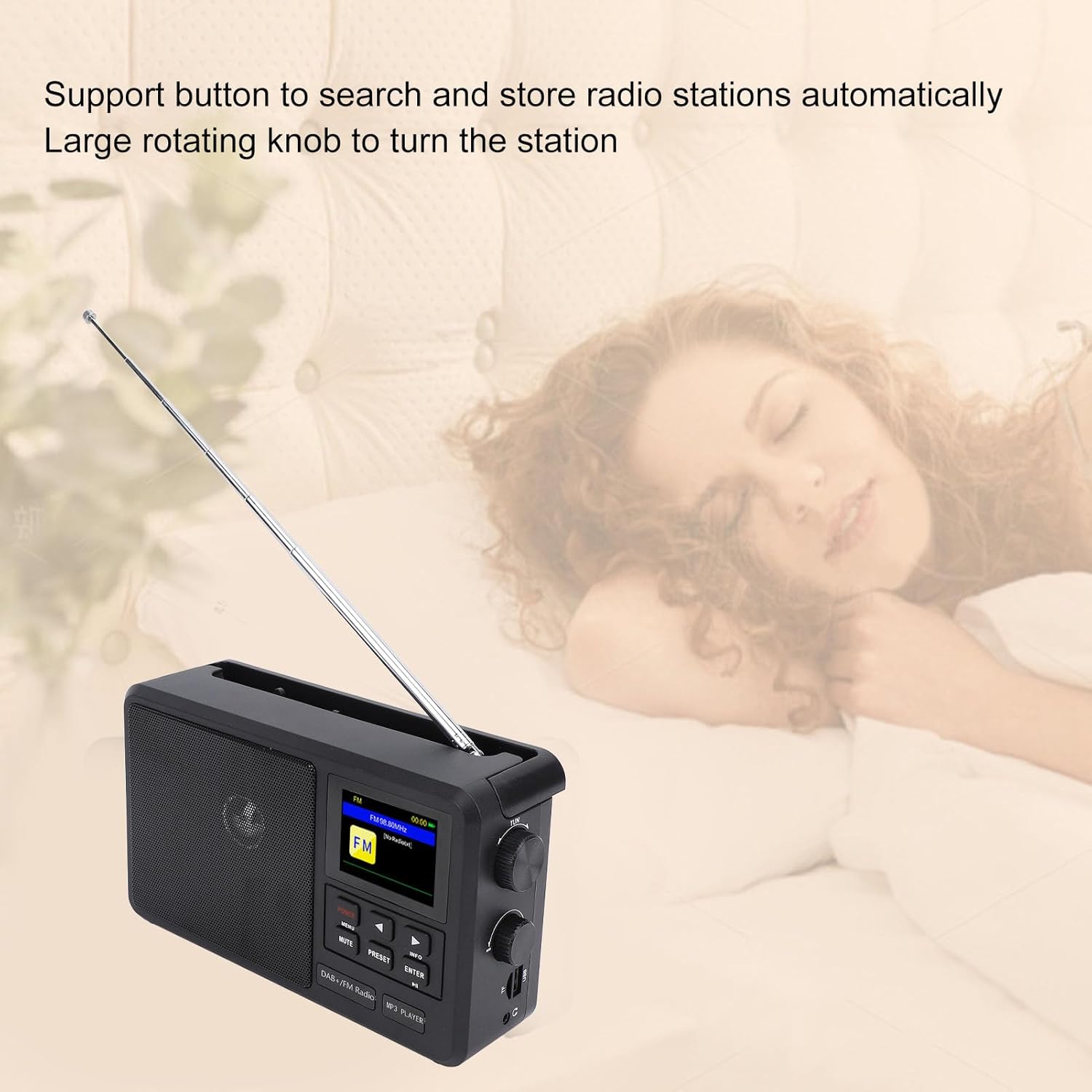
Figure 5.2: Radio with extended antenna for enhanced reception.
5.3 Presets
The radio can store up to 90 radio channels (30 Internet Radio, 30 DAB, 30 FM).
- Saving a Preset: Tune to your desired station. Press and hold the Preset button until the display shows a preset number. Use navigation buttons to select a slot, then press Enter to save.
- Recalling a Preset: Press the Preset button briefly. Use navigation buttons to select a saved station, then press Enter.
5.4 Bluetooth (BT) Playback
- Switch the radio to Bluetooth mode. The display will show "BT Pairing" or similar.
- On your mobile device, enable Bluetooth and search for available devices.
- Select "FOSA Radio" (or similar) from the list to pair.
- Once paired, you can play audio from your device through the radio.
5.5 USB/TF Card Playback
Insert a USB drive or TF card into the respective slot. The radio supports MP3, WMA, WAV, APE, and FLAC formats.
- Switch the radio to USB or TF Card mode.
- The radio will automatically detect and begin playing compatible audio files.
- Use the navigation buttons to skip tracks or adjust playback.
5.6 Time, Alarm, and Sleep Settings
Access these settings via the Menu button.
- Time Format: Select between 12-hour or 24-hour display.
- Sleep Timer: Set a duration (e.g., 15, 30, 60 minutes) after which the radio will automatically turn off.
- Alarm: Configure an alarm time and choose a sound source (e.g., buzzer, FM radio) for the timer power-on function.

Figure 5.3: Interacting with the radio's control buttons for settings.
6. Maintenance
- Cleaning: Use a soft, dry cloth to clean the radio's exterior. Do not use liquid cleaners or abrasive materials.
- Battery Replacement: If using batteries, replace all 4xAA batteries simultaneously when the low battery indicator appears or performance degrades. Ensure correct polarity.
- Storage: If storing the radio for an extended period, remove the batteries to prevent leakage. Store in a cool, dry place.
7. Troubleshooting
| Problem | Possible Cause | Solution |
|---|---|---|
| Radio does not power on. | No power, dead batteries, or faulty adapter. | Check AC adapter connection. Replace batteries if using battery power. |
| Poor radio reception. | Antenna not extended, weak signal, or interference. | Fully extend the antenna. Reposition the radio. Avoid sources of electronic interference. |
| Bluetooth device not pairing. | Radio not in pairing mode, device too far, or already paired. | Ensure radio is in BT mode. Move device closer. Disconnect from other BT devices. |
| USB/TF card not playing. | Unsupported file format, corrupted files, or card/drive not inserted correctly. | Ensure files are MP3, WMA, WAV, APE, or FLAC. Reinsert the card/drive. |
8. Specifications

Figure 8.1: Key technical specifications of the radio.
| Feature | Detail |
|---|---|
| Model Number | fosampyskcuofx-11 |
| Brand | FOSA |
| Product Dimensions | 10.63 x 5.51 x 3.15 inches (27 x 14 x 8 cm) |
| Item Weight | 2.16 pounds (0.98 kg) |
| Connectivity Technology | USB, Bluetooth 5.0 |
| Tuner Technology | Internet Radio, DAB, FM |
| Power Source | AC (US Plug 100-240V), Battery Powered (4xAA, excluded) |
| FM Frequency Range | 87.5 - 108 MHz |
| DAB Frequency Range | 174.928 - 239.200 MHz |
| Speaker | 4 Inch, 4Ω, 8W |
| Signal to Noise Ratio | 40dB |
| Radio Storage Capacity | 90 (30 Internet Radio, 30 DAB Mode, 30 FM Mode) |
| BT Receiving Distance | ≤10m / 32.8ft |
| Small Memory Card Max Capacity | 256GB (Excluded) |
| Supported Audio Formats | MP3, WMA, WAV, APE, FLAC |
9. Warranty and Support
For warranty information or technical support, please refer to the documentation provided at the time of purchase or contact your retailer. For general inquiries about FOSA products, please visit the official FOSA website or contact their customer service.