
Introduction
This user manual provides essential information for the safe and effective use of your CJP-Geek UL 12V Power Adapter, model PSCJQ918WPR-248. This adapter is designed to provide a stable 12V power supply for compatible mini PCs and desk computers, including AWOW AK-41, AK34-J, NYi3, and Beelink T4 models. Please read this manual thoroughly before use and retain it for future reference.
Safety Information
To ensure safe operation and prevent damage, please observe the following safety precautions:
- Input Voltage: Ensure the power outlet voltage is within the specified range of 100-240V AC.
- Protection Features: The adapter includes built-in Over Voltage Protection, Over Current Protection, Short Circuit Protection, and Input Protection to safeguard your devices.
- Environmental Conditions: Use the adapter in a dry environment. Avoid exposure to water, moisture, or high humidity.
- Ventilation: Do not cover the adapter during use, as this may lead to overheating.
- Physical Damage: Do not drop, disassemble, or attempt to repair the adapter. If damaged, discontinue use immediately.
- Cable Care: Do not place heavy objects on the power cord or subject it to excessive bending or pulling.
- Children: Keep the adapter out of reach of children.
Package Contents
Verify that all items are present upon opening the package:
- CJP-Geek UL 12V Power Adapter (Model: PSCJQ918WPR-248)
Product Overview
Familiarize yourself with the components and features of your power adapter.

Figure 1: Main view of the CJP-Geek 12V Power Adapter, showing the adapter block with a 2-prong plug and the attached DC output cable with a round tip connector.
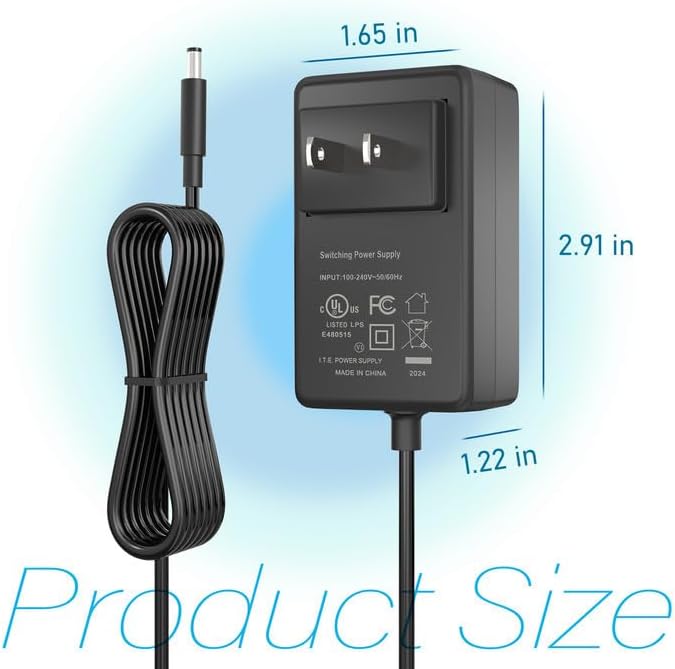
Figure 2: Product dimensions of the CJP-Geek 12V Power Adapter. The adapter block measures approximately 1.65 inches in width, 2.91 inches in height, and 1.22 inches in depth.

Figure 3: Diagram illustrating the multi-certification security features of the CJP-Geek 12V Power Adapter, including Over Temperature Protection, Overcharge Protection, Short Circuit Protection, Overvoltage Protection, Overcurrent Protection, and Overpower Protection.
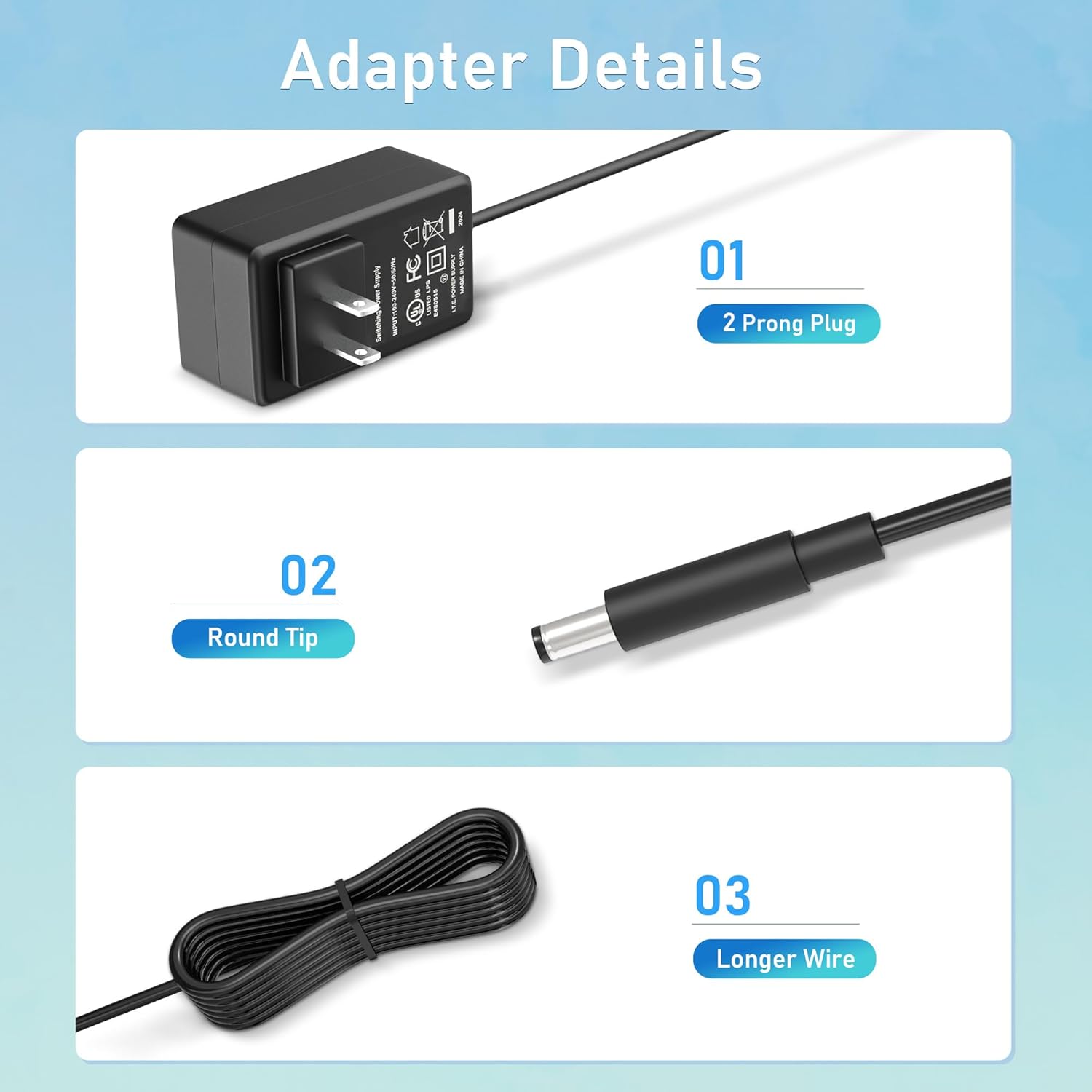
Figure 4: Detailed view of the adapter's key components: (01) a standard 2-prong plug for wall outlets, (02) a round tip DC connector for device input, and (03) a longer wire for extended reach.
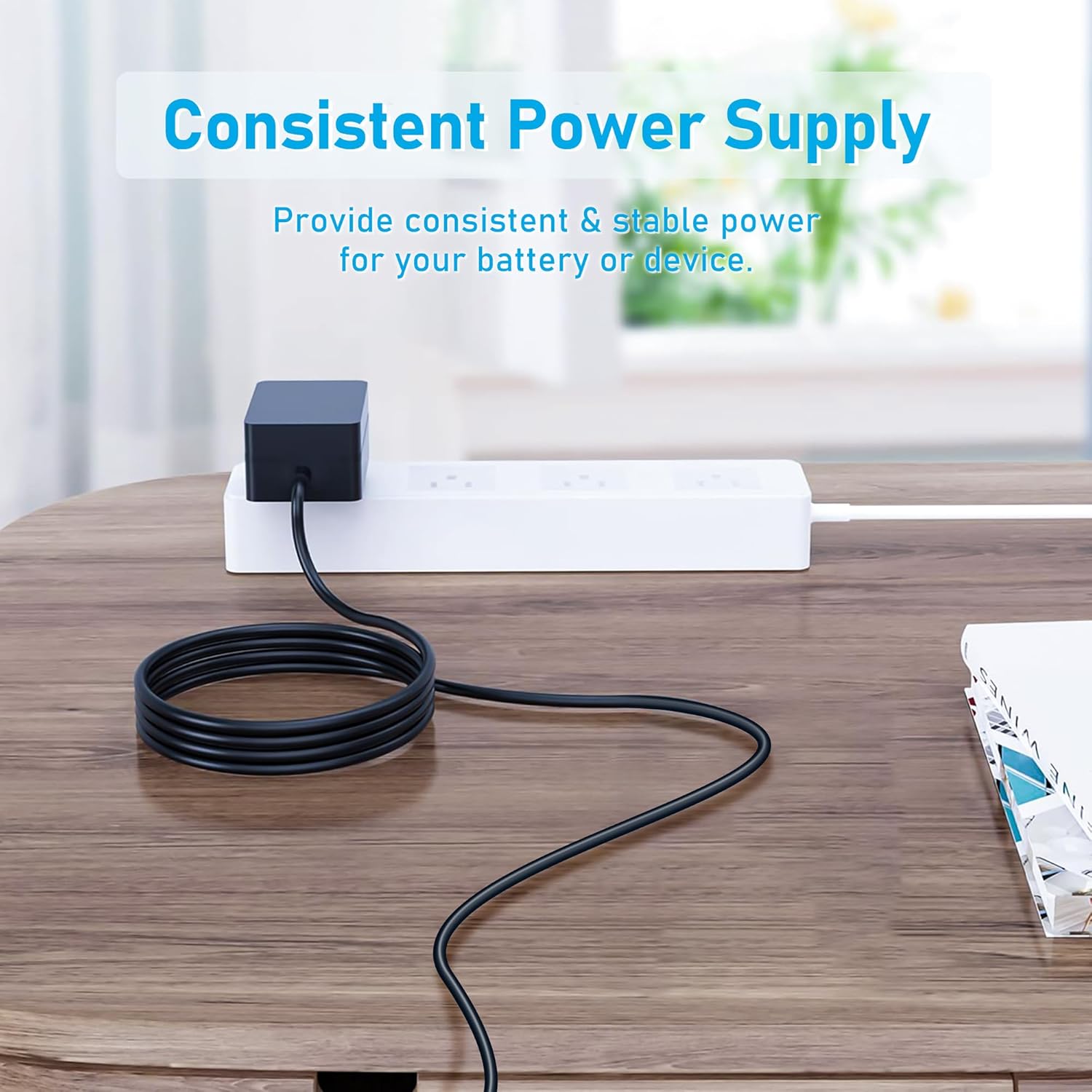
Figure 5: The CJP-Geek 12V Power Adapter connected to a power strip, demonstrating its ability to provide consistent and stable power to a device (not shown) on a desk.
Setup Instructions
- Verify Compatibility: Ensure your device requires a 12V DC input and has a compatible round tip power port. Refer to your device's manual for power specifications.
- Connect to Device: Insert the round tip DC connector of the CJP-Geek power adapter firmly into the power input port of your mini PC or compatible device.
- Connect to Power Outlet: Plug the 2-prong AC plug of the power adapter into a standard 100-240V AC wall outlet or power strip.
- Power On: Once connected, your device should receive power. Follow your device's instructions to power it on.
Operating Instructions
The CJP-Geek 12V Power Adapter operates automatically once connected to a power source and a compatible device. It provides a continuous and stable power supply. No user intervention is required for its basic operation.
- Ensure the adapter is placed in a well-ventilated area to prevent overheating.
- Disconnect the adapter from the power outlet when not in use for extended periods.
Maintenance
Proper maintenance ensures the longevity and reliable performance of your power adapter:
- Cleaning: Disconnect the adapter from all power sources before cleaning. Use a soft, dry cloth to wipe the exterior. Do not use liquid cleaners or abrasive materials.
- Storage: Store the adapter in a cool, dry place away from direct sunlight and extreme temperatures when not in use.
- Cable Inspection: Periodically inspect the power cord and connectors for any signs of damage, fraying, or loose connections. If damage is found, discontinue use.
Troubleshooting
If you encounter issues with your power adapter, refer to the following common solutions:
- No Power to Device:
- Ensure the adapter is securely plugged into a working wall outlet.
- Verify that the DC connector is fully inserted into your device's power port.
- Test the wall outlet with another device to confirm it is functional.
- Check for any visible damage to the adapter or cable.
- Adapter Overheating:
- Ensure the adapter is in a well-ventilated area and not covered.
- Confirm that your device's power requirements do not exceed the adapter's specifications.
- Device Not Charging/Powering On:
- Confirm that the adapter's output voltage (12V) and connector type are compatible with your device.
- If the issue persists, consult your device's manual or contact customer support.
Specifications
| Feature | Specification |
|---|---|
| Model Number | PSCJQ918WPR-248 |
| Input Voltage | 100-240V AC |
| Input Frequency | 50/60HZ |
| Output Voltage | 12V DC |
| Connector Type | Round Tip |
| Plug Type | 2-Prong US Standard |
| Color | Black |
| Item Weight | 3 ounces (approx. 85 grams) |
| Safety Features | Over Voltage Protection, Over Current Protection, Short Circuit Protection, Input Protection, Over Temperature Protection, Overcharge Protection, Overpower Protection |
| Compatible Devices | AWOW AK-41, AK34-J, NYi3, Beelink T4 Mini PC Desk Computer, and other devices requiring 12V DC with a compatible round tip connector. |
Warranty and Support
For warranty information or technical support, please refer to the product packaging or contact CJP-Geek customer service through their official channels. Keep your purchase receipt as proof of purchase.