
OMOTON B0DHC2Z62F
OMOTON Large Print Wired Keyboard User Manual
Model: B0DHC2Z62F
Introduction
Thank you for choosing the OMOTON Large Print Wired Keyboard. This keyboard is designed to provide an enhanced typing experience with its oversized, backlit keys, making it ideal for users with visual impairments, students, office workers, and the elderly. Its dual interface ensures broad compatibility with various devices. This manual provides detailed instructions on setting up, operating, maintaining, and troubleshooting your new keyboard.

Figure 1: OMOTON Large Print Wired Keyboard overview.
Key Features
- Large Print Keys: Features oversized font keys, approximately 4 times larger than standard keyboards, to significantly improve visibility and reduce typing errors, especially beneficial for the visually impaired.
- Dual Interface Connectivity: Equipped with both Type-C and USB-A interfaces, allowing seamless connection to a wide range of devices including Windows PCs, laptops, tablets, and smartphones.
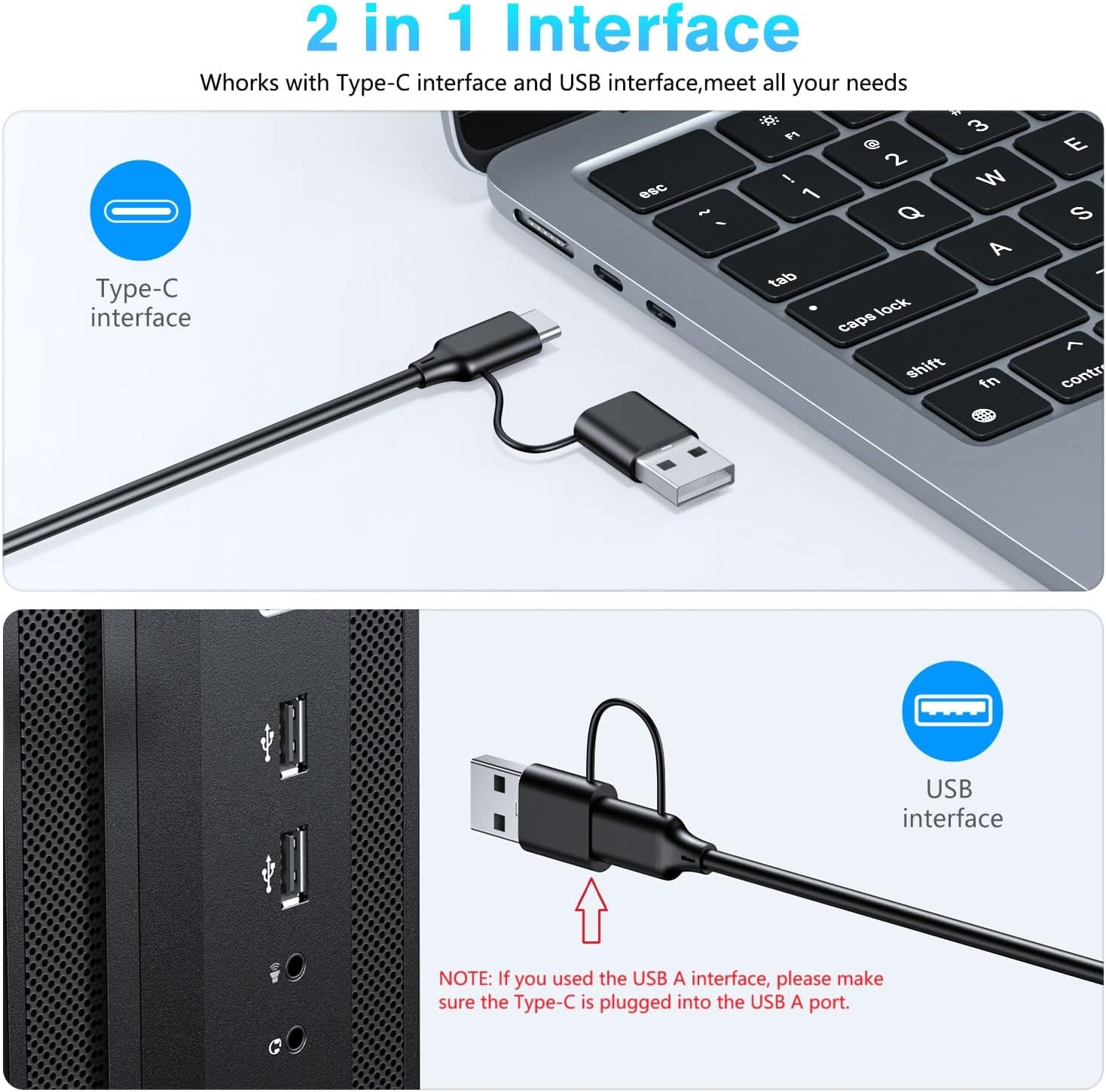
Figure 2: The keyboard's dual Type-C and USB-A interface for versatile connectivity.
- White LED Backlight: Soft and comfortable white LED backlighting enhances key visibility in low-light conditions and helps reduce eye strain during prolonged use.
- Ergonomic Design: Features an 8-degree adjustable tilt stand to provide an optimal wrist angle for comfortable and efficient typing, minimizing fatigue.
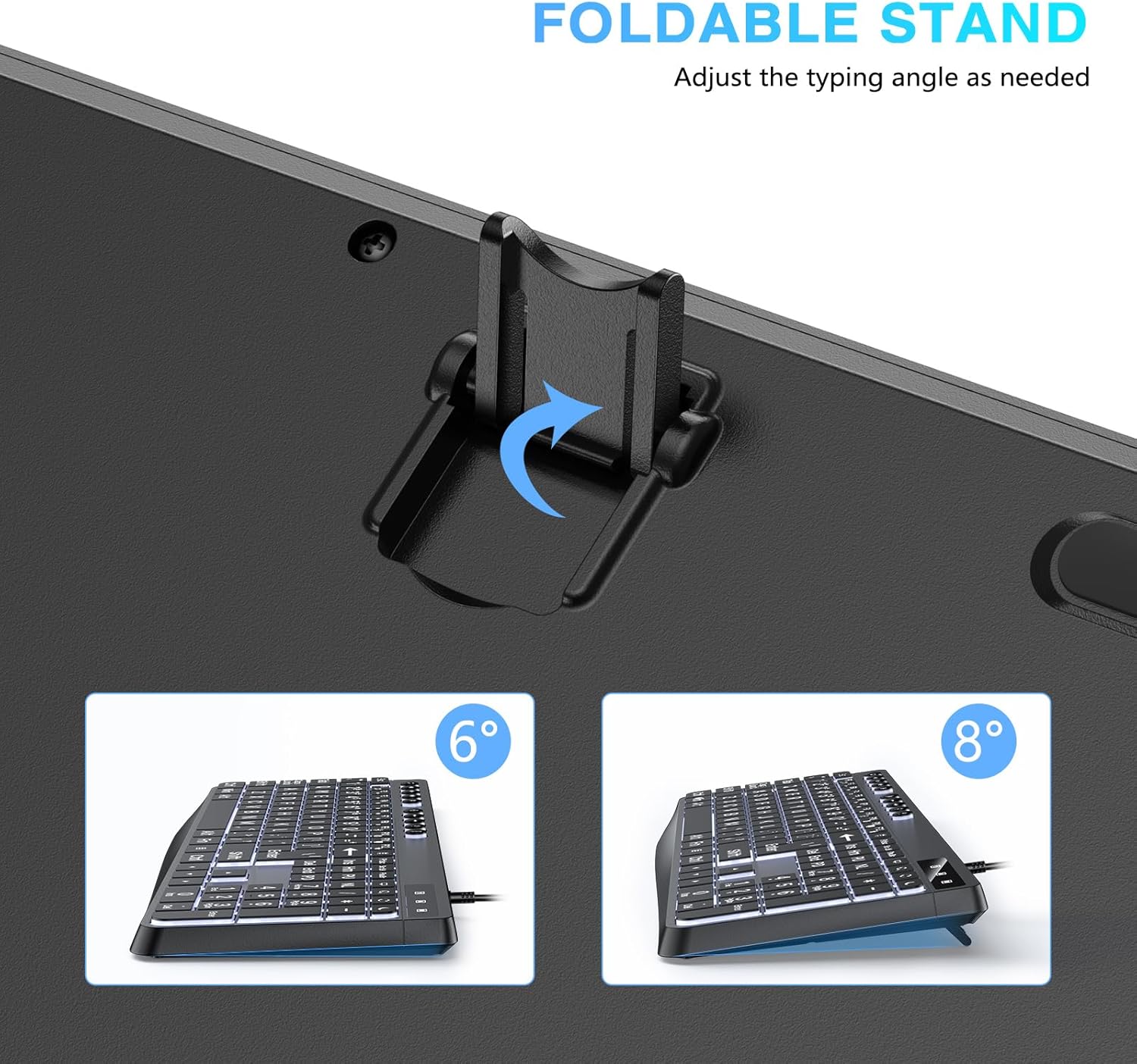
Figure 3: Adjustable foldable stand for ergonomic typing angles.
- Full-Size Layout with Numeric Keypad: Includes a complete set of keys, including a dedicated numeric keypad and multi-function media keys, for convenient and faster data entry and control.
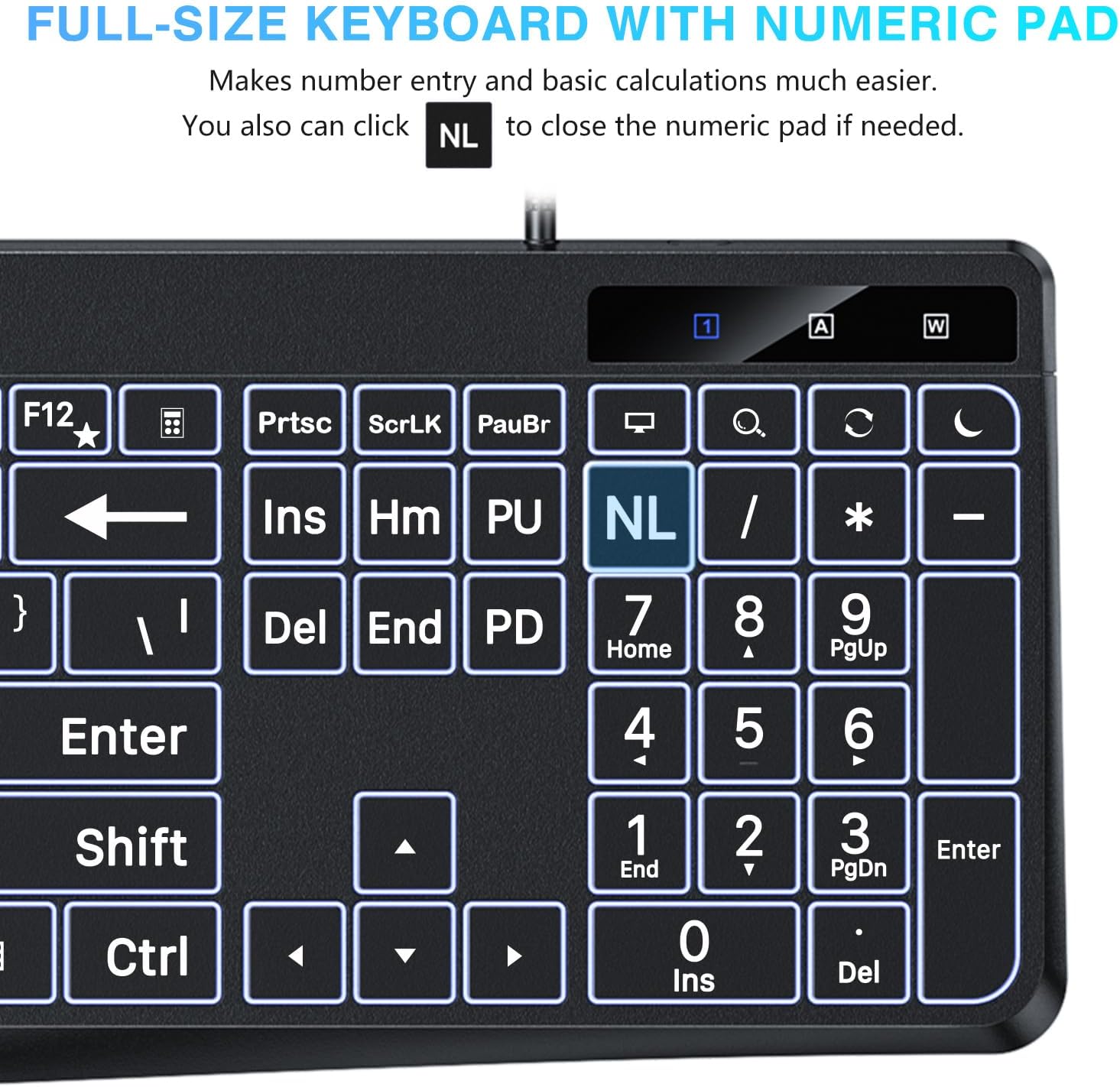
Figure 4: Full-size layout with integrated numeric keypad for efficient data entry.
- Plug and Play: Offers instant and stable wired connection without the need for drivers, charging, or batteries.
Setup
The OMOTON Large Print Wired Keyboard is designed for simple plug-and-play operation. Follow these steps to connect your keyboard:
- Identify the Correct Port: Your keyboard comes with a dual interface cable, featuring both a USB-A connector and a Type-C connector.
- Connect to Your Device:
- If your device has a USB-A port, plug the USB-A connector directly into the port. Ensure the Type-C connector is securely plugged into the USB-A connector's integrated Type-C port.
- If your device has a Type-C port, plug the Type-C connector directly into the port.
- Verify Connection: Once connected, your operating system should automatically detect and install the necessary drivers. The keyboard's backlight will illuminate, indicating a successful connection.

Figure 5: The keyboard's compatibility with various devices using its dual interface.
Operating Instructions
Backlight Control
The keyboard features adjustable white LED backlighting to suit your preference and environment.
- Brightness Adjustment: Use the dedicated brightness control keys (usually located near the function keys, often marked with sun icons or similar) to increase or decrease the backlight intensity. The keyboard supports multiple brightness levels.
- Backlight Modes: Some models may offer different backlight modes (e.g., solid, breathing, reactive). Cycle through these modes using the designated backlight mode key if available. To turn off the backlight, continue cycling through the brightness levels until it deactivates.

Figure 6: Backlight brightness adjustment keys.
Multimedia and Function Keys
The keyboard includes a row of function keys (F1-F12) that also serve as multimedia controls. These functions are typically accessed by pressing the Fn key simultaneously with the desired function key.
| Key Combination | Function |
|---|---|
| Fn + F1 | Music Play |
| Fn + F2 | Play/Pause |
| Fn + F3 | Mute |
| Fn + F4 | Volume Down |
| Fn + F5 | Volume Up |
| Fn + F6 | Home Page |
| Fn + F7 | Return to Previous Folder |
| Fn + F8 | Go to Next Folder |
| Fn + F9 | Backlight Brightness - |
| Fn + F10 | Backlight Brightness + |
| Fn + F11 | My Computer |
| Fn + F12 | Calculator |
| PrtSc | Search |
| ScrLK | Refresh |
| Pause/Break | Sleep |

Figure 7: Multimedia and function key layout.
Maintenance
Proper maintenance will ensure the longevity and optimal performance of your OMOTON Large Print Wired Keyboard.
- Cleaning:
- Disconnect the keyboard from your device before cleaning.
- Use a soft, lint-free cloth slightly dampened with water or a mild, non-abrasive cleaning solution to wipe the keycaps and surface.
- For dust and debris between keys, use compressed air or a small brush.
- Avoid using harsh chemicals, solvents, or abrasive materials, as these can damage the keyboard's finish or key legends.
- Storage: Store the keyboard in a cool, dry place away from direct sunlight and extreme temperatures when not in use for extended periods.
- Handling: Avoid dropping the keyboard or exposing it to excessive force, which can damage internal components or keys.
Troubleshooting
If you encounter issues with your OMOTON Large Print Wired Keyboard, refer to the following common troubleshooting steps:
- Keyboard Not Responding:
- Ensure the USB or Type-C cable is securely plugged into the correct port on your computer.
- Try plugging the keyboard into a different USB or Type-C port on your device.
- Test the keyboard on another computer to determine if the issue is with the keyboard or your device.
- Restart your computer.
- Backlight Not Working or Dim:
- Use the backlight brightness control keys (Fn + F9/F10 or dedicated keys) to increase the brightness.
- Ensure the keyboard is properly connected and receiving power.
- Keys Not Registering or Sticking:
- Clean the affected keys using compressed air to remove any debris that might be causing sticking.
- Ensure the keyboard is on a flat, stable surface.
- Incorrect Characters Typed:
- Check your operating system's keyboard language settings to ensure they match your physical keyboard layout (e.g., US English).
- Restart your computer.
If these steps do not resolve the issue, please contact OMOTON customer support for further assistance.
Specifications
| Feature | Detail |
|---|---|
| Brand | OMOTON |
| Model | B0DHC2Z62F |
| Connectivity Technology | Wired (USB-A, Type-C Dual Interface) |
| Number of Keys | 104 |
| Keyboard Description | Computer Keyboard |
| Special Features | Large Print Keys, White LED Backlight, Ergonomic Design, Multimedia Keys |
| Color | Black |
| Compatible Devices | PC, Laptop, Tablet, Phone (Windows compatible) |
| Item Weight | 1.48 pounds (approx. 0.67 kg) |
| Package Dimensions | 17.52 x 6.73 x 1.22 inches (approx. 44.5 x 17.1 x 3.1 cm) |
| Included Components | 1 x Large Print Wired Keyboard (with Dual Interface), 1 x User Manual |

Figure 8: Keyboard dimensions.
Warranty and Support
OMOTON products are designed for reliability and performance. For specific warranty information regarding your Large Print Wired Keyboard, please refer to the warranty card included in your product packaging or visit the official OMOTON website.
If you require technical assistance, have questions about product features, or need to report an issue, please contact OMOTON customer support through their official channels. Details for contacting support can typically be found on the OMOTON website or in the product packaging.
For the latest information and support resources, please visit: OMOTON Official Store on Amazon
Ask a question about this manual
Ask about setup, troubleshooting, compatibility, parts, safety, or missing instructions. Manuals+ will review the question and use this page’s manual context to help answer it.