
1. Introduction
The Qubo Car Dash Camera Pro GPS (Model HCA02) is designed to record your journeys in Full HD 1080p, providing a reliable witness on the road. Equipped with a 130-degree ultra-wide-angle lens, G-Sensor for emergency recording, and built-in GPS for location logging, this dashcam offers enhanced safety and peace of mind. This manual provides detailed instructions for installation, operation, and maintenance of your device.
2. Package Contents
Please verify that all items are present in your package:
- Dashcam (1 unit)
- Double Sided Adhesive Tape (1 unit)
- Car Charger (1 unit)
- Power Cable (1 unit)
- Pry Tool (1 unit)
- Warranty Card (1 unit)

Image: The Qubo Car Dash Camera Pro GPS with its included accessories: car charger, power cable, adhesive tape, and pry tool.
3. Setup Guide
3.1 Inserting the MicroSD Card
The dashcam supports MicroSD cards up to 256 GB. A high-endurance Class 10 or U3 card is recommended for optimal performance. Insert the MicroSD card into the designated slot until it clicks into place. Ensure the card is inserted correctly to avoid damage.

Image: A MicroSD card, illustrating the type of storage required for the dashcam.
3.2 Mounting the Dashcam
- Clean the windshield area where you intend to mount the dashcam. Ensure it is free of dust and grease.
- Attach the double-sided adhesive tape to the dashcam mount.
- Firmly press the mount onto the chosen spot on your windshield, ensuring a clear view of the road and minimal obstruction to your driving view.
- Adjust the camera angle to capture the desired field of view.
3.3 Power Connection
- Connect the power cable to the dashcam.
- Plug the car charger into your vehicle's 12V power outlet (cigarette lighter socket).
- Route the power cable neatly along the windshield and dashboard using the provided pry tool to tuck it under trim panels, ensuring it does not interfere with driving.

Image: The Qubo Car Dash Camera Pro GPS, showing its compact design and dimensions, suitable for discreet windshield mounting.
3.4 Qubo Pro App Installation and Pairing
- Download the Qubo Pro App from the Apple App Store (iOS) or Google Play Store (Android).
- Turn on your vehicle's ignition to power the dashcam.
- Open the Qubo Pro App on your smartphone and follow the on-screen instructions to connect to the dashcam via Wi-Fi. The app will guide you through the pairing process.
- Once connected, you can access live footage, review recordings, and adjust settings.

Image: The Qubo Car Dash Camera Pro GPS positioned next to a smartphone displaying the Qubo Pro App interface, showing live view and map data.
4. Operating Instructions
4.1 Automatic Recording
The dashcam automatically powers on and begins recording when your vehicle's ignition is turned on. It will automatically power off shortly after the ignition is turned off.
4.2 Loop Recording
The dashcam utilizes loop recording, continuously recording video in short segments (e.g., 1, 3, or 5 minutes). When the MicroSD card is full, the oldest unprotected files are automatically overwritten by new recordings. This ensures uninterrupted recording without manual deletion.
4.3 Emergency Recording (G-Sensor)
The built-in G-Sensor detects sudden impacts or collisions. When an event is detected, the current recording segment is automatically locked and saved to a protected folder on the MicroSD card, preventing it from being overwritten by loop recording. These files are crucial for accident evidence.
4.4 GPS Logging
The integrated GPS module records your vehicle's speed, location, and route data. This information is embedded in the video files and can be viewed via the Qubo Pro App, providing valuable context for your recordings.
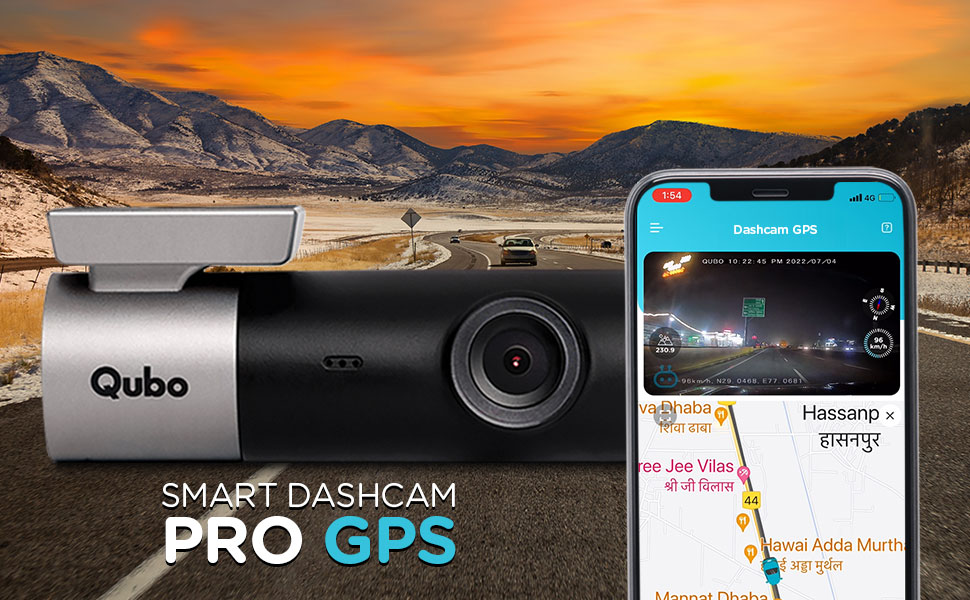
Image: A dashcam view of a road with an overlay showing GPS coordinates, speed, and distance, indicating the built-in GPS logging feature.
4.5 Qubo Pro App Functions
The Qubo Pro App provides comprehensive control and access to your dashcam's features:
- Live Feed: View real-time video from your dashcam on your smartphone.
- Video Playback & Download: Access recorded videos, play them back, and download important clips directly to your phone.
- Settings: Adjust various dashcam settings, including video resolution, G-Sensor sensitivity, and Wi-Fi password.
- Journey Time-Lapse: Create condensed time-lapse videos of your entire drives.
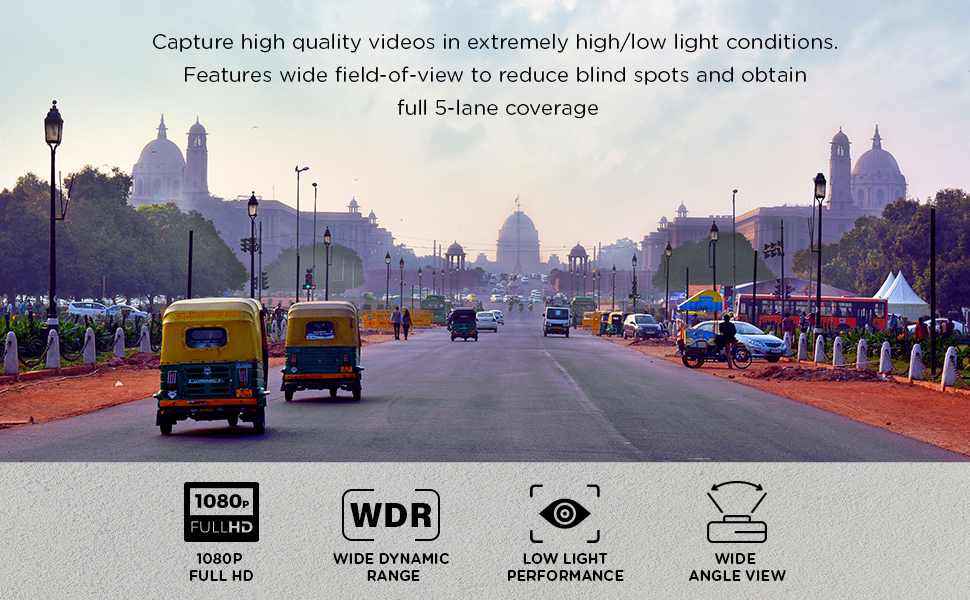
Image: The Qubo Dashcam Pro GPS shown alongside a smartphone displaying the Qubo Pro App, which features a live video feed and a map with route tracking.
5. Key Features
- 1080p Full HD Clarity: Records clear and detailed footage with a 2-megapixel lens.
- 130° Ultra-Wide Angle: Provides extensive road coverage, capturing multiple lanes.
- NightPulse Vision: Features 3D DNR (Digital Noise Reduction) and WDR (Wide Dynamic Range) for enhanced performance in low-light and nighttime conditions.
- Supercapacitor Powered: Designed without a lithium battery, using a supercapacitor for improved durability and resistance to extreme temperatures (-20°C to 85°C), preventing swelling or failure in harsh climates.
- Expandable Storage: Supports MicroSD cards up to 256 GB for extensive recording capacity. Note: While some promotional materials may indicate 1TB support, the official specifications confirm support up to 256 GB.

Image: A split image demonstrating the superior low-light performance of the dashcam with Wide Dynamic Range (WDR) enabled compared to when it is off.

Image: A visual guide indicating various brands and capacities of MicroSD cards that are compatible and incompatible with Qubo Dashcams, highlighting supported storage up to 1TB in this graphic.
6. Maintenance
6.1 MicroSD Card Management
Regularly format your MicroSD card (at least once a month) using the Qubo Pro App or directly on a computer. This helps maintain card health and prevents data corruption. Back up any important recordings before formatting.
6.2 Cleaning the Dashcam
Use a soft, dry cloth to clean the dashcam lens and body. Avoid using abrasive cleaners or solvents, which can damage the device. Ensure the lens is clean for optimal video clarity.
7. Troubleshooting
| Problem | Possible Cause | Solution |
|---|---|---|
| Dashcam does not power on. | No power from car charger; faulty cable; loose connection. | Check car charger connection and vehicle's 12V outlet. Ensure power cable is securely connected to dashcam and charger. Test charger with another device if possible. |
| Recording stops or footage is corrupted. | MicroSD card full; incompatible or faulty MicroSD card; card not formatted. | Format the MicroSD card regularly. Ensure you are using a high-endurance Class 10 or U3 MicroSD card. Replace the MicroSD card if issues persist. |
| Wi-Fi connectivity issues with Qubo Pro App. | Incorrect Wi-Fi password; interference; app malfunction. | Ensure correct Wi-Fi password. Restart both dashcam and smartphone. Reinstall the Qubo Pro App. Move away from other Wi-Fi sources. |
| Video quality is poor or blurry. | Dirty lens; protective film still on lens; incorrect resolution settings. | Clean the dashcam lens with a soft cloth. Remove any protective film. Check video resolution settings in the Qubo Pro App and ensure it is set to 1080p. |
| GPS data is inaccurate or not recorded. | Poor GPS signal; dashcam mounted in an obstructed location. | Ensure the dashcam has a clear view of the sky. Avoid mounting near metallic objects or tinted areas that might block GPS signals. |
8. Specifications
| Feature | Detail |
|---|---|
| Brand | Qubo |
| Model Name | Dashcam Pro GPS |
| Model Number | HCA02 |
| Video Capture Resolution | 1080p Full HD |
| Field Of View | 130 Degrees (Ultra-Wide Angle) |
| Connectivity Technology | USB, Wi-Fi |
| Special Features | App Control, Built-In GPS, G-Sensor, NightPulse Vision (3D DNR + WDR), Supercapacitor |
| Mounting Type | Windshield Mount |
| Max Flash Memory Supported Size | 256 GB |
| Frame Rate | 30 FPS |
| Control Method | App |
| Power Source | Car Charger (Supercapacitor for power stability) |
| Item Dimensions (D x W x H) | 7D x 14W x 11H Centimeters |
| Item Weight | 300 Grams |
| Manufacturer | Hero Electronix Pvt. Ltd. |
9. Warranty and Support
9.1 Warranty Information
The Qubo Car Dash Camera Pro GPS comes with a 1-Year Manufacturer's Warranty from the date of purchase. Please retain your purchase receipt for warranty claims. The warranty covers manufacturing defects but does not cover damage caused by misuse, accidents, unauthorized repairs, or normal wear and tear.
9.2 Customer Support
For any technical assistance, troubleshooting, or warranty-related queries, please contact Qubo customer support:
- Toll-free helpline number: 9319095757
- Refer to the official Qubo website for the latest support information and resources.


