
KEJOG Projector With Wifi and Bluetooth
KEJOG Mini Projector User Manual
Model: Projector With Wifi and Bluetooth
1. Introduction
This manual provides detailed instructions for the setup, operation, and maintenance of your KEJOG Mini Projector. Designed for versatility, this projector features native 1080P Full HD resolution with 4K support, a 360° adjustable stand, electric focus, auto keystone correction, and dual Bluetooth 5.2 connectivity, making it ideal for various entertainment and presentation needs.
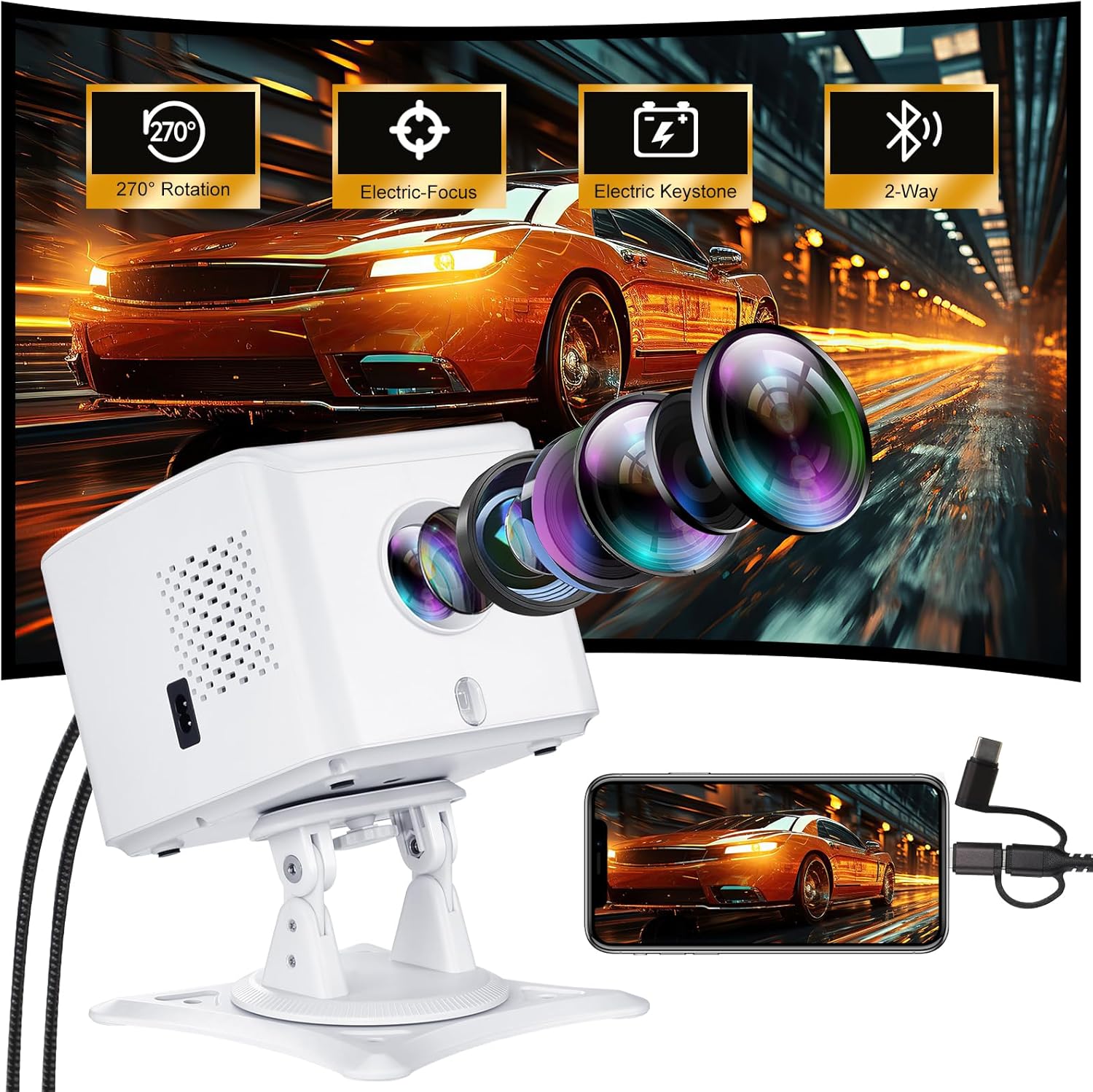
Image: The KEJOG Mini Projector, showcasing its lens, adjustable stand, and connectivity options, alongside a smartphone mirroring its display.
2. What's in the Box
Please check the package contents upon unboxing to ensure all items are present:
- KEJOG Mini Projector
- Remote Control
- Power Cable
- User Manual (this document)
- HDMI Cable
- Projector Screen
Note: TV stick is not included.
3. Product Features
- Native 1080P Full HD & 4K Support: Experience true 1920×1080 resolution with a 10,000:1 contrast ratio for sharp images and vivid colors. Supports up to 4K content for enhanced viewing.
- Large Screen Projection: Adjustable screen size from 40 to 200 inches, with a throw distance of 4.9 to 16.4 feet, allowing for flexible setup in various environments.
- 360° Rotating Stand: The triangular stand allows for 270° rotation, enabling projection onto walls, ceilings, or floors for versatile viewing angles.

Image: The projector positioned at various angles (0°, 90°, 180°) to demonstrate its 270° adjustable projection capability.
- Electric Auto-Focus & Keystone Correction: Adjust clarity and correct image distortion effortlessly from the remote control. Features ±15° vertical keystone correction and 50% zoom.
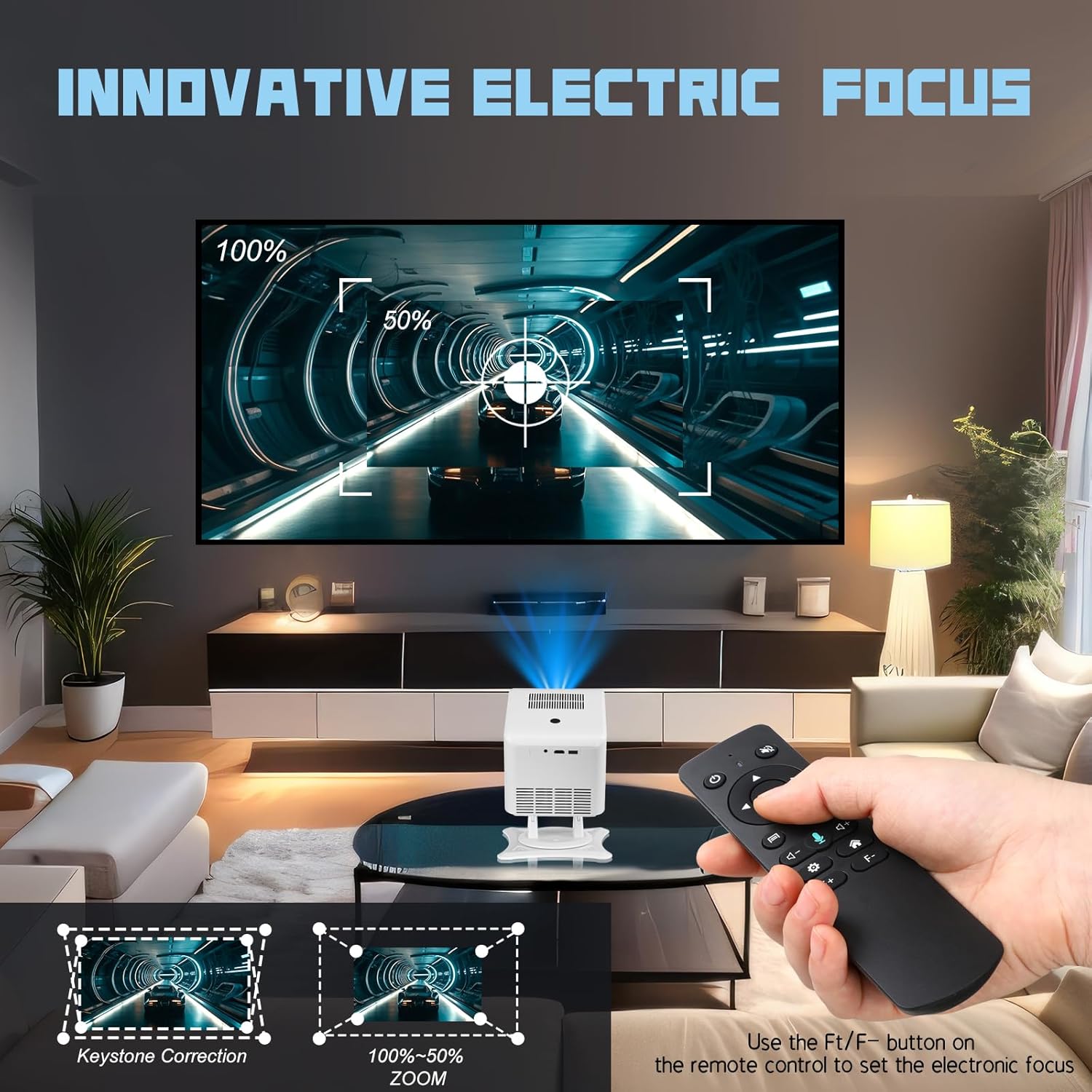
Image: A hand holding the remote control, demonstrating the use of the F+/F- button to set the electronic focus and zoom, with an image showing keystone correction.

Image: The projector projecting an image with automatic obstacle avoidance and automatic keystone correction features highlighted.
- Dual-Bluetooth 5.2 & Hi-Fi Sound: Bidirectional Bluetooth allows the projector to function as a standalone speaker or connect to external headphones/soundbars. Built-in stereo speakers provide room-filling sound.

Image: The projector illustrating its two-way Bluetooth capability, connecting to a smartphone for audio input and to external speakers for audio output.
- Universal Compatibility: Equipped with HDMI, USB, and 3.5mm ports for connecting TV sticks, gaming consoles (PS5/Xbox), laptops, and USB drives.
- Wireless Screen Mirroring: Supports screen mirroring for iOS and Android devices, allowing for cable-free sharing of content.
- Long Lamp Life: The projector lamp is designed to last up to 100,000 hours, significantly longer than conventional lamps, ensuring extended use and durability.

Image: A visual representation highlighting the projector's lamp life of up to 100,000 hours.
4. Setup
4.1 Placement
Position the projector on a stable, flat surface. Utilize the 360° rotating stand to adjust the projection angle as needed. You can project onto a wall, ceiling, or dedicated screen.
4.2 Power Connection
- Connect the power cable to the projector's power input port.
- Plug the other end of the power cable into a standard electrical outlet.
- The projector will power on or enter standby mode.
4.3 Focus and Keystone Adjustment
After powering on, the projector will automatically adjust focus and keystone. If further adjustments are needed:
- Use the remote control to fine-tune the electric focus (F+/F- buttons) for a clear image.
- The projector features automatic keystone correction. If manual adjustment is required, navigate to the settings menu using the remote.
5. Operating Instructions
5.1 Power On/Off
- Power On: Press the power button on the projector or the remote control.
- Power Off: Press the power button again. Confirm shutdown if prompted.
5.2 Input Source Selection
Use the 'Source' button on the remote control to cycle through available input options (HDMI, USB, Screen Mirroring).
5.3 Menu Navigation
Use the arrow keys and 'OK' button on the remote control to navigate through the projector's on-screen menu for settings adjustments.
6. Connectivity
6.1 HDMI Connection
Connect devices such as TV sticks, gaming consoles, or laptops using an HDMI cable to the projector's HDMI port.

Image: The projector connected to various devices including a PS5, PC, phone, and TV Box Fire Stick, illustrating its broad compatibility.

Image: The projector displaying content from a TV Box Fire Stick, with a smartphone connected for screen mirroring.
Note: For streaming services like Netflix, Hulu, or Amazon Prime, an external TV stick (not included) is required due to HDCP copyright restrictions. Direct screen mirroring from a laptop for these services may also require an HDMI cable.
6.2 USB Connection
Insert a USB drive into the projector's USB port to play media files directly.
6.3 Bluetooth Connection
The projector supports dual-Bluetooth 5.2. You can:
- Connect your phone/tablet to the projector to use the projector as a standalone Bluetooth speaker.
- Pair the projector with external Bluetooth headphones or soundbars for enhanced audio output.

Image: The projector wirelessly connected via Bluetooth to an external speaker, projecting a movie scene.
6.4 Wireless Screen Mirroring (iOS/Android)
To mirror your smartphone or tablet screen wirelessly:
- Select the 'Screen Mirroring' input source on the projector.
- Follow the on-screen instructions to connect your iOS or Android device. This typically involves connecting both devices to the same Wi-Fi network.

Image: A diagram illustrating wired connection methods for smartphones to the projector, including an Apple phone with a data cable and an Android phone with an HDMI cable (adapter not included).
7. Maintenance
7.1 Cleaning the Lens
Gently wipe the projector lens with a soft, lint-free cloth specifically designed for optical surfaces. Do not use abrasive cleaners or excessive force.
7.2 General Cleaning
Wipe the exterior of the projector with a soft, dry cloth. Avoid using liquid cleaners directly on the device.
7.3 Storage
When not in use, store the projector in a cool, dry place away from direct sunlight and extreme temperatures. Use the original packaging or a protective case to prevent dust accumulation.
8. Troubleshooting
8.1 No Picture
- Ensure the power cable is securely connected and the projector is powered on.
- Verify the correct input source is selected (HDMI, USB, Screen Mirroring).
- Check the connection cable (HDMI, USB) for damage and ensure it is properly seated.
- Adjust the focus using the remote control.
8.2 No Sound
- Increase the volume on the projector and the connected device.
- Check if external speakers or headphones are connected via Bluetooth; if so, ensure they are powered on and paired correctly.
- Verify that the audio output settings on your connected device are configured correctly.
8.3 Image is Distorted/Not Rectangular
- Utilize the electric keystone correction feature via the remote control to adjust the image shape.
- Ensure the projector is placed as perpendicular to the projection surface as possible.
8.4 Cannot Connect via Screen Mirroring
- Ensure both the projector and your mobile device are connected to the same Wi-Fi network.
- Restart both the projector and your mobile device.
- Some streaming apps (Netflix, Prime Video) require a TV stick due to copyright protection (HDCP).
9. Specifications
| Feature | Specification |
|---|---|
| Brand | KEJOG |
| Model Number | Projector With Wifi and Bluetooth |
| Display Resolution | 1920 x 1080 (Native 1080P, 4K Supported) |
| Contrast Ratio | 10,000:1 |
| Connectivity Technology | 3.5mm Jack, Bluetooth, HDMI, USB |
| Special Features | Built-In Speaker, Lightweight, Portable, 360° Adjustable Stand, Electric Focus, Auto Keystone |
| Item Weight | 2.42 pounds |
| Product Dimensions | 8.15 x 7.2 x 3.94 inches |
| Color | White |
| Lamp Life | Up to 100,000 hours |
10. Warranty and Support
Your KEJOG Mini Projector comes with a 1-year replacement warranty. We also offer lifetime technical support with 24/7 customer service and free firmware updates. For any inquiries or assistance, please contact KEJOG customer service.
Related documentsProjector With Wifi and Bluetooth

Ask a question about this manual
Ask about setup, troubleshooting, compatibility, parts, safety, or missing instructions. Manuals+ will review the question and use this page’s manual context to help answer it.