
ZTE G5B
ZTE G5B 5G WiFi6 Wireless Home Router User Manual
Model: G5B
Introduction
This manual provides detailed instructions for setting up, operating, and maintaining your ZTE G5B 5G WiFi6 Wireless Home Router. Please read this manual carefully before using the device to ensure optimal performance and safety. The ZTE G5B is a high-performance router designed to provide fast and reliable internet connectivity for your home or small office, leveraging advanced 5G and WiFi6 technologies.
Package Contents
Verify that all items are present in your package:
- 1x ZTE G5B Router
- 1x Power Adapter
- 1x Ethernet Cable
- 1x Quick Start Guide
Product Overview
The ZTE G5B router features a minimalist design with essential indicators and ports for easy operation.

Figure 1: Front view of two ZTE G5B routers, showcasing their sleek, white design.
Front Panel Indicators
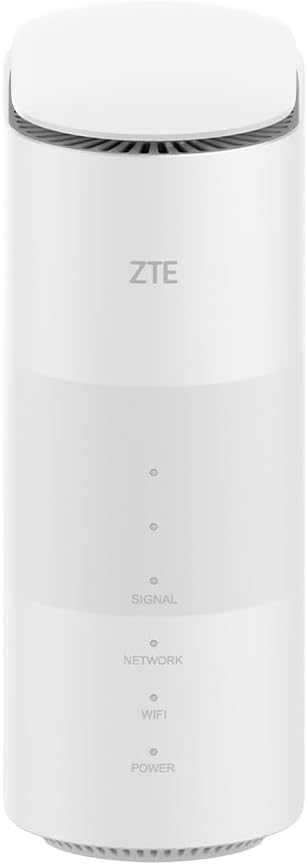
Figure 2: Close-up of the ZTE G5B front panel, highlighting the LED indicators.
- SIGNAL: Indicates the strength of the 5G/4G cellular signal. More illuminated dots mean stronger signal.
- NETWORK: Indicates the status of the cellular network connection (e.g., connected to 5G, 4G, or no service).
- WIFI: Indicates the status of the Wi-Fi network (on/off, activity).
- POWER: Indicates the power status of the device (on/off).
Rear Panel and Ports

Figure 3: Various views of the ZTE G5B, showing all sides and port locations.
- WPS Button: For quick and secure Wi-Fi connection to compatible devices.
- PHONE Port: For connecting a telephone for VOIP/VOLTE services.
- LAN Ports (x2): Ethernet ports for wired connections to computers, gaming consoles, or other network devices.
- Power Port: For connecting the provided power adapter.
- SIM Card Slot: Located typically at the bottom or rear, for inserting a Nano SIM card.
- Reset Button: A small pinhole button to restore factory default settings.
Setup Guide
The ZTE G5B router is designed for plug-and-play operation, requiring minimal configuration.
- Insert SIM Card: Locate the Nano SIM card slot, usually at the bottom or rear of the device. Insert your activated Nano SIM card into the slot until it clicks into place. Ensure the SIM card is oriented correctly as indicated by the diagram near the slot.
- Connect Power: Connect the provided power adapter to the router's power port and then plug the adapter into a standard wall outlet.
- Power On: The router will automatically power on. Wait for the indicator lights on the front panel to stabilize. The Power, Network, and WiFi indicators should illuminate, indicating successful startup and network connection.
- Connect Devices:
- Wireless Connection: On your Wi-Fi enabled device (laptop, smartphone, tablet), search for available Wi-Fi networks. Select the network name (SSID) printed on the label at the bottom of the router. Enter the Wi-Fi password (Key) also found on the label.
- Wired Connection: For a stable and high-speed connection, connect an Ethernet cable from one of the LAN ports on the router to the Ethernet port on your computer or other network device.
- Access Internet: Once your device is connected, it should automatically gain internet access. You can now browse the web, stream content, and use online applications.
Operating Instructions
Connecting Multiple Devices
The ZTE G5B router is designed to support up to 64 Wi-Fi compatible devices simultaneously. This includes a wide range of devices such as laptops, tablets, smartphones, smart TVs, gaming consoles, and various smart home devices.
5G Connectivity
The router leverages the high-speed 5G network to deliver internet speeds of up to 3.4 Gbps. For optimal 5G performance, ensure your SIM card supports 5G and that the router is placed in an area with strong 5G network coverage.
Integrated Antenna System
Equipped with 10 integrated omni-LTE/NR antennas and 2 omni-Wi-Fi antennas, the ZTE G5B is engineered to enhance signal reception and extend Wi-Fi coverage throughout your premises, minimizing dead zones.
VOIP and VOLTE Support
The router supports Voice over Internet Protocol (VOIP) and Voice over LTE (VOLTE), enabling advanced calling features and the use of multiple voice accounts, offering a modern alternative to traditional landline services over a high-speed wireless connection.
Secure Network and Parental Control
The ZTE G5B provides robust network security with WPA-PSK and WPA2-PSK encryptions to protect your network from unauthorized access. Additionally, the integrated parental control feature allows you to manage and restrict internet access for specific devices, ensuring a safe online environment for children. Configuration options for parental control are available through the router's web management interface.
Preferred Position Function
This function assists users in identifying the optimal placement for the router within their environment to achieve the best possible signal reception and network performance.
Network Modes
The router supports various operational modes, including broadband mode, wireless bridge mode, and wired bridge mode, providing flexibility to integrate into different network infrastructures.
Maintenance
- Cleaning: Use a soft, dry cloth to clean the exterior of the router. Do not use liquid cleaners, aerosols, or harsh chemicals, as these can damage the device.
- Ventilation: Ensure the router is placed in a well-ventilated area. Do not block the ventilation openings on the device, as proper airflow is crucial to prevent overheating and maintain performance.
- Firmware Updates: Periodically check the official ZTE website for available firmware updates. Keeping your router's firmware up-to-date ensures you have the latest features, security patches, and performance improvements.
- Restarting: If you experience network issues such as slow speeds or disconnections, a simple restart can often resolve the problem. Unplug the power adapter from the router, wait for approximately 10 seconds, and then plug it back in.
Troubleshooting
This section addresses common issues you might encounter with your ZTE G5B router.
| Problem | Possible Cause | Solution |
|---|---|---|
| No Internet connection | SIM card not inserted correctly or not activated; no 5G/4G signal; router not powered on. | Ensure SIM card is properly inserted and active. Check signal strength indicators on the front panel. Verify power connection. Restart the router. |
| Frequent disconnections | Weak cellular signal; network congestion; router overheating; outdated firmware. | Relocate the router to an area with better signal reception. Ensure proper ventilation. Check for and install firmware updates. Consider setting up automatic nightly reboots if supported by the router's web interface. |
| Slow internet speed | Weak signal; too many connected devices; network congestion; incorrect router placement. | Move the router to an optimal location. Disconnect unused devices. Check your internet plan speed with your service provider. |
| Cannot access router web interface | Incorrect IP address or login credentials; device not connected to router's network. | Ensure your device is connected to the router's Wi-Fi or via Ethernet. Use the default IP address (e.g., 192.168.1.1) and credentials found on the router label. Try clearing your browser's cache. |
| Parental control not working as expected | Incorrect settings; device not properly identified in settings. | Review parental control settings in the router's web interface. Ensure the correct devices are selected for restrictions and that schedules are set accurately. |
Specifications
| Feature | Detail |
|---|---|
| Brand | ZTE |
| Model Name | G5B |
| Item Model Number | MC801A |
| Color | White |
| Connectivity Technology | 5G |
| Wireless Communication Standard | 802.11ax (WiFi6) |
| Frequency Band Class | Dual Band |
| Frequency | 5 GHz (and 2.4 GHz for dual band operation) |
| Special Features | Unlocked, Connects 64 devices, WPA-PSK and WPA2-PSK encryptions, VOIP and VOLTE support, Integrated antennas |
| Compatible Devices | Smart thermostat, Printer, Smartphone, Surveillance camera, Gaming console, Personal computer, Tablet, Smart television |
Warranty and Support
The ZTE G5B router comes with a 2-year warranty from the date of purchase, covering manufacturing defects and malfunctions under normal use. For technical assistance, troubleshooting, or any questions regarding your device, please contact the ZTE technical support team. Refer to the quick start guide included in your package or visit the official ZTE website for detailed contact information and support resources.
Related documentsG5B


Ask a question about this manual
Ask about setup, troubleshooting, compatibility, parts, safety, or missing instructions. Manuals+ will review the question and use this page’s manual context to help answer it.