
1. Product Overview
The KKB 4G LTE Cellular Security Camera (Model CD-01) is designed for surveillance in locations without Wi-Fi access, relying on a 4G LTE cellular network connection. This camera requires a continuous power supply and is suitable for both indoor and outdoor environments. Key features include 24/7 continuous recording, 2K resolution with color night vision, PIR motion detection, two-way audio communication, and a wide 360-degree viewing capability.

Image 1.1: The KKB 4G LTE Cellular Security Camera (Model CD-01) in white, featuring dual antennas and a built-in 4G SIM card icon.
2. What's in the Box
Please verify that all components are present:
- 1 x KKB 4G LTE Cellular Security Camera
- 1 x User Manual
- 1 x Set of Installation Accessories (screws, wall plugs)
3. Setup Guide
3.1 Power Connection
Connect the camera to a power source using the provided Type-C cable and a 5V/2A power adapter. The camera requires continuous power for operation.
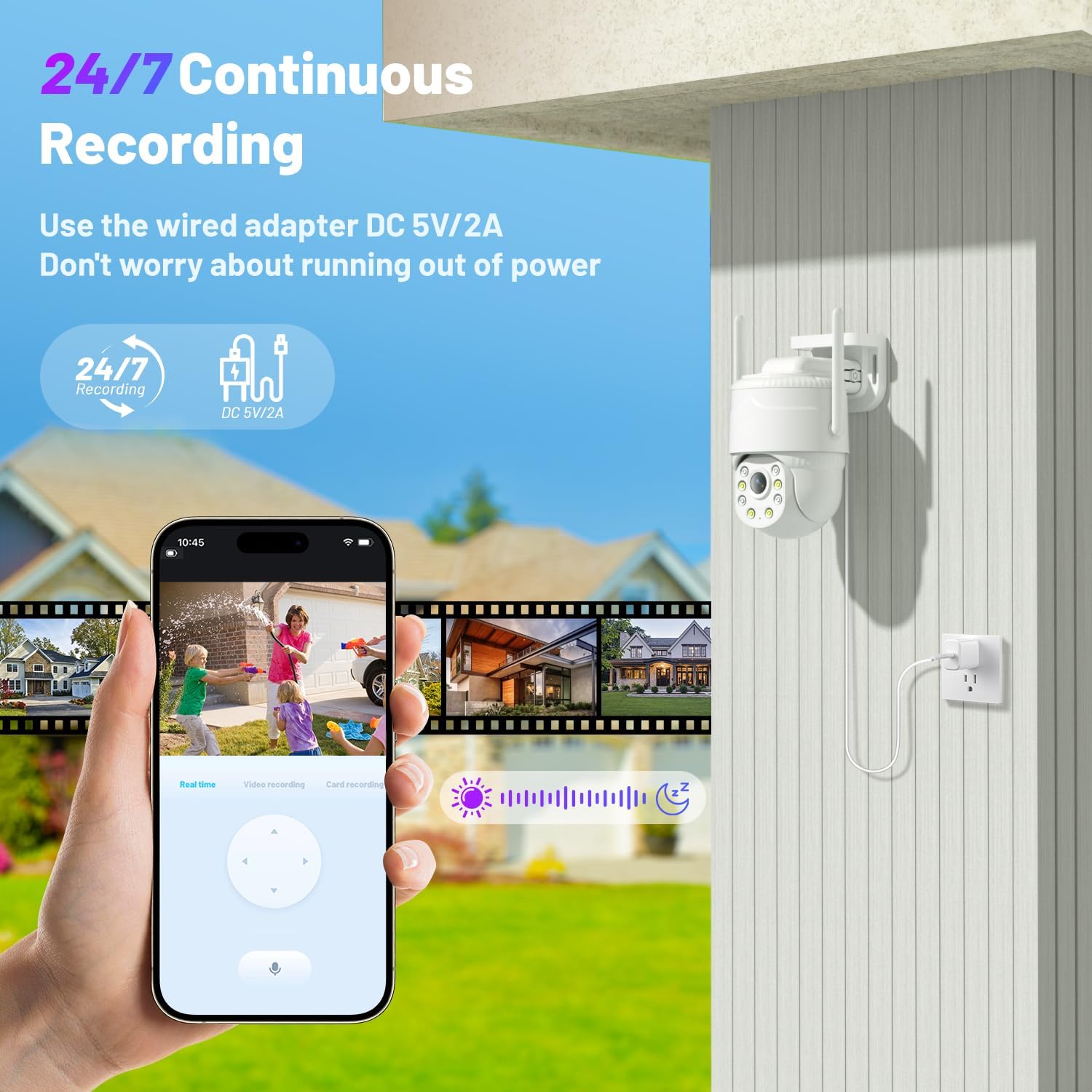
Image 3.1: The KKB camera connected to a power outlet, illustrating its 24/7 continuous recording capability.
3.2 SIM Card Activation and Data Plan
The camera features a built-in, non-removable SIM card. It automatically recognizes and connects to Verizon, AT&T, and T-Mobile networks. An initial 300MB of prepaid data is included. Data plans can be renewed through the iCam365 application.

Image 3.2: Details on the camera's built-in SIM card, network compatibility (AT&T, T-Mobile, Verizon), and data plan renewal options.
3.3 App Installation
Download the "iCam365" application from your smartphone's app store (available for Android and iOS devices).
3.4 Camera Pairing
Open the iCam365 app and follow the on-screen instructions to register an account and add your camera. This typically involves scanning a QR code located on the camera unit.
3.5 Micro SD Card Installation (Optional)
For local video storage, insert a Micro SD card (up to 128GB, not included) into the designated slot on the camera. Ensure the camera is powered off before inserting or removing the card.
3.6 Mounting
The camera supports both wall and ceiling mount installations. Use the provided installation accessories to securely attach the camera. Choose a location with a clear field of view and adequate cellular signal strength.

Image 3.3: Illustration of the two installation methods: wall mount and ceiling mount, providing flexibility for optimal viewing angles.
4. Operating Instructions
4.1 Live View and Remote Control
Access the live video feed from your camera through the iCam365 app. Use the app's controls to remotely pan the camera 355° horizontally and tilt it 90° vertically, providing comprehensive coverage of the monitored area.

Image 4.1: A smartphone screen demonstrating the 355° pan and 90° tilt functionality of the camera, allowing for remote adjustment of the viewing angle.
4.2 Continuous Recording and Storage
When continuously powered, the camera records 24/7. Video footage can be stored locally on an inserted Micro SD card (up to 128GB) or uploaded to optional cloud storage services, accessible via the iCam365 app.

Image 4.2: The camera's 24/7 continuous recording feature, highlighting options for both SD card and cloud storage.
4.3 Motion Detection and Alerts
The camera's sensitive PIR sensor detects movement from people or animals. Upon detection, the system sends immediate push notifications to your mobile device. Configurable options include activating a 90dB siren and motion-activated spotlights to deter unwanted activity.

Image 4.3: Illustration of the intelligent motion detection system, showing push alerts, siren activation, motion spotlights, and two-way talk functionality.
4.4 Night Vision Modes
The camera offers 2K color night vision in low-light conditions. In complete darkness, it automatically switches to infrared night vision to ensure continuous monitoring.

Image 4.4: Comparison of the camera's 2K color night vision mode and infrared night mode, demonstrating clear visibility in various lighting conditions.
4.5 Two-Way Audio
Engage in real-time two-way communication through the iCam365 app. This feature allows you to speak to individuals near the camera and hear their responses.
5. Maintenance
- Cleaning: Regularly clean the camera lens and exterior housing with a soft, dry cloth to prevent dust and smudges from affecting image clarity. Do not use harsh chemicals or abrasive materials.
- Power Supply Check: Periodically inspect the power cable and adapter for any signs of wear or damage. Ensure connections are secure.
- Firmware Updates: Check the iCam365 app for available firmware updates. Keeping your camera's firmware up-to-date ensures optimal performance, security, and access to new features.
- Data Plan Management: Monitor your cellular data usage through the iCam365 app and renew your data plan as necessary to avoid service interruptions.
6. Troubleshooting
- No Network Connection:
- Ensure the camera is powered on.
- Verify that the built-in SIM card has an active data plan.
- Check the cellular signal strength in the camera's installation location.
- Restart the camera by unplugging and re-plugging the power cable.
- No Recording:
- If using local storage, confirm a Micro SD card is properly inserted and not full. Format the card if necessary (backup data first).
- If using cloud storage, verify your subscription status.
- Ensure continuous recording is enabled in the iCam365 app settings.
- Motion Detection Not Working:
- Adjust PIR sensitivity settings within the iCam365 app.
- Ensure there are no physical obstructions blocking the camera's view or the PIR sensor.
- Check notification settings on your smartphone and within the iCam365 app to ensure alerts are enabled.
- Poor Image Quality:
- Clean the camera lens.
- Ensure adequate ambient lighting for optimal color night vision.
- Check for any obstructions in the camera's field of view.
- App Connectivity Issues:
- Ensure your smartphone has a stable internet connection.
- Update the iCam365 app to the latest version.
- Restart the iCam365 app or your smartphone.
7. Specifications
| Feature | Specification |
|---|---|
| Model Number | CD-01 |
| Connectivity Technology | 4G LTE Cellular |
| Indoor/Outdoor Usage | Indoor, Outdoor |
| Power Source | Corded Electric (5V, 15W) |
| Video Capture Resolution | 2K |
| Night Vision Range | 50 Feet |
| Special Features | 2-Way Audio, Built-In Light, Motion Sensor, Night Vision |
| Controller Type | Android, iOS (via iCam365 App) |
| Mounting Type | Wall Mount |
| Flash Memory Supported Size Maximum | 128 GB (Micro SD) |
| International Protection Rating | IP65 (Water Resistant) |
| Item Dimensions (L x W x H) | 4.1 x 4.9 x 4.9 inches |
| Item Weight | 1.1 pounds |
8. Warranty and Support
KKB provides professional technical support for its products. For assistance with your KKB 4G LTE Cellular Security Camera, please utilize the following support channels:
- Technical Support: Enjoy 7x24 hours professional technical support.
- Contact Methods: Reach out via the in-app online contact feature or email.

Image 8.1: KKB customer support team ready to provide multi-channel and 24/7 technical assistance.