
Introduction
The Starlink Mini Kit is a compact, dual-band AC Wi-Fi router and satellite dish system designed to provide high-speed portable internet for remote and mobile use. This kit delivers downstream speeds of over 100 Mbps, making it ideal for streaming, video conferencing, and various online activities. Its compact and lightweight design allows for easy portability, fitting into a backpack for on-the-go connectivity.
Whether you are in nature, in a vehicle, or in a remote area, the Starlink Mini Kit ensures fast and stable internet access. It features a built-in Wi-Fi router to connect multiple devices simultaneously and boasts low power consumption, perfect for extended battery life situations.
What's in the Box
Your Starlink Mini Kit includes all necessary components for immediate setup and operation:
- Starlink Mini Satellite Dish (Antenna): The primary unit for receiving satellite signals.
- Integrated Kickstand: A foldable stand attached to the dish for easy deployment on flat surfaces.
- Power Supply/Adapter: Connects the dish to a power source.
- DC Power Cable: Used to connect the dish to the power supply.

Figure 1: All components of the Starlink Mini Kit laid out, including the satellite dish, power supply, and cables.
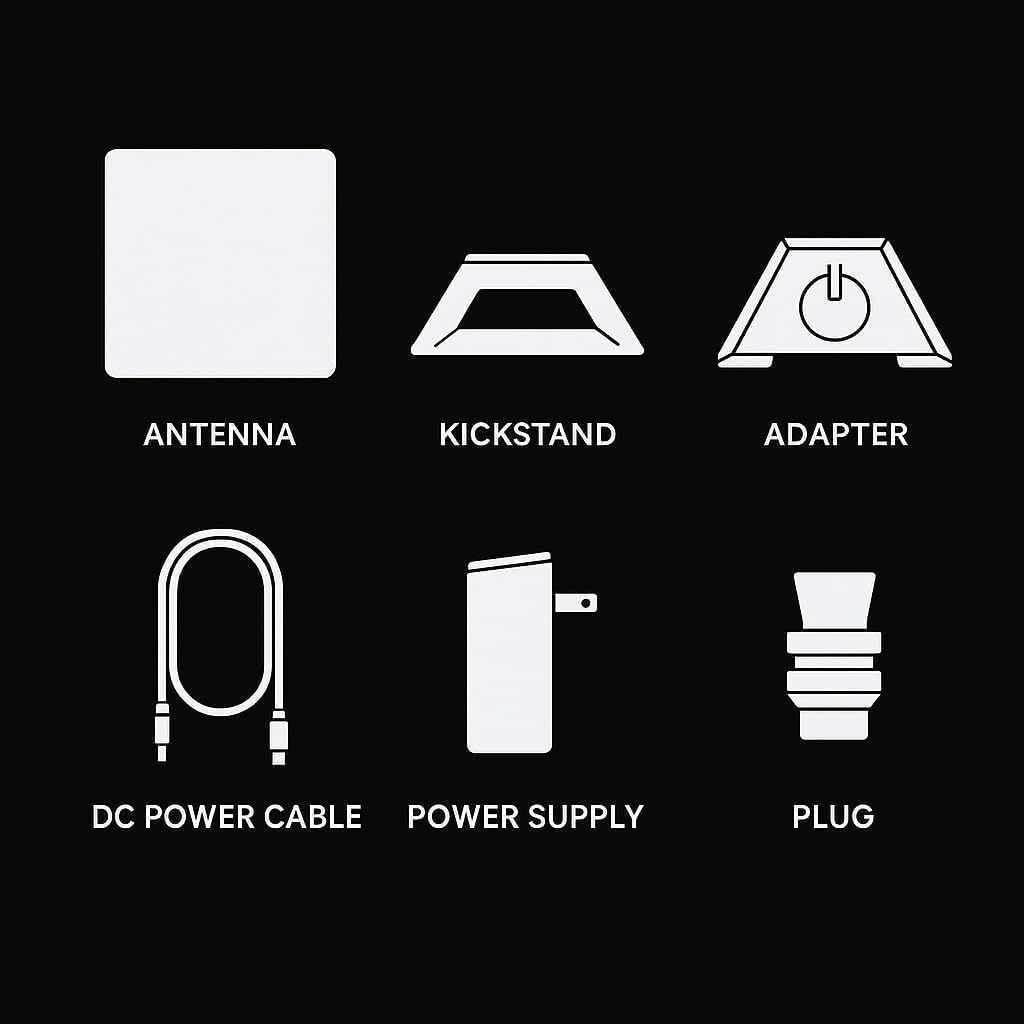
Figure 2: A diagram illustrating the labeled parts of the Starlink Mini Kit for easy identification.
Setup
Setting up your Starlink Mini Kit is designed to be quick and straightforward. The process typically involves these steps:
- Unpack the Kit: Carefully remove all components from the packaging.
- Connect Power: Plug the DC power cable into the Starlink Mini dish and connect the power supply to an appropriate power outlet (e.g., wall outlet, generator, or compatible DC power source).
- Position the Dish: Place the Starlink Mini dish outdoors in an area with a clear, unobstructed view of the sky. The integrated kickstand allows for easy positioning.
- Download the Starlink App: Use your smartphone to download the official Starlink app from your device's app store.
- Configure via App: Open the Starlink app and follow the on-screen instructions to connect to your Starlink Mini's Wi-Fi network and complete the configuration process. The app will guide you through optimizing dish alignment and checking for software updates.
The system is designed for rapid deployment, often becoming operational within minutes of initial power-up and app configuration.
Operating Instructions
Once set up, the Starlink Mini Kit operates largely autonomously. Here are key aspects of its operation:
- Automatic Alignment: The dish automatically adjusts its orientation to maintain optimal connection with Starlink satellites. Ensure it remains in an open area free from obstructions like trees or buildings.
- Wi-Fi Connectivity: The built-in dual-band AC Wi-Fi router provides a local network for your devices. Connect your laptops, tablets, smartphones, and other Wi-Fi enabled devices to the Starlink network.
- Power Management: The low power consumption design makes it suitable for various power sources, including portable batteries or vehicle power systems, extending its utility in off-grid scenarios.
- Mobile Use: The kit is designed for portability, allowing you to easily move it between locations. Simply ensure a clear view of the sky at each new location for optimal performance.

Figure 3: The Starlink Mini Kit in operation, showcasing its compact design.

Figure 4: The Starlink Mini Kit provides high-speed internet for various scenarios, including residential, mobile, and marine use.
Performance
The Starlink Mini Kit is engineered for high-speed internet access, even in areas with no traditional cellular or wired infrastructure. It consistently delivers downstream speeds exceeding 100 Mbps, which is sufficient for demanding applications such as high-definition video streaming, online gaming, and real-time video conferencing.
While actual speeds can vary based on factors like network congestion, obstructions, and geographic location, the system is designed to provide robust and reliable connectivity. Users have reported download speeds ranging from 50 to 150 Mbps, with low latency typically between 30 to 50 milliseconds, ensuring a responsive internet experience.
Maintenance
The Starlink Mini Kit requires minimal maintenance. To ensure optimal performance and longevity:
- Keep Clear Line of Sight: Regularly check that the dish has an unobstructed view of the sky. Any physical barriers like trees, buildings, or even heavy foliage can degrade performance.
- Clean Gently: If the dish surface becomes dirty, gently wipe it with a soft, damp cloth. Avoid abrasive cleaners or harsh chemicals.
- Protect from Elements: While designed for outdoor use, protect the dish from extreme weather conditions when possible, especially during storage or transport.
- Software Updates: The Starlink system automatically downloads and installs software updates. Ensure your kit is powered on and connected periodically to receive these updates, which improve performance and add new features.
Troubleshooting
If you encounter issues with your Starlink Mini Kit, consider the following troubleshooting steps:
- No Internet Connection:
- Verify all cables are securely connected.
- Ensure the dish has a clear view of the sky. Use the Starlink app's "Obstructions" tool to check for blockages.
- Restart the Starlink Mini by unplugging it from power for 30 seconds and then plugging it back in.
- Slow Speeds:
- Check for obstructions using the Starlink app.
- Ensure your device is connected to the Starlink Wi-Fi and not another network.
- Minimize the number of active devices or high-bandwidth activities on your network.
- Wi-Fi Issues:
- Confirm your device is within range of the Starlink Mini's Wi-Fi signal.
- Try forgetting the Wi-Fi network on your device and reconnecting.
- App Not Connecting:
- Ensure your phone's Wi-Fi is enabled and connected to the Starlink network.
- Restart the Starlink app or your phone.
For persistent issues, refer to the official Starlink support website or contact their customer service.
Specifications
| Feature | Specification |
|---|---|
| Item Weight | 6.31 pounds |
| Item Model Number | starlink Mini Kit |
| Brand | starlink |
| Special Feature | Remote Access |
| Frequency Band Class | Dual-Band |
| Wireless Communication Standard | 802.11ac |
| Compatible Devices | Laptop, Personal Computer, Tablet, Smartphone |
| Recommended Uses For Product | Home (also portable/mobile) |
| Connectivity Technology | Wi-Fi |
| Operating System | ZyNOS |
| Security Protocol | WPA 2 |
| Number of Ports | 1 |
| First Available Date | September 29, 2024 |
Warranty and Support
The Starlink Mini Kit comes with a standard manufacturer's warranty. For detailed information regarding warranty coverage, terms, and conditions, please refer to the documentation included with your product or visit the official Starlink support website. For technical assistance, troubleshooting beyond this manual, or to inquire about service plans, please contact Starlink customer support directly through their official channels.


