
Redragon K515
Redragon K515 PRO Shiva RGB Wireless Membrane Gaming Keyboard User Manual
Model: K515 | Brand: Redragon
Introduction
This manual provides comprehensive instructions for the Redragon K515 PRO Shiva RGB Wireless Membrane Gaming Keyboard. This keyboard features a 98-key layout, mechanical-feel membrane switches, on-board macro and multimedia keys, and a detachable wrist rest. It supports a versatile 3-mode connection (USB-C wired, Bluetooth 3.0/5.0, and 2.4Ghz wireless) and offers customizable RGB backlighting with professional software support. Please read this manual thoroughly to ensure proper setup and operation of your device.

Figure 1: Redragon K515 PRO Shiva RGB Wireless Membrane Gaming Keyboard.
Key Features Overview

Figure 2: Overview of the Redragon K515 PRO Shiva's main features including 98-key layout, membrane keys, 3-mode connection, 4 onboard macros, and 5 backlight controls.
- 4 Onboard Macro Keys: G1-G4 programmable keys for on-the-fly macro execution without software.
- 3-Mode Connection: USB-C wired, Bluetooth (BT 3.0/5.0), and 2.4Ghz wireless for versatile connectivity.
- 26 Anti-ghost Keys & Dedicated Media Controls: Ensures accurate game responses and convenient multimedia management.
- Detachable Wrist-Rest: Ergonomically designed with magnetic connection for enhanced comfort during extended use.
- True RGB Backlight: Full dynamic RGB with 7 pre-set modes, 6 customizable slots, and brightness control.
- Professional Software & Durability: Software for advanced backlight effects and macro functions. Built to last with 10 million keystroke tests and double-shot injection molded keycaps.
Setup and Connectivity
The Redragon K515 PRO Shiva offers three connection modes: wired, Bluetooth, and 2.4Ghz wireless. The keyboard is designed for plug-and-play functionality, with built-in drivers for both Mac and Windows operating systems.
1. Wired Connection
- Locate the USB-C port on the keyboard (Figure 3).
- Connect the supplied USB-C cable to the keyboard and your device (PC, laptop, gaming console).
- The keyboard will automatically be recognized and ready for use.
2. 2.4Ghz Wireless Connection
- Locate the 2.4Ghz USB dongle (Figure 3).
- Insert the dongle into an available USB port on your device.
- Ensure the keyboard's mode switch (located on the back/side) is set to 2.4Ghz.
- The keyboard should connect automatically.
3. Bluetooth Connection (BT 3.0/5.0)
- Ensure your device's Bluetooth is enabled.
- Set the keyboard's mode switch to Bluetooth (BT1, BT2, or BT3 for multiple devices).
- On your device, search for new Bluetooth devices and select "Redragon K515 PRO" to pair.
- The keyboard can store up to three Bluetooth connections, allowing quick switching between devices.
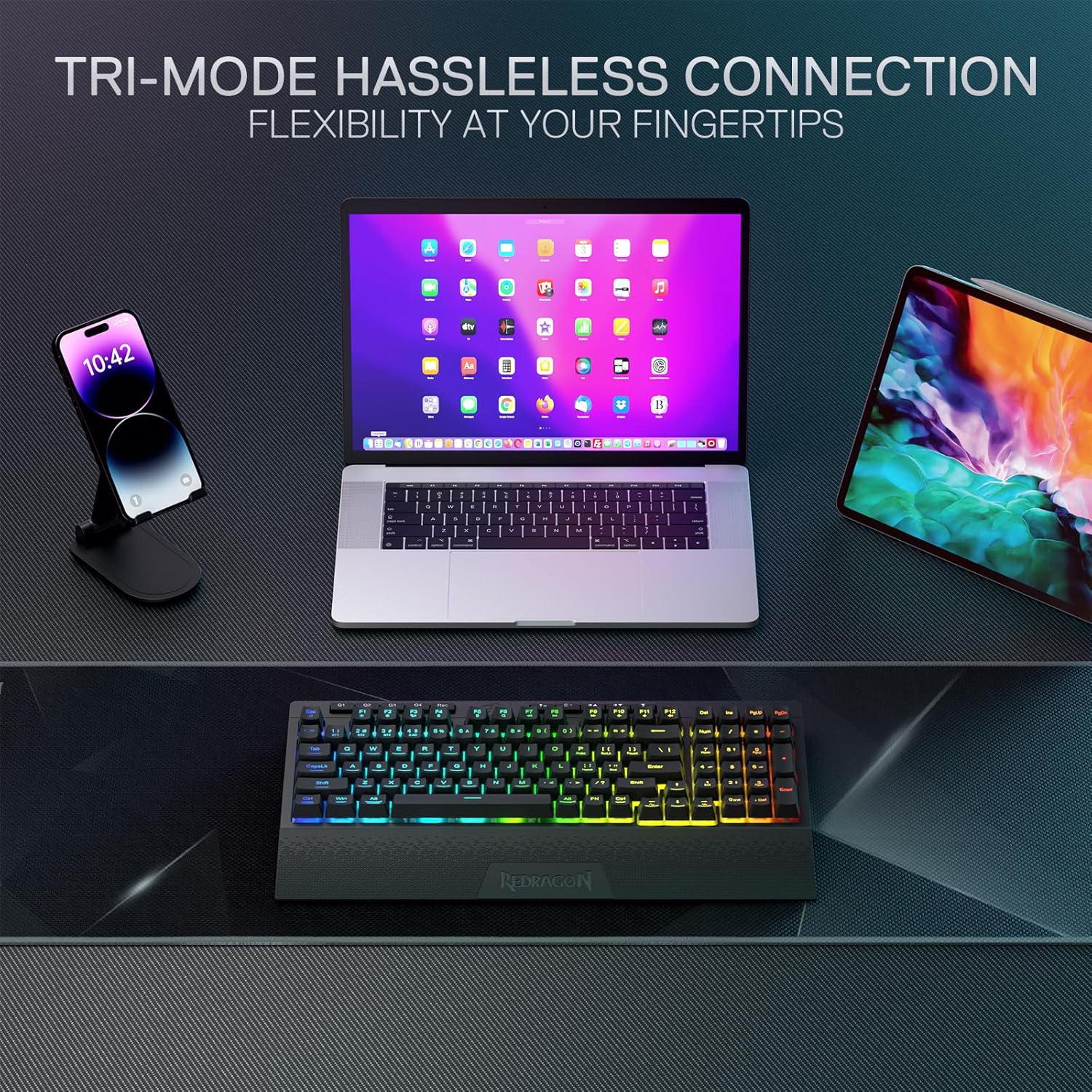
Figure 3: The Redragon K515 PRO Shiva keyboard demonstrating its tri-mode connection capabilities with various devices.
4. Operating System Compatibility Switch
On the back or side of the keyboard, locate the switch to select between Mac and Windows operating systems. Set this switch according to your device for optimal key mapping and functionality.
Video 1: Official Redragon video showcasing the K512, K513, and K515 PRO Membrane Gaming Keyboards, highlighting their features and connectivity options.
Operating Instructions
1. Macro Keys (G1-G4)
The four dedicated macro keys (G1, G2, G3, G4) located on the top left of the keyboard can be programmed directly on the device without requiring additional software. Refer to the quick start guide for specific instructions on recording and assigning macros.
2. RGB Backlight Control
The K515 PRO Shiva features dynamic RGB backlighting. You can cycle through 7 pre-set lighting modes and customize 6 additional slots directly from the keyboard. Brightness can also be adjusted from completely off to very bright.
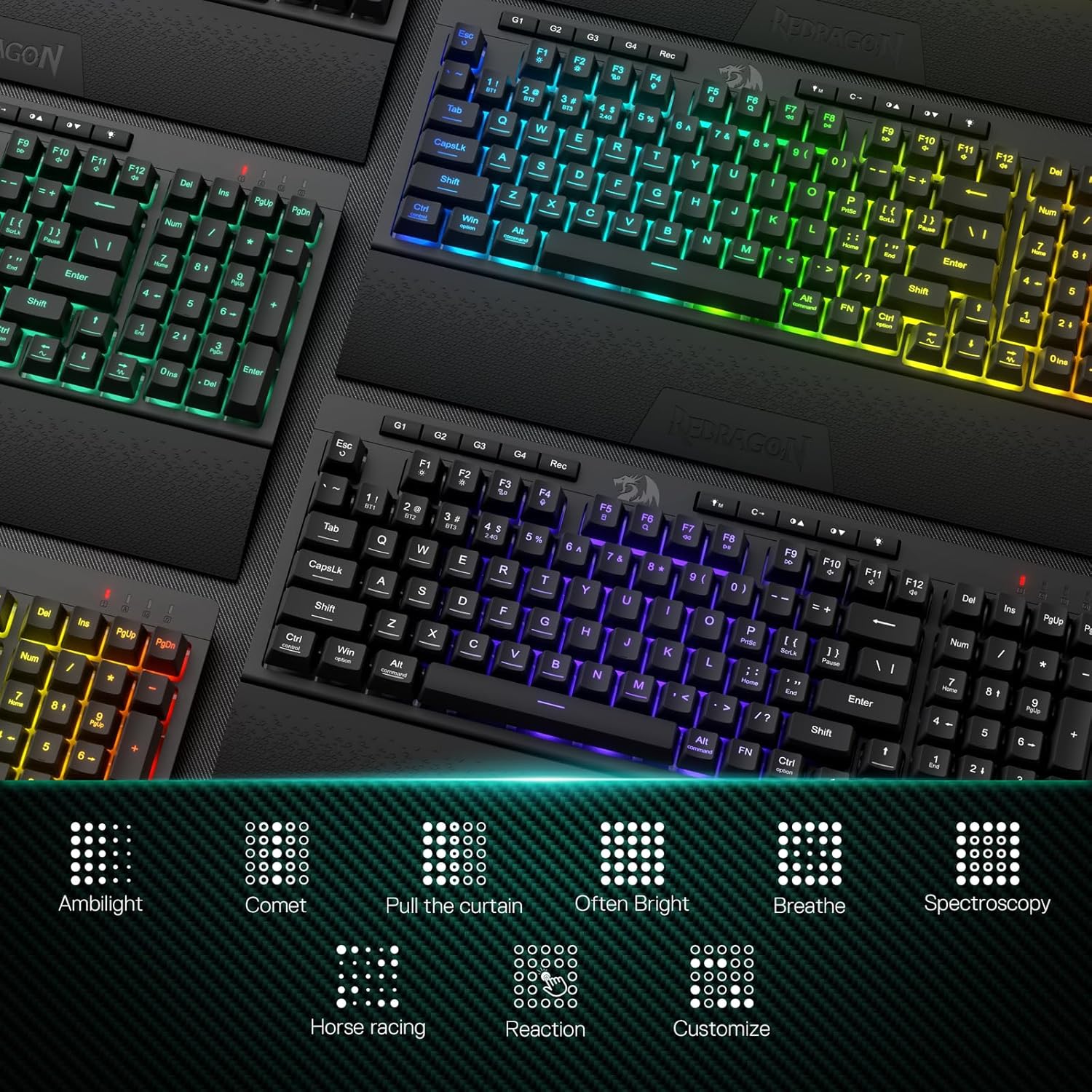
Figure 4: Various RGB backlight modes available on the Redragon K515 PRO Shiva keyboard, including Ambilight, Comet, Breathe, and customizable options.
3. Dedicated Media Controls
Easily control your multimedia playback (play, pause, skip) directly from the keyboard, ensuring an uninterrupted experience.
4. Detachable Wrist Rest
Attach the ergonomically designed wrist rest using its magnetic connectors for added comfort during prolonged use. It can be easily detached if not needed.
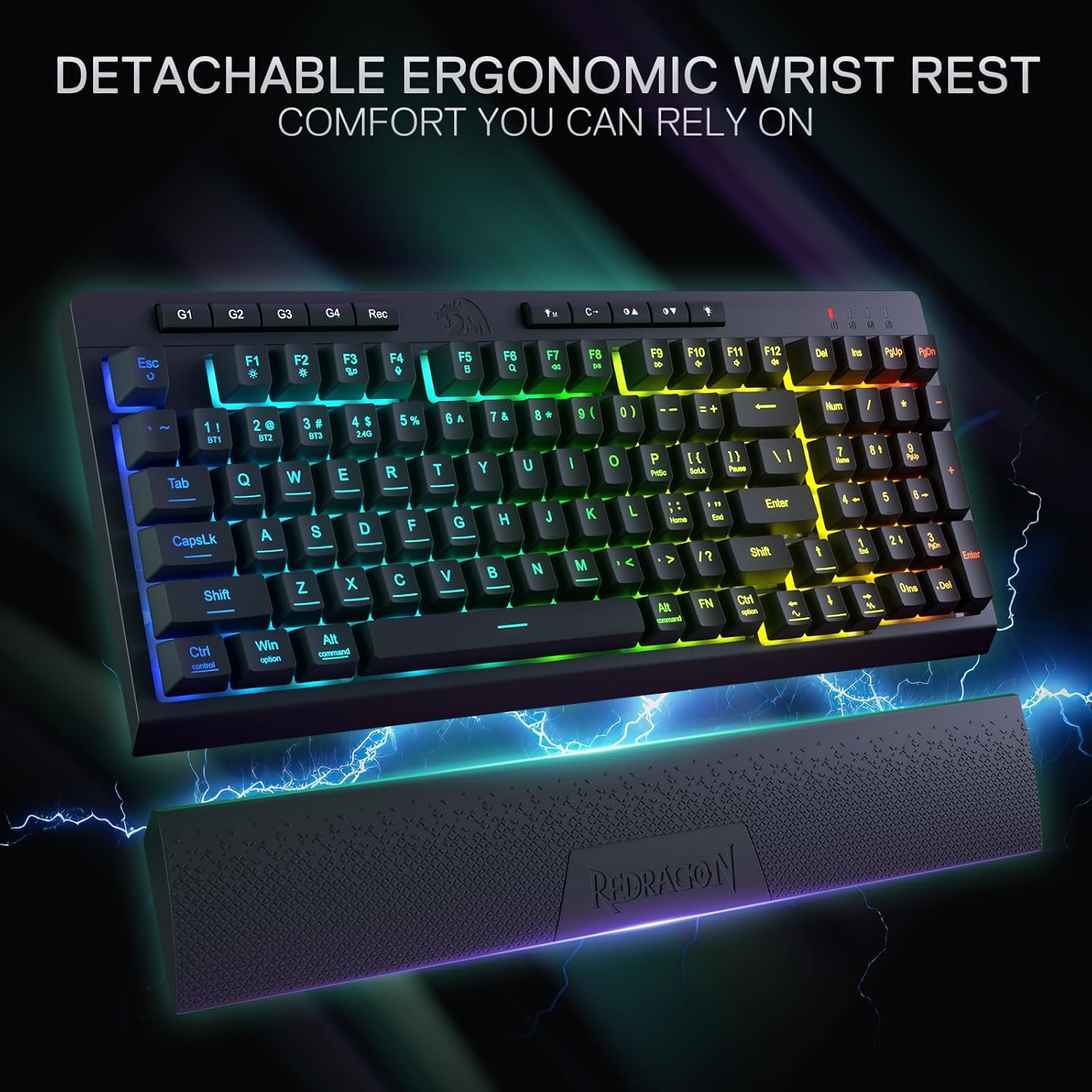
Figure 5: The detachable ergonomic wrist rest provides additional comfort and support, connecting magnetically to the keyboard.
5. Professional Software
For advanced customization of backlight effects and macro functions, download the professional software from the Redragon website. This software allows for immersive and vivid lighting configurations tailored to your preferences.
Figure 6: Screenshot of the Redragon K515 PRO Shiva software interface, showing options for macro and LED panel settings.
Video 2: A brief preview demonstrating the solid build and smooth performance of the Redragon K515 PRO Shiva keyboard, including its responsive keystrokes and wireless functionality.
Maintenance
To ensure the longevity and optimal performance of your Redragon K515 PRO Shiva keyboard, follow these maintenance guidelines:
- Cleaning: Regularly clean the keyboard with a soft, dry cloth. For deeper cleaning, use compressed air to remove dust and debris from between the keycaps.
- Keycap and Switch Replacement: The keyboard comes with extra gaming switches and a key/switch puller. If a keycap or switch needs replacement, carefully use the provided tools to remove and install new components.
- Battery Care: If using wirelessly, ensure the keyboard is charged regularly via the USB-C port. Avoid fully depleting the battery frequently to prolong its lifespan.
Troubleshooting
- Keyboard Not Responding:
- Check the connection mode (wired, 2.4Ghz, Bluetooth) and ensure it matches your device.
- For wireless modes, ensure the keyboard is charged.
- Verify the Mac/Win switch is set correctly for your operating system.
- RGB Lights Not Working/Customizing:
- Ensure brightness is not set to minimum.
- Use the onboard controls (Function key combinations) to cycle through modes or adjust brightness.
- If using custom settings, ensure the professional software is installed and configured correctly.
- Macro Keys Not Functioning:
- Ensure macros are recorded and assigned correctly as per the quick start guide or software instructions.
Specifications
| Feature | Detail |
|---|---|
| Model Name | Shiva 98 |
| Material | Plastic |
| Product Dimensions | 15.07"L x 6.14"W x 1.57"H |
| Item Weight | 2.09 pounds |
| Color | Black |
| Special Feature | 98 Keys Compact, Membrane Switch, On-board G Keys |
| Connectivity Technology | 2.4Ghz, BT, USB-C |
| Compatible Devices | Gaming Console, Laptop, PC |
| Batteries | 1 Lithium Polymer batteries required (included) |
Warranty and Support
For warranty information, technical support, or further assistance, please visit the official Redragon website or contact their customer service. Keep your purchase receipt for warranty claims.
Related documentsK515


Ask a question about this manual
Ask about setup, troubleshooting, compatibility, parts, safety, or missing instructions. Manuals+ will review the question and use this page’s manual context to help answer it.