
SEUNKWANG V20-1
EWEADN V20 Typewriter Keyboard Wireless Instruction Manual
Model: V20-1 | Brand: SEUNKWANG
1. Introduction
This manual provides comprehensive instructions for the setup, operation, and maintenance of your EWEADN V20 Typewriter Keyboard Wireless. Please read this manual thoroughly before use to ensure optimal performance and longevity of your device.
The EWEADN V20 is a 104-key mechanical keyboard featuring a retro typewriter style with white backlit keys, a multimedia knob, and versatile connectivity options including 2.4G wireless, Bluetooth, and USB-C wired modes. It is designed for compatibility with Windows, Mac, and PC systems.
2. Key Features
- Retro Typewriter Mechanical Design: Features mechanical custom pink switches for a smooth linear feel and round, electroplated keycaps for a classic aesthetic.
- Tri-Mode Connectivity: Supports Bluetooth 5.0, 2.4Ghz wireless, and USB-C wired connections. Capable of connecting up to 5 devices simultaneously.
- Multimedia & Backlight Control: Integrated multimedia knob for volume and light control. Offers 19 distinct LED lighting effects with 5 levels of adjustable brightness and speed.
- 104-Key Anti-Ghosting: Ensures accurate and smooth input even when multiple keys are pressed concurrently, preventing conflicts and errors.
- Wide Compatibility: Compatible with Windows 7/8/10/XP/Vista, Linux, and Mac OS systems.
- Durable Construction: Features a top-grade aluminum alloy metal panel and floating electroplated punk keycaps for enhanced durability and a unique appearance.
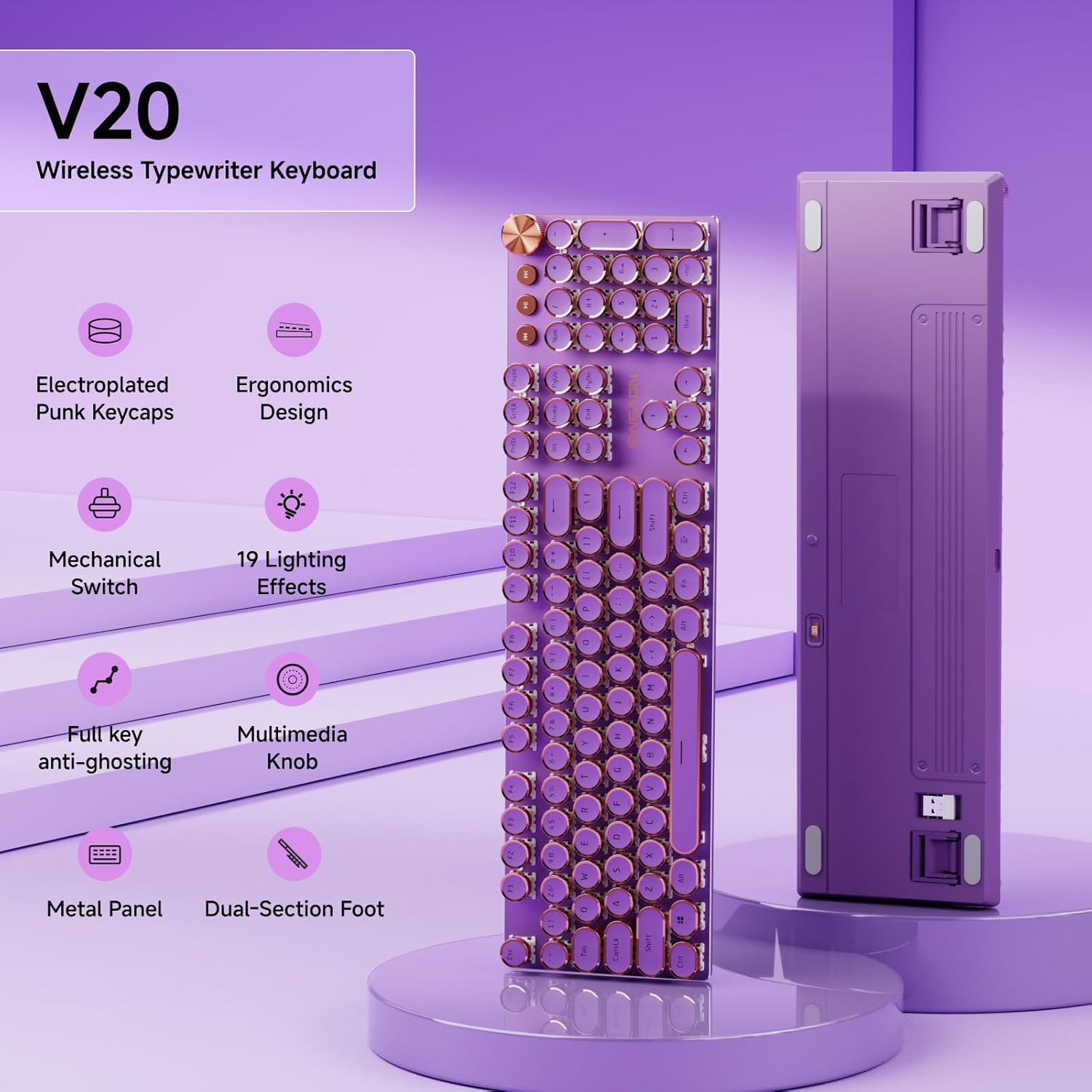
Figure 2.1: Overview of EWEADN V20 key features including electroplated punk keycaps, ergonomics design, mechanical switch, 19 lighting effects, full key anti-ghosting, multimedia knob, metal panel, and dual-section foot.
3. Setup Guide
3.1 Package Contents
Before proceeding, ensure all items are present in the package:
- EWEADN V20 Typewriter Keyboard
- USB-C Cable
- 2.4Ghz USB Receiver (stored in the keyboard's back compartment)
- User Manual (this document)
3.2 Initial Charging
For optimal performance, fully charge the keyboard before first use. Connect the provided USB-C cable to the keyboard's USB-C port and the other end to a power source (e.g., computer USB port, USB wall adapter). The keyboard has a 2000mAh battery.
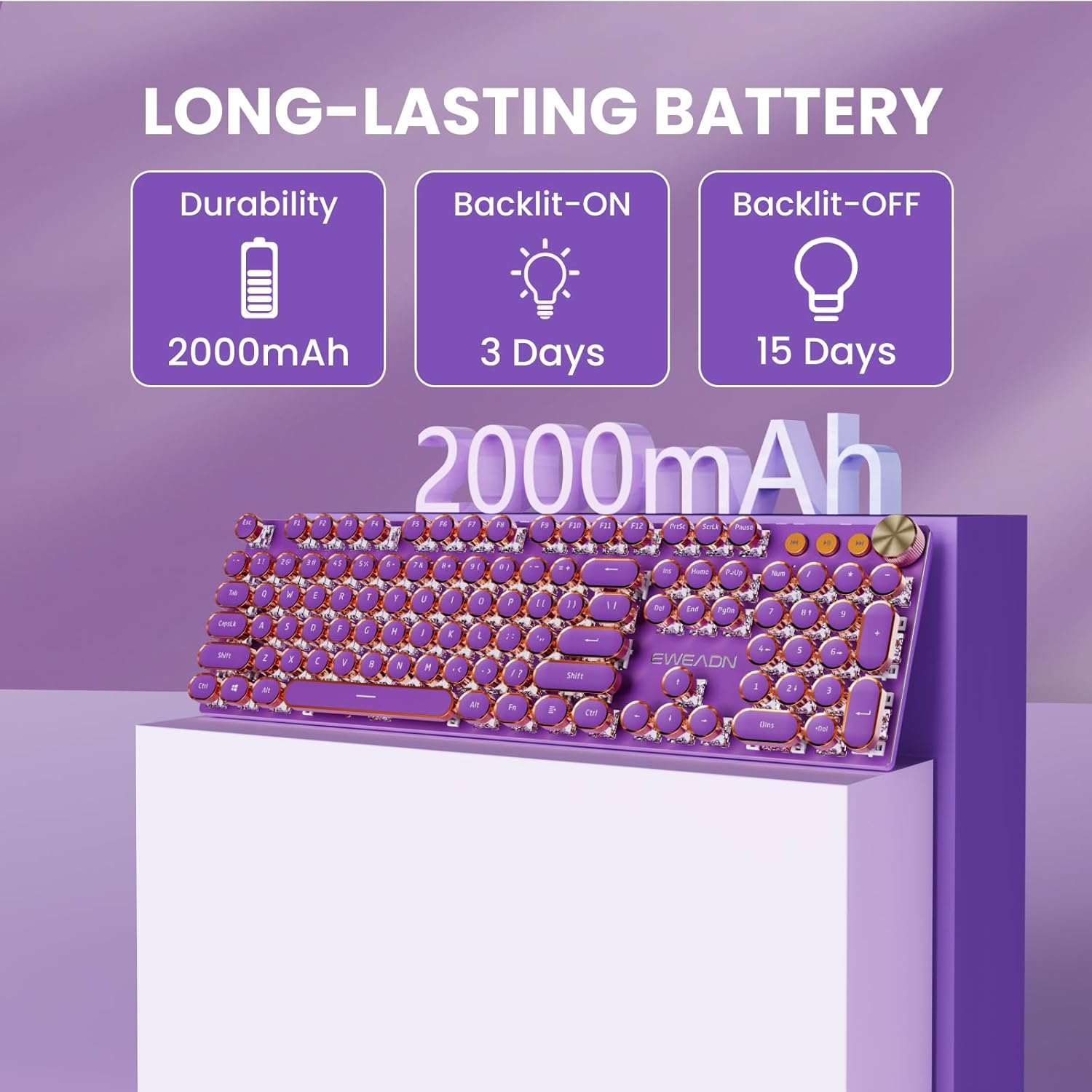
Figure 3.1: The EWEADN V20 keyboard features a 2000mAh long-lasting battery, providing approximately 3 days of use with backlight on and 15 days with backlight off.
3.3 Connecting Your Keyboard
The V20 keyboard offers three connection modes:
- 2.4Ghz Wireless Mode:
- Locate the 2.4Ghz USB receiver stored in the compartment on the back of the keyboard.
- Plug the receiver into an available USB port on your computer or device.
- Press and hold FN + 4 on the keyboard to switch to 2.4Ghz wireless mode. The keyboard will automatically connect.

Figure 3.2: The EWEADN V20 supports Tri-Mode Connection: Bluetooth 5.0, 2.4Ghz Wireless, and USB-C Wired. It can connect up to 5 devices simultaneously.
- Bluetooth Mode (BT1/BT2/BT3):
- Press and hold FN + 1, FN + 2, or FN + 3 to select a Bluetooth channel. The indicator light will flash, indicating pairing mode.
- On your device (tablet, laptop, phone), enable Bluetooth and search for "EWEADN V20".
- Select the keyboard to pair. The indicator light will become solid once connected.
- You can switch between paired Bluetooth devices by pressing FN + 1/2/3.
- USB-C Wired Mode:
- Connect the provided USB-C cable to the keyboard's USB-C port and the other end to your computer's USB port.
- Press and hold FN + 5 to switch to USB-C wired mode. The keyboard will function immediately.

Figure 3.3: The EWEADN V20 keyboard features custom pink switches with a total travel of 2.0+0.4mm and an operating force of 3.8+0.4mm, designed for 100 million key strokes.
4. Operating Instructions
4.1 Multimedia Knob and Buttons
The V20 keyboard features a versatile multimedia knob and dedicated buttons for easy control:
- Multimedia Knob:
- Press Fn + Knob to switch between Light mode and Volume mode.
- In Volume mode, turn the knob to adjust the volume. Press the knob to mute/unmute.
- In Light mode, turn the knob to adjust backlight brightness. Press the knob to change light effects.
- Dedicated Volume Buttons: Located next to the knob, these buttons allow quick adjustment for previous song, next song, and pause/play.

Figure 4.1: The EWEADN V20 features a rotary multimedia knob. Press Fn+Knob to switch between Light/Volume mode. Turn to adjust volume/brightness, press to mute/unmute or change light effects.
4.2 Backlight Control
The keyboard offers 19 lighting effects and adjustable brightness/speed:
- Press FN + INS to switch between the 19 lighting effects.
- Press FN + ↑ to increase brightness (5 levels).
- Press FN + ↓ to decrease brightness (5 levels).
- Press FN + ← to slow down the lighting effect speed.
- Press FN + → to speed up the lighting effect speed.
- Press FN + 1~8 to choose specific game backlight modes.

Figure 4.2: Backlight LED control functions for the EWEADN V20 keyboard, including switching lighting effects, adjusting brightness, and controlling effect speed.
4.3 System Compatibility and Layout Switching
The V20 keyboard is compatible with both Windows and Mac operating systems. You can easily switch the keyboard layout:
- To switch to Windows layout: Press FN + W.
- To switch to Mac layout: Press FN + A.
- To reset the keyboard: Press FN + ESC.

Figure 4.3: The EWEADN V20 keyboard offers multiple system compatibility for Windows and Mac, with easy key combinations to switch layouts.
5. Maintenance
Proper maintenance ensures the longevity and optimal performance of your EWEADN V20 keyboard:
- Cleaning: Use a soft, dry cloth to wipe down the keyboard surface. For deeper cleaning, a can of compressed air can be used to remove dust and debris from between the keycaps. Avoid using harsh chemicals or abrasive materials.
- Keycap Removal: The electroplated punk keycaps can be carefully removed for cleaning or switch replacement using a keycap puller (not included). Ensure gentle handling to avoid damage.
- Storage: When not in use for extended periods, store the keyboard in a cool, dry place away from direct sunlight and extreme temperatures.
- Battery Care: Avoid completely draining the battery frequently. Charge the keyboard regularly to maintain battery health.
6. Troubleshooting
| Problem | Possible Cause | Solution |
|---|---|---|
| Keyboard not responding in wireless mode. | Low battery, incorrect mode, receiver not connected. | Charge the keyboard. Ensure 2.4Ghz receiver is properly inserted or Bluetooth is paired. Press FN + 4 (2.4G) or FN + 1/2/3 (BT) to select mode. |
| Keys not registering or ghosting. | Software conflict, dust/debris under keycap. | Restart your device. Clean under keycaps with compressed air. Ensure no other keyboard software is interfering. |
| Backlight not working or stuck. | Backlight off, low battery, software issue. | Press FN + INS to cycle effects. Adjust brightness with FN + ↑/↓. Charge keyboard. Reset keyboard with FN + ESC. |
| Bluetooth connection unstable. | Interference, distance, multiple devices. | Ensure keyboard is within range (up to 10m). Disconnect other Bluetooth devices. Re-pair the keyboard. |
7. Specifications
| Feature | Detail |
|---|---|
| Model Number | V20-1 |
| Brand | SEUNKWANG |
| Connectivity | 2.4Ghz, Bluetooth 5.0, USB-C Wired |
| Number of Keys | 104 |
| Switch Type | Mechanical Pink Switches |
| Backlight | White LED, 19 effects, 5 brightness levels |
| Battery Capacity | 2000mAh Lithium Ion (included) |
| Compatibility | Windows 7/8/10/XP/Vista, Linux, Mac OS |
| Dimensions | 17.13 x 6.1 x 1.65 inches |
| Item Weight | 2.09 pounds |
| Manufacturer | EWEADN |
| Country of Origin | China |

Figure 7.1: Dimensions and weight of the EWEADN V20 keyboard: Length 17.7 inches, Width 5 inches, Height 1.7 inches, Weight 1.65 lbs.
8. Warranty and Support
For warranty information and customer support, please refer to the contact details provided by the seller or manufacturer. Typically, product warranties cover manufacturing defects for a specified period from the date of purchase.
If you encounter any issues not covered in the troubleshooting section, or require further assistance, please contact SEUNKWANG customer service through the Amazon platform or via email:
- Amazon Contact: Find the SEUNKWANG store on Amazon and click "Ask a question".
- Email Contact: zack@eweadn.cn

Figure 8.1: Contact information for SEUNKWANG customer support.
9. Product Videos
Watch these official product videos for a closer look at the EWEADN V20 keyboard's features and functionality.
9.1 Purple Retro Typewriter Keyboard
Video 9.1: This video showcases the purple retro typewriter keyboard, highlighting its design and features.
9.2 Pink Retro Typewriter Keyboard
Video 9.2: A demonstration of the pink retro typewriter keyboard, focusing on its aesthetic and functionality.
9.3 Typewriter Style Mechanical Gaming Keyboard
Video 9.3: This video highlights the typewriter style mechanical gaming keyboard, showcasing its features for gaming and general use.
9.4 EWEADN V20 Typewriter Keyboard Wireless
Video 9.4: An official video demonstrating the wireless capabilities and overall user experience of the EWEADN V20 typewriter keyboard.
9.5 EWEADN V20 Shine Star
Video 9.5: This video showcases the EWEADN V20 keyboard's aesthetic appeal and lighting effects, referred to as "Shine Star".
9.6 EWEADN V20 Elegant Voices
Video 9.6: A video demonstrating the sound profile and tactile feedback of the EWEADN V20 keyboard, highlighting its "Elegant Voices".
Ask a question about this manual
Ask about setup, troubleshooting, compatibility, parts, safety, or missing instructions. Manuals+ will review the question and use this page’s manual context to help answer it.