
Introduction
The SEUNKWANG EWEADN V20 is a versatile 104-key mechanical keyboard designed with a retro typewriter aesthetic. It offers multiple connectivity options, customizable backlighting, and ergonomic features for enhanced user experience. This manual provides detailed instructions for setting up, operating, and maintaining your keyboard.
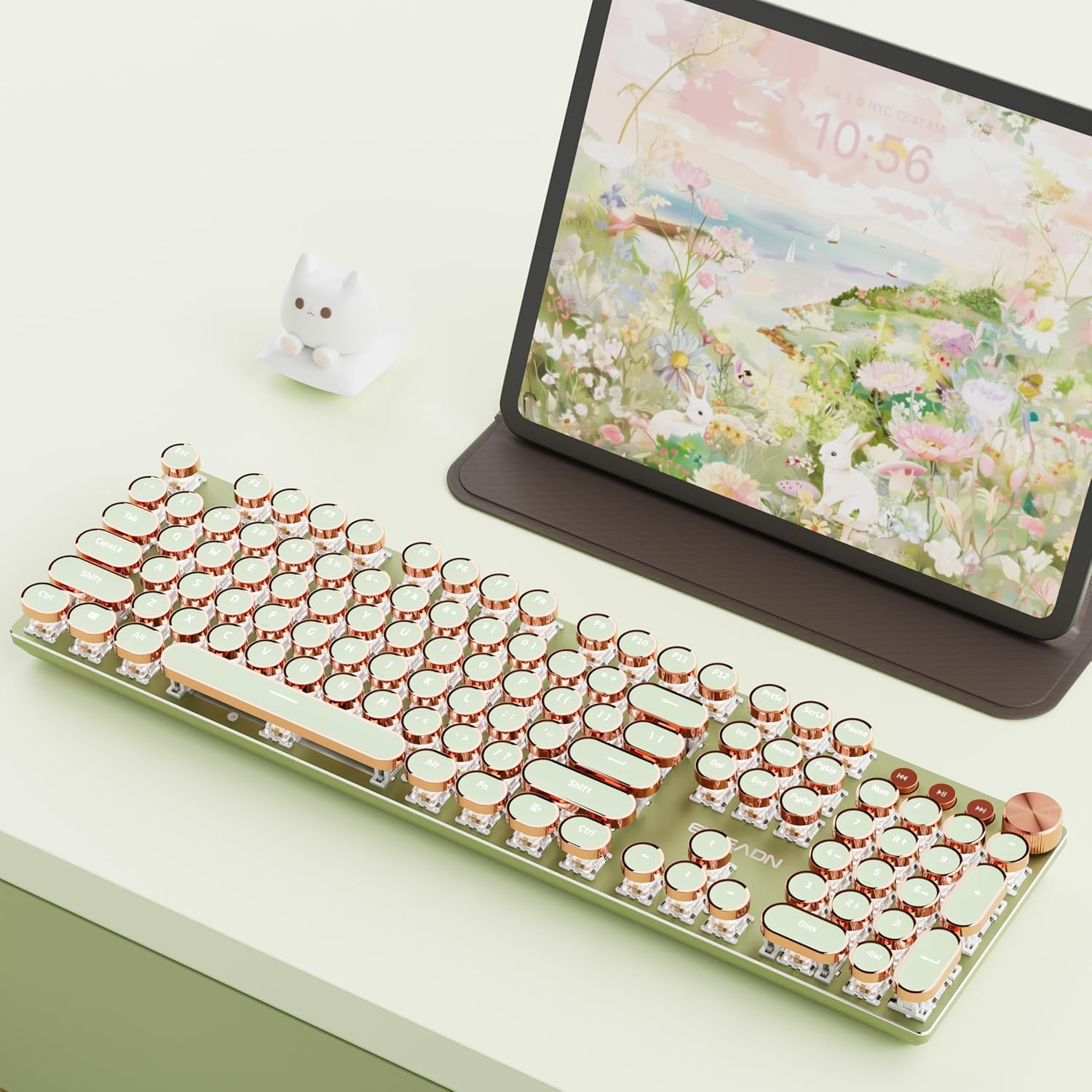
The EWEADN V20 keyboard features a retro design with round keycaps and rose gold accents.
Setup
What's in the Box
- SEUNKWANG EWEADN V20 Wireless Typewriter Keyboard
- USB-C Cable
- 2.4Ghz USB Receiver (located in the keyboard's back compartment)
Initial Charging
Before first use, it is recommended to fully charge the keyboard using the provided USB-C cable. Connect the USB-C end to the keyboard's port and the USB-A end to a compatible power source (e.g., computer USB port, wall adapter).

The keyboard features a built-in 2000mAh battery for extended use.
Operating Instructions
Connectivity Modes
The V20 keyboard supports three connection modes: 2.4Ghz wireless, Bluetooth 5.0, and USB-C wired.
- 2.4Ghz Wireless Mode: Locate the USB receiver stored in the back compartment of the keyboard. Plug the receiver into an available USB port on your computer. The keyboard should connect automatically.
- Bluetooth 5.0 Mode: The keyboard can connect to up to 3 Bluetooth devices. To pair, press and hold FN + 1, FN + 2, or FN + 3 to select a Bluetooth channel. The indicator light will blink, indicating pairing mode. Search for "EWEADN V20" on your device's Bluetooth settings and connect.
- USB-C Wired Mode: Connect the provided USB-C cable to the keyboard's port and the other end to your computer. The keyboard will function as a wired device and charge simultaneously.
To switch between connected devices or modes, press FN + 1/2/3 for Bluetooth channels, FN + 4 for 2.4Ghz wireless, or FN + 5 for USB-C wired mode.

The EWEADN V20 supports seamless switching between up to 5 devices across its three connectivity modes.
Multimedia & Backlight Control
The keyboard features a dedicated multimedia knob and function keys for easy control:
- Multimedia Knob: Press the knob to switch between volume and lighting adjustment modes. Turn the knob to adjust volume or brightness. Press the knob to mute/unmute or change light effects.
- Lighting Effects: The keyboard has 19 lighting effects. Press FN + INS to cycle through the effects.
- Adjust Brightness: Press FN + Up Arrow to increase brightness, FN + Down Arrow to decrease brightness.
- Adjust Speed: Press FN + Left Arrow to slow down the lighting effect, FN + Right Arrow to speed up the lighting effect.
- Dedicated Media Keys: Use the buttons next to the knob for previous song, next song, and pause/play.

The keyboard offers multiple lighting effects and easy control via the multimedia knob.
Dual System Compatibility
The V20 keyboard is compatible with both Windows and Mac operating systems. Easily switch between layouts:
- Windows Mode: Press FN + W
- Mac Mode: Press FN + A
- Reset Keyboard: Press FN + ESC

Switch between Windows and Mac layouts with simple key combinations.
Multifunction Keys (FN Combinations)
Utilize the FN key with the F-row keys for additional functions:
- FN + F1: Screen Brightness -
- FN + F2: Screen Brightness +
- FN + F3: Calculator
- FN + F4: Computer
- FN + F5: Player
- FN + F6: Previous Song
- FN + F7: Next Song
- FN + F8: Pause/Play
- FN + F9: Stop Playing
- FN + F10: Mute
- FN + F11: Volume +
- FN + F12: Volume -

Access various functions using the FN key combinations.
Anti-Ghosting
The V20 keyboard features 104-key anti-ghosting technology. This ensures that every keypress is registered accurately, even when multiple keys are pressed simultaneously, preventing missed inputs during fast typing or gaming.
Ergonomic Design
The keyboard is designed with two-stage foldable foot supports on the underside. These allow you to adjust the keyboard's angle to your preferred typing position, enhancing comfort during prolonged use.

Adjust the keyboard's height with the two-stage foldable stands for ergonomic comfort.
Maintenance
To ensure the longevity and optimal performance of your keyboard, follow these maintenance guidelines:
- Cleaning: Use a soft, dry cloth to wipe the keyboard surface. For deeper cleaning, use a can of compressed air to remove dust and debris from between the keycaps. Avoid using harsh chemicals or abrasive materials.
- Battery Care: To prolong battery life, avoid fully discharging the keyboard frequently. Charge it when the battery indicator is low. If storing for an extended period, charge the battery to about 50% and store in a cool, dry place.
- Storage: Store the keyboard in a clean, dry environment away from extreme temperatures and direct sunlight.
Troubleshooting
If you encounter any issues with your SEUNKWANG EWEADN V20 keyboard, please refer to the following common solutions:
- Keyboard not responding: Ensure the keyboard is charged. Check the connection mode (2.4Ghz receiver, Bluetooth, or wired) and ensure it is correctly selected (FN + 1/2/3/4/5). For wireless modes, ensure the receiver is properly plugged in or Bluetooth is paired.
- Keys not registering: Ensure the keyboard is clean and free of debris. If using wireless, try moving closer to the receiver or device to rule out interference.
- Backlight issues: Check the brightness settings using FN + Up/Down Arrow. Ensure the multimedia knob is in lighting adjustment mode.
- Connectivity drops: For wireless connections, ensure there are no strong interference sources nearby (e.g., other wireless devices, large metal objects). Try re-pairing Bluetooth or re-inserting the 2.4Ghz receiver.
If the problem persists, please contact customer support for further assistance.
Specifications
| Feature | Detail |
|---|---|
| Model Number | V20-1 |
| Package Dimensions | 17.6 x 6.02 x 2.01 inches |
| Item Weight | 2.01 pounds |
| Manufacturer | EWEADN |
| Batteries | 1 Lithium Ion batteries required (included) |
| Connectivity Technology | 2.4Ghz, Bluetooth, USB-C |
| Keyboard Description | Gaming |
| Recommended Uses | Business, Education, Everyday Use, Gaming, Multimedia, Personal, Photo Editing, Programming |
| Special Feature | Backlight & Metal Panel & Multimedia Knob & Dual System WIN/MAC & Independent Cable & Full Keys Anti-Ghosting |
| Color | Green |
| Keyboard Backlighting | Single Color |
| Style | Retro mechanical gaming keyboard |
| Material | Metal |
Official Product Videos
EWEADN V20 Elegant Voices
This video demonstrates the typing sound and aesthetic appeal of the EWEADN V20 keyboard.
Purple Retro Typewriter Keyboard
A visual demonstration of the keyboard's features and lighting in a purple variant.
EWEADN V20 Typewriter Keyboard Wireless
An overview video highlighting the wireless capabilities and design of the EWEADN V20 keyboard.
Warranty and Support
For any product inquiries, troubleshooting, or support needs, please contact the manufacturer directly.
- Email Support: eweadnkeyboard@outlook.com
- Online Support: Visit the SEUNKWANG Store on Amazon and click the "Ask a question" option.

Contact information for customer support and after-sales services.