
1. Important Compatibility Information
Before installation, verify your vehicle's compatibility. This headunit is designed for VW Tiguan models from 2012-2021 with a square hazard button. It is not compatible with models from 2007-2011 that have a triangular hazard button.
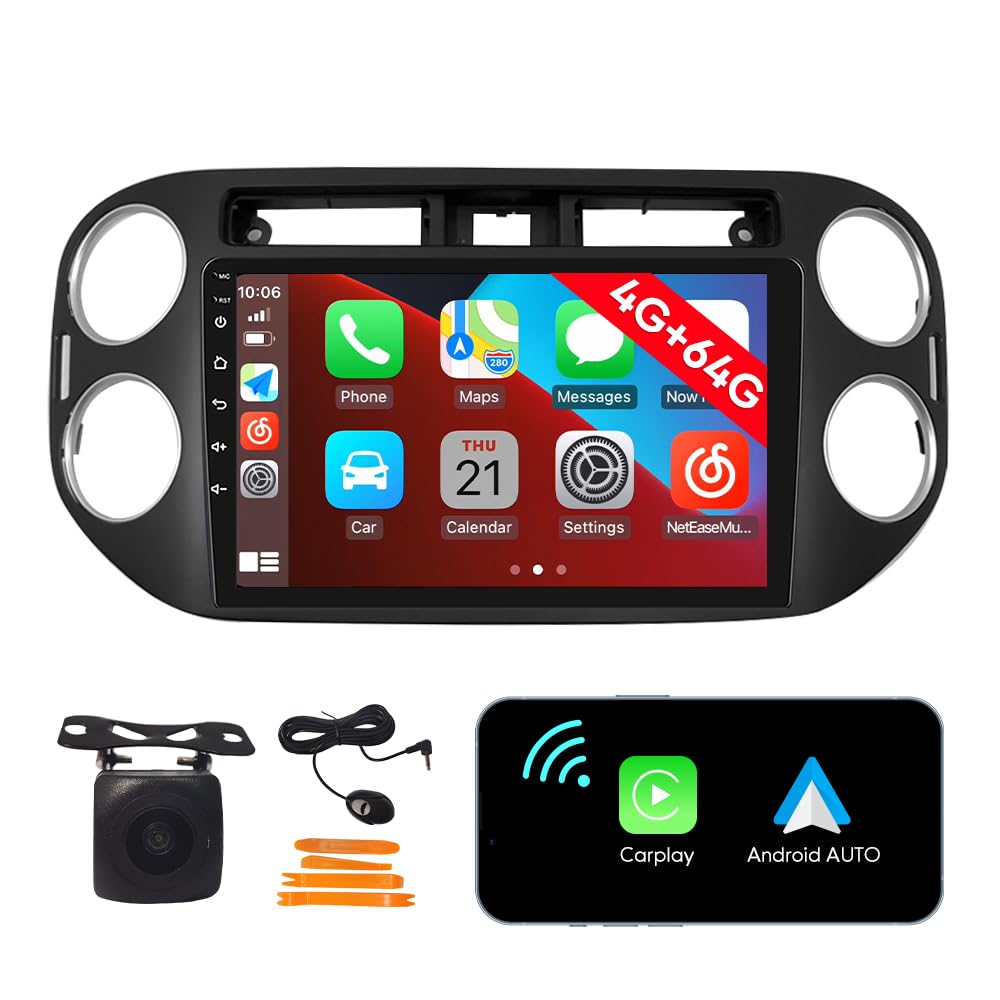
Image: Compatibility check based on hazard button shape. Square button (top) indicates compatibility for 2012-2016 models. Triangular button (bottom) indicates incompatibility for 2007-2011 models.
2. Setup and Installation
Proper installation is crucial for optimal performance. Refer to the following videos and instructions for guidance. If you encounter any issues, please contact after-sales support.
2.1 General Installation Guide
Video: Comprehensive installation guide for the 4+64G Radio for VW, covering removal of the old radio, power-on test, feature test, and rearview camera wiring.
2.2 Reversing Camera Wiring
This video provides specific instructions for connecting the reversing camera, particularly when a single trigger cable 'BACK' is not present.
Video: Detailed guide on wiring the reversing camera, focusing on scenarios without a dedicated 'BACK' trigger cable.
2.3 Wiring Diagram Overview
A quick overview of the wiring diagram for VW car radios.
Video: Brief explanation of the wiring diagram for VW car radios.
2.4 Package Contents
Ensure all components are present before beginning installation.

Image: All included components: 9-inch headunit, power cable, cable plug, camera input, USB cable, Canbus, GPS antenna, RCA wire harness, AHD reverse camera, external mic, and crowbar.
3. Operating Instructions
3.1 CarPlay and Android Auto
Seamlessly integrate your iOS or Android device. Use voice commands for safe operation while driving.

Image: CarPlay and Android Auto interfaces displayed on the headunit, showing integration with mobile devices.
The headunit supports both wireless Apple CarPlay and wireless Android Auto via USB/Bluetooth connection, as well as Mirror Link for both Android and iPhone via USB connection.

Image: Connectivity options including wireless Apple CarPlay, wireless Android Auto, and USB Mirror Link.
3.2 FM Radio
Transfer music to the car stereo via FM. Long press to save your favorite radio stations.

Image: FM Radio interface showing frequency display and controls.
3.3 GPS Navigation
Satellite GPS provides real-time location without a network connection. With WiFi connected, you can use online navigation in real-time.

Image: GPS Navigation interface showing map and route details.
The headunit supports various navigation applications.

Image: Display of multiple supported navigation applications.
3.4 Dual Screen Display
Operate different functions simultaneously with the dual screen display feature, such as navigation and video playback, or WiFi browsing and music.

Image: Dual Screen Display functionality, showing two applications running side-by-side.
3.5 Steering Wheel Control (SWC)
Quickly switch functions using your car's steering wheel controls for convenience and safety.

Image: Steering Wheel Control configuration screen.
3.6 WiFi Connectivity
Use WiFi to browse websites, access online navigation, watch videos, and download applications.

Image: WiFi connectivity enabling access to various applications.
3.7 Car Reverser Camera
Supports car reverser camera input, allowing you to view the rear surroundings on the screen when reversing your vehicle.

Image: Rearview camera display with parking assistance lines.
4. Maintenance
To ensure the longevity and optimal performance of your ZERTRAN car stereo, follow these general maintenance guidelines:
- Cleaning: Use a soft, dry cloth to clean the touchscreen and exterior surfaces. Avoid abrasive cleaners or solvents that could damage the finish.
- Software Updates: Periodically check for software updates to ensure you have the latest features and bug fixes. Follow the on-screen instructions for any available updates.
- Temperature Control: Avoid exposing the unit to extreme temperatures. Prolonged exposure to direct sunlight or very cold conditions can affect performance and lifespan.
- Cable Connections: Ensure all cables are securely connected. Loose connections can lead to intermittent issues.
5. Troubleshooting
If you encounter any issues during installation or operation, refer to the following common solutions or contact support.
5.1 Camera Display Issues (Snow/9-grid display)
If your rearview camera displays a snowy or 9-grid image, this can often be fixed by adjusting the image format settings. Long-press the screen for 5 seconds to access image format settings and select AHD720P25. Alternatively, navigate via: Settings > Factory Settings (Password) > Camera > RVC Channel Config > AHD.
If the issue persists, please contact after-sales support.

Video Preview: Demonstrates a camera display issue (snow/9-grid) and how to access settings to fix it.
5.2 General Issues and Support
For any problems during the installation process, including the unit not turning on, not turning off, draining battery, camera not working, or steering wheel control not functioning, please contact the seller for support at the first time. Your consultation is always welcomed.
6. Specifications
- Item Weight: 5.5 pounds
- Package Dimensions: 16.93 x 13.78 x 5.91 inches
- Display Size: 9 Inches
- Voice Command: Touchscreen
- Brand: ZERTRAN
- Vehicle Service Type: Car
- Special Feature: Touchscreen
- Connectivity Technology: USB
- Map Type: Worldwide
- Audio Output Mode: Stereo
- Mounting Type: Dashboard Mount
- Operating System: Android
7. Warranty and Support
This product comes with a one-year warranty. After-sales support is guaranteed. If you have any questions or encounter issues, please contact the seller directly for assistance. Your inquiries are always welcome.