
DYONDER B0DH22GT2B
DYONDER Wireless Controller User Manual
Model: B0DH22GT2B | Brand: DYONDER
1. Introduction
Thank you for choosing the DYONDER Wireless Controller. This controller is designed to provide a superior gaming experience across multiple platforms, including PS4, PS4 Slim, PS4 Pro, and PC. Featuring a 1000mAh battery, dual vibration feedback, a 6-axis motion sensor, and responsive joysticks, it offers immersive and precise control for your favorite games. This manual provides detailed instructions on setup, operation, maintenance, and troubleshooting to ensure optimal performance.

Image: Front view of the DYONDER Wireless Controller in black.
2. Product Features
- Strong Compatibility: Works seamlessly with PS4, PS4 Slim, PS4 Pro, and PC.
- Long Battery Life: Built-in 1000mAh battery provides over 15 hours of playtime with only 2 hours of charging.
- Dual Vibration Feedback: Features dual vibration motors with 4 levels of feedback for an immersive gaming experience.
- Upgraded Joystick: Enhanced responsiveness and precision for faster reactions and reduced input lag or drift.
- 6-Axis Motion Sensor: Provides superior motion sensing for intuitive control in supported games.
- USB-C Charging: Modern USB-C port for convenient and fast charging.
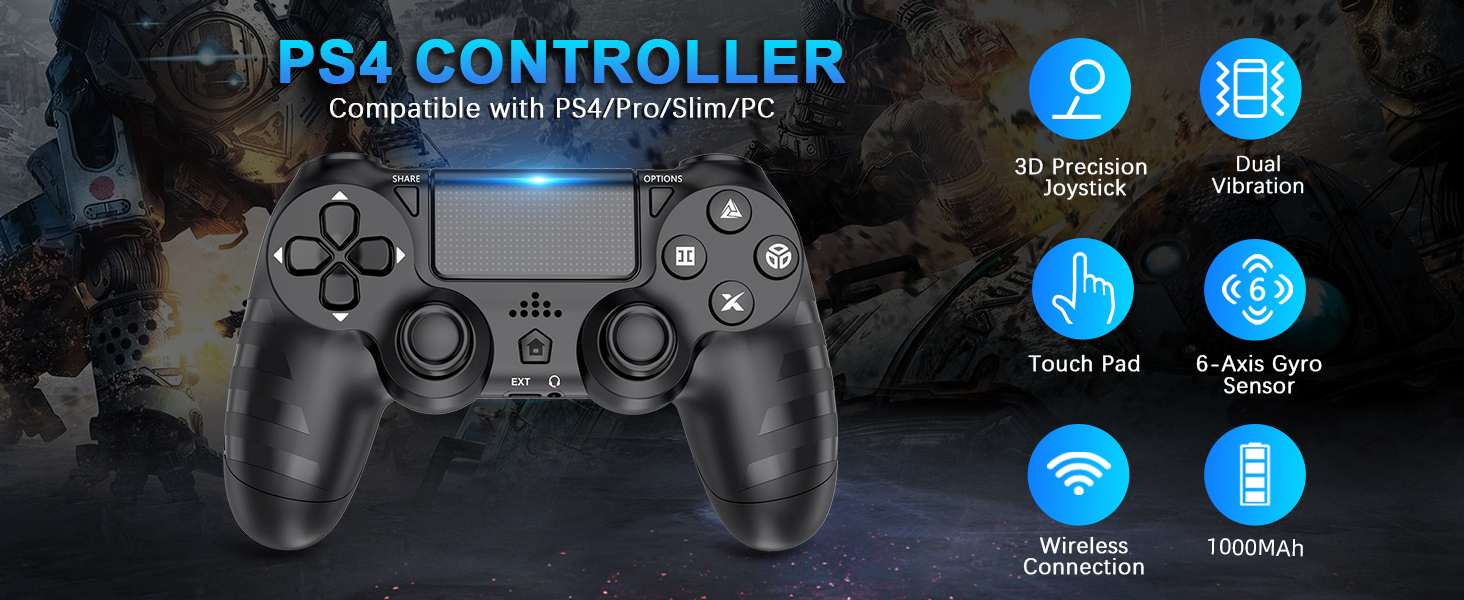
Image: Overview of key features of the DYONDER Wireless Controller.
3. Controller Layout
Familiarize yourself with the various buttons and components of your DYONDER Wireless Controller:

Image: Labeled diagram of the controller's buttons and interfaces.
- SHARE Button: Used for sharing gameplay content.
- OPTIONS Button: Accesses in-game menus and options.
- D-Pad: Directional input.
- Action Buttons (Triangle, Circle, Cross, Square): Primary game input buttons.
- Left/Right Joysticks: Analog input for movement and camera control.
- Touchpad: Multi-touch input surface.
- Home Button: Returns to the console's home screen or powers on/off.
- Extended Interface: For accessories.
- Headphone Jack: For connecting headsets.
- LED Light Bar: Indicates player number, charging status, and in-game information.
- Charging Socket (USB-C): For charging the controller.
4. Setup and Connection
Initial Connection to PS4 Console:
- Ensure your PS4 console is powered on.
- Connect the DYONDER Wireless Controller to your PS4 console using the included USB-C charging cable.
- Press the Home button on the controller. The controller will sync with the console.
- Once synced, you can disconnect the USB-C cable for wireless play.
Connecting to PC:
- For PC connection, hold the SHARE button and the HOME button simultaneously for 3 seconds.
- The controller's LED light bar will start flashing rapidly, indicating it is in pairing mode.
- On your PC, go to Bluetooth settings and select the DYONDER Wireless Controller to pair.
- Once paired, the LED light bar will turn solid, indicating a successful connection.
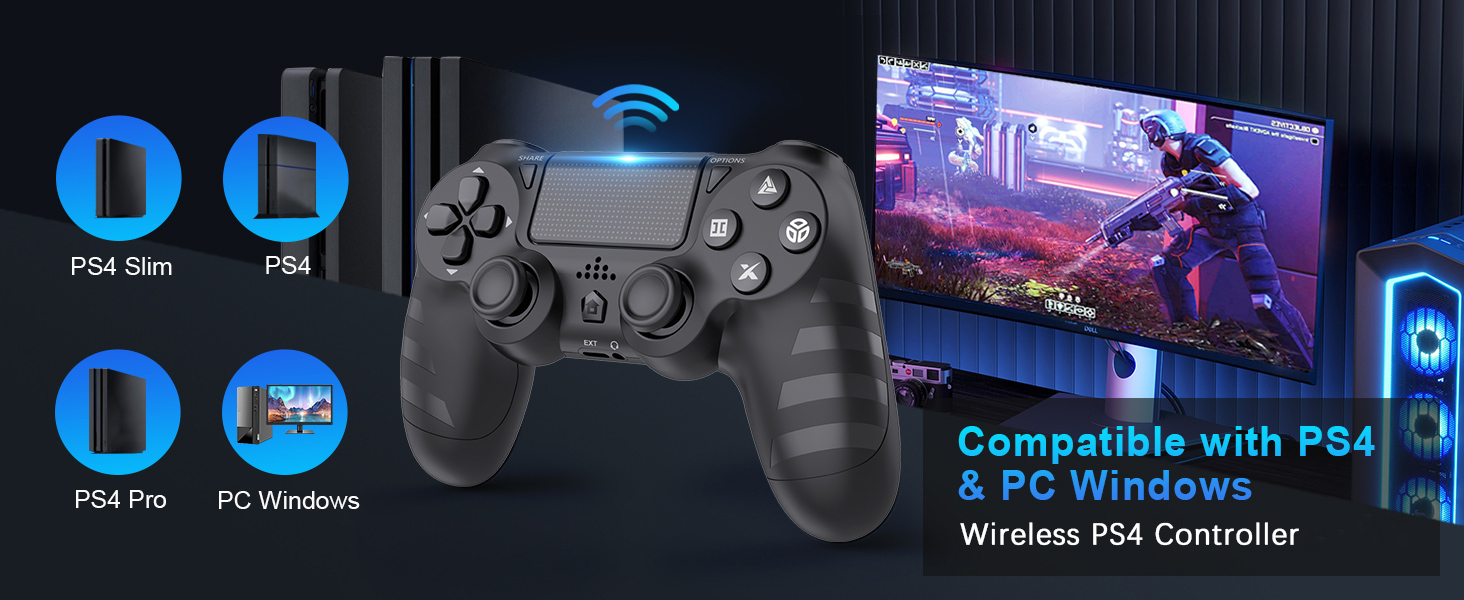
Image: Visual representation of controller compatibility with various platforms.
5. Operation
Dual Vibration Feedback:
The controller features dual vibration motors that provide tactile feedback during gameplay. This enhances immersion by simulating in-game actions such as impacts, explosions, and environmental effects. The vibration intensity can vary based on the game and its settings.
6-Axis Motion Sensor:
Equipped with a highly sensitive 6-axis motion sensor (accelerometer and gyroscope), the controller allows for intuitive motion-based controls in compatible games. You can tilt, rotate, and shake the controller to interact with the game environment.

Image: Illustration of the controller's 6-Axis Gyro Sensor in action.
Touchpad Functionality:
The integrated touchpad supports multi-touch gestures, allowing for unique interactions in games that utilize this feature. It can also function as a clickable button.
Audio Jack:
Connect your headset to the 3.5mm audio jack for in-game audio and voice chat (where supported by the game and console/PC settings).
6. Charging and Battery Life
The DYONDER Wireless Controller is equipped with a built-in 1000mAh rechargeable lithium-ion battery.
- Charging Time: Approximately 2 hours for a full charge using the included USB-C cable.
- Playtime: Up to 15 hours of continuous gameplay on a full charge.
Charging Indicator:
While charging, the LED light bar on the controller will typically display an amber light. Once fully charged, the light will turn off or change color depending on the console/PC status.
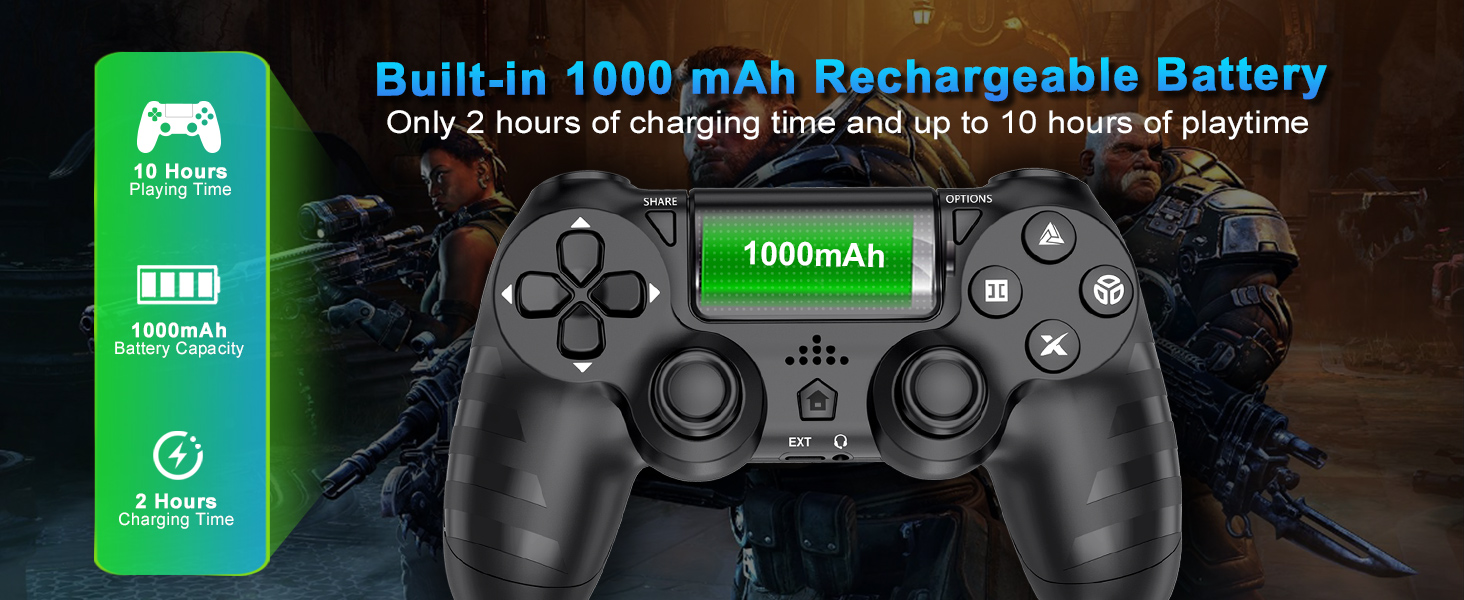
Image: Battery capacity and charging details for the controller.
7. Maintenance
- Cleaning: Use a soft, dry cloth to wipe the controller. For stubborn dirt, slightly dampen the cloth with water. Avoid using harsh chemicals or abrasive cleaners.
- Storage: Store the controller in a cool, dry place away from direct sunlight and extreme temperatures.
- Battery Care: To prolong battery life, avoid fully discharging the controller frequently. Charge it regularly, even if not in use for extended periods.
- Handling: Do not drop the controller or subject it to strong impacts. Avoid pulling the cable forcefully when disconnecting.
8. Troubleshooting
| Problem | Possible Cause | Solution |
|---|---|---|
| Controller does not connect/pair. | Low battery, out of range, pairing mode not activated, interference. | Charge the controller fully. Ensure it's within range of the console/PC. Re-enter pairing mode (SHARE + HOME for 3 seconds). Try connecting with the USB-C cable first. |
| Input lag or unresponsiveness. | Wireless interference, low battery, software issue. | Ensure no strong wireless interference. Charge the controller. Restart the console/PC and controller. |
| Joystick drift. | Wear and tear, dust/debris. | Try resetting the controller (small button on the back). Clean around the joystick base. If persistent, contact support. |
| Headset microphone not working. | Headset compatibility, console/PC audio settings, controller defect. | Ensure your headset is fully plugged in. Check audio input/output settings on your PS4 or PC. Test with another headset if possible. If the issue persists, it may indicate a hardware problem. |
| Controller not charging. | Faulty cable, faulty charging port, power source issue. | Try a different USB-C cable and a different power source (e.g., another USB port on console/PC, wall adapter). Ensure the cable is securely connected. |
9. Specifications
| Feature | Detail |
|---|---|
| Model | B0DH22GT2B |
| Brand | DYONDER |
| Compatibility | PS4, PS4 Slim, PS4 Pro, PC |
| Battery Capacity | 1000mAh Lithium Ion |
| Charging Time | Approx. 2 hours |
| Playtime | Up to 15 hours |
| Connectivity | Wireless (Bluetooth), USB-C |
| Sensors | 6-Axis Motion Sensor (Accelerometer, Gyroscope) |
| Feedback | Dual Vibration Motors (4 levels) |
| Audio | 3.5mm Headphone Jack |
| Item Weight | 9.9 ounces (approx. 280g) |
| Package Dimensions | 6.5 x 4.37 x 2.6 inches |
10. Official Product Videos
Video: A brief overview of the DYONDER Wireless Controller in pink, highlighting features like dual vibration, sensitive joysticks, and anti-slip texture.
Video: A quick look at the black DYONDER Wireless Controller, showcasing its design and features.
11. Warranty and Support
For warranty information, technical support, or any inquiries regarding your DYONDER Wireless Controller, please refer to the contact information provided on the product packaging or visit the official DYONDER website. Keep your purchase receipt for warranty claims.
Ask a question about this manual
Ask about setup, troubleshooting, compatibility, parts, safety, or missing instructions. Manuals+ will review the question and use this page’s manual context to help answer it.