
WUYJTIF Q9 64G
WUYJTIF Q9 8K Dual System Game Stick User Manual
Model: Q9 64G | Brand: WUYJTIF
1. Introduction
The WUYJTIF Q9 8K Dual System Game Stick is a versatile entertainment device designed to provide both retro gaming and smart TV functionalities. Featuring a powerful quad-core ARM Cortex-A53 processor and G31 OpenGL3.2 graphics, it supports 8K and 4K UHD output via HDMI 2.1, ensuring a high-definition visual experience. The device comes with a 64GB TF card pre-loaded with over 20,000 games, offering a wide variety of classic titles. It also supports Wi-Fi connectivity for online content and features a user-friendly interface for seamless navigation between gaming and TV modes.
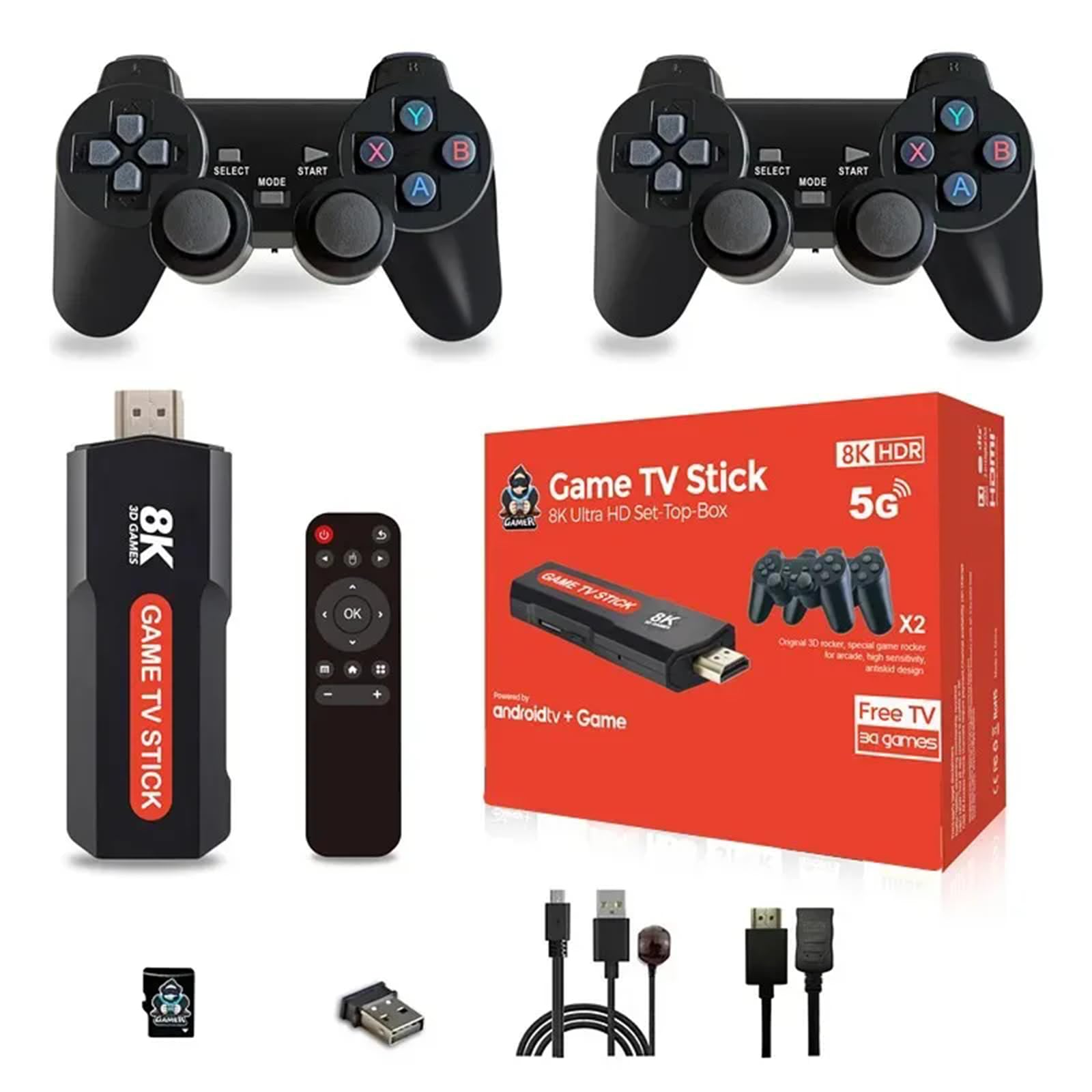
Figure 1: WUYJTIF Q9 8K Dual System Game Stick with wireless controllers.
2. Package Contents
Ensure all the following items are included in your package:
- Q9 8K Dual System Game Stick (main unit)
- Wireless Controllers (2 units)
- USB Receiver for Wireless Controllers
- HDMI Extension Cable
- Micro USB Power Cable
- Power Adapter (5V/1.5A)
- 64GB TF Card (pre-installed in the Game Stick)
- User Manual
Video 1: Unboxing and overview of the Game Stick and its accessories.
3. Setup Guide
Follow these steps to set up your WUYJTIF Q9 Game Stick:
- Connect to Power: Plug the Micro USB power cable into the Game Stick's DC port and connect the other end to the provided power adapter. Plug the adapter into a wall outlet.
- Connect to Display: Insert the Game Stick directly into an available HDMI port on your TV or monitor. If space is limited, use the included HDMI extension cable.
- Insert USB Receiver: Plug the USB receiver for the wireless controllers into an available USB 2.0 port on the Game Stick.
- Power On Controllers: Insert AAA batteries (not included) into each wireless controller. Turn on the controllers using the ON/OFF switch. The LED indicator on the controller should light up, indicating a successful connection to the Game Stick.
- Select Input Source: On your TV or monitor, select the correct HDMI input source corresponding to where the Game Stick is connected.
- Initial Setup: Upon first boot, you may be prompted to select a language. Use the controller to navigate and confirm your selection.

Figure 2: Illustrates connecting the Game Stick to a television.

Figure 3: The Game Stick supports 1080P HD output for a clear visual experience.
4. Operating Instructions
4.1 Dual System Functionality
The Q9 Game Stick operates on a dual system, allowing you to switch between Game Mode and TV Mode (Android 11.1). This provides flexibility for both gaming and multimedia consumption.

Figure 4: Switching between Game Mode and TV Mode.
4.2 Game Mode
In Game Mode, you can access the extensive library of pre-installed retro games. The system supports various classic simulators, providing a wide range of gaming options.
- Navigation: Use the wireless controllers to navigate through the game menus.
- Game Selection: Select a game from the list. The system offers features like saving game progress, searching for specific titles, and marking favorites for quick access.
- Multiplayer: With two included controllers, you can immediately enjoy multiplayer games.

Figure 5: The Game Stick is compatible with multiple classic gaming systems.

Figure 6: Game management features including Save, Search, and Favorite.
Video 2: Demonstration of the game selection and gameplay experience.
4.3 TV Mode (Android 11.1)
Switch to TV Mode to access Android 11.1 features. This allows you to download apps, stream videos, and browse the internet.
- Wi-Fi Connectivity: The device supports Wi-Fi for internet access. Navigate to settings to connect to your home network.
- App Access: Utilize pre-installed apps or download new ones from the Google Play Store (if available) for streaming services, social media, and more.

Figure 7: The TV mode interface with various applications.
5. Maintenance
- Cleaning: Use a soft, dry cloth to clean the Game Stick and controllers. Avoid using liquid cleaners or abrasive materials.
- Storage: Store the device and accessories in a cool, dry place away from direct sunlight and extreme temperatures.
- Battery Care: Remove batteries from controllers if not in use for extended periods to prevent leakage.
- Software Updates: The device supports OTA (Over-The-Air) updates. Check for available updates periodically in the system settings to ensure optimal performance.
6. Troubleshooting
- No Power: Ensure the Micro USB power cable is securely connected to both the Game Stick and the power adapter, and the adapter is plugged into a working outlet. Check the LED indicator light on the Game Stick (working: blue; standby: red).
- No Display on TV: Verify the HDMI cable is firmly connected to both the Game Stick and the TV. Ensure your TV is set to the correct HDMI input source.
- Controllers Not Responding: Check if the USB receiver is properly inserted into the Game Stick. Ensure fresh AAA batteries are installed in the controllers and they are switched ON. Re-pair the controllers if necessary (refer to the quick start guide for specific pairing instructions).
- Game Lag/Performance Issues: Close any unnecessary background applications in TV Mode. Ensure the device has adequate ventilation.
- Cannot Connect to Wi-Fi: Verify your Wi-Fi network is active and within range. Double-check the Wi-Fi password.
7. Specifications
| Feature | Detail |
|---|---|
| Model Number | 64G |
| CPU | Jingchen 905X Quad Core ARM Cortex-A53 |
| Graphics Processor | G31 OpenGL3.2 |
| Memory | 1GB LPDDR3 |
| ROM | 8GB eMMC |
| TF Card Support | 64GB (supports 4GB/8GB/16GB/32GB/64GB) |
| HDMI Output | 8K * 4K * 2K UHD output, HDMI 2.1 |
| Operating System | Android 11.1 |
| USB Port | USB 2.0 |
| Power Supply | Micro USB 5V/1.5A |
| Controller Type | Wireless Button Control |
| Material | Plastic |
| Wi-Fi | Yes |
| Bluetooth-compatible | No |

Figure 8: Internal hardware specifications of the Game Stick.
8. Warranty and Support
For warranty information and technical support, please refer to the documentation included in your product packaging or contact WUYJTIF customer service directly. Keep your purchase receipt as proof of purchase for any warranty claims.
Ask a question about this manual
Ask about setup, troubleshooting, compatibility, parts, safety, or missing instructions. Manuals+ will review the question and use this page’s manual context to help answer it.