
1. Introduction
The Changingtouch F16s Smart Display is an all-in-one digital calendar, picture frame, and smart home hub designed to simplify your daily life. Featuring a 15.6-inch anti-glare touchscreen, it offers seamless integration with Google Calendar and Google Photos, along with access to a wide range of Android applications. This manual provides comprehensive instructions for setup, operation, and maintenance.
2. Setup Guide
2.1 Initial Power On
When you turn on your F16s Smart Display for the first time, follow the on-screen prompts to begin the setup process. It is recommended to register a Google account specifically for the smart display to ensure optimal functionality and privacy.
Video: F16S How to start up your new smart display? This video guides you through the initial power-on and basic setup steps.
2.2 Network Connection
During the initial setup, you will be prompted to connect to a Wi-Fi network. Select your network from the list and enter the password. A stable internet connection is crucial for accessing online features like Google Calendar, Google Photos, and app downloads.
2.3 Google Account Setup
To fully utilize the smart features, sign in with your Google account. This allows synchronization of calendars, photos, and access to the Google Play Store. If you do not have a Google account, you can create one during this step.
2.4 Activating "Hey Google" Voice Assistant
The F16s supports Google Assistant for voice commands. To activate it:
- Go to Settings on the main interface.
- Scroll down and select Google.
- Choose All services, then select Search, Assistant & Voice.
- Select Google Assistant (Hey Google, Voice Match).
- Turn on the Hey Google toggle and follow the on-screen instructions to record your voice.
Video: F16S- Say Hey Google to wake up your smart display. Learn how to enable and use voice commands.
3. Operating Instructions
3.1 Using Google Calendar
The F16s integrates seamlessly with Google Calendar, allowing you to manage schedules, reminders, and events in real-time. You can view your agenda in daily, weekly, or monthly formats. Create shared family calendars to keep everyone in sync.
- To add an event: Tap the '+' icon, input the title, set the time, and use color labels to categorize events. You can also invite family members to events.
- To-Do Lists: Create and manage tasks for all family members, ensuring everyone knows their responsibilities for the day.
Video: F16S- Stay Organized with Digital Calendar. This video demonstrates how to use the calendar features.

Image: All your calendars in one place. Quickly switch between month, week, and day view. Events from Gmail are added to your calendar automatically.
3.2 Managing Photos
The F16s functions as a stunning digital picture frame, displaying cherished memories from Google Photos or local storage.
- Frame Modes: The device offers various frame modes accessible via the 'Frame' button on the main interface. Turn on 'Use frame mode' to activate.
- Clock Mode: Displays a digital clock on a black background. You can customize the clock style and enable night mode for a dimmer display.
- Colors Mode: Features a constantly changing colorful background.
- Photo Frame Mode: Plays selected photos from your device one by one. Ensure full access to photos and videos is allowed. You can copy photos to an SD card or USB disk (via USB-A port) and set up albums in the root directory for recognition.
- Photo Table Mode: Gathers all selected photos on one screen, allowing you to tap on them for details.
- Photos Mode: Shows online photos from your Google account and photos in the device's storage. You can choose specific albums to display.
- Uploading Photos:
- Via Google Photos: Open the Google Photos app on the smart display. Create new albums to categorize your photos. Open a photo, tap the three dots in the upper right corner, and select 'Download'. Downloaded photos will be saved in an album named 'Restored'.
- Via SD Card/USB Disk: Copy your desired photos to an SD card or USB disk. Insert the storage device into the F16s. Ensure albums are set up in the root directory of the device for proper recognition.
Video: F16S- The Five Different Frame Modes of the Smart Display. Explore various ways to display your photos.
Video: F16S-How to upload photos to smart display via Google Photos. Detailed steps on uploading photos using Google Photos.
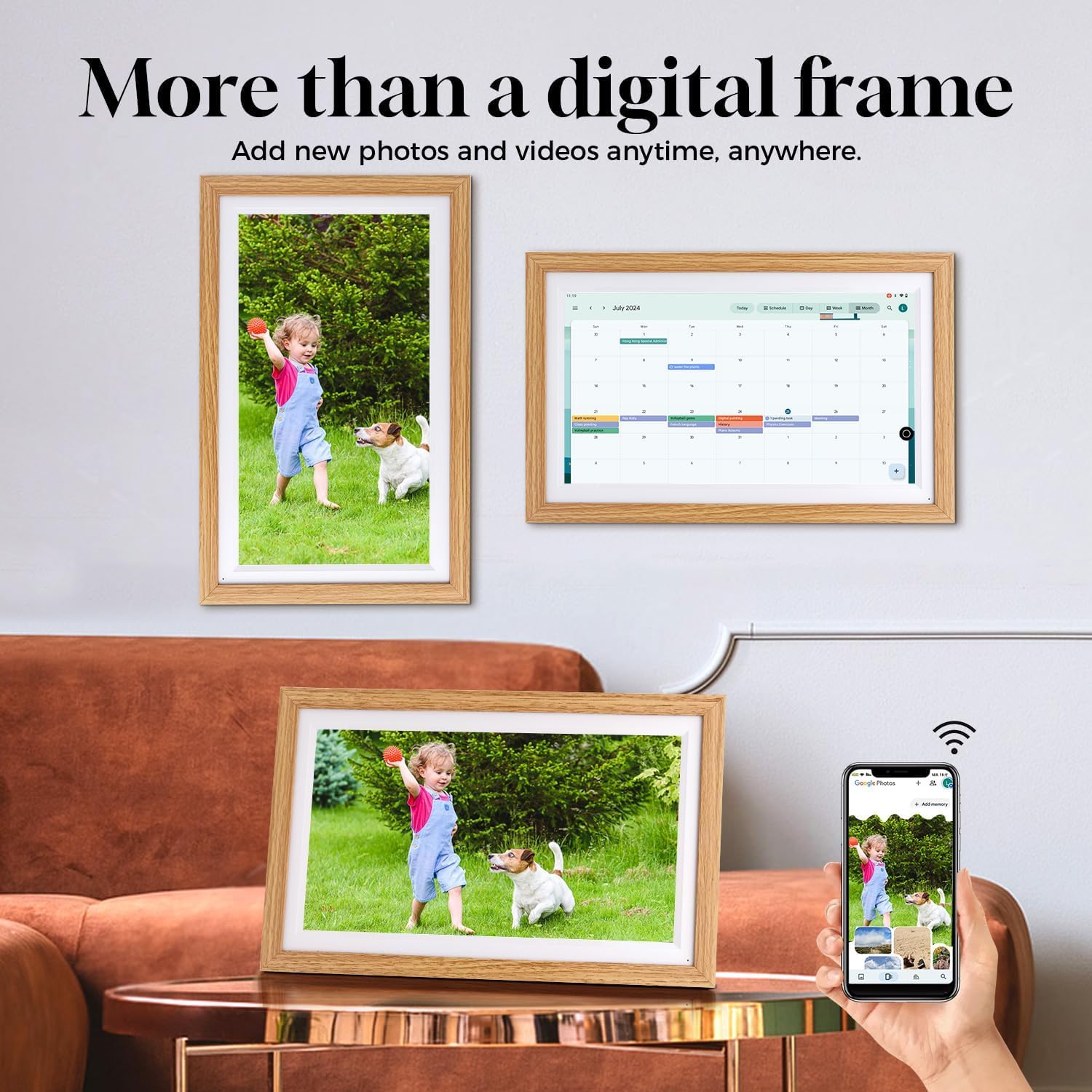
Image: More than a digital frame. Add new photos and videos anytime, anywhere, and display them in various orientations.
3.3 App Management
The F16s supports app installation from Google Play, providing access to video, music, games, education, and more. You can install, uninstall, or disable apps as needed.
- Installing Apps: Go to Google Play from the main interface, log in with your Google account, search for the desired app, and click 'Install'.
- Uninstalling/Disabling Apps: For installed apps, search for them in Google Play and click 'Uninstall'. For pre-installed apps (like Netflix or Spotify), you can disable them via Settings > Apps > See all apps, then select the app and click 'Disable'. Disabled apps will not appear on the main interface. To re-enable, follow the same path and click 'Enable'.
Video: F16S How to manage apps on your smart display? Learn how to install, uninstall, and disable applications.
3.4 Music Playback
Enjoy music streaming from platforms like Spotify or Apple Music with the F16s's immersive stereo sound. Simply install your preferred music app from Google Play and log in.

Image: Immersive stereo sound. Enjoy music on Spotify with double speakers, perfect for any room.
3.5 Portable TV Functionality
Connect via Wi-Fi and watch your favorite movies and shows anytime, anywhere. The 15.6-inch FHD touchscreen provides vibrant visuals for streaming services like Netflix and Disney+.

Image: Portable TV. Connect via Wi-Fi and watch your favorite movies anytime, anywhere.
3.6 Smart Home Hub
Control your smart home devices effortlessly with Google Home integration. Say "Hey Google" to activate Google Assistant and manage compatible devices directly from your F16s display.

Image: Smart Homehub. More control, more entertainment, more help comes with every part of the day on the display.
3.7 Drawing Tablet
Transform your F16s into a portable digital planner and drawing tablet. The 15.6-inch touchscreen supports MPP 2.0 stylus pens (third-party compatible), ensuring smooth and precise handwriting and drawing with apps like Sketchbook and Infinite Painter.

Image: Portable Digital Drawing Tablet. Supports stylus pens for a better writing experience.
4. Maintenance
To ensure the longevity and optimal performance of your Changingtouch F16s Smart Display, follow these maintenance guidelines:
- Cleaning: Use a soft, lint-free cloth to gently wipe the screen and frame. For stubborn smudges, slightly dampen the cloth with water or a screen-cleaning solution. Avoid abrasive cleaners or solvents.
- Placement: Place the device on a stable, flat surface or mount it securely on a wall. Avoid direct sunlight, extreme temperatures, and high humidity.
- Battery Care: The built-in battery lasts up to 4 hours under standard use. For extended battery life, adjust brightness and volume settings. Avoid fully draining the battery frequently.
5. Troubleshooting
If you encounter issues with your F16s Smart Display, refer to the following common solutions:
- Device Not Responding/Laggy Touchscreen:
- Restart the device by holding the power button until the power options appear, then select 'Restart'.
- Ensure the device's software is up to date via Settings > System > System update.
- Close unused applications running in the background to free up memory.
- Difficulty Uploading Photos/Albums Not Recognized:
- For SD cards or USB disks, ensure photos are placed in albums within the root directory of the storage device.
- Verify that the Google Photos app has full access to your device's photos and videos in its settings.
- Ensure your Google Photos backup is enabled on your smartphone and the smart display is logged into the same Google account.
- Device Locked Out: If you are locked out of the device (e.g., forgotten password), contact Changingtouch customer support for assistance.
- Apps Not Updating: Some users have reported issues with app updates. Ensure your device is connected to a stable internet connection. If the issue persists, try uninstalling and reinstalling the app, or contact customer support.
6. Specifications
| Feature | Detail |
|---|---|
| Screen Size | 15.6 Inches |
| Resolution | FHD (1920x1080) |
| Display Type | Anti-glare Touchscreen |
| Color Accuracy | 130% sRGB / 90% NTSC |
| Connectivity | Bluetooth, Wi-Fi, USB |
| Battery Life | Up to 4 hours (standard use), 1 hour (max brightness video playback) |
| Storage | 15GB cloud storage (Google Photos), 32GB built-in memory |
| Stylus Support | MPP 2.0 compatible (third-party stylus pens) |
| Operating System | Android-based |
7. Warranty and Support
Your Changingtouch F16s Smart Display comes with a manufacturer's warranty. For detailed warranty information, product support, or technical assistance, please refer to the warranty card included in your product packaging or visit the official Changingtouch website. You can also contact Changingtouch customer service through the Amazon platform.