
Introduction
This manual provides detailed instructions for setting up, operating, maintaining, and troubleshooting your DYONDER Wireless Controller. This controller is compatible with PlayStation 4 (PS4), PS4 Pro, PS4 Slim, and PC systems.
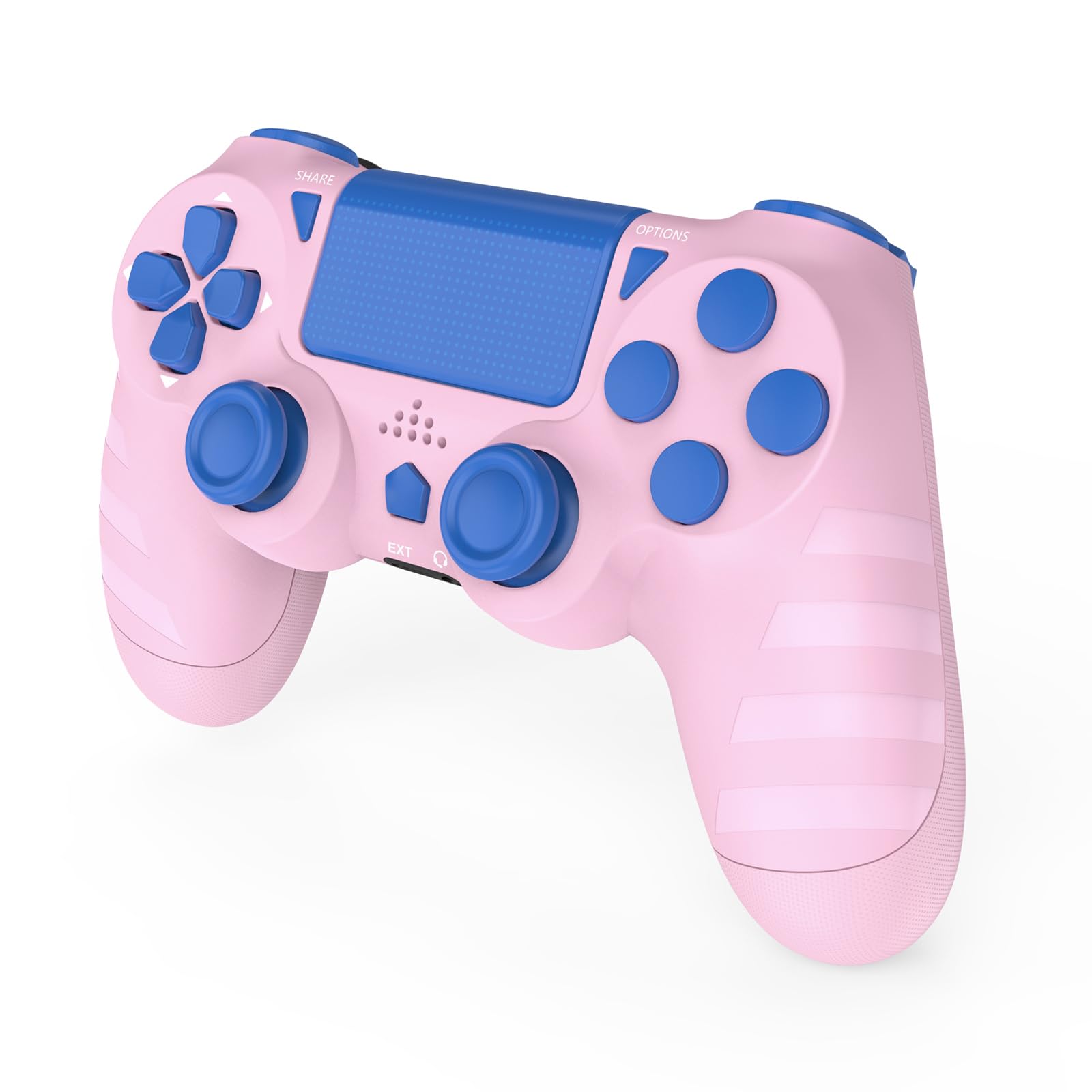
Front view of the DYONDER Wireless Controller.
Setup and Initial Connection
Charging the Controller
Before first use, fully charge the controller. Connect the included USB-C charging cable to the controller's USB-C port and the other end to a power source (e.g., PS4 console, PC USB port, or a USB wall adapter). A full charge typically takes approximately 2 hours and provides over 15 hours of playtime.

The controller features a USB-C charging port for convenient charging.

Illustration of 1000mAh battery capacity, 2 hours charging time, and 10+ hours playing time.
Connecting to PS4/PS4 Pro/PS4 Slim
- Ensure your PS4 console is powered on.
- For the first connection, use the included USB-C charging cable to connect the controller directly to your PS4 console.
- Press the PS button (Home button) on the controller. The light bar will flash, indicating it is pairing.
- Once paired, the light bar will glow a solid color, and you can disconnect the USB-C cable for wireless play.
- For subsequent connections, simply press the PS button on the controller to automatically connect wirelessly to the last paired PS4 console.
Connecting to PC (Windows)
- To pair the controller with your PC, hold the SHARE button and the HOME button (PS button) simultaneously for 3 seconds.
- The controller will enter pairing mode, and you can then connect it via Bluetooth on your PC.
- Alternatively, you can connect the controller to your PC using the USB-C cable for a wired connection.

The controller is compatible with various PlayStation 4 models and Windows PCs.
Operating the Controller
The DYONDER Wireless Controller offers a range of features designed to enhance your gaming experience.
Key Features
- Dual Vibration Feedback: Experience immersive gameplay with dual vibration motors. The controller provides 4 levels of vibration feedback, responding to in-game actions for a more realistic feel.
- 6-Axis Motion Sensor: Utilize the built-in 6-axis gyro sensor for precise motion sensing in compatible games, allowing for intuitive control through tilting and rotating the controller.
- Responsive Joysticks and Buttons: The upgraded joysticks and buttons are designed for enhanced responsiveness and precision, minimizing input lag and drift for faster reactions.
- Integrated Audio Jack: Connect your gaming headset directly to the controller's 3.5mm audio jack for private listening and in-game communication.
- Touch Pad: The integrated touch pad provides additional input options for games that utilize this feature.

The 6-Axis Gyro Sensor provides superior motion sensing for interactive gameplay.

Labeled diagram showing the SHARE button, D-Pad, Left Joystick, Extended Interface, Home button, Headphone Jack, Touchpad, OPTIONS button, Action buttons, Right Joystick, LED indicator, and Charging Socket.
Maintenance
Proper care and maintenance will extend the life of your controller.
- Cleaning: Use a soft, dry cloth to clean the controller. For stubborn dirt, slightly dampen the cloth with water. Avoid using harsh chemicals, solvents, or abrasive cleaners, as these can damage the surface.
- Storage: Store the controller in a cool, dry place away from direct sunlight and extreme temperatures.
- Avoid Drops: Protect the controller from drops and impacts, which can damage internal components.
- Cable Care: Handle the USB-C charging cable carefully. Avoid bending or twisting it excessively, and always pull from the plug, not the cable itself, when disconnecting.
Troubleshooting
If you encounter issues with your DYONDER Wireless Controller, refer to the following common solutions.
Controller Not Connecting to PS4
- First-time Connection: Ensure you are using the USB-C cable to connect the controller to the PS4 console for the initial pairing. Press the PS button after connecting.
- Reset Controller: Locate the small reset button on the back of the controller (often inside a small hole). Use a thin object (like a straightened paperclip) to press and hold the reset button for 3-5 seconds. Then, attempt to reconnect via USB cable.
- PS4 System Settings: Check your PS4's power saving settings. Ensure that "Rest Mode" features that might turn off USB power or disconnect devices are disabled, especially during initial setup.
- Power Cycle PS4: If connection issues persist, try turning off your PS4 completely (not just rest mode), then turn it back on. Connect the controller via USB and press the PS button.
- Try a Different USB-C Cable: A faulty cable can prevent proper data transfer. Test with another known-good USB-C cable.
Controller Not Connecting to PC
- Pairing Mode: Ensure the controller is in pairing mode by holding the SHARE + HOME buttons for 3 seconds.
- Bluetooth Settings: On your PC, go to Bluetooth settings and ensure Bluetooth is enabled. Search for new devices and select the controller when it appears.
- Wired Connection: If wireless connection fails, try connecting the controller directly to your PC via the USB-C cable.
- Drivers: For some PC games or systems, specific drivers might be required. Check online resources for generic gamepad drivers if needed.
Battery Not Charging or Short Battery Life
- Check Cable and Port: Ensure the USB-C cable is securely connected to both the controller and the power source. Inspect the USB-C port on the controller for any visible damage.
- Power Source: Try charging from a different USB port or wall adapter.
- Charging Time: Allow the controller to charge for the recommended 2 hours for a full charge.
Specifications
| Model | B0DH1XPF61 |
| Compatibility | PS4, PS4 Pro, PS4 Slim, PC (Windows) |
| Connectivity | Wireless (Bluetooth), Wired (USB-C) |
| Battery Type | 1 Lithium Ion Battery (included) |
| Battery Capacity | 1000mAh |
| Charging Time | Approx. 2 hours |
| Playtime | Over 15 hours (approx.) |
| Dimensions | 16.6 x 11.2 x 6.6 cm (approx.) |
| Weight | 280 g (approx.) |
| Features | Dual Vibration, 6-Axis Motion Sensor, Touch Pad, 3.5mm Audio Jack |
Warranty and Support
For warranty information or technical support, please contact DYONDER customer service through the retailer where the product was purchased. Please retain your proof of purchase for any warranty claims.
You can also visit the official DYONDER store page for additional resources and contact information: DYONDER Store