
Lexar D40E
Lexar D40E Dual USB 3.2 Gen 1 Type-C Jump Drive
User Instruction Manual
1. Product Overview
The Lexar D40E Dual USB 3.2 Gen 1 Type-C Jump Drive is a versatile and portable storage solution designed for seamless data transfer between various devices. Featuring both USB Type-A and USB Type-C connectors, this drive offers broad compatibility with smartphones, tablets, laptops, and traditional computers. Its durable metal housing and swivel design ensure protection and convenience on the go.

Figure 1: Lexar D40E Dual USB 3.2 Gen 1 Type-C Jump Drive.
2. Key Features
- Dual Connectivity: Equipped with both USB Type-A and USB Type-C connectors for wide compatibility across modern and traditional devices.
- High-Speed Performance: Achieves read speeds of up to 100MB/s and write speeds of up to 80MB/s, facilitating quick file transfers.
- Plug-and-Play: No software installation required for immediate use with compatible devices.
- Durable Design: Features a robust metal enclosure and a 360° swivel design to protect the connectors and enhance portability.
- Advanced Security: Includes Lexar DataShield software with 256-bit AES encryption for secure file protection.
3. Setup and Initial Use
3.1 Unpacking the Device
Carefully remove the Lexar D40E Jump Drive from its packaging. Inspect the drive for any visible damage. The package typically includes the drive itself.

Figure 2: Front packaging of the Lexar D40E.
3.2 Connecting to a Device
- Identify the appropriate port on your device (USB Type-A or USB Type-C).
- Rotate the swivel mechanism on the Lexar D40E to expose the desired connector.
- Insert the connector firmly into the corresponding port on your computer, smartphone, or tablet.

Figure 3: Connecting the drive to a laptop and a smartphone.
The drive is plug-and-play and should be automatically recognized by most operating systems (Windows, macOS, Android, Linux) without requiring additional drivers.
4. Operating the Jump Drive
4.1 File Transfer
Once connected, the Lexar D40E will appear as a removable storage device (e.g., 'USB Drive' or 'Lexar D40E') in your device's file explorer or file management application.
- To copy files to the drive: Drag and drop files from your device's storage to the Lexar D40E folder. Alternatively, right-click (or long-press on mobile) the files, select 'Copy', navigate to the drive, and select 'Paste'.
- To copy files from the drive: Drag and drop files from the Lexar D40E folder to your device's storage. Alternatively, right-click (or long-press on mobile) the files on the drive, select 'Copy', navigate to your desired destination, and select 'Paste'.

Figure 4: High-speed data transfer in progress.
4.2 Secure File Protection (Lexar DataShield)
The Lexar D40E supports advanced security features using Lexar DataShield software, which provides 256-bit AES encryption. This software is typically pre-loaded on the drive or available for download from the official Lexar website.
- Locate and run the Lexar DataShield application on the drive.
- Follow the on-screen instructions to set up a secure partition and password.
- Place sensitive files into the encrypted partition for enhanced security.
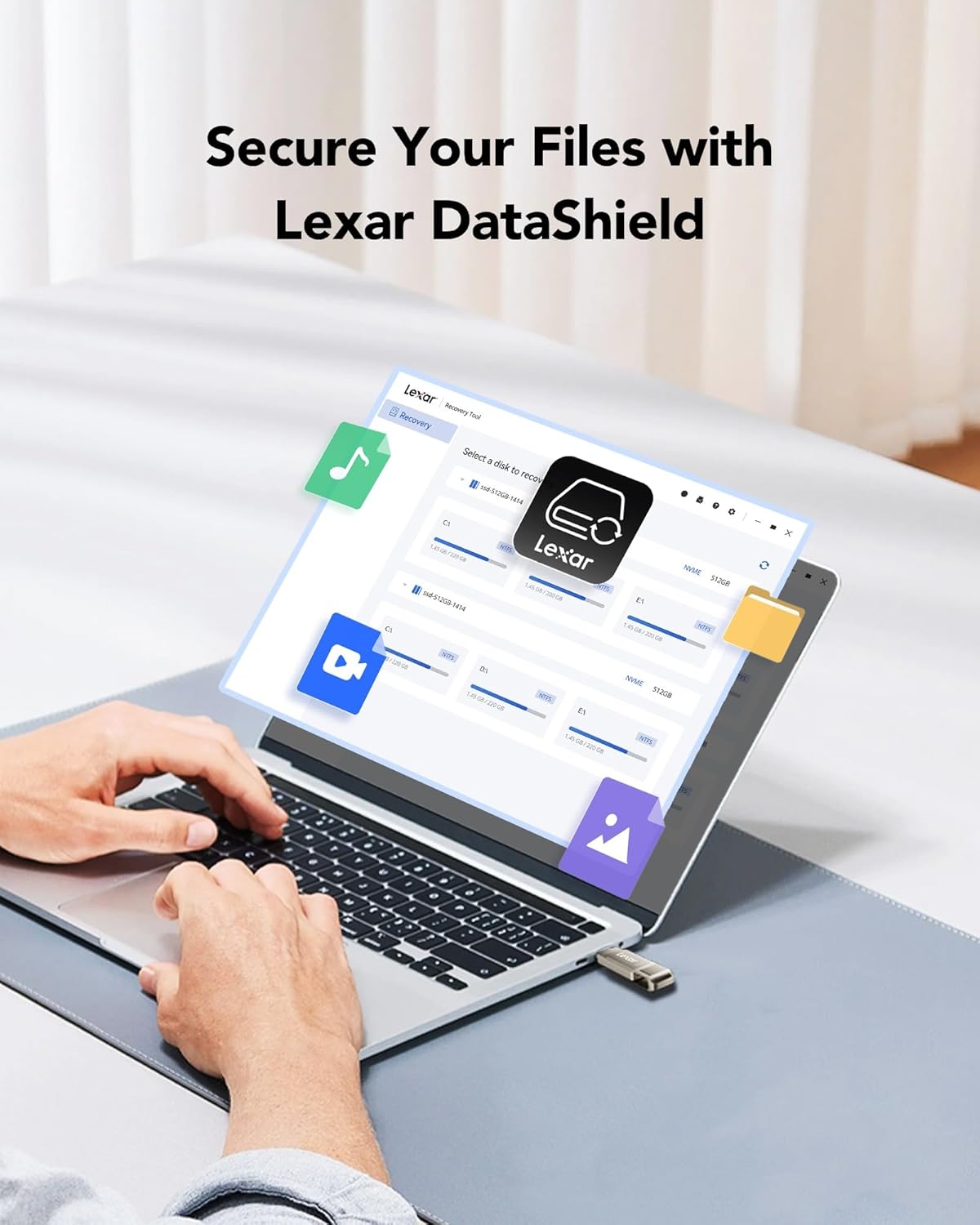
Figure 5: Lexar DataShield software interface.
4.3 Safe Removal
Always safely eject the drive from your operating system before physically removing it to prevent data corruption. This is typically done by right-clicking the drive icon in your file explorer and selecting 'Eject' or 'Safely Remove Hardware'.
5. Maintenance and Care
- Physical Care: The metal housing provides durability. Avoid excessive force, extreme temperatures outside the operating range (0°C to 50°C), and exposure to water or corrosive substances.
- Connector Protection: Utilize the swivel design to protect the unused connector from dust and damage when not in use.
- Data Backup: Regularly back up important data stored on the drive to another location to prevent data loss.
- Cleaning: Use a soft, dry cloth to clean the exterior of the drive. Do not use liquid cleaners.
6. Troubleshooting
| Problem | Possible Cause | Solution |
|---|---|---|
| Drive not recognized | Incorrect port, loose connection, driver issue, or incompatible file system. | Ensure the drive is fully inserted into a compatible USB port. Try a different USB port or device. Check device manager for driver issues. Reformat the drive if necessary (note: this will erase all data). |
| Slow transfer speeds | Using a USB 2.0 port, large number of small files, or background processes. | Ensure you are connected to a USB 3.0/3.1/3.2 port for optimal speed. Close unnecessary applications. Transfer fewer, larger files if possible. |
| Cannot write files | Drive is full, write-protected, or file system limitations (e.g., FAT32 for large files). | Check available space. Ensure the drive is not write-protected. For files larger than 4GB, reformat the drive to NTFS (Windows) or exFAT (Windows/macOS compatible). |
| Drive gets warm during use | Normal operation, especially during prolonged transfers. | This is normal for metal-encased drives as metal dissipates heat effectively. If it becomes excessively hot or causes errors, discontinue use and contact support. |
7. Specifications
| Feature | Detail |
|---|---|
| Model Name | D40E |
| Memory Storage Capacity | 256 GB (as reviewed) |
| Hardware Interface | USB 3.2 Gen 1 |
| Connectivity Technology | USB Type A, USB Type C |
| Read Speed | Up to 100 MB/s |
| Write Speed | Up to 80 MB/s |
| Color | Champagne Silver |
| Product Dimensions (LxWxH) | 2.76 x 0.67 x 0.04 inches (70.4 x 16.9 x 1.0 mm approx.) |
| Item Weight | 0.317 ounces (approx. 9g) |
| Operating Temperature | 0°C to 50°C (32°F to 122°F) |
Note: Performance may vary depending on host device, interface, and usage conditions.
8. Warranty and Support
8.1 Limited Warranty
The Lexar D40E Jump Drive is backed by a Lexar 3-year limited warranty. This warranty covers defects in materials and workmanship under normal use. Please retain your proof of purchase for warranty claims.
8.2 Customer Support
For technical assistance, warranty claims, or further information, please visit the official Lexar website or contact Lexar customer support through the following channels:
- Lexar Official Website: www.lexar.com/support
- Refer to the product packaging for specific regional contact information.
Related documentsD40E


Ask a question about this manual
Ask about setup, troubleshooting, compatibility, parts, safety, or missing instructions. Manuals+ will review the question and use this page’s manual context to help answer it.