
1. Introduction
This manual provides essential information for the proper use and maintenance of your Lexar D40E 64GB Dual USB 3.2 Gen 1 Type-C Jump Drive. Please read this manual thoroughly before using the device to ensure optimal performance and longevity.
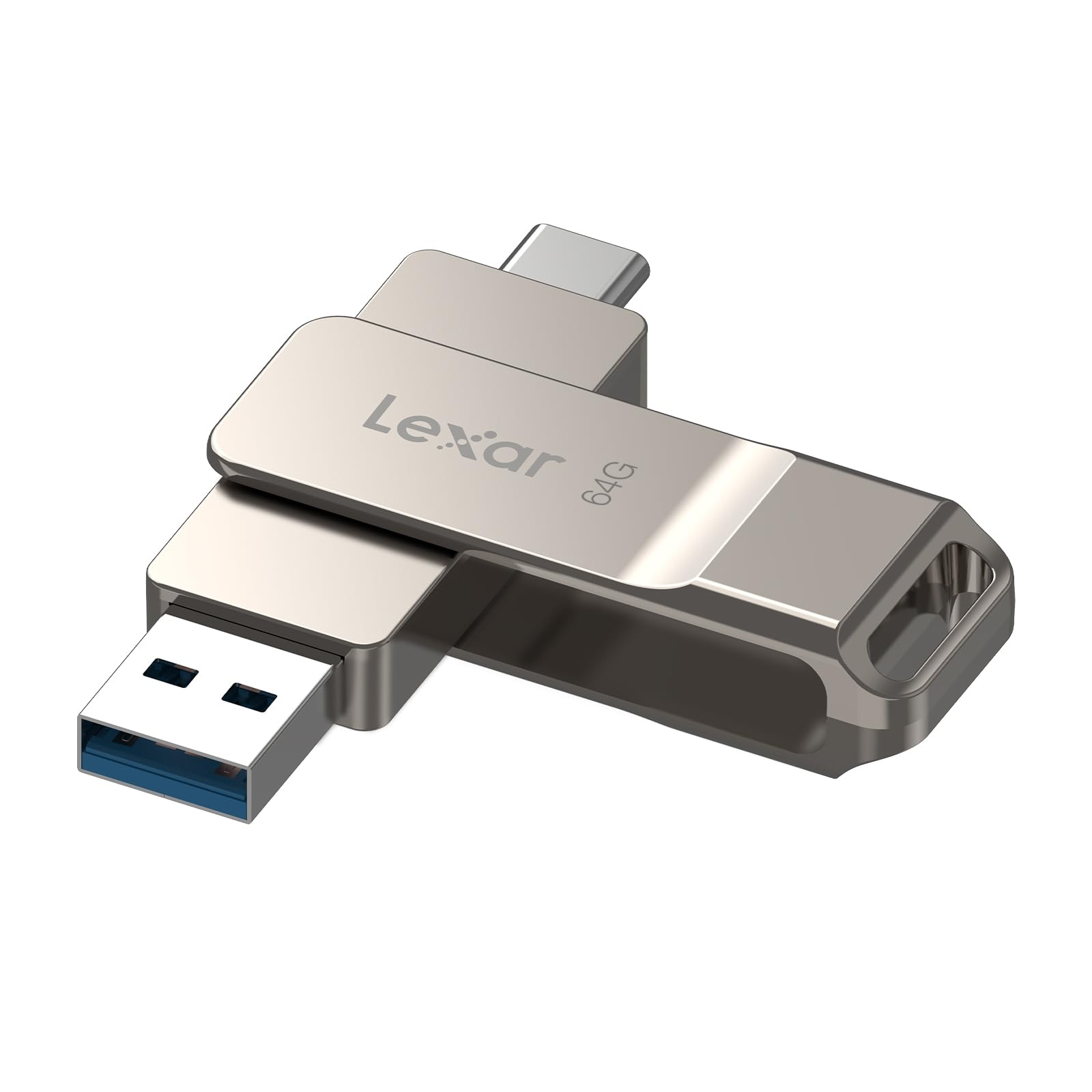
Figure 1: Lexar D40E Dual USB 3.2 Gen 1 Type-C Jump Drive.
2. Product Overview
The Lexar D40E is a versatile storage solution designed for seamless data transfer between various devices. Its dual-connector design and durable metal housing make it a reliable choice for expanding storage and moving files efficiently.
Key Features:
- Dual USB Connectors: Features both USB Type-A and USB Type-C connectors for broad compatibility.
- High-Speed Performance: USB 3.2 Gen 1 interface provides transfer speeds up to 100MB/s read.
- Plug and Play: No software installation required for most compatible devices.
- Durable Design: Metal housing with a 360° swivel design protects connectors and ensures durability.
- Advanced Security: Supports 256-bit AES encryption for secure file protection.
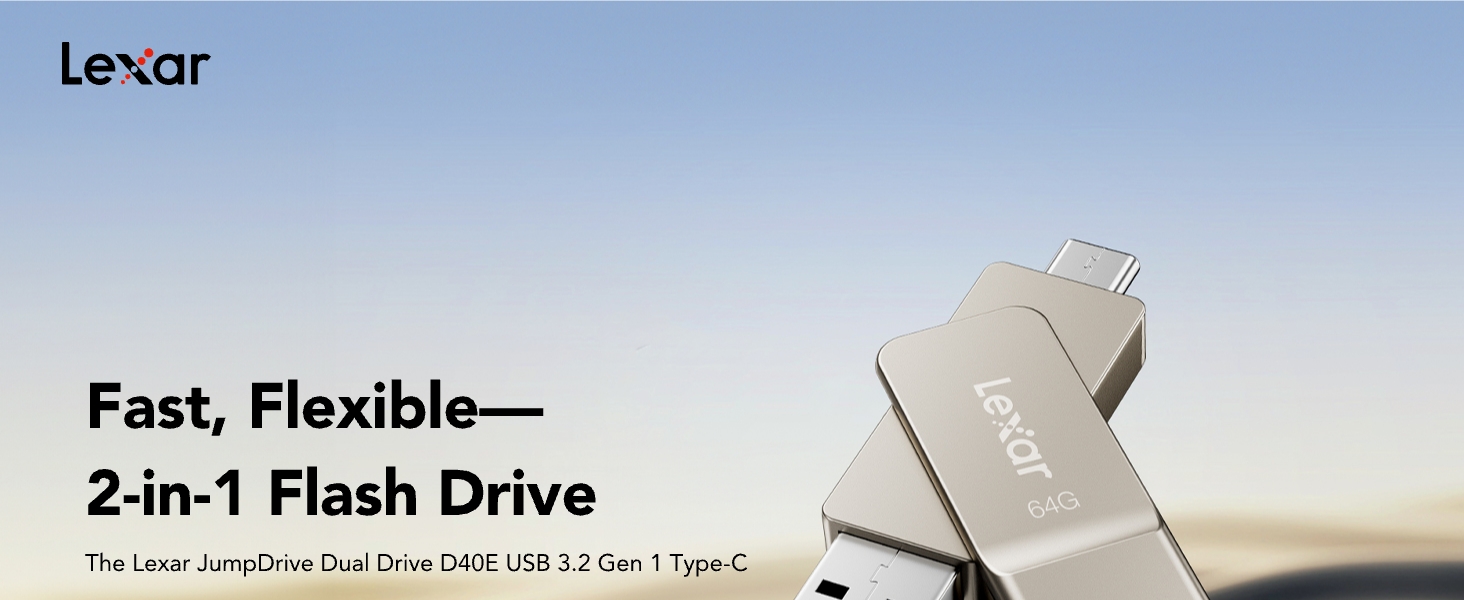
Figure 2: The Lexar D40E features both USB Type-A and Type-C connectors.
3. Setup
The Lexar D40E is designed for simple plug-and-play operation. Follow these steps to connect your drive to a compatible device.
3.1 Connecting to a USB Type-A Device (e.g., PC, Laptop)
- Identify the USB Type-A connector on the Lexar D40E (the larger, rectangular connector).
- Insert the USB Type-A connector into an available USB Type-A port on your computer or laptop.
- The device should be automatically recognized by your operating system.
3.2 Connecting to a USB Type-C Device (e.g., Smartphone, Tablet, Mac)
- Identify the USB Type-C connector on the Lexar D40E (the smaller, oval-shaped connector).
- Insert the USB Type-C connector into an available USB Type-C port on your smartphone, tablet, or Mac.
- The device should be automatically recognized. On mobile devices, you may need to access a file manager application to view the drive's contents.

Figure 3: The Lexar D40E offers wide compatibility with various devices.
4. Operating Instructions
4.1 Transferring Files
Once connected, the Lexar D40E functions like any standard USB drive. You can drag and drop files to and from the drive using your device's file management system.
- To copy files to the drive: Locate the files on your device, select them, and drag them to the Lexar D40E drive icon or folder.
- To copy files from the drive: Open the Lexar D40E drive, select the desired files, and drag them to a location on your device.
4.2 Security Features
The Lexar D40E supports advanced security software with 256-bit AES encryption to protect your files. This software is typically downloaded separately from the Lexar website. Refer to the software's instructions for setup and use.
Figure 4: Secure your files using Lexar DataShield software with 256-bit AES encryption.
5. Maintenance
5.1 Care and Handling
- Avoid exposing the drive to extreme temperatures, moisture, or direct sunlight.
- Do not drop or subject the drive to strong impacts.
- Keep the connectors clean and free from dust or debris. The swivel design helps protect the connectors when not in use.
- Always safely eject the drive from your device before removing it to prevent data corruption.
5.2 Formatting the Drive
The drive comes pre-formatted, but you may need to reformat it for specific uses or to resolve certain issues. If you intend to transfer large files (over 4GB each), you may need to reformat the drive to a file system like exFAT or NTFS, as the default FAT32 file system has a 4GB file size limit.
- Connect the Lexar D40E to your computer.
- Open 'This PC' or 'My Computer' (Windows) or 'Finder' (Mac).
- Right-click (Windows) or Control-click (Mac) on the Lexar D40E drive icon.
- Select 'Format...' from the context menu.
- Choose your desired file system (e.g., exFAT for cross-platform compatibility with large files) and click 'Start' or 'Erase'.
- Confirm the action. Warning: Formatting will erase all data on the drive. Back up important files before proceeding.
6. Troubleshooting
6.1 Drive Not Recognized
- Ensure the drive is fully inserted into the USB port.
- Try a different USB port on your device.
- Try connecting to a different computer or device to rule out a port issue.
- Restart your computer or device.
- Check your device's file manager or disk management utility to see if the drive is detected but not assigned a drive letter (Windows).
6.2 Slow Transfer Speeds
- Ensure you are using a USB 3.0/3.1/3.2 compatible port on your device for optimal speeds. Connecting to a USB 2.0 port will result in slower speeds.
- Performance may vary depending on the host device, interface, and usage conditions.
- Avoid transferring many small files simultaneously; compressing them into a single archive can sometimes improve speed.
6.3 Error When Transferring Large Files (e.g., >4GB)
- This is typically due to the drive being formatted with the FAT32 file system, which has a 4GB file size limit.
- Reformat the drive to exFAT or NTFS (see Section 5.2) to support larger file sizes.
7. Specifications
| Feature | Detail |
|---|---|
| Brand | Lexar |
| Model Name | D40E |
| Memory Storage Capacity | 64 GB |
| Hardware Interface | USB 3.2 Gen 1 |
| Special Feature | Dual USB Connectors |
| Read Speed | Up to 100 Megabytes Per Second |
| Write Speed | Up to 80 Megabytes Per Second |
| Compatible Devices | Laptop, Mac, PC, Smartphone, Tablet (USB Type-C smartphones) |
| Connectivity Technology | USB |
| Flash Memory Type | USB |
| Color | Champagne Silver |
| Item Dimensions (D x W x H) | 0.46"D x 2.77"W x 0.46"H (70.4 x 16.9 x 11.7mm) |
| Item Weight | 26 Grams |
| Model Number | LJDD40E064G-BNSNG |
| UPC | 843367138333 |
8. Warranty and Support
8.1 Warranty Information
The Lexar D40E Dual USB 3.2 Gen 1 Type-C Jump Drive is backed by a Lexar 3-year limited warranty. For detailed terms and conditions, please refer to the official Lexar website or contact Lexar customer support.
8.2 Customer Support
For technical assistance, product inquiries, or warranty claims, please visit the official Lexar support website or contact their customer service department. Contact information can typically be found on the Lexar website or product packaging.


