
Product Overview
The Sharp 4T-C55FS1UR AQUOS OLED 4K Ultra HD Roku TV offers a premium viewing experience with its advanced display technology and integrated smart TV platform. This bundle includes a Walts TV Medium Full Motion Mount for flexible installation and a Walts HDTV Screen Cleaner Kit for optimal display maintenance.
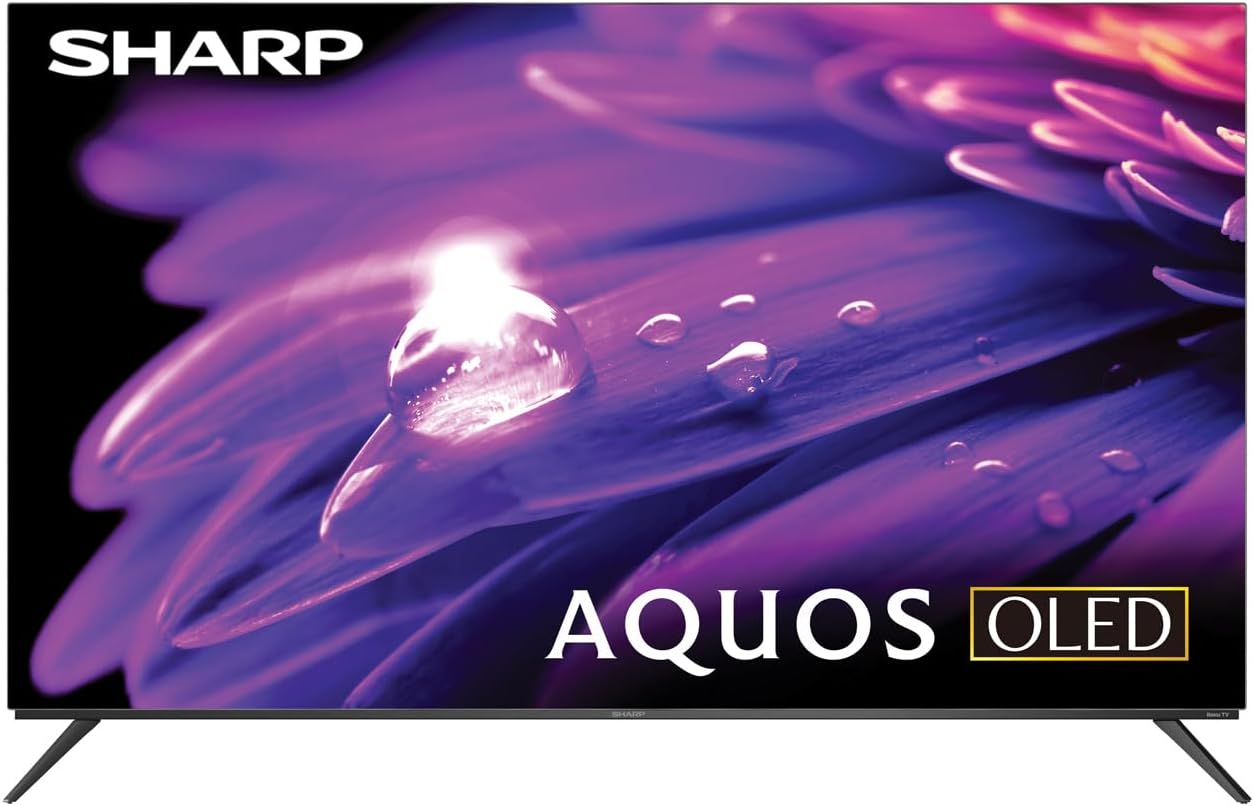
Image: Front view of the Sharp AQUOS OLED 4K Ultra HD Roku TV.
This image displays the sleek design of the Sharp AQUOS OLED TV, highlighting its thin bezels and modern aesthetic. The OLED technology ensures vibrant colors and deep blacks for an immersive viewing experience.

Image: Sharp AQUOS OLED TV displaying the Roku TV home screen.
The TV features the intuitive Roku TV interface, providing access to a vast library of streaming services and apps directly from the home screen. This integration simplifies content discovery and navigation.
Video: Sharp FS1UR Series TV Product Review by Walts TV.
This video provides a comprehensive review of the Sharp FS1UR Series TV, detailing its features, design, and performance. It offers visual demonstrations of the TV's capabilities and user interface.
Setup Instructions
1. Unboxing and Initial Placement
- Carefully remove all components from the packaging. Retain packaging for future transport or service.
- Place the TV on a stable, flat surface or prepare for wall mounting.
- Ensure adequate ventilation around the TV.
2. Stand Installation (Optional)
If using the included TV stand:
- Attach the two stand legs to the designated slots on the bottom of the TV using the provided screws.
- Ensure the legs are securely fastened. The stand provides 3.5 inches of clearance, suitable for soundbars.

Image: Side profile of the Sharp AQUOS OLED TV on its stand.
This image illustrates the slim profile of the TV and the design of its stand, which offers sufficient clearance for external audio devices.
3. Wall Mount Installation (Optional)
If using the Walts TV Medium Full Motion Mount:
- Refer to the separate instruction manual provided with the Walts TV mount for detailed installation steps.
- The mount is compatible with 32"-65" TVs and supports VESA mounting up to 400mm x 400mm.
- It features a +3 to -10 degree viewing angle adjustment and cable management.

Image: Front view of the Walts TV Medium Full Motion Mount.
This image shows the robust construction of the full motion TV mount, designed for secure and flexible wall mounting.
4. Connecting Peripherals
The TV features side-angled ports for easy access:
- HDMI Ports: Connect up to 4 HDMI devices (e.g., gaming consoles, Blu-ray players). One port supports eARC for enhanced audio return.
- USB Ports: Connect USB devices (e.g., flash drives) to the 2 available USB ports.
- Antenna/Cable In: Connect an antenna or cable TV source.
- Ethernet Port: For wired internet connection.
- Digital Audio Out: For connecting external audio systems.

Image: Close-up of the input/output ports on the back of the Sharp AQUOS OLED TV.
This image details the various connectivity options available on the TV, including multiple HDMI and USB ports, designed for convenient access whether wall-mounted or on a stand.
5. Power On and Initial Setup
- Connect the power cord to the TV and a wall outlet.
- Press the power button on the remote control or TV.
- Follow the on-screen instructions to complete the initial Roku TV setup, including network connection and channel scanning.
Operating Instructions
1. Roku TV Interface Navigation
- Use the directional pad on the remote to navigate menus.
- Press the OK button to select items.
- The Home button returns to the main Roku TV screen.
- Dedicated buttons for popular streaming services (e.g., Netflix, Disney+) provide quick access.
2. Picture and Sound Settings
Access picture and sound settings through the Roku TV menu to optimize your viewing experience.
- Picture Modes: Select from various preset modes (e.g., Movie, Standard, Vivid) or customize settings like brightness, contrast, and color.
- HDR Support: The TV supports HDR10, HLG, and Dolby Vision IQ for enhanced contrast and color with compatible content.
- Refresh Rate: Enjoy smooth motion with the 120Hz refresh rate, ideal for gaming and fast-paced action.
- Dolby Audio: Utilize Dolby Audio for rich, immersive sound. Adjust audio settings for different content types.
3. Gaming Features
For an optimal gaming experience:
- Variable Refresh Rate (VRR): Automatically adjusts the display's refresh rate to match the game's frame rate, reducing screen tearing.
- Low Latency: Minimizes input lag for a more responsive gaming experience.
- Connect your next-gen consoles to the HDMI ports for full utilization of these features.
Maintenance
1. Screen Cleaning
Use the Walts HDTV Screen Cleaner Kit for safe and effective cleaning:
- Ensure the TV is turned off and cool.
- Spray the non-ammonia, alcohol-free cleaning solution onto the included microfiber cloth, not directly onto the screen.
- Gently wipe the screen in a circular motion to remove dust, dirt, and fingerprints.
- The solution cleans without dripping, streaking, or staining, leaving no film or residue.

Image: Walts HDTV Screen Cleaner Kit packaging.
This image shows the Walts HDTV Screen Cleaner Kit, which is designed to safely clean various display screens without causing damage or leaving residue.
2. General Care
- Avoid placing heavy objects on the TV.
- Keep the TV away from direct sunlight and heat sources.
- Do not block ventilation openings.
- Unplug the TV during lightning storms or when unused for extended periods.
Troubleshooting
| Problem | Possible Cause / Solution |
|---|---|
| No Power |
|
| No Picture / Poor Picture Quality |
|
| No Sound / Poor Sound Quality |
|
| Remote Control Not Working |
|
| Network Connection Issues |
|
For further assistance, please refer to the full user manual or contact Sharp customer support.
Specifications
- Brand: Sharp
- Model Name: 4T-C55FS1UR
- Screen Size: 55 Inches (Visible screen diagonal: 55" / 140 cm)
- Display Technology: AQUOS OLED
- Resolution: 4K Ultra HD (8.3 Million Pixels)
- Refresh Rate: 120 Hz
- Special Features: HDR10, HLG, Dolby Vision IQ, Full Roku TV Experience Built-in, Dolby Digital Audio, Variable Refresh Rate (VRR) with Low Latency for Optimized Gaming, Voice Remote Control
- Connectivity: 4 HDMI (1 eARC), 2 USB, Wi-Fi Compatible, Ethernet
- Product Dimensions (D x W x H): 9.84"D x 48.27"W x 31.18"H
- Item Weight: 38.5 Pounds
- Color: Black
- Supported Internet Services: Netflix, Disney+, Apple TV, Roku Channel, Discovery+, HBO Max, Paramount+, and More
Included Accessories:
- Sharp 4T-C55FS1UR 55" AQUOS OLED 4K Ultra HD with Dolby Audio Roku TV
- Walts TV Medium Full Motion Mount for 32-65 Inch Compatible TV's
- Walts HDTV Screen Cleaner Kit (6.8oz / 200ML, Non-Ammonia, No Alcohol)
Warranty and Support
For warranty information, please refer to the documentation included with your product at the time of purchase or visit the official Sharp website. Specific warranty terms and conditions may vary.
For customer support, please visit the Sharp Store on Amazon or contact their customer service directly.


