
Introduction
This manual provides essential information for the setup, operation, maintenance, and troubleshooting of your NANU SHOP Aitek AIO-1932 All-in-One Computer. Designed for efficiency and compact integration, this computer features an Intel Core i5 processor, 8GB RAM, a 256GB SSD, and a 19-inch Full HD LED display, running on Windows 11 Home. Please read this manual thoroughly to ensure proper use and longevity of your device.
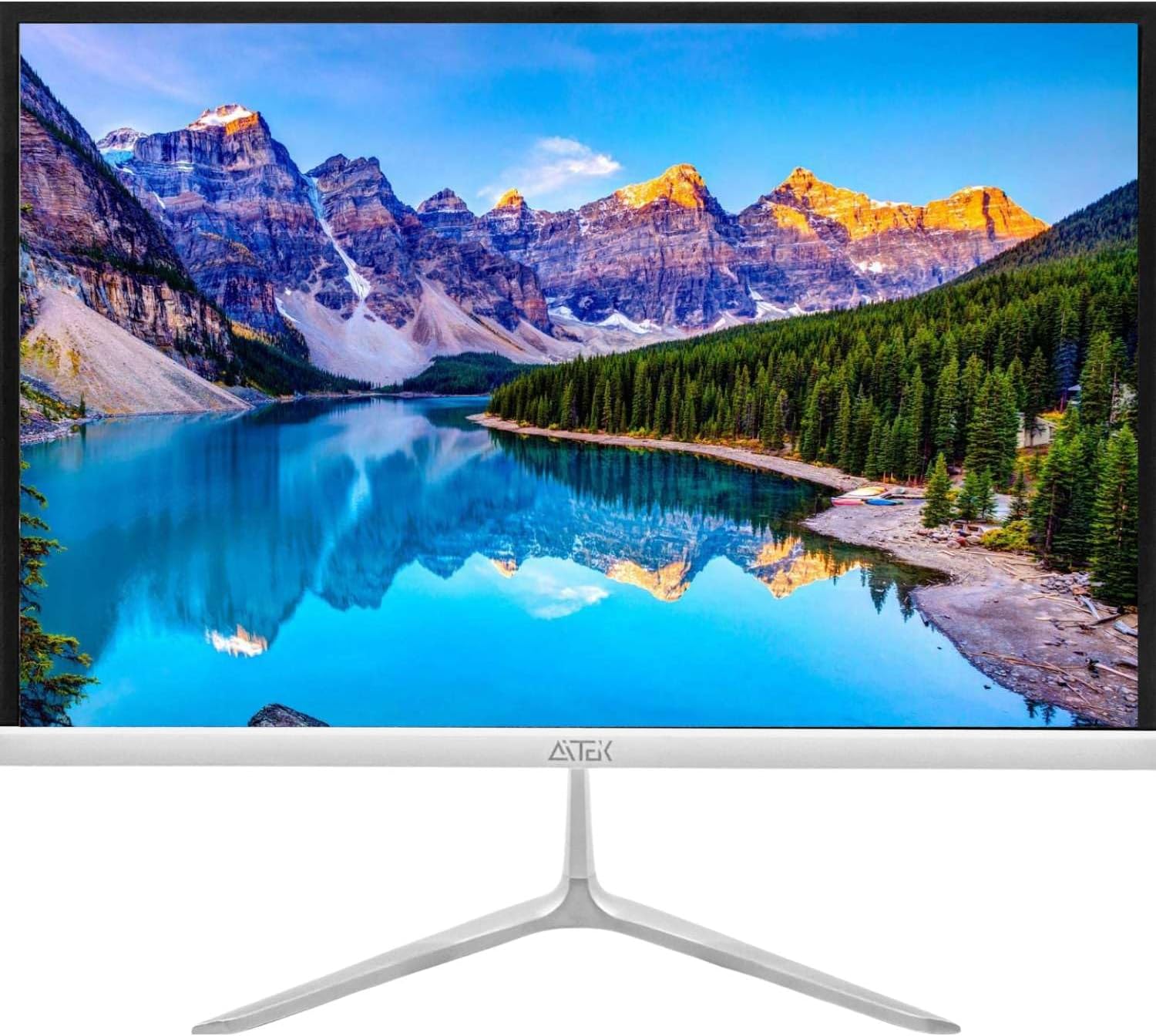
Front view of the NANU SHOP Aitek AIO-1932 All-in-One computer displaying a scenic wallpaper.
Safety Information
To prevent damage to your device or injury to yourself and others, observe the following safety precautions:
- Do not expose the computer to water, moisture, or extreme temperatures.
- Avoid placing the computer in direct sunlight or near heat sources.
- Ensure proper ventilation; do not block air vents.
- Use only the provided power adapter.
- Disconnect the power cable during electrical storms or when unused for extended periods.
- Do not attempt to open or repair the computer yourself. Refer to qualified service personnel.
Setup Guide
1. Unboxing and Placement
Carefully remove the AIO-1932 computer and all accessories from its packaging. Place the computer on a stable, flat surface with adequate space for ventilation.

Front view of the NANU SHOP Aitek AIO-1932 All-in-One computer with the screen powered off.
2. Connecting Peripherals
Connect your keyboard, mouse, and any other USB devices to the available USB ports on the side or rear of the computer.

Side view showing the USB ports on the NANU SHOP Aitek AIO-1932.

Rear connectivity ports including HDMI, VGA, USB, Ethernet, and audio jacks.
3. Power Connection
Connect the power adapter to the DC-in port on the back of the computer, then plug the power cable into a wall outlet.

Power adapter and cable for the AIO-1932.
4. Initial Power-On and Windows 11 Setup
Press the power button, usually located on the bottom right side or rear of the display. Follow the on-screen instructions to complete the Windows 11 Home initial setup, including language, region, network connection, and user account creation.
Operating Instructions
1. Power On/Off
- To Power On: Press the power button.
- To Shut Down: Click the Start button, then Power > Shut down.
- To Restart: Click the Start button, then Power > Restart.
- To Sleep: Click the Start button, then Power > Sleep.
2. Network Connectivity
- Wi-Fi: Click the network icon in the taskbar, select your Wi-Fi network, enter the password, and click Connect.
- Ethernet: Connect an Ethernet cable from your router/modem to the Ethernet port on the back of the computer. The connection should be established automatically.
- Bluetooth: To pair Bluetooth devices, go to Settings > Bluetooth & devices, turn on Bluetooth, and select 'Add device'.
3. Audio Output
The AIO-1932 features integrated speakers. Adjust volume using the Windows volume controls in the taskbar or through connected external speakers/headphones via the audio jack.

The AIO-1932 computer set up on a desk, ready for daily tasks.
Maintenance
1. Cleaning
- Screen: Use a soft, lint-free cloth lightly dampened with water or a screen cleaner. Do not spray liquid directly onto the screen.
- Chassis: Wipe the exterior with a soft, dry cloth. Avoid abrasive cleaners.
- Vents: Periodically clean dust from the ventilation openings using compressed air to ensure optimal airflow.
2. Software Updates
Regularly check for and install Windows updates to ensure system stability, security, and performance. Go to Settings > Windows Update.
3. Data Backup
It is recommended to regularly back up your important data to an external drive or cloud storage to prevent data loss.
Troubleshooting Guide
If you encounter issues with your AIO-1932, refer to the following common solutions:
- No Power: Ensure the power cable is securely connected to both the computer and the wall outlet. Test the outlet with another device.
- No Display: Check if the computer is powered on. If an external monitor is connected, ensure it's properly connected and selected as the display output.
- Slow Performance: Close unnecessary applications. Check for background processes in Task Manager. Ensure sufficient free space on the SSD. Run a disk cleanup.
- Network Connectivity Issues: Restart your router/modem. Check Wi-Fi settings or Ethernet cable connection. Run Windows Network Troubleshooter.
- Peripheral Not Working: Ensure the device is properly connected to a USB port. Try a different USB port. Check device drivers in Device Manager.
For persistent issues, consult the NANU SHOP support resources or a qualified technician.
Specifications
Detailed technical specifications for the NANU SHOP Aitek AIO-1932 All-in-One Computer:

Rear view of the AIO-1932 with product label.
| Feature | Detail |
|---|---|
| Brand | NANU SHOP |
| Model Number | AIO-1932 |
| Series | ALL IN ONE |
| Color | White |
| Operating System | Windows 11 Home |
| Processor Brand | Intel |
| Processor Type | Intel Core i5 |
| Processor Speed | 2.5 GHz |
| CPU Cache Size | 6 MB |
| RAM Memory | 8 GB DDR3 SDRAM |
| Maximum Supported Memory | 16 GB |
| Storage Type | 256 GB SSD |
| Graphics Processor | Integrated Intel Graphics 4000 |
| Screen Size | 19 Inches |
| Resolution | 1440x900 Pixels |
| Speakers | Integrated |
| Connectivity | Bluetooth, Wi-Fi, Ethernet, HDMI, USB |
| USB 2.0 Ports | 6 |
| HDMI Ports | 1 |
| Optical Storage Device | None |
| Power Source | Electric Power |
| Product Weight | 7.62 Kilograms |
| Package Dimensions | 53.9 x 44.1 x 17.1 cm |
| EAN | 3187062013401 |

Visual representation of the AIO-1932's key features.
Warranty Information
Your NANU SHOP Aitek AIO-1932 All-in-One Computer is covered by a standard manufacturer's warranty against defects in materials and workmanship. The specific terms and duration of the warranty may vary by region and retailer. Please retain your proof of purchase for warranty claims. For detailed warranty information, refer to the documentation provided with your purchase or contact NANU SHOP customer support.
Customer Support
For technical assistance, troubleshooting, or service inquiries regarding your Aitek AIO-1932 computer, please contact NANU SHOP customer support. You can typically find contact information on the NANU SHOP official website or through your retailer. When contacting support, please have your product model number (AIO-1932) and proof of purchase readily available.