
DANOPLUS KIB0444
Ultrasonic Thickness Gauge Meter User Manual
Model: KIB0444
1. Introduction
This manual provides detailed instructions for the proper use, setup, operation, maintenance, and troubleshooting of the DANOPLUS Ultrasonic Thickness Gauge Meter, Model KIB0444. This instrument is designed for precise measurement of material thickness using ultrasonic waves, suitable for a wide range of materials including metals, plastics, ceramics, and glass.
The device features a wide measurement range, a high-precision probe, customizable sound velocities, extensive data storage capabilities, and user-friendly functions such as an LCD backlight and audible alarms.
2. Safety Information
Please read and understand all safety warnings and operating instructions before using this instrument. Failure to do so may result in injury or damage to the device.
- Do not attempt to disassemble or modify the device. Refer all servicing to qualified personnel.
- Ensure proper coupling agent is used between the probe and the material surface to ensure accurate readings and prevent damage to the probe.
- Avoid exposing the device to extreme temperatures, humidity, or corrosive environments.
- Keep the device away from strong magnetic fields.
- Handle the probe with care to prevent damage to its sensitive surface.
- Use only the specified USB cable and power adapter for charging to prevent damage to the battery and device.
3. What's in the Box
Upon opening the package, verify that all the following items are included:

Image: Contents of the product package.
- 1 x Ultrasonic Thickness Meter (KIB0444)
- 1 x Sensor Probe (5Md10)
- 1 x USB Cable
- 1 x Bottle of Coupling Agent
- 1 x Carrying Case
- 1 x English Instruction Manual
4. Product Overview
Familiarize yourself with the components and controls of your Ultrasonic Thickness Gauge Meter:

Image: Labeled diagram of the Ultrasonic Thickness Gauge Meter.
Key Components:
- Probe Socket: Connects the sensor probe to the main unit.
- Selected Material Display: Shows the currently selected material type.
- Material Sound Velocity Display: Indicates the sound velocity for the selected material.
- Coupling Icon: Displays when the probe is properly coupled to the material.
- Measurement Information: Shows current, average, maximum, and minimum thickness readings.
- USB Port: For charging and data transfer.
- Calibration Sample: A small block on the device for quick calibration.
- Exit Button (ESC): Used to go back or exit menus.
- Sound Speed Adjustment Button (VEL): Used to adjust sound velocity settings.
- Up Button / Value Increased: Navigates menus or increases values.
- Power/Menu Button: Turns the device on/off and accesses the main menu.
- Confirm Button (OK): Confirms selections or actions.
- Down Button / Value Decreases: Navigates menus or decreases values.
- Probe: The transducer that emits and receives ultrasonic waves.
- Automatic Save Icon: Indicates if automatic data saving is enabled.
- File Number: Displays the current file number for data storage.
- Battery Level Indicator: Shows the remaining battery charge.
- Measurement Value: The primary thickness reading.
- Measurement Unit: Displays the unit of measurement (e.g., mm, inch).
5. Setup
5.1. Charging the Device
The device features a rechargeable 1000mAh 3.7V lithium battery. Before first use, ensure the device is fully charged.
- Connect the provided USB cable to the USB port on the thickness gauge.
- Connect the other end of the USB cable to a 5V 1A USB power adapter (not included) or a computer USB port.
- The battery indicator on the screen will show charging status. A full charge typically takes a few hours.

Image: The device connected for charging.
5.2. Connecting the Probe
- Locate the probe socket on the top of the device.
- Carefully screw the sensor probe into the probe socket until it is securely fastened. Do not overtighten.
5.3. Applying Coupling Agent
A coupling agent (gel or grease) is essential for transmitting ultrasonic waves between the probe and the material. Without it, air gaps will prevent accurate readings.
- Apply a small drop of the provided coupling agent to the surface of the material to be measured, or directly onto the probe face.
- Ensure the coupling agent covers the entire contact area of the probe.
6. Operating Instructions
6.1. Powering On/Off
- To power on: Press and hold the Power/Menu button.
- To power off: Press and hold the Power/Menu button until the device shuts down. The device also features an adjustable automatic shutdown timer (5, 10, 30 minutes, or never).
6.2. Basic Measurement

Image: The device performing a thickness measurement.
- Power on the device.
- Select the appropriate material sound velocity (see Section 6.3).
- Apply coupling agent to the material surface or probe.
- Place the probe firmly and flatly onto the material surface. Ensure good contact; the coupling icon on the screen will indicate successful coupling.
- The thickness measurement will be displayed on the screen.
- Lift the probe from the surface to take another measurement.
6.3. Sound Velocity Customization
The accuracy of thickness measurement depends on the correct sound velocity for the material being tested. The device includes 12 preset sound velocities and 3 custom slots.

Image: Table of common material sound velocities.
- Press the VEL button to enter the sound velocity setting mode.
- Use the Up and Down buttons to select a preset material or a custom slot.
- To enter a custom velocity (range 1000 to 9999 m/s), select a custom slot and use the Up and Down buttons to adjust the value.
- Press OK to confirm your selection and exit.
6.4. Data Storage and Management
The device can store up to 1500 data points across 15 files (100 entries per file), with options for manual or automatic saving.

Image: Datalogging function interface.
- Manual Save: After a measurement, press a designated button (refer to on-screen prompts or full manual) to save the reading.
- Automatic Save: Enable this feature in the menu settings. Measurements will be saved automatically after a stable reading is obtained.
- Viewing Data: Access the data storage menu to view stored files. You can navigate through files and individual data points. The device displays maximum, minimum, and average values for each file.
- Deleting Data: Within the data viewing mode, select the data point or file you wish to delete and follow the on-screen instructions (e.g., short press VEL to select, short press OK to delete).
- USB Data Transfer: Connect the device to a computer via the USB cable to transfer stored data for further analysis.
6.5. Audible Warning Alarm
The device can be configured to emit an audible alarm when measurements exceed user-defined high or low limits. Measurements outside the limits may also be displayed in red for easy identification.

Image: Audible warning alarm feature.
- Access the alarm settings through the main menu.
- Set the desired high and low thickness limits.
- Enable the audible alarm feature.
6.6. Wide Application
This instrument is versatile and can be used in various industrial and scientific applications for measuring material thickness, monitoring equipment, and checking for corrosion.
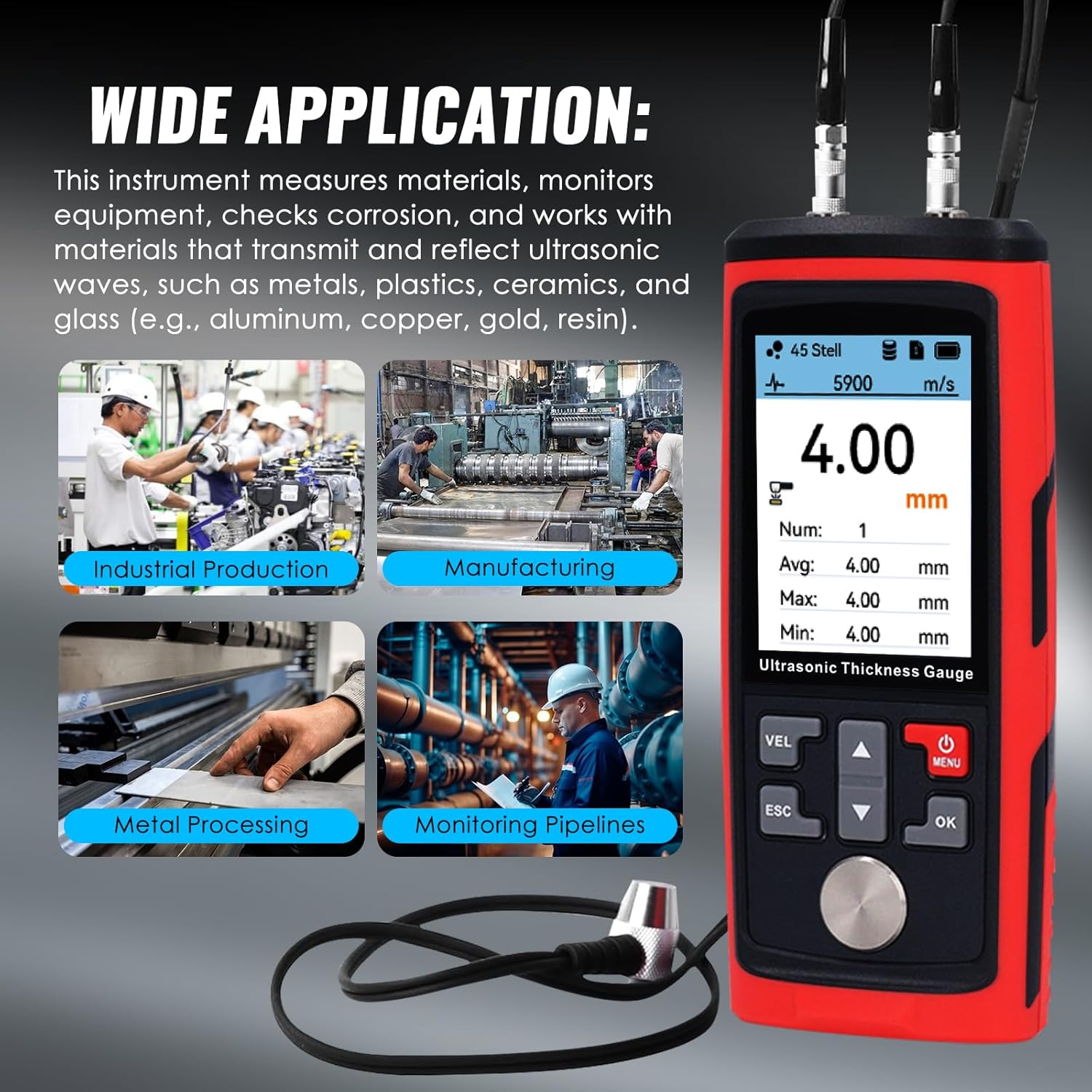
Image: Examples of wide applications for the thickness gauge.
7. Maintenance
7.1. Cleaning
- After each use, wipe the probe face and the device body with a soft, dry cloth to remove any coupling agent residue or dirt.
- Do not use abrasive cleaners or solvents, as they may damage the device's surface or internal components.
7.2. Storage
- Store the device and its accessories in the provided carrying case when not in use.
- Store in a cool, dry place, away from direct sunlight, extreme temperatures, and high humidity.
- Ensure the battery is partially charged (around 50%) if storing for extended periods to prolong battery life.
8. Troubleshooting
If you encounter issues with your device, refer to the following common problems and their solutions:
| Problem | Possible Cause | Solution |
|---|---|---|
| No reading or unstable reading | Insufficient coupling agent; air gap between probe and material; incorrect sound velocity; rough surface; probe wear. | Apply more coupling agent; ensure firm, flat contact; verify sound velocity setting; prepare surface (grind/polish); replace probe if worn. |
| Device does not power on | Low battery; device malfunction. | Charge the device fully; if still unresponsive, contact support. |
| Inaccurate readings | Incorrect sound velocity; uncalibrated probe; material properties vary. | Ensure correct sound velocity for the specific material; perform calibration using a known thickness sample; consider material homogeneity. |
| Data not saving | Memory full; automatic save disabled; user error. | Delete old data to free up space; enable automatic save in settings; ensure correct button press for manual save. |
9. Specifications
| Parameter | Value |
|---|---|
| Measurement Range | 1.00-300.0 mm (0.03-11.8 inches) for steel |
| Data Storage | 1500 data sets across 15 files |
| Operation Frequency | 5MHz/2.5MHz |
| Accuracy | ±(0.5%H+0.05)mm |
| Resolution | 0.01 mm (1.00-99.99 mm), 0.1 mm (100-300 mm) |
| Pipe Lower Limit | Ø20x3mm (steel) |
| Sound Speed Measurement Range | 1000-9999 m/s |
| Operating Temperature | 0~40°C (32~104°F) |
| Power Supply | 1000mAh 3.7V Li Battery |
| USB Charging | 5V 1A |
| Dimension | 150.6 x 65.3 x 35 mm |
| Weight | 158 grams |
10. Warranty and Support
The DANOPLUS Ultrasonic Thickness Gauge Meter is backed by a manufacturer's warranty against defects in materials and workmanship. For specific warranty terms and conditions, please refer to the warranty card included with your product or contact DANOPLUS customer support.
For technical assistance, troubleshooting not covered in this manual, or warranty claims, please contact DANOPLUS customer support through the official website or the contact information provided in your product packaging. Please have your model number (KIB0444) and purchase information ready when contacting support.
Related documentsKIB0444


Ask a question about this manual
Ask about setup, troubleshooting, compatibility, parts, safety, or missing instructions. Manuals+ will review the question and use this page’s manual context to help answer it.