
1. Introduction
This manual provides detailed instructions for the setup, operation, and maintenance of your Lomiluskr Colorful Wireless Keyboard. This compact, 84-key membrane keyboard offers dual-mode connectivity (Bluetooth and 2.4GHz wireless) and is compatible with various operating systems and devices. Please read this manual thoroughly to ensure optimal performance and longevity of your device.
2. Package Contents
Verify that all items listed below are included in your package:
- Lomiluskr Wireless Keyboard x 1
- Magnetic Bear x 1
- AAA Batteries x 2
- Type-C to USB-A Adapter x 1
- Instruction Manual x 1

Image: Contents of the Lomiluskr Colorful Wireless Keyboard package, including the keyboard, magnetic bear, AAA batteries, USB adapter, and manual.
3. Product Overview
The Lomiluskr Colorful Wireless Keyboard features a compact 84-key layout, designed for efficiency without sacrificing essential functions. Its retro round keycaps and gradient color scheme provide a distinct aesthetic. The keyboard supports both Bluetooth and 2.4GHz wireless connections, offering versatility across multiple devices and operating systems.

Image: Front view of the Lomiluskr Colorful Wireless Keyboard in black, showcasing its compact layout and round keycaps.
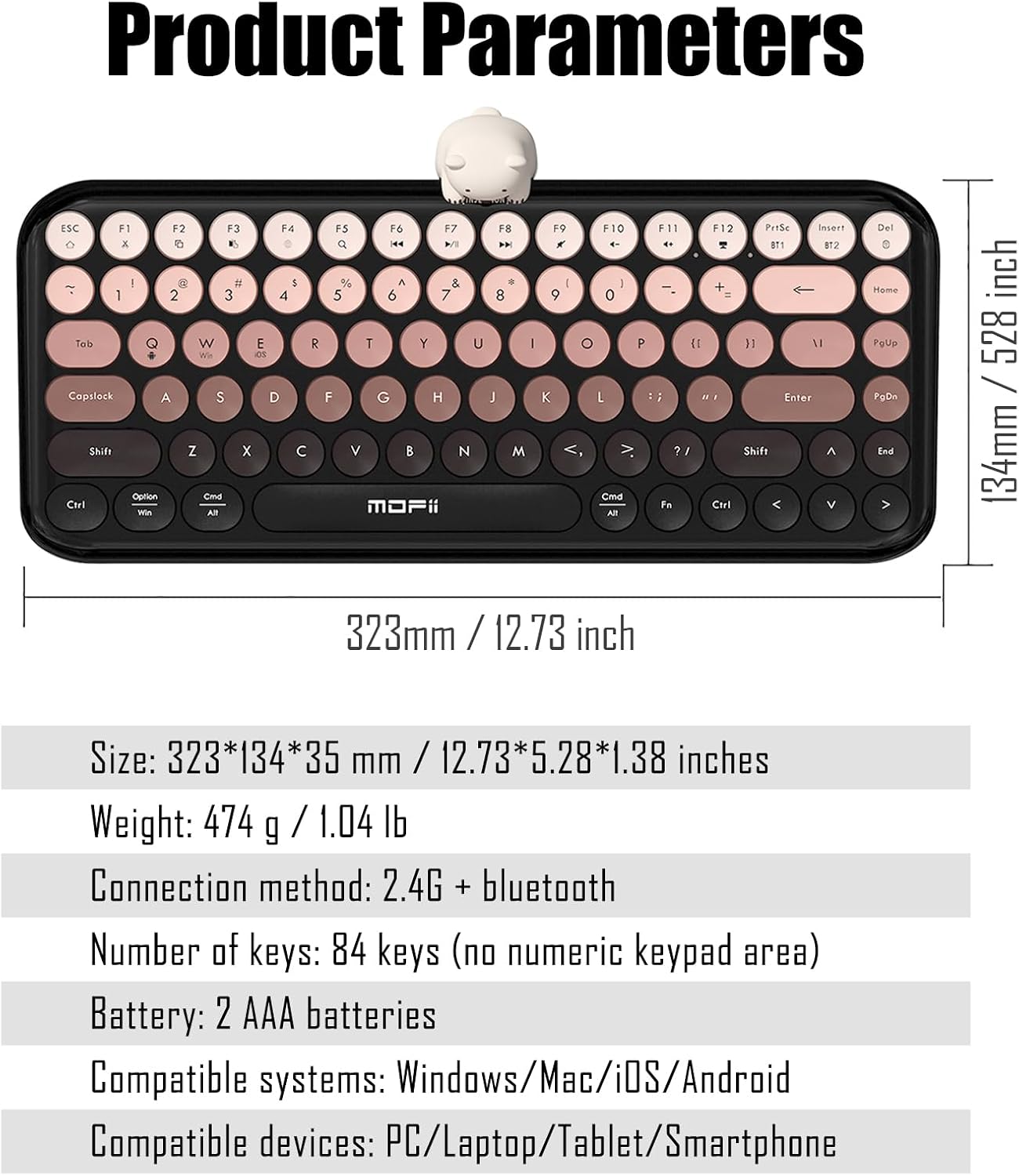
Image: A close-up view of the keyboard's aesthetic gradient colored, comfortable membrane keys and retro typewriter-style round keycaps.
4. Setup
4.1 Battery Installation
- Locate the battery compartment on the underside of the keyboard.
- Open the battery compartment cover.
- Insert two AAA batteries, ensuring correct polarity (+/-).
- Close the battery compartment cover securely.
4.2 Magnetic Bear Attachment
The included magnetic bear can be attached to the designated magnetic area at the top center of the keyboard. This accessory is optional and can be removed or placed separately as desired.

Image: The Lomiluskr keyboard with the cute magnetic bear attached to its top center, highlighting its placement.
5. Operating Instructions
5.1 Dual Mode Connection (2.4GHz Wireless & Bluetooth)
Your keyboard supports two connection modes: 2.4GHz wireless via USB receiver and Bluetooth. You can connect up to two Bluetooth devices and one 2.4GHz wireless device simultaneously.
5.1.1 2.4GHz Wireless Connection
- Locate the 2.4GHz USB receiver, typically stored in a compartment on the keyboard's underside.
- Plug the USB receiver into an available USB-A port on your computer or device. If your device only has USB-C ports, use the provided Type-C to USB-A adapter.
- The keyboard should automatically connect.

Image: A close-up view showing the dedicated storage area for the 2.4G wireless USB receiver on the keyboard's underside.
5.1.2 Bluetooth Connection
The keyboard supports connection to two Bluetooth devices (BT1 and BT2).
- Turn on the keyboard.
- Press and hold Fn + PrtSc (for BT1) or Fn + Insert (for BT2) for 3-5 seconds until the indicator light flashes, indicating pairing mode.
- On your device (PC, laptop, tablet, smartphone), enable Bluetooth and search for new devices.
- Select "Lomiluskr Keyboard" (or similar) from the list of available devices to pair.
- Once paired, the indicator light will stop flashing.

Image: A detailed view of the keyboard's back, illustrating the Bluetooth and 2.4G dual-mode wireless connection capabilities.
5.1.3 Switching Between Connected Devices
To switch between connected devices:
- For 2.4GHz wireless: Press Fn + Del.
- For Bluetooth Device 1: Press Fn + PrtSc.
- For Bluetooth Device 2: Press Fn + Insert.
5.1.4 Switching System Modes
The keyboard is compatible with Windows, macOS, iOS, and Android systems. To optimize key functions for your operating system, switch modes as follows:
- For Windows: Press Fn + Q
- For macOS: Press Fn + W
- For iOS/Android: Press Fn + E
5.2 Multimedia Shortcut Keys
The keyboard includes 13 multimedia shortcut keys. To activate these functions, press the Fn key simultaneously with the corresponding function key (F1-F12, PrtSc, Insert, Del).
- Fn + F1: Media Player
- Fn + F2: Volume Down
- Fn + F3: Volume Up
- Fn + F4: Mute
- Fn + F5: Previous Track
- Fn + F6: Next Track
- Fn + F7: Play/Pause
- Fn + F8: Stop
- Fn + F9: Home
- Fn + F10: Mail
- Fn + F11: My Computer
- Fn + F12: Search
- Fn + PrtSc: Switch to Bluetooth Device 1
- Fn + Insert: Switch to Bluetooth Device 2
- Fn + Del: Switch to 2.4GHz Wireless Mode
6. Maintenance
6.1 Cleaning
To clean your keyboard, gently wipe the surface with a soft, damp cloth. Avoid using harsh chemicals or abrasive materials that could damage the finish or keycaps. For cleaning between keys, use compressed air or a small brush.
6.2 Battery Replacement
When the keyboard's performance degrades or the low battery indicator (if present) activates, replace the two AAA batteries following the installation steps in Section 4.1.
7. Troubleshooting
If you encounter issues with your keyboard, refer to the following common solutions:
- Keyboard not connecting: Ensure batteries are correctly installed and charged. For 2.4GHz, verify the USB receiver is properly inserted. For Bluetooth, ensure the keyboard is in pairing mode and your device's Bluetooth is enabled. Try re-pairing the device.
- Keys not responding or delayed: Check battery level. Ensure the keyboard is within range of your device (typically up to 10 meters for wireless connections). Avoid interference from other wireless devices.
- Incorrect key functions: Verify that the keyboard is set to the correct system mode (Fn+Q for Windows, Fn+W for macOS, Fn+E for iOS/Android).
- Low battery indicator always blinking: If this occurs with new batteries, try replacing them with a different set or contact support.
8. Specifications
| Size | 323 x 134 x 35 mm (12.73 x 5.28 x 1.38 inches) |
| Weight | 474 g (1.04 lb) |
| Connection Method | Bluetooth + 2.4G Wireless |
| Number of Keys | 84 keys (Tenkeyless layout) |
| Battery | 2 x AAA batteries (included) |
| Compatible Systems | Windows, macOS, iOS, Android |
| Compatible Devices | PC, Laptop, Tablet, Smartphone |
| Material | Acrylonitrile Butadiene Styrene (ABS) |

Image: Diagram illustrating the dimensions and key specifications of the Lomiluskr Colorful Wireless Keyboard.
9. Warranty and Support
All Lomiluskr products undergo quality inspection before shipping. If any quality issues arise with the product within one year of purchase, a refund or free replacement is offered. For any questions or support needs, please contact Lomiluskr customer service.