
Introduction
Thank you for choosing the TARGUS EcoSmart Solar Keyboard. This innovative keyboard is designed for sustainability and efficiency, featuring advanced solar technology and multi-device Bluetooth connectivity. It is constructed with up to 85% post-consumer recycled materials and includes Targus DefenseGuard™ antimicrobial protection. This manual provides essential information for setting up, operating, maintaining, and troubleshooting your new keyboard.
Product Overview
Familiarize yourself with the components of your TARGUS EcoSmart Solar Keyboard.
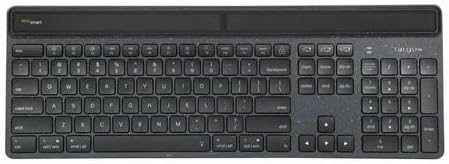
Figure 1: Top-down view of the TARGUS EcoSmart Solar Keyboard. Note the integrated solar panel along the top edge, designed to capture light for continuous power.

Figure 2: Angled view of the keyboard, showcasing its ergonomic design and the subtle texture of the recycled plastic material used in its construction.
Setup
1. Initial Power and Charging
The EcoSmart keyboard is primarily powered by its integrated solar panel. For optimal performance, ensure the solar panel is exposed to light (natural or artificial) during use. The keyboard has an extremely low power consumption, making it highly efficient.
- First Use: Place the keyboard in a well-lit area for at least 30 minutes before initial use to ensure sufficient charge.
- Charging Indicator: The keyboard may have a small LED indicator that shows charging status (refer to product packaging or quick start guide for specific details).
2. Bluetooth Pairing
The keyboard can connect to up to 3 devices simultaneously via Bluetooth.
- Locate the Bluetooth channel keys (usually F1, F2, F3 or dedicated keys with Bluetooth icons).
- Press and hold one of the Bluetooth channel keys (e.g., F1) for 3-5 seconds until the corresponding LED indicator (if present) starts blinking, indicating pairing mode.
- On your device (computer, tablet, smartphone), go to Bluetooth settings and enable Bluetooth.
- Search for available devices. The keyboard should appear as "TARGUS EcoSmart Keyboard" or similar.
- Select the keyboard to pair. Follow any on-screen prompts.
- Once paired, the LED indicator will stop blinking and remain solid for a few seconds, then turn off.
- Repeat steps 2-5 for additional devices using different Bluetooth channel keys (e.g., F2, F3).
To switch between paired devices, simply press the corresponding Bluetooth channel key (e.g., F1, F2, or F3) once. The keyboard will automatically connect to the selected device.
Operating Instructions
Key Functions
The TARGUS EcoSmart Solar Keyboard features a standard QWERTY layout with a numeric keypad and function keys. Many function keys have secondary actions accessible by pressing the Fn key simultaneously.
- Function Keys (F1-F12): Perform system-specific actions like media control, volume adjustment, screen brightness, etc. The specific icons on your keyboard indicate their primary function.
- Fn Key: Press and hold the Fn key, then press a function key (e.g., Fn + F1) to activate its secondary function.
- Numeric Keypad: For efficient data entry.
- Antimicrobial Protection: The keyboard incorporates Targus DefenseGuard™ antimicrobial additives that help prevent the growth of microorganisms. This protection is built into the material and does not wear off.
Power Management
The keyboard's primary power source is solar energy. It is designed to operate efficiently even in typical indoor lighting conditions.
- Solar Charging: Ensure the solar panel on the top of the keyboard is exposed to light. Direct sunlight is not required; ambient room light is sufficient for continuous operation and charging.
- Low Power Consumption: The keyboard's ultra-low energy Bluetooth SoC (System on Chip) design minimizes power usage, extending operational time between charges.
- Sleep Mode: The keyboard will enter a low-power sleep mode after a period of inactivity to conserve energy. Press any key to wake it up.
Maintenance
Cleaning
To maintain the cleanliness and functionality of your keyboard, follow these guidelines:
- Disconnect the keyboard from your devices before cleaning.
- Use a soft, lint-free cloth slightly dampened with water or a mild, non-abrasive cleaning solution.
- Wipe the surface of the keys and the keyboard body gently.
- Avoid spraying liquids directly onto the keyboard or allowing moisture to seep into the gaps between keys.
- For stubborn dirt, use a cotton swab lightly dampened with isopropyl alcohol.
- Do not use harsh chemicals, abrasive cleaners, or solvents, as these can damage the keyboard's finish or antimicrobial coating.
Storage
When not in use for extended periods, store the keyboard in a cool, dry place away from direct sunlight or extreme temperatures. Ensure the solar panel is not completely covered to allow for trickle charging, which helps maintain battery health.
Troubleshooting
If you encounter issues with your TARGUS EcoSmart Solar Keyboard, refer to the following common problems and solutions:
| Problem | Possible Cause | Solution |
|---|---|---|
| Keyboard does not respond. | Low battery or no power. Keyboard is in sleep mode. Not paired correctly. |
|
| Cannot pair the keyboard. | Keyboard not in pairing mode. Device Bluetooth is off. Interference. |
|
| Keys are not typing correctly or are sticky. | Dirt or debris under keys. Software issue. |
|
If the problem persists after trying these solutions, please contact Targus customer support for further assistance.
Specifications
| Feature | Detail |
|---|---|
| Brand | TARGUS |
| Model Number | AKB868 |
| Color | Black |
| Power Source | Solar Energy |
| Connectivity | Bluetooth (connects up to 3 devices) |
| Material | Plastic (up to 85% post-consumer recycled) |
| Special Features | Antimicrobial Protection (DefenseGuard™), GRS Certified |
| Dimensions (approx.) | 30 x 10 x 1 cm |
| Weight (approx.) | 100 g |
Warranty and Support
Warranty Information
Targus products typically come with a limited warranty. Please refer to the warranty card included with your purchase or visit the official Targus website for detailed warranty terms and conditions specific to your region and product model.
Customer Support
For technical assistance, product inquiries, or to report issues not covered in this manual, please contact Targus customer support. You can find contact information, FAQs, and additional resources on the official Targus website:
Please have your product model number (AKB868) and purchase details ready when contacting support.

