
1. Introduction
This manual provides detailed instructions for the setup, operation, and maintenance of your Lomiluskr Colorful Wireless Keyboard. This compact 84-key keyboard features dual-mode connectivity (Bluetooth and 2.4GHz wireless), quiet membrane keys with retro round keycaps, and a unique magnetic bear accessory. It is designed for compatibility across various operating systems and devices.
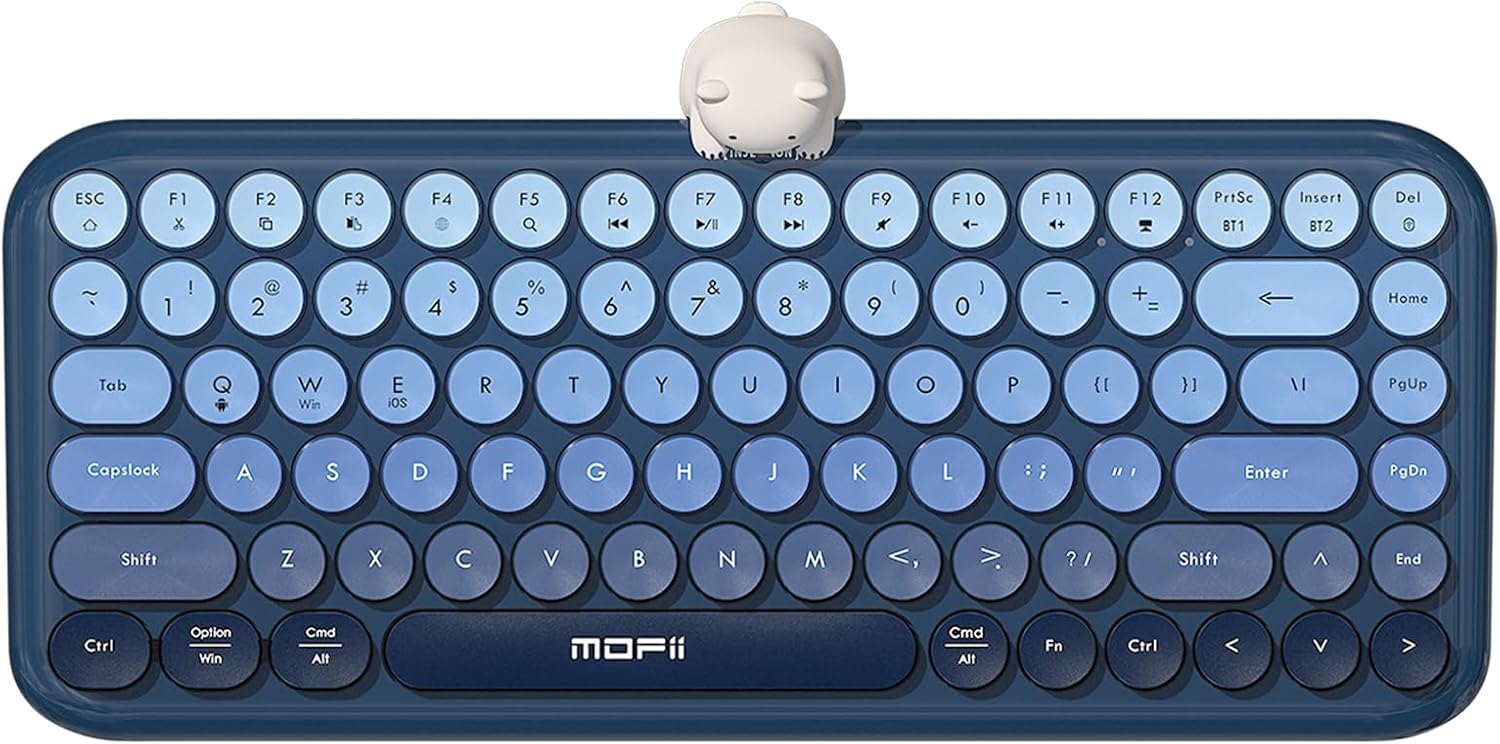
Image: The Lomiluskr Colorful Wireless Keyboard in blue with the magnetic bear accessory attached.
2. Package Contents
Please verify that all items are present in your package:
- 1 x Lomiluskr Colorful Wireless Keyboard
- 1 x Magnetic Bear accessory
- 2 x AAA Batteries
- 1 x Type-C to USB-A Adapter
- 1 x User Manual

Image: All components included in the Lomiluskr keyboard package: keyboard, magnetic bear, AAA batteries, Type-C to USB-A adapter, and manual.
3. Setup Instructions
3.1. Battery Installation
- Locate the battery compartment on the underside of the keyboard.
- Open the battery compartment cover.
- Insert the two AAA batteries, ensuring correct polarity (+ and - ends match the indicators).
- Close the battery compartment cover securely.

Image: The underside of the keyboard showing the battery compartment and the storage slot for the 2.4GHz USB receiver.
3.2. Connecting via 2.4GHz Wireless
- Locate the 2.4GHz USB receiver, typically stored in a slot on the underside of the keyboard.
- Plug the USB receiver into an available USB-A port on your computer, laptop, or compatible device. If your device only has USB-C ports, use the provided Type-C to USB-A adapter.
- The keyboard should connect automatically.
3.3. Connecting via Bluetooth
The keyboard supports connection to up to two Bluetooth devices.
- Turn on the keyboard using the power switch on the underside.
- Press and hold the Fn + PrtSc keys for Bluetooth Device 1 (BT1) or Fn + Insert keys for Bluetooth Device 2 (BT2) until the corresponding indicator light flashes, indicating pairing mode.
- On your device (PC, Mac, smartphone, tablet), go to Bluetooth settings and search for available devices.
- Select the keyboard from the list (e.g., "Lomiluskr Keyboard") to complete the pairing process.
4. Operating Instructions
4.1. Switching Between Connected Devices
To switch between connected devices:
- For 2.4GHz wireless connection: Ensure the USB receiver is plugged into the desired device.
- For Bluetooth Device 1: Press Fn + PrtSc.
- For Bluetooth Device 2: Press Fn + Insert.
4.2. Switching System Modes
The keyboard is compatible with Windows, MacOS, iOS, and Android systems. To optimize key functions for your operating system, switch modes by pressing:
- Fn + Q for Android
- Fn + W for Windows
- Fn + E for iOS/MacOS
4.3. Multimedia Shortcut Keys
The keyboard features 13 multimedia shortcut keys for quick access to functions such as music player control, volume adjustment, screen lock, and search. These are typically accessed by pressing the Fn key in combination with the corresponding function key (F1-F12, etc.). Refer to the keycap legends for specific functions.
4.4. Magnetic Bear Accessory
The included magnetic bear can be attached to the top center of the keyboard for decorative purposes. It can also be removed and placed separately on your desk.
5. Maintenance
5.1. Cleaning
To clean the keyboard, gently dust the keys and surface with a soft, dry cloth. For deeper cleaning, you may use a can of compressed air to remove debris from between the keys. Avoid using harsh chemicals or abrasive materials.
5.2. Battery Replacement
When the keyboard's performance diminishes or it fails to connect, it may be time to replace the AAA batteries. Follow the battery installation steps in Section 3.1.
6. Troubleshooting
- Keyboard not connecting: Ensure the keyboard is powered on and the batteries are correctly installed. For 2.4GHz, verify the USB receiver is securely plugged in. For Bluetooth, ensure the keyboard is in pairing mode (flashing indicator) and your device's Bluetooth is enabled. Try re-pairing the device.
- Keys not responding or delayed: Check battery levels and replace if necessary. Ensure the keyboard is within range of your device. Interference from other wireless devices can sometimes affect performance.
- Function keys behaving incorrectly: Verify that the keyboard is set to the correct system mode for your device (Windows, Mac, iOS, Android) using Fn + Q/W/E.
- Low battery indicator constantly blinking: This may indicate that the batteries are low and require replacement, even if recently installed.
7. Specifications
| Feature | Detail |
|---|---|
| Product Dimensions | 323 x 134 x 35 mm (12.73 x 5.28 x 1.38 inches) |
| Item Weight | 474 g (1.04 lb) |
| Connection Method | Bluetooth + 2.4G Dual Mode |
| Number of Keys | 84 keys (Tenkeyless layout) |
| Battery Type | 2 x AAA batteries (included) |
| Compatible Systems | Windows, Mac, iOS, Android |
| Compatible Devices | PC, Laptop, Tablet, Smartphone |
| Keyboard Description | Membrane |
| Special Feature | Round Keycaps, Magnetic Bear, Ergonomic 9-degree Angle |

Image: Visual representation of the keyboard's dimensions and key specifications.

Image: Side profile of the keyboard highlighting its ergonomic 9-degree typing angle.
8. Warranty and Support
All Lomiluskr products undergo quality inspection before shipping. If you encounter any quality issues with your product within one year of purchase, we offer a refund or a free replacement. For any questions or assistance, please contact our customer support.