
TempSpike TempSpike Pro
TempSpike Wireless Meat Thermometer User Manual
Model: TempSpike Pro | Brand: TempSpike
1. Introduction
Thank you for choosing the TempSpike Wireless Meat Thermometer. This manual provides detailed instructions for setting up, operating, and maintaining your device to ensure perfect cooking results every time. The TempSpike Pro offers advanced features including dual WiFi and Bluetooth connectivity, multiple high-precision sensors, and a durable, waterproof design, all managed through a user-friendly mobile application.

Figure 1: TempSpike Pro Wireless Meat Thermometer System
2. Package Contents
Upon unboxing your TempSpike Pro, please verify that all components listed below are included:
- 1 x TempSpike Pro Booster
- 2 x TempSpike Pro Probes (Black and White, for 2-probe model)
- 1 x Charging Hub
- 1 x USB Charging Cable
- 1 x User Manual
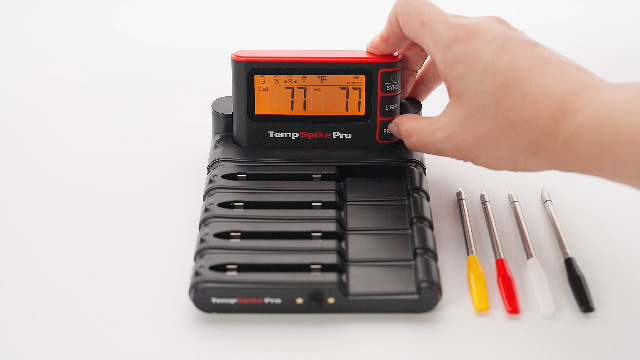
Figure 2: All components included in the TempSpike Pro package.
3. Setup and Initial Use
3.1 Initial Charging
Before first use, fully charge both the booster and the probes. Connect the USB charging cable to the charging hub and a power source. Place the booster and probes into their respective slots on the charging hub. The display will indicate charging status.

Figure 3: Charging the TempSpike Pro system.
3.2 App Installation
The TempSpike Pro operates with a dedicated mobile application. Download the "ThermoPro" app from your device's app store. Ensure Bluetooth is enabled on your smartphone for initial pairing.
Video 1: Detailed setup and app pairing instructions for the TempSpike Pro.
3.3 Booster and Probe Pairing
The probes and booster are pre-paired from the factory. If re-pairing is needed:
- Remove the probe from the booster.
- Press and hold the "PROBE" button on the booster for 3-4 seconds until the internal and ambient readings appear on the display.
- The probe is now paired.
To connect the booster to the app:
- Open the ThermoPro app and tap "Add Device".
- Select "TempSpike Pro" from the list.
- Follow the on-screen prompts to connect to your WiFi network (2.4GHz only). You may need to press the WiFi button on the booster twice.

Figure 4: The modular and detachable design of the TempSpike Pro system.
4. Operating Instructions
4.1 Probe Insertion
For accurate readings, insert the probe fully into the thickest part of the meat, avoiding bones. The stainless steel part of the probe should be completely inside the food, with only the ceramic handle exposed.

Figure 5: Proper probe insertion for accurate internal and ambient temperature readings.
4.2 Using the App
The ThermoPro app provides real-time temperature monitoring, cooking graphs, and customizable alerts.
- Food Profile Setting: Select the type of meat and desired doneness from preset options. You can also customize target temperatures.
- Real-time Monitoring: View internal and ambient temperatures on the app.
- Cooking Graph: Track temperature changes over time.
- Alerts: Set alarms for target temperatures, low/high ambient temperatures, and disconnection notices.

Figure 6: Overview of the upgraded TempSpike Pro smart app features.
The probes are color-coded for easy identification when using multiple probes simultaneously.

Figure 7: Easier tracking with color-coded probes.
Video 2: Demonstration of the TempSpike Pro WiFi Wireless Meat Thermometer in use.
5. Maintenance and Care
5.1 Cleaning
The TempSpike Pro probes are IP67-rated waterproof and safe for dishwasher cleaning. The ceramic handles are heat-resistant up to 1050°F. Always ensure the probes are cool before handling and cleaning.

Figure 8: The TempSpike Pro probes are fully waterproof for easy cleaning.
5.2 Storage
Store the probes and booster in their charging hub when not in use. Ensure they are fully charged before long-term storage to maintain battery health.
Video 3: Short demonstration of the TempSpike Pro's durable probes and charging.
6. Troubleshooting
| Problem | Possible Cause | Solution |
|---|---|---|
| No connection to WiFi. | Device only supports 2.4GHz WiFi. Incorrect password. | Ensure your WiFi network is 2.4GHz. Re-enter password carefully. Separate 2.4GHz and 5GHz networks if necessary. |
| Probe not pairing with booster. | Probe or booster battery low. Pairing process not followed correctly. | Fully charge both devices. Follow the re-pairing steps in Section 3.3. |
| Inaccurate temperature readings. | Probe not inserted correctly. Sensor malfunction. | Ensure the probe is inserted into the thickest part of the meat, avoiding bones, with the stainless steel part fully submerged. If issues persist, contact customer support. |
| App not alerting. | App settings. Phone's notification settings. | Check app alarm settings (internal, ambient, disconnection). Ensure phone's notification permissions are granted for the ThermoPro app. Keep the app running in the background. |
7. Specifications
- Brand: TempSpike
- Model Name: TempSpike Pro
- Special Features: Wi-Fi Support, Waterproof, App Companion, Rechargeable, Dual Probe
- Color: Black
- Outer Material: Stainless Steel
- Display Type: Digital
- Connectivity Technology: Bluetooth, Wi-Fi (2.4GHz)
- Product Care Instructions: Dishwasher Safe (Probes)
- Battery: 4 Lithium Ion batteries required (included)
- Item Weight: 1.12 pounds
8. Warranty and Support
The TempSpike Pro comes with a standard warranty. For product registration and to extend your warranty, please visit the official TempSpike website or register through the ThermoPro app.
For technical support, troubleshooting assistance, or warranty claims, please contact TempSpike customer service. Contact information can typically be found on the product packaging or the official TempSpike website.
Online Support: Visit the TempSpike Store on Amazon
Related documentsTempSpike Pro


Ask a question about this manual
Ask about setup, troubleshooting, compatibility, parts, safety, or missing instructions. Manuals+ will review the question and use this page’s manual context to help answer it.