
1. Introduction
Thank you for choosing the Gaimoo GM300 Mini Projector. This compact, lightweight, and powerful projector is designed to provide intelligent and comfortable entertainment. Featuring a native Full HD 1920x1080P resolution, Android TV 11.0 system, dual-band WiFi 6, and Bluetooth 5.2, the GM300 offers a versatile home cinema experience. Please read this manual carefully before use to ensure proper operation and to maximize your enjoyment of the product.

Image 1.1: The Gaimoo GM300 Mini Projector is suitable for various entertainment settings, including home theater, relaxing in bed, and outdoor movie nights.
2. Package Contents
Please check the box for the following items:
- 1 x Gaimoo GM300 Projector
- 1 x HDMI Cable
- 1 x Bluetooth Mouse
- 1 x Mouse Receiver
- 1 x Power Adapter with Cable
- 1 x Remote Control
- 1 x User Manual
3. Product Features
- Native FHD 1080P Resolution: Experience stunning image quality with a native resolution of 1920 x 1080 pixels, supporting Full HD 1080P content for realistic, dynamic, and colorful projections.
- Android TV 11.0 System: Integrated smart system with official licensed applications like Netflix, YouTube, and access to the Play Store for downloading over 8000+ Android TV apps, including Prime Video.
- Dual Control Mode: Operate the projector conveniently using either the included Bluetooth mouse or the remote control.
- WiFi 6 & Bluetooth 5.2: Enjoy faster and more stable connectivity with the latest WiFi 6 technology for smooth video streaming. Bluetooth 5.2 allows connection to various external audio devices for an enhanced sound experience.
- 270° Adjustable Angle: The portable projector features a 270° rotatable stand, allowing you to adjust the projection angle to your optimal viewing position, whether lying down or standing.
- Automatic Keystone Correction: Equipped with manual focus and automatic keystone correction technology, the projector can automatically correct vertical image distortion. The built-in sensor helps quickly correct trapezoidal images even when the projector is moved. Supports 4-point correction and screen fit functions.
- Eye Protection & Low Noise: Features an eye protection function that effectively filters blue light. Optimized heat dissipation technology ensures quiet operation with a noise level of 28 dB(A).
- Integrated Speakers: Built-in speakers provide satisfactory sound quality for movies and music without the need for external speakers.
- Compact and Portable: Its mini size and lightweight design make it easy to carry and use anywhere, indoors or outdoors.

Image 3.1: Overview of key features including 4K input support, 1400 Lumen brightness, 180° rotatable stand, 35-100% zoom, automatic keystone correction, Bluetooth 5.2, WiFi 6, and Android TV 11.0 with access to numerous applications.
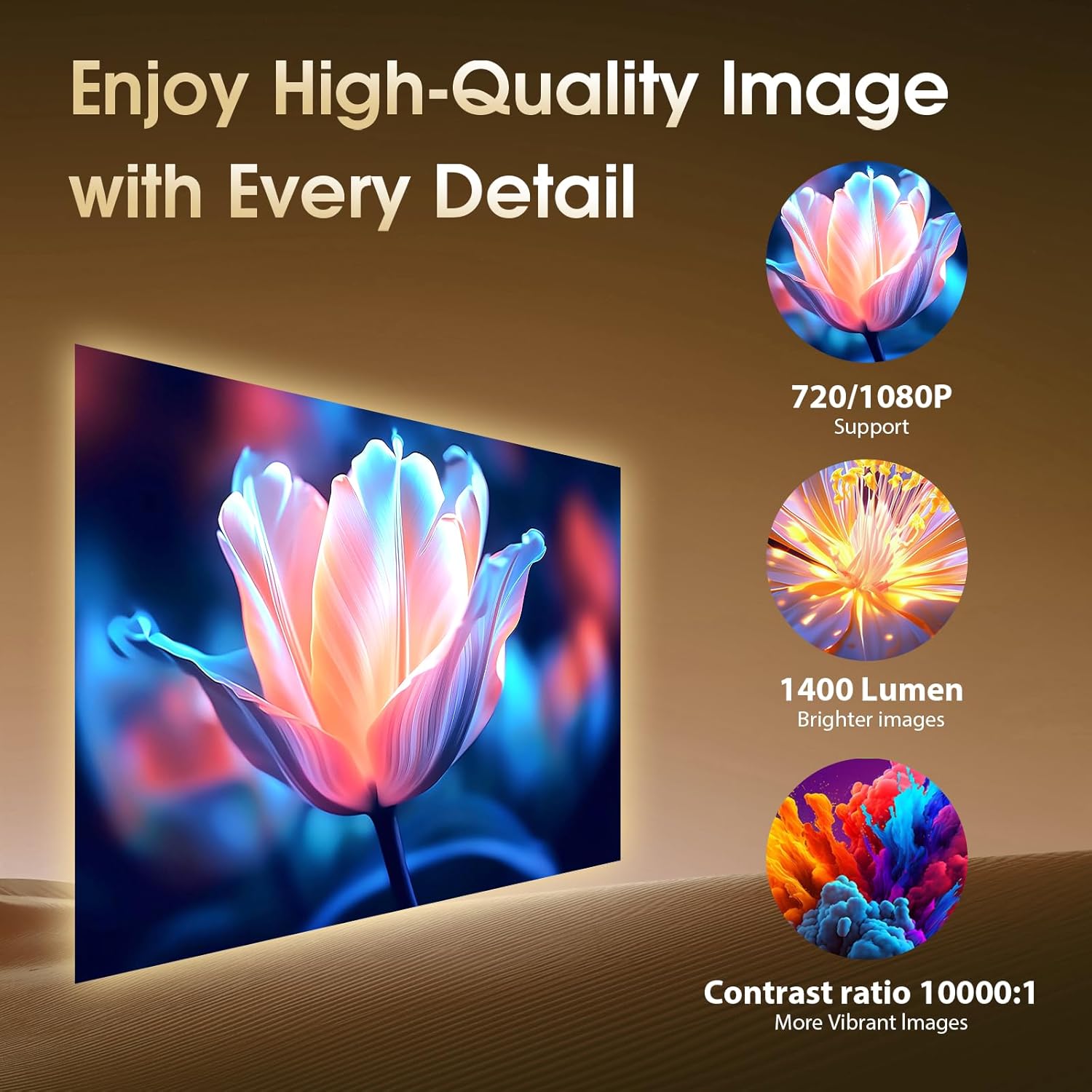
Image 3.2: Demonstrates high-quality image output with 720/1080P support, 1400 Lumen brightness, and a contrast ratio of 10000:1 (Note: Specifications list 1000:1 contrast ratio).
4. Setup
4.1 Unpacking and Placement
- Carefully remove all components from the packaging.
- Place the projector on a stable, flat surface.
- Adjust the 270° rotatable stand to achieve the desired projection angle on a wall or screen.

Image 4.1: The projector's compact size allows for easy portability, and its 180° rotatable design offers flexible placement options.
4.2 Power Connection
Connect the power adapter cable to the projector's power input port, then plug the adapter into a power outlet.
4.3 Focus Adjustment
Manually adjust the focus ring on the projector lens until the projected image appears clear and sharp.
4.4 Automatic Keystone Correction
The projector features automatic vertical keystone correction. After initial placement, the image should automatically adjust to a rectangular shape. If further adjustment is needed, navigate to the settings menu to fine-tune 4-point correction or screen fit options.
4.5 Network and Device Connectivity
The GM300 offers versatile connectivity options:
- Wi-Fi Connection: Go to the projector's settings menu, select 'Network', and connect to your desired 2.4G or 5G Wi-Fi network.
- Bluetooth Pairing: In the settings menu, select 'Bluetooth' to pair with external Bluetooth speakers or headphones.
- HDMI Connection: Use the provided HDMI cable to connect external devices such as laptops, TV sticks, or gaming consoles to the HDMI port.
- USB Connection: Insert a USB disk into the USB port to play media files directly.
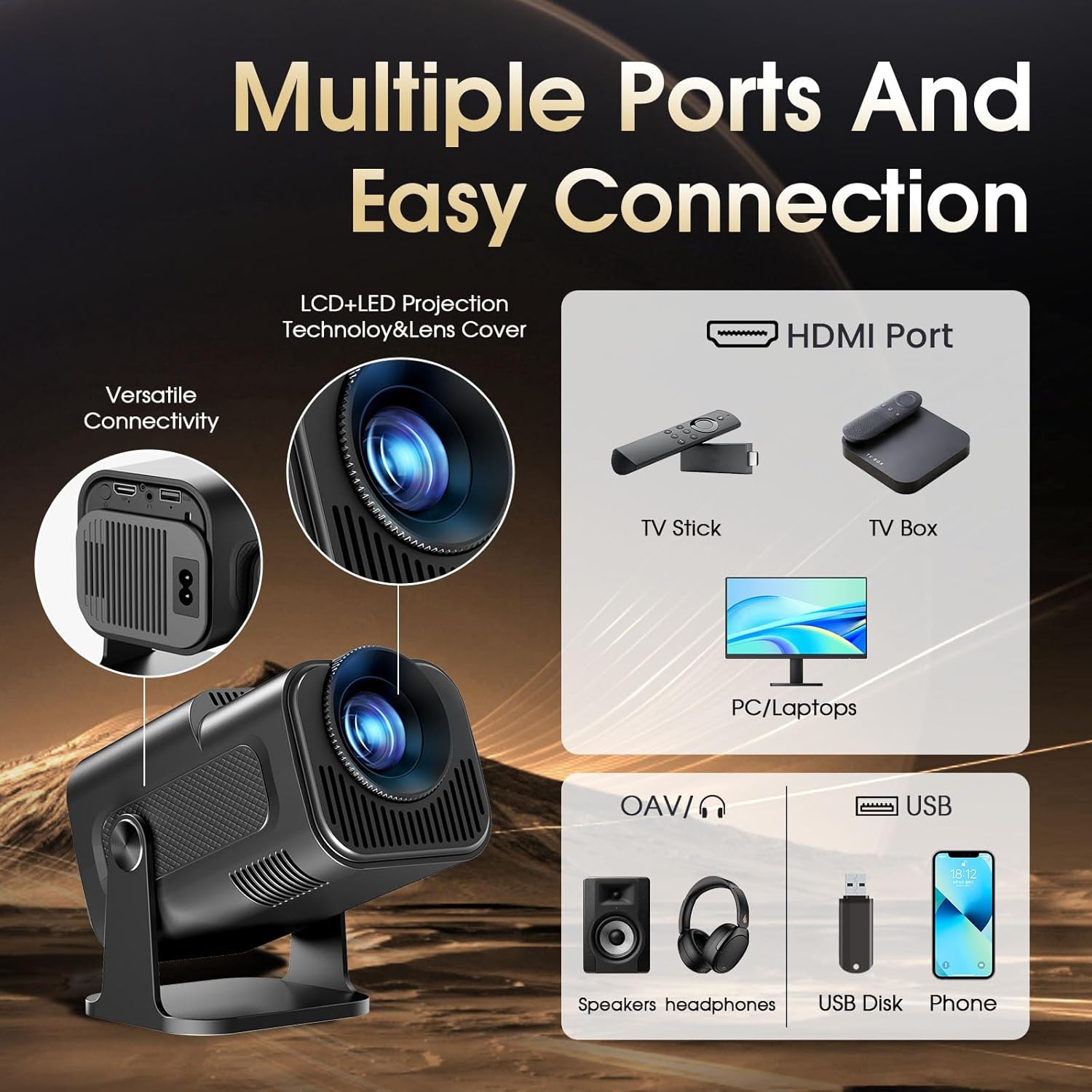
Image 4.2: The projector features multiple ports for easy connection to various devices, including HDMI for video sources and USB for media playback.
5. Operating Instructions
5.1 Powering On/Off
Press the power button on the projector or the remote control to turn the device on or off.
5.2 Navigating the Android Interface
Use the remote control or the Bluetooth mouse to navigate the Android TV 11.0 interface. The mouse mode offers precise control for app selection and browsing.
5.3 Using Pre-installed Applications
Access pre-installed applications such as Netflix and YouTube directly from the home screen. Ensure you are connected to Wi-Fi for streaming content.
5.4 Downloading Additional Apps
Open the Play Store from the home screen to download and install additional applications, including Prime Video and other entertainment apps.
5.5 Screen Mirroring
The projector supports Airplay and MiraCast for screen mirroring from compatible smartphones and tablets. Refer to the on-screen instructions within the mirroring app for connection details.
5.6 Adjusting Projection Size (Zoom Function)
Utilize the digital zoom function, typically found in the display settings, to adjust the projection size from 35% to 100% without moving the projector.
6. Maintenance
6.1 Cleaning the Lens
Gently wipe the projector lens with a soft, lint-free cloth specifically designed for optical surfaces. Do not use abrasive cleaners or excessive force.
6.2 Cleaning the Vents
Periodically clean the projector's ventilation openings to prevent dust buildup, which can affect performance and lead to overheating. Use a soft brush or compressed air.
6.3 Storage
When not in use for extended periods, store the projector in a cool, dry place, away from direct sunlight and extreme temperatures. Cover the lens to protect it from dust.
7. Troubleshooting
- No Image:
- Ensure the projector is powered on and connected to a power source.
- Check HDMI or USB connections for external devices.
- Verify the correct input source is selected in the projector settings.
- Blurry Image:
- Adjust the manual focus ring on the lens.
- Ensure the projection surface is flat and the projector is stable.
- Check if automatic keystone correction is enabled or manually adjust it.
- No Sound:
- Increase the volume on the projector and the connected source device.
- Check if external Bluetooth speakers are properly paired and connected.
- Ensure the audio output is not muted in the settings.
- Wi-Fi/Bluetooth Connectivity Issues:
- Restart the projector and your router/Bluetooth device.
- Ensure the Wi-Fi password is entered correctly.
- Move the projector closer to the Wi-Fi router or Bluetooth device.
- Remote Control Not Responding:
- Replace the batteries in the remote control.
- Ensure there are no obstructions between the remote and the projector.
8. Specifications
| Brand | Gaimoo |
| Model Number | GM300 |
| Display Resolution | Native 1920 x 1080 (FHD) |
| Max Display Resolution | 1920 x 1080 (Supports 4K input) |
| Display Type | LCD |
| Connectivity Technology | HDMI, USB, WiFi 6 (2.4/5G), Bluetooth 5.2 |
| Contrast Ratio | 1000:1 |
| Max Image Size | 240 Inches |
| Min Image Size | 120 Inches |
| Form Factor | Portable |
| Mounting Type | Table Mount |
| Color | Black |
| Compatible Devices | Smartphone, Laptop, Media Player |
| Special Features | 180° Rotatable Stand, Automatic Keystone Correction, Built-in Speaker, Eye Protection, Low Noise |
9. Warranty and Support
Gaimoo is committed to providing high-quality products and customer satisfaction. If you have any questions or encounter any issues with your GM300 projector, please do not hesitate to contact Gaimoo customer support. Our team will assist you in resolving your problem and offer the best possible solution.
Please refer to the contact information provided on the Gaimoo official website or your purchase documentation for support details.