
FOXWELL NT201, BT301
FOXWELL NT201 OBD2 Scanner & BT301 Battery Tester User Manual
Model: NT201, BT301
1. Introduction
This user manual provides comprehensive instructions for the operation and maintenance of the FOXWELL NT201 OBD2 Scanner and the FOXWELL BT301 6V 12V Car Battery Tester. Please read this manual thoroughly before using the devices to ensure proper functionality and safety.
2. Product Overview
2.1. Components
The package typically includes:
- FOXWELL NT201 OBD2 Scanner Unit
- FOXWELL BT301 Battery Tester Unit
- OBDII Cable (integrated with NT201)
- Battery Clamps Cable (integrated with BT301)
- User Manual (this document)
2.2. Key Features
- NT201 OBD2 Scanner: Reads and clears diagnostic trouble codes (DTCs), displays live data, performs I/M readiness tests, views freeze frame data, and retrieves vehicle information.
- BT301 Battery Tester: Conducts battery health checks, cranking tests, charging system tests, SOC (State of Charge) tests, SOH (State of Health) tests, starter tests, and alternator tests for 6V and 12V batteries.
- User-friendly interface with vibrant digital screen.
- Advanced conductivity technology for precise results.
- Suitable for various battery types including AGM flat plate, AGM spiral, GEL, EFB, and regular flooded batteries.

Figure 1: FOXWELL NT201 OBD2 Scanner (left) and BT301 Battery Tester (right).
3. Setup
3.1. NT201 OBD2 Scanner Setup
- Locate the vehicle's 16-pin Data Link Connector (DLC). This is usually located under the dashboard on the driver's side.
- Ensure the vehicle's ignition is in the OFF position.
- Connect the NT201's OBDII cable to the vehicle's DLC.
- Turn the vehicle's ignition to the ON position (engine off). The scanner will power on automatically.
3.2. BT301 Battery Tester Setup
- Ensure the vehicle's ignition is OFF and all accessories are turned off.
- Connect the red positive (+) clamp of the BT301 to the positive (+) terminal of the battery.
- Connect the black negative (-) clamp of the BT301 to the negative (-) terminal of the battery.
- The BT301 will power on automatically once connected correctly.
4. Operating Instructions
4.1. NT201 OBD2 Scanner Operation
The NT201 provides various diagnostic functions. Navigate through the menus using the UP/DOWN arrows and confirm selections with the ENTER button.
- Read Codes: Displays current, pending, and historic Diagnostic Trouble Codes (DTCs).
- Erase Codes: Clears DTCs from the vehicle's computer and turns off the Malfunction Indicator Lamp (MIL). Note: Ensure the underlying issue is resolved before clearing codes.
- Live Data: Shows real-time data stream from the vehicle's sensors.
- I/M Readiness: Checks the status of emission-related monitors to determine if the vehicle is ready for an emissions test.
- View Freeze Frame: Displays a snapshot of vehicle operating conditions at the time an emission-related fault occurred.
- Vehicle Information: Retrieves the Vehicle Identification Number (VIN), Calibration ID (CALID), and Calibration Verification Number (CVN).

Figure 2: NT201 Professional Code Reader Interface.

Figure 3: Turning off the Check Engine Light using NT201.
4.2. BT301 Battery Tester Operation
The BT301 offers comprehensive battery analysis. Use the MENU, VOLT, BACK, and ENTER buttons to navigate and select tests.
- Battery Test: Evaluates the overall health of the battery, including voltage, CCA (Cold Cranking Amps), and internal resistance.
- Cranking Test: Measures the actual cranking voltage and cranking time to determine if the battery has sufficient power to start the engine.
- Charging Test: Checks the vehicle's charging system, including the alternator and voltage regulator, to ensure proper charging voltage.
- SOC Test: Determines the State of Charge of the battery.
- SOH Test: Determines the State of Health of the battery.
- Starter Test: Assesses the performance of the vehicle's starter motor.
- Alternator Test: Specifically tests the alternator's output.
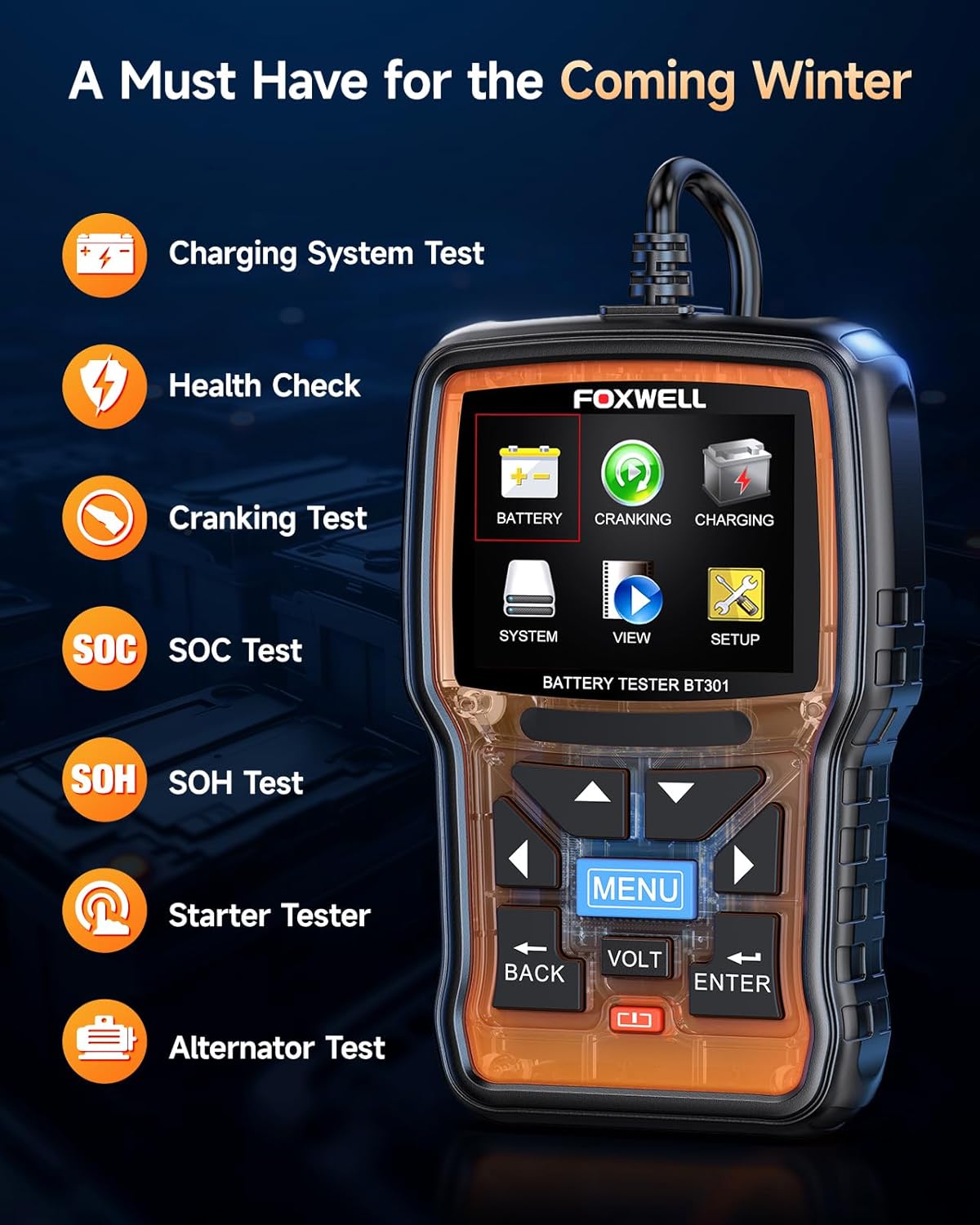
Figure 4: BT301 Battery Tester Main Menu.

Figure 5: Example BT301 Test Results.
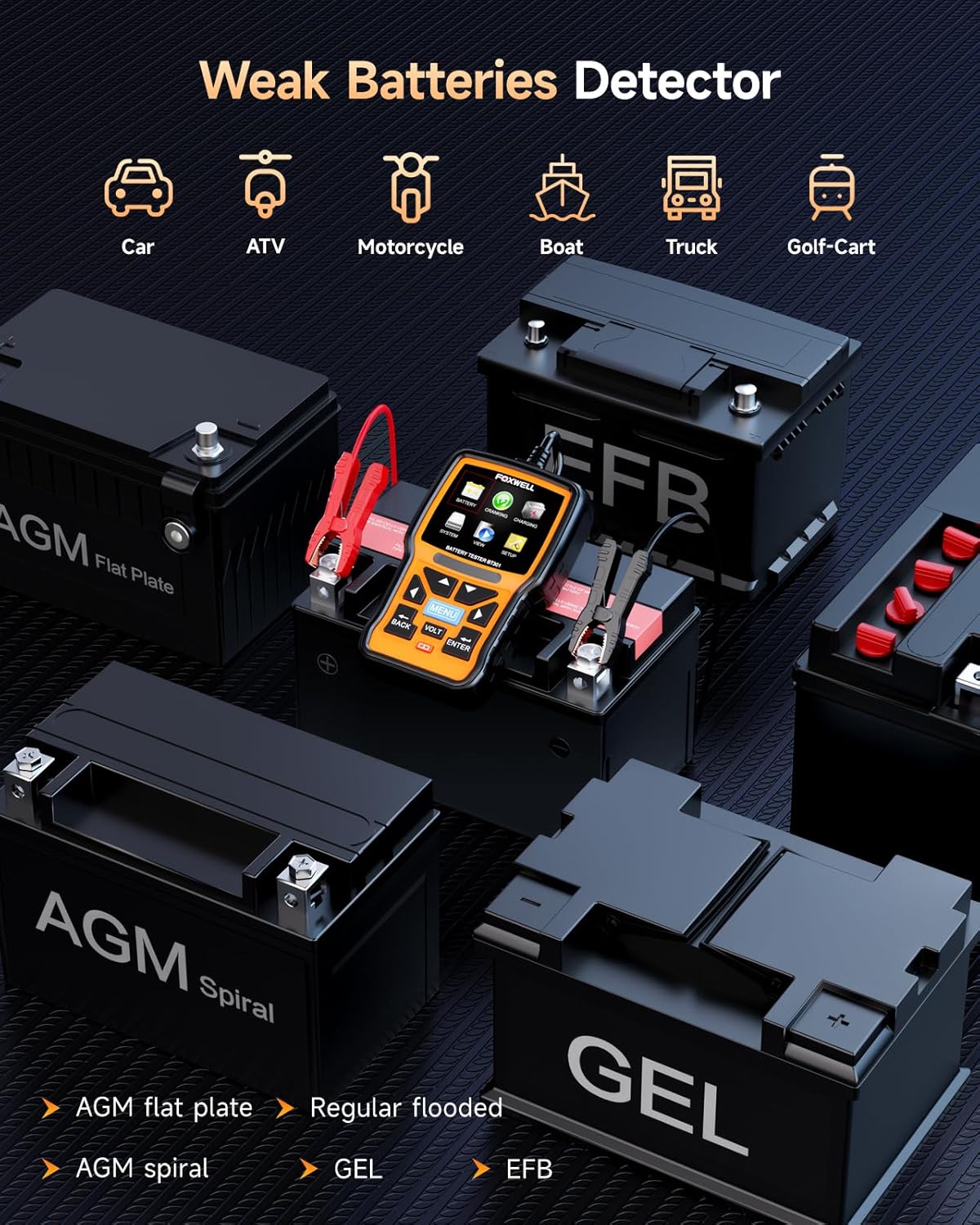
Figure 6: BT301 compatibility with various battery types.
5. Maintenance
- Cleaning: Wipe the device with a soft, damp cloth. Do not use abrasive cleaners or solvents.
- Storage: Store the devices in a dry, cool place away from direct sunlight and extreme temperatures.
- Cable Care: Avoid bending or crimping the cables excessively. Inspect cables for damage before each use.
- Software Updates: Check the FOXWELL official website periodically for software updates for the NT201 and BT301 to ensure optimal performance and compatibility with newer vehicles.
6. Troubleshooting
| Problem | Possible Cause | Solution |
|---|---|---|
| Device does not power on. | Incorrect connection; Vehicle ignition off (NT201); Battery completely dead (BT301). | Ensure proper connection to DLC (NT201) or battery terminals (BT301). Turn vehicle ignition to ON (NT201). Charge battery before testing (BT301). |
| NT201 displays "Link Error". | Loose connection; Vehicle not OBDII compliant; Faulty DLC. | Check cable connection. Verify vehicle is OBDII compliant (1996 or newer for US vehicles). Consult a mechanic for DLC inspection. |
| BT301 shows "Battery Low" or "Replace Battery". | Battery is discharged or at end of life. | Charge the battery and retest. If issue persists, battery replacement may be necessary. |
| Inaccurate BT301 readings. | Poor clamp connection; Corroded battery terminals. | Ensure clamps are securely attached. Clean battery terminals if corroded. |
7. Specifications
7.1. FOXWELL NT201 OBD2 Scanner
- Display: Backlit LCD
- Operating Temperature: 0 to 60°C (32 to 140°F)
- Storage Temperature: -20 to 70°C (-4 to 158°F)
- External Power: 8.0 to 18.0 V power provided via vehicle battery
- Protocols: OBDII/EOBD compliant
7.2. FOXWELL BT301 Battery Tester
- Voltage Range: 6V - 12V
- Test Range: 100-2000 CCA
- Battery Types: Flooded, AGM, GEL, EFB
- Operating Temperature: 0 to 50°C (32 to 122°F)
- Storage Temperature: -20 to 70°C (-4 to 158°F)
8. Warranty and Support
FOXWELL products typically come with a standard manufacturer's warranty. For specific warranty details and duration, please refer to the warranty card included with your product or visit the official FOXWELL website. For technical support, product inquiries, or service, please contact FOXWELL customer service through their official channels.
Official Website: www.foxwelltech.com
Ask a question about this manual
Ask about setup, troubleshooting, compatibility, parts, safety, or missing instructions. Manuals+ will review the question and use this page’s manual context to help answer it.