
1. Introduction
This manual provides comprehensive instructions for the safe and effective use of your LETSHAHA Instant Print Camera for Kids, Model H3. Please read this manual thoroughly before operating the device and retain it for future reference.
The LETSHAHA Instant Print Camera is designed to capture moments through photos and videos, offering instant black-and-white prints using thermal technology. It features a 2.4-inch IPS screen and includes various creative modes to enhance the user experience.
2. Package Contents
Verify that all items listed below are included in your package:
- LETSHAHA Instant Print Camera (Model H3)
- USB Type-C Charging Cable
- 3 Rolls of Thermal Print Paper (one pre-installed)
- 32GB Micro SD Card (pre-installed)
- Lanyard
- Coloring Pens (for printed photos)
- User Manual

Image: The LETSHAHA Instant Print Camera in pink, shown with its included accessories: USB-C charging cable, three rolls of thermal paper, a 32GB SD card, and a lanyard.
3. Product Features
- 2.4-Inch IPS Screen: Provides a clear display for viewing photos and navigating menus.
- 1080P HD Video Recording: Capture high-definition video moments.
- 20MP Photo Resolution: Take clear and vibrant still images.
- Instant Thermal Printing: Print black-and-white photos directly from the camera without ink. Thermal paper is BPA-free.
- Multiple Modes: Includes time-lapse, burst shooting, fun photo frames, various filters, and DIY graffiti options.
- Digital Zoom: Up to 10x digital zoom for closer shots.
- Music Playback: Supports MP3 playback via the included SD card.
- Built-in Games: Features simple games for entertainment.
- Long-Lasting Battery: 1000mAh battery with fast Type-C charging.
- Ample Storage: Comes with a 32GB SD card.
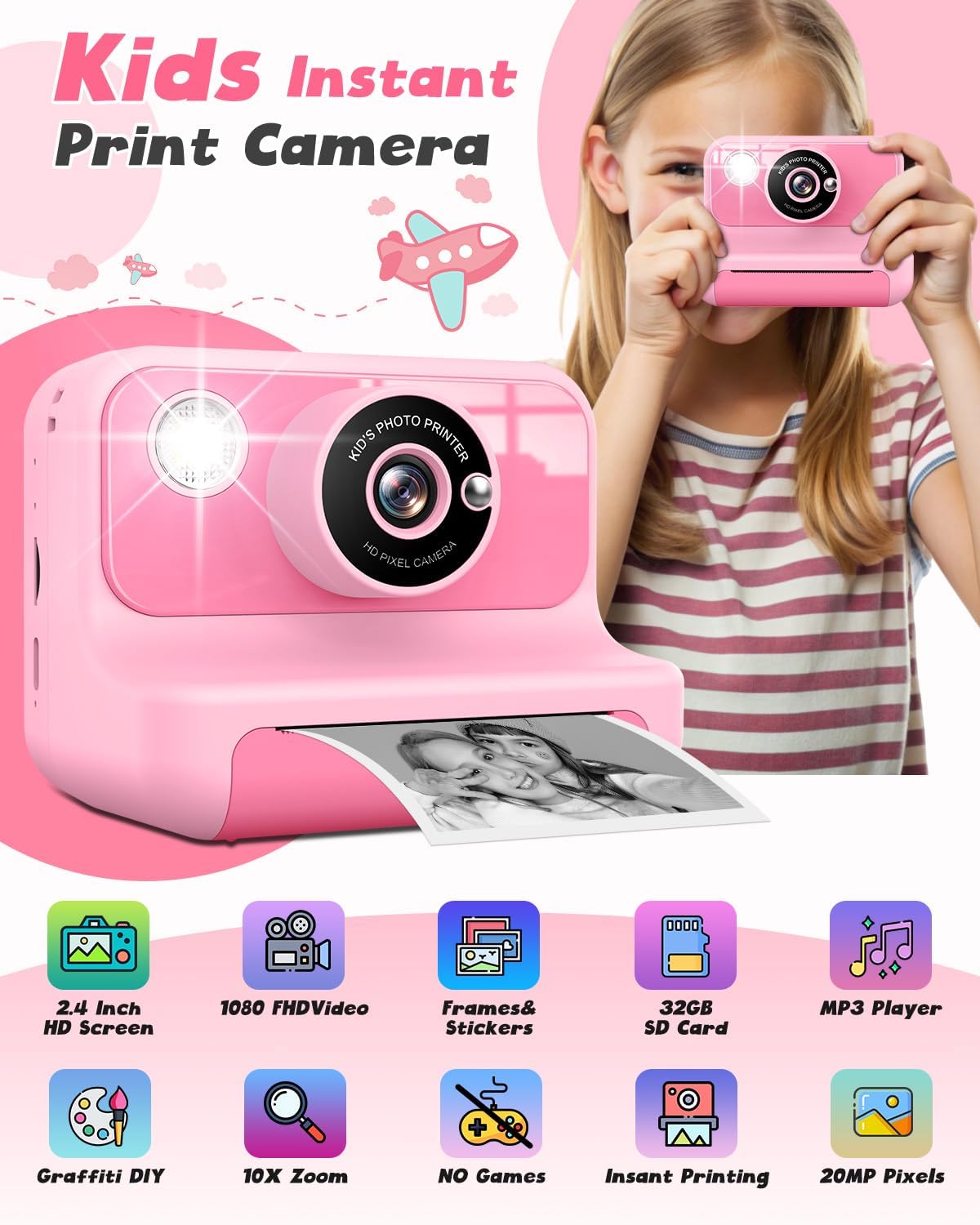
Image: An illustration of the camera with icons representing its features: 2.4-inch HD screen, 1080 FHD video, frames & stickers, 32GB SD card, MP3 player, graffiti DIY, 10x zoom, no games, instant printing, and 20MP pixels.
Video: This video from LETSHAHA demonstrates the camera's dual modes: instant print (black & white) and digital camera (colorful memories), showcasing its versatility.
4. Setup
4.1. Inserting Print Paper
- Open the paper slot cover on the bottom of the camera.
- Insert a roll of thermal print paper into the compartment, ensuring the paper feeds out correctly. Refer to the diagram inside the compartment for proper orientation.
- Close the paper slot cover firmly.

Image: A step-by-step visual guide demonstrating how to open the paper slot, insert the paper roll in the correct direction, and close the cover for printing.
4.2. Charging the Camera
Connect the provided USB Type-C cable to the charging port on the side of the camera and the other end to a compatible USB power adapter (not included). The charging indicator light will illuminate during charging and turn off when fully charged.
4.3. Inserting/Removing SD Card
The camera comes with a 32GB Micro SD card pre-installed. To remove or insert the card, gently push it into the SD card slot until it clicks. Push again to release.
Video: This video from LETSHAHA demonstrates how to transfer data from the kids camera, implying the use of the SD card for data management.
5. Operating Instructions
5.1. Power On/Off
Press and hold the Power button (usually located on the top or side) to turn the camera ON or OFF.
5.2. Navigation
Use the arrow buttons (Up, Down, Left, Right) to navigate through the menu options on the 2.4-inch IPS screen. Press the OK button to confirm a selection.
5.3. Taking Photos
- From the main menu, select the 'Camera' icon.
- Frame your shot using the screen.
- Press the Shutter/OK button to capture the photo.
- If instant printing is enabled, the photo will print automatically.
5.4. Recording Videos
- From the main menu, select the 'Video' icon.
- Press the Shutter/OK button to start recording.
- Press the Shutter/OK button again to stop recording.

Image: The camera's screen displaying a video recording, highlighting its 1080P HD video capability and 10x digital zoom feature.
5.5. Printing Photos (Instant & from Album)
- Instant Print: By default, photos are printed immediately after capture. This can be toggled in the settings.
- Print from Album: Navigate to the 'Album' icon in the main menu. Select the desired photo and press the Print button (usually a dedicated button or an option within the album menu) to print. This allows reprinting or printing multiple copies.
5.6. Fun Features (Frames, Filters, DIY)
Access these features through the camera settings or directly when in photo mode. Experiment with various frames, filters, and effects to personalize your pictures. Use the included coloring pens to add a personal touch to your printed black-and-white photos.

Image: The camera's screen displaying various fun frames, stickers, and filters that can be applied to photos.

Image: The camera's screen displaying options for DIY and doodling on printed photos, including templates for postcards and games.
5.7. Music Playback
Transfer MP3 audio files to the 32GB SD card using a computer. From the main menu, select the 'Music' icon to browse and play your stored music.
5.8. Games
The camera includes several pre-loaded games. Select the 'Games' icon from the main menu to access and play them. Note that navigation for games uses the camera's directional buttons.
6. Maintenance
6.1. Cleaning
Use a soft, dry cloth to clean the camera body and screen. Do not use liquid cleaners or abrasive materials. Keep the lens free from dust and fingerprints for optimal photo quality.
6.2. Storage
Store the camera in a cool, dry place away from direct sunlight and extreme temperatures. When not in use for extended periods, ensure the battery is partially charged (around 50%) to prolong its lifespan.
7. Troubleshooting
- Camera not turning on: Ensure the battery is charged. Connect the camera to a power source using the USB-C cable.
- Printing issues: Check if the thermal paper is inserted correctly and if there is enough paper remaining. Ensure the instant print function is enabled in settings if desired.
- Poor print quality: Verify the print density setting in the camera menu. Higher density settings may produce clearer prints.
- SD card not recognized: Ensure the SD card is properly inserted. Try reinserting or using a different compatible SD card.
- Sound quality for music/games is poor: The camera's built-in speaker may have limited audio fidelity. This is typical for compact devices.
Video: This video from LETSHAHA addresses common questions and answers regarding the instant camera for kids, which may assist with troubleshooting.
8. Specifications
| Feature | Detail |
|---|---|
| Product Dimensions | 1.97 x 3.46 x 4.57 inches |
| Item Weight | 6.7 ounces (190 Grams) |
| Item Model Number | H3 |
| Batteries | 1 Lithium Polymer battery (included) |
| Special Feature | Built-In Flash |
| Film Format Type | Instant (Thermal) |
| Film Color | Black and White |
| Compatible Devices | Personal Computer (for data transfer) |
| Min Shutter Speed | 10 seconds |
8.1. What's in the Box
- Camera Kit (as detailed in Package Contents)

Image: A detailed diagram of the camera, labeling its various buttons, ports (USB, SD card slot), lens, flash, and screen, along with its dimensions.
9. Warranty and Support
For any questions or assistance regarding your LETSHAHA Instant Print Camera, please contact our customer support team. We are committed to ensuring your satisfaction and will be happy to assist you.