
1. Introduction
Thank you for purchasing the ATTACK SHARK X87 Wireless Mechanical Gaming Keyboard. This manual provides detailed instructions for setting up, operating, and maintaining your keyboard to ensure optimal performance. Please read this manual thoroughly before use.
2. Package Contents
Verify that all items are present in your package:
- ATTACK SHARK X87 Wireless Mechanical Gaming Keyboard
- Keycap Puller
- USB Cable (Type-C)
- 2 × Spare Switches
3. Product Overview
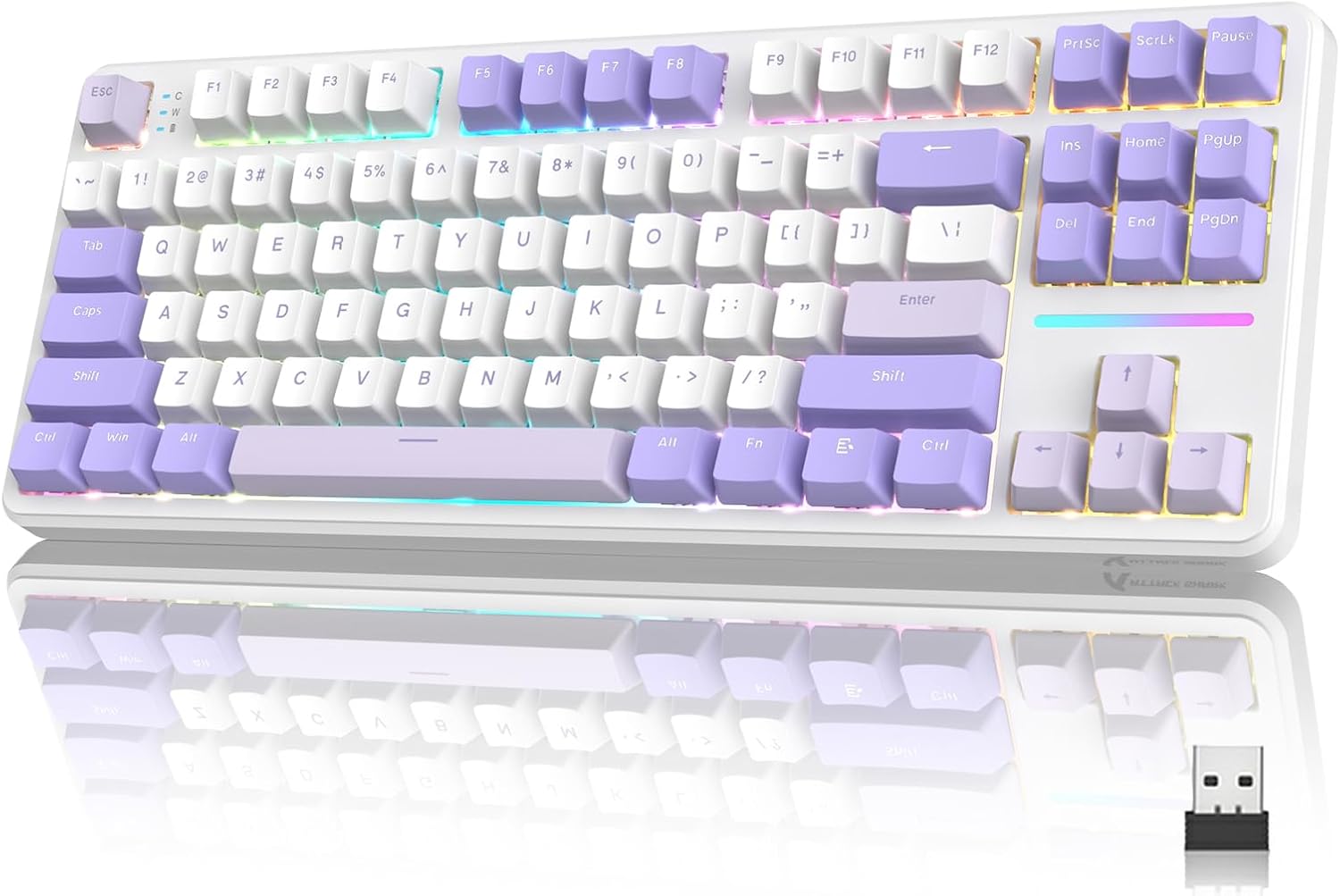
The ATTACK SHARK X87 is an 87-key Tenkeyless (TKL) mechanical keyboard designed for gaming and productivity. It features a gasket-mount structure with five layers of sound-absorbing material for enhanced typing feel and acoustics. The keyboard supports triple-mode connectivity, hot-swappable switches, and customizable RGB backlighting.

4. Setup and Connectivity
4.1. Connectivity Modes
The X87 keyboard offers three connection methods:
- 2.4GHz Wireless: For a quick and stable wireless connection via the included USB dongle.
- Bluetooth 5.0: For connecting to up to five Bluetooth-enabled devices simultaneously.
- USB-C Wired: For a direct, low-latency connection and charging.

4.2. Initial Connection
To switch between connection modes, locate the switch on the back of the keyboard. There are also options for Mac/Win operating systems on the back.
- 2.4GHz Wireless Mode:
- Switch the mode selector to '2.4G'.
- Remove the 2.4G USB receiver from its storage slot on the keyboard.
- Plug the receiver into an available USB port on your computer. The keyboard will connect automatically.
- Bluetooth 5.0 Mode:
- Switch the mode selector to 'BT'.
- On your device (PC, laptop, smartphone, tablet), enable Bluetooth and search for new devices.
- Select 'ATTACK SHARK X87' from the list of available devices to pair. The keyboard can connect to up to five devices and switch between them using FN key combinations.
- USB-C Wired Mode:
- Connect the provided USB-C cable to the keyboard's Type-C port and the other end to your computer's USB port.
- Switch the mode selector to 'USB'. The keyboard will function as a wired device and charge simultaneously.
4.3. Operating System Compatibility
The keyboard supports both Windows and Mac operating systems. Use the dedicated switch on the back of the keyboard to select the appropriate OS mode for optimal key mapping.
Video 4.1: This video demonstrates the various features and connectivity options of the ATTACK SHARK X87 Wireless Mechanical Keyboard, including its tri-mode functionality and overall design.
5. Operation
5.1. RGB Backlighting and Effects
The X87 keyboard features 15 stunning RGB lighting effects with LED strips and over 16.8 million RGB colors. It also includes 10 unique music rhythm lighting effects that synchronize with audio. Use the FN key combinations to adjust backlight settings:
- FN + ↑: Increase Backlight Brightness
- FN + ↓: Decrease Backlight Brightness
- FN + ←: Decrease Backlight Speed
- FN + →: Increase Backlight Speed
- FN + ENTER: Switch Light Mode
- FN + ESC: Restore to Factory Settings
- FN + X: Light Switch (Toggle On/Off)


5.2. Hot-Swappable Switches
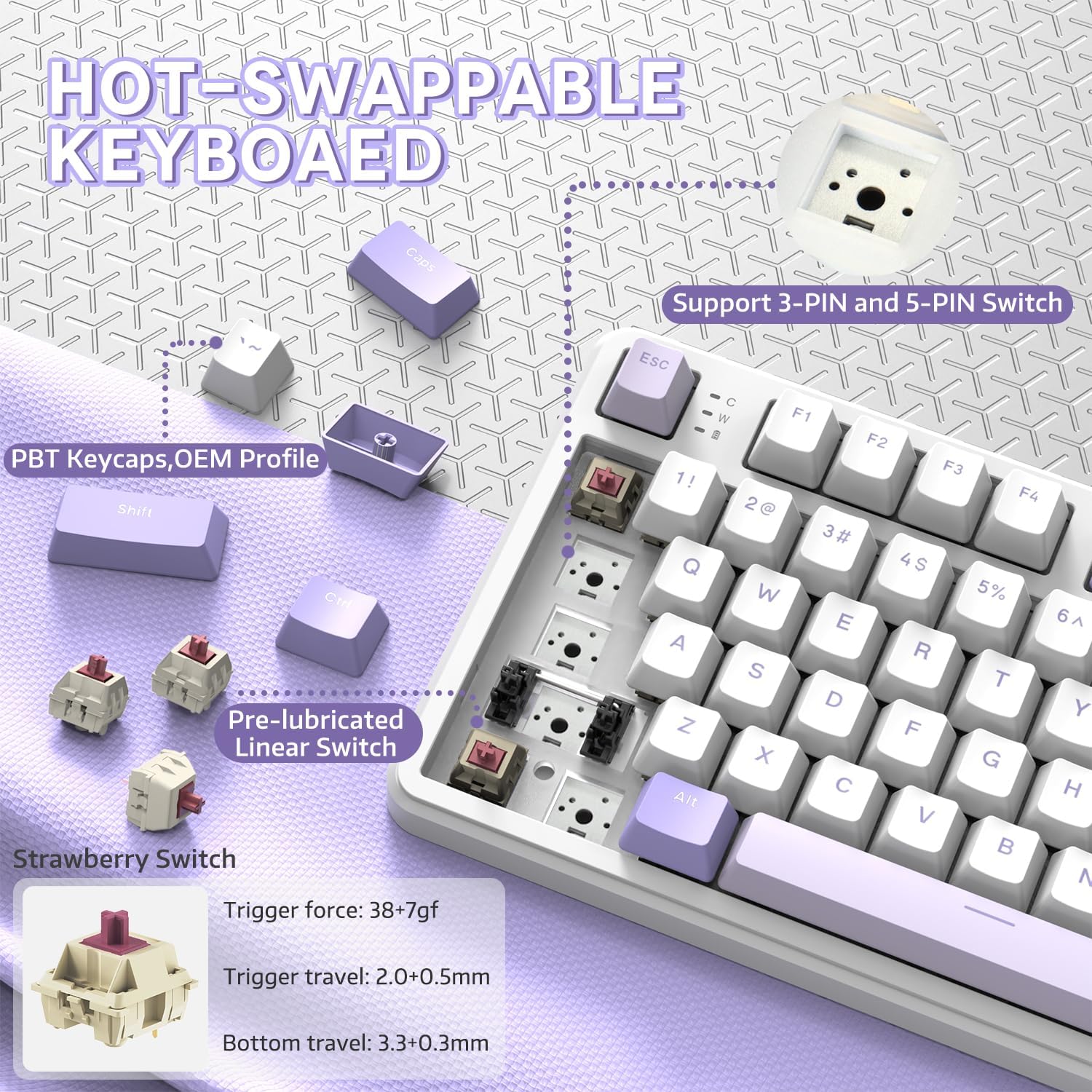
The X87 keyboard features a hot-swappable base that supports both 3-pin and 5-pin mechanical switches. This allows for easy customization and replacement of switches without soldering. The keyboard comes equipped with pre-lubed Strawberry switches for a smooth typing experience.
Video 5.1: This video highlights the side-printed PBT keycaps and the mechanical switches of the ATTACK SHARK X87 keyboard, demonstrating its typing sound and feel.
5.3. Programmable Customization
Utilize the dedicated driver software to personalize your keyboard experience. The software allows you to:
- Set shortcut keys and key combinations.
- Record and edit macros for enhanced gaming and work efficiency.
- Customize backlighting effects and patterns.
Refer to the official ATTACK SHARK website for driver downloads and detailed software instructions.

5.4. Battery Management
The keyboard is equipped with a 4000mAh battery and smart power-saving features for long-lasting use. To check the battery level, press FN + Backspace. The indicator lights will display the current charge status.

6. Maintenance
6.1. Cleaning the Keyboard
To maintain optimal performance and appearance, regularly clean your keyboard:
- Disconnect the keyboard from all power sources.
- Use a soft, lint-free cloth slightly dampened with water or a mild cleaning solution to wipe down the keycaps and casing.
- For deeper cleaning, use the included keycap puller to remove keycaps and clean underneath with compressed air or a small brush.
- Ensure the keyboard is completely dry before reconnecting.
6.2. Replacing Keycaps and Switches
The X87 keyboard's hot-swappable design allows for easy replacement of keycaps and switches:
- Use the provided keycap puller to gently remove keycaps by hooking it onto the keycap and pulling upwards.
- To remove a switch, use a switch puller (not included, but commonly available) to grasp the clips on the top and bottom of the switch and pull it straight out.
- To install a new switch, align its pins with the holes on the PCB and press down firmly until it clicks into place. Ensure the pins are not bent.
- Place the desired keycap onto the new switch stem and press down.
7. Troubleshooting
If you encounter issues with your ATTACK SHARK X87 keyboard, refer to the following common solutions:
| Problem | Possible Cause | Solution |
|---|---|---|
| Keyboard not responding in wireless mode | Low battery, incorrect mode selected, dongle not connected, Bluetooth not paired. | Charge the keyboard. Ensure the mode switch is set to 2.4G or BT. Re-insert the 2.4G dongle or re-pair Bluetooth. |
| Keys not registering or double-typing | Faulty switch, debris under keycap, driver issue. | Clean under the keycap. Replace the switch if it's faulty (use spare switches). Update or reinstall keyboard drivers. |
| RGB lighting not working or incorrect | Lighting settings incorrect, software conflict. | Use FN key combinations to adjust lighting. Reset to factory settings (FN + ESC). Check driver software for customization. |
| Keyboard not charging | Faulty USB cable, port issue, keyboard not in wired mode. | Try a different USB-C cable and port. Ensure the keyboard is switched to USB mode. |
If the problem persists after trying these solutions, please contact ATTACK SHARK customer support for further assistance.
8. Specifications
| Feature | Detail |
|---|---|
| Model | X87 |
| Layout | 87 Keys (Tenkeyless) |
| Mounting Style | Gasket Mount with 5-layer sound-absorbing material |
| Connectivity | 2.4GHz Wireless, Bluetooth 5.0, USB-C Wired |
| Switches | Hot-Swappable (3-pin/5-pin compatible), Pre-lubed Strawberry Switches |
| Keycaps | PBT, OEM Profile |
| Backlighting | RGB (15 effects, 10 music rhythm effects) |
| Battery Capacity | 4000mAh |
| Ergonomics | Two-stage tilt legs |
| Compatible Devices | Gaming Console, Laptop, PC, Smartphone, Tablet |
| Operating Systems | Windows, Mac |
| Dimensions | 15.75 x 7.56 x 1.97 inches |
| Item Weight | 2.4 pounds |
| Material | Plastic, Rubber |
9. Warranty and Support
9.1. Warranty Information
The ATTACK SHARK X87 Wireless Mechanical Gaming Keyboard comes with a standard manufacturer's warranty. Please retain your proof of purchase for warranty claims. Specific warranty terms and duration may vary by region and retailer. For detailed warranty information, please refer to the official ATTACK SHARK website or contact your point of purchase.
9.2. Customer Support
For any questions, technical assistance, or issues not covered in this manual, please contact ATTACK SHARK customer support. You can typically find contact information on the official ATTACK SHARK website or through the retailer where you purchased the product. Please provide your product model (X87) and a detailed description of the issue when contacting support.