
1. Introduction
This manual provides essential instructions for the safe and effective operation of your VIRAN V11 Action Camera. Please read this manual thoroughly before using the camera to ensure proper setup and functionality. Keep this manual for future reference.

Image 1.1: The VIRAN V11 Action Camera shown with its remote control, carrying case, and a 64GB memory card.
2. Package Contents
Verify that all items listed below are included in your package. If any items are missing or damaged, please contact your retailer.
- VIRAN V11 Action Camera
- Remote Control
- Helmet Mount
- Adapter Bracket (x2)
- Fixed Seat
- Adapter
- Base Glue
- Type-C Cable
- Wipe Cloth
- Instructions Manual
- J-Seat
- Hand Strap

Image 2.1: All components included in the VIRAN V11 Action Camera package.
3. Camera Overview
3.1 Display Screens
The VIRAN V11 features a dual-screen design for versatile viewing and control.
- Main Screen: 2.2-inch IPS touch high-definition screen on the rear for primary operation and playback.
- Selfie Screen: 1.4-inch IPS high-definition screen on the front for convenient self-framing.
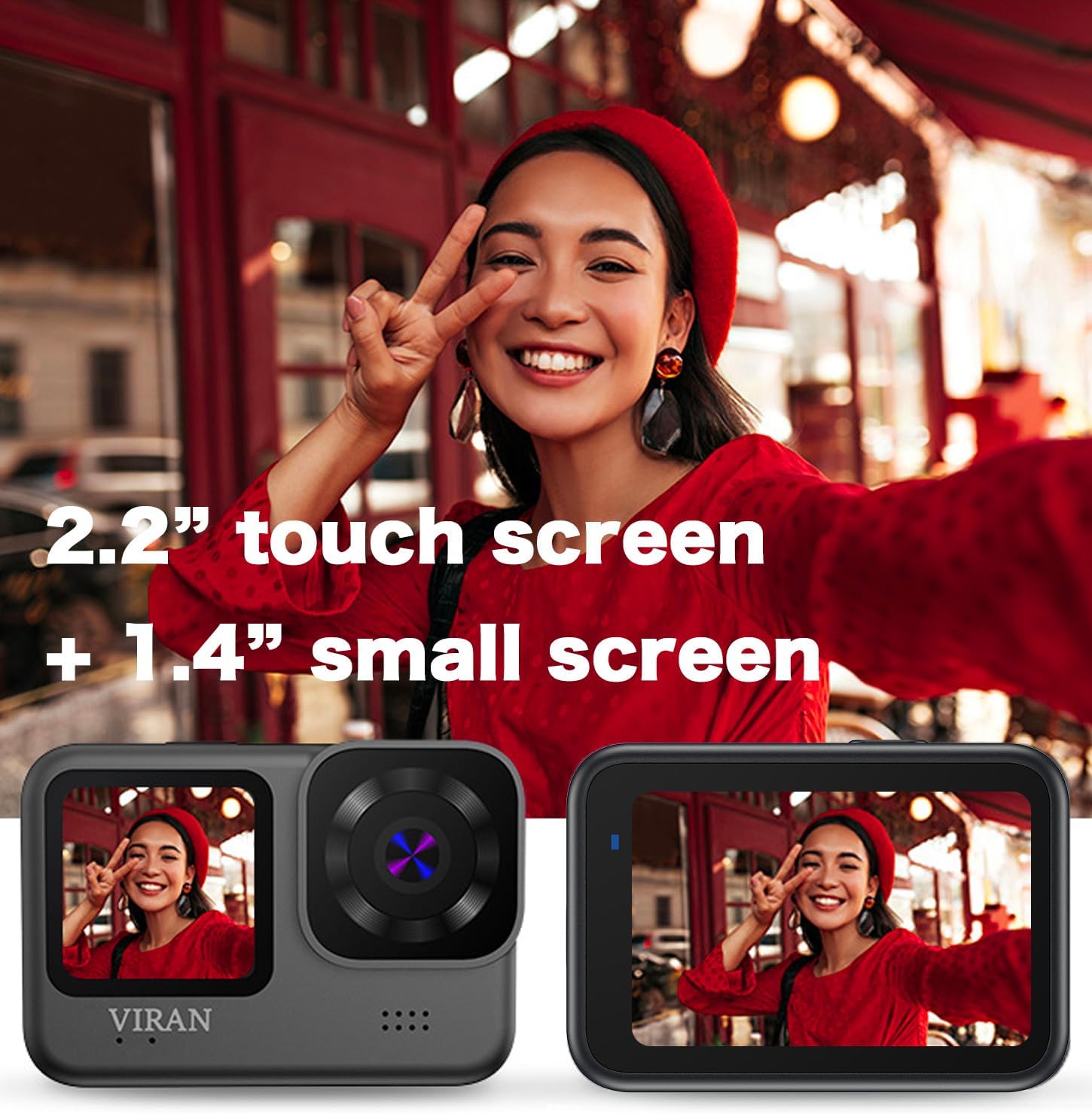
Image 3.1: The VIRAN V11 Action Camera showcasing its 2.2-inch rear touch screen and 1.4-inch front screen.
3.2 Ports and Buttons
The camera includes a USB Type-C port for charging and data transfer. This port is protected by a waterproof cover.

Image 3.2: The USB Type-C port on the VIRAN V11 Action Camera, used for data transfer and webcam functionality.
4. Setup
4.1 Charging the Battery
The camera has a built-in 1200mAh battery. To charge:
- Locate the USB Type-C port cover on the side of the camera.
- Carefully open the cover. Note: This cover provides waterproofing, ensure it is securely closed after charging.
- Connect the provided Type-C cable to the camera and a USB power adapter (not included) or a computer.
- The charging indicator will illuminate. Charging time is approximately 90 minutes.
4.2 Inserting a MicroSD Card
A microSD card (up to 128GB, Class 10 or higher recommended) is required for recording. A 64GB card may be pre-installed.
- Open the USB Type-C port cover.
- Insert the microSD card into the designated slot with the contacts facing the correct direction until it clicks into place.
- To remove, gently push the card until it springs out.
- Close the USB Type-C port cover securely.
4.3 Initial Power On
Press and hold the Power/Mode button (usually on the top or side) for a few seconds until the screen illuminates.
4.4 Connecting to Wi-Fi (App Control)
The VIRAN V11 supports Wi-Fi connectivity for control via a mobile application.
- Download the official VIRAN app from your mobile device's app store.
- On the camera, navigate to the Wi-Fi settings and enable Wi-Fi. The camera's Wi-Fi network name (SSID) and password will be displayed.
- On your mobile device, go to Wi-Fi settings and connect to the camera's Wi-Fi network.
- Open the VIRAN app. You can now control the camera, view live footage, and transfer files.
4.5 Pairing the Remote Control
The camera comes with a wireless remote control for convenient operation.

Image 4.1: The VIRAN V11 Action Camera being controlled wirelessly by its remote control.
- Ensure the camera is powered on.
- Refer to the remote control's specific instructions for pairing mode (usually involves holding a button).
- On the camera, navigate to the remote control pairing settings and initiate pairing.
- Once paired, you can use the remote to start/stop recording and take photos.
5. Operating Instructions
5.1 Basic Operation
- Power On/Off: Press and hold the Power/Mode button.
- Mode Switching: Short press the Power/Mode button to cycle through video, photo, and playback modes.
- Shutter/Select Button: Press to start/stop recording or take a photo. In menus, press to confirm selection.
5.2 Video Recording
The VIRAN V11 supports various video resolutions and features.
- Resolutions: 5K(5120x2880) 30fps, 4K(3840 × 2160) 30/60fps, 2.7K(2704 × 1520) 30/60fps, 1080p (1920 × 1080) 120/60/30fps, 720p (1280 × 720) 240/120/60fps.
- Electronic Image Stabilization (EIS): The camera features 3.0 EIS anti-shake technology for smoother footage. Enable this in the settings menu.

Image 5.1: Comparison showing the effect of Electronic Image Stabilization (EIS) on video smoothness.
- Pre-Record Function: This feature allows the camera to continuously record a short buffer of video before you press the record button, ensuring you don't miss critical moments. Configure duration in settings.

Image 5.2: The pre-record function settings on the VIRAN V11 Action Camera, allowing selection of buffer duration.
- Other Video Functions: Loop video, shrink video, slow/fast motion video.
5.3 Photo Capture
The camera supports various photo resolutions and modes.
- Resolutions: 48MP, 24MP, 20MP, 16MP, 14MP, 10MP, 8MP, 5MP, 2MP.
- Photo Functions: Single shot, regular shot, continuous shot.
5.4 Waterproof Usage
The VIRAN V11 is designed to be waterproof without an additional case.

Image 5.3: A diver using the VIRAN V11 Action Camera underwater, demonstrating its 10-meter waterproof capability without a separate case.
- The camera is waterproof up to 10 meters (IP68 rated) without a waterproof housing.
- For depths up to 30 meters, a specialized waterproof case (sold separately) is required.
- Ensure all port covers are securely closed before exposing the camera to water.
- Dive Mode: Activate Dive Mode in settings to automatically correct underwater colors for more natural and realistic footage.
5.5 Special Modes
- Car Mode (Dashcam): The camera can function as a car recorder with features like loop recording and inversion mode.
- Webcam Mode: Connect the camera to a computer via the Type-C cable and select webcam mode for use as a high-quality webcam.
6. Maintenance
6.1 Cleaning the Camera
- Use the provided wipe cloth or a soft, lint-free cloth to clean the camera body and lens.
- For stubborn dirt, slightly dampen the cloth with water. Do not use harsh chemicals or solvents.
- Ensure the lens is clean before recording to avoid blurry footage.
6.2 Battery Care
- Avoid fully discharging the battery frequently.
- Charge the battery regularly, even if not in use, to maintain its lifespan.
- Store the camera in a cool, dry place when not in use.
6.3 Storage
- Store the camera in its protective case to prevent scratches and damage.
- Keep the camera away from extreme temperatures, humidity, and direct sunlight.
7. Troubleshooting
If you encounter issues with your VIRAN V11 Action Camera, refer to the following common problems and solutions.
- Camera does not power on:
Ensure the battery is charged. Connect the camera to a power source using the Type-C cable and try again. - Cannot record video/take photos:
Check if a microSD card is inserted and properly formatted. Ensure there is sufficient storage space. - Poor image/video quality:
Clean the camera lens. Check the selected resolution settings. Ensure adequate lighting. - Wi-Fi connection issues:
Ensure Wi-Fi is enabled on the camera and your mobile device. Restart both devices and try reconnecting. Verify the correct app is installed. - Audio capture is poor or non-existent:
Ensure the microphone is not obstructed. Check audio settings in the camera menu. Note that external microphone compatibility may vary and specific settings might be required. - Camera freezes or becomes unresponsive:
Press and hold the Power/Mode button for 10-15 seconds to force a restart. If the issue persists, remove and reinsert the microSD card. - Water leakage:
Immediately power off the camera. Ensure all port covers are securely closed before water exposure. If leakage occurs, contact customer support.
8. Specifications
Detailed technical specifications for the VIRAN V11 Action Camera.
| Feature | Specification |
|---|---|
| Sensor | Sony IMX386 |
| Waterproof Rating | IP68 (5m without case, 10m machine waterproof), 30m with optional waterproof case |
| Anti-shake | Electronic Image Stabilization (EIS 3.0) |
| Wi-Fi | Supported (Mobile phone APP control) |
| Display Screens | Rear: 2.2" IPS Touch HD Screen, Front: 1.4" IPS HD Screen |
| Video Resolution | 5K(5120x2880) 30fps, 4K(3840x2160) 30/60fps, 2.7K(2704x1520) 30/60fps, 1080p (1920x1080) 120/60/30fps, 720p (1280x720) 240/120/60fps |
| Photo Resolution | 48MP/24MP/20MP/16MP/14MP/10MP/8MP/5MP/2MP |
| Viewing Angle | 170° Adjustable Wide Angle (Wide, Medium, Narrow) |
| Battery Capacity | 1200mAh Lithium Ion |
| Charging Port | USB Type-C |
| Storage | Micro SD (up to 128GB, Class 10 or higher) |
| Video Format | MOV |
| Audio Format | MP4 |
| Connectivity | Wi-Fi, Remote Control |

Image 8.1: Illustration of the 170-degree wide-angle lens and its components on the VIRAN V11 Action Camera.
9. Warranty and Support
For warranty information, please refer to the documentation provided with your purchase or contact the seller directly. VIRAN is committed to providing quality products and support.
For further assistance or technical support, please visit the official VIRAN website or contact their customer service department through the contact information provided by your retailer.


