
Zidoo Z30 PRO
Zidoo Z30 PRO-8K Multimedia Player User Manual
Model: Z30 PRO
Introduction
Welcome to the user manual for your new Zidoo Z30 PRO-8K Multimedia Player. This device is designed to deliver an exceptional home entertainment experience with its advanced Amlogic S928X-K processor, 8K video output, and comprehensive audio and video format support. This manual provides detailed instructions for setup, operation, maintenance, and troubleshooting to help you get the most out of your Z30 PRO-8K.
Product Overview
The Zidoo Z30 PRO-8K is a high-performance multimedia player featuring a new generation Amlogic S928X-K 64-bit penta-core A76 + A55 processor, 6GB DDR4 RAM, and 64GB eMMC storage for smooth operation and extensive application support. It supports HDMI 2.1 for 8K 60Hz output and advanced HDR formats including HDR10, HLG, HDR10+, and Dolby Vision. The integrated VS10 image quality engine enhances picture quality across various video modes.
Key features include:
- Powerful Processor: Amlogic S928X-K with 6GB RAM and 64GB storage.
- 8K Video Output: HDMI 2.1 supporting 8K@60Hz.
- Advanced HDR Support: HDR10, HLG, HDR10+, and Dolby Vision (LLDV).
- High-Fidelity Audio: Supports lossless music formats like DSD (SACD ISO, DSF, DFF), WAV, APE, FLAC, with DSD512/PCM 192 KHz sampling.
- Extensive Connectivity: Hidden SATA3.0 HDD bay (up to 16TB), USB 3.0, USB 2.0, Bluetooth 5.2, Gigabit LAN, Dual-band WiFi 6.
- Smart Features: New Poster Wall 5.0, Zidoo Controller app for iOS/Android, automatic framerate switching, network protocol support (NFS, SMB, UPnP, Web DAV).
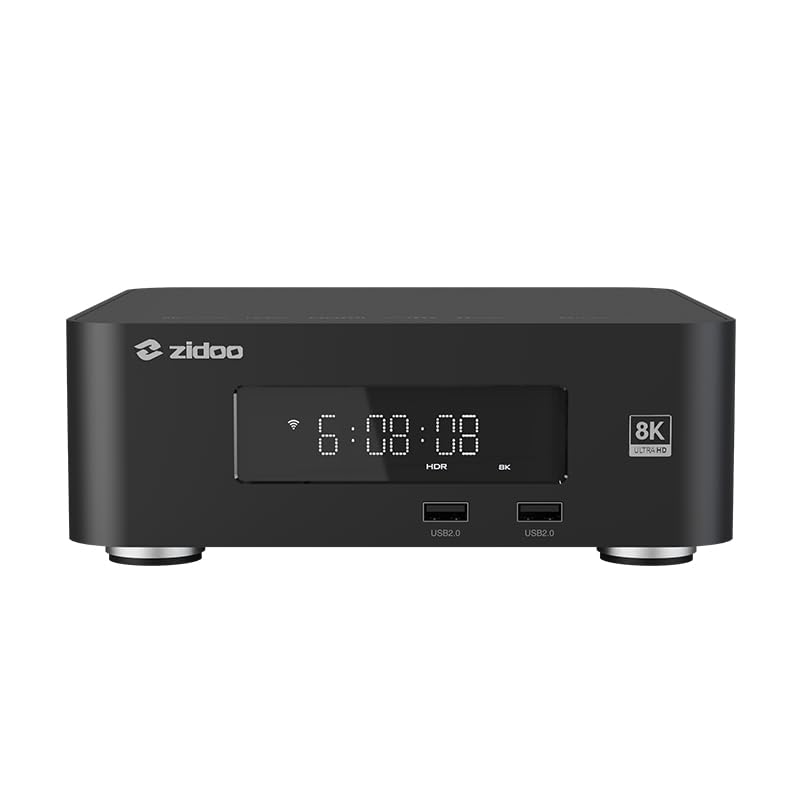
Figure 1: Front view of the Zidoo Z30 PRO-8K Multimedia Player, showing the display and front USB 2.0 ports.

Figure 2: Diagram highlighting key features such as Amlogic S928X-K, 8K Ultra HD, HDR10+, Dolby Atmos, DTS:X, HDMI 2.1, 6GB DDR4 + 64GB eMMC, AI picture quality, Dolby Vision, AVS3, Streaming Music, IR remote control, WiFi 6 (2.4G + 5G), iOS/Android APP control, lossless music playback (DSD/APE/FLAC/WAV), Music Library, and Auto FPS.

Figure 3: Rear view of the Zidoo Z30 PRO-8K, detailing the various ports including Coaxial, Optical, HDMI, Gigabit LAN, USB 3.0, RS-232, and the DC 12V power input. Dimensions are also shown: L: 197mm, W: 197mm, H: 64.8mm.

Figure 4: Top-down perspective of the Zidoo Z30 PRO-8K, highlighting the hidden SATA3.0 HDD bay on the side.
Setup Guide
1. Unboxing and Initial Inspection
Carefully remove all components from the packaging. Verify that all items listed in the packing list are present and undamaged. These typically include the Zidoo Z30 PRO-8K unit, power adapter, HDMI cable, and remote control.
2. Connecting to Your Display
- Connect one end of the provided HDMI cable to the HDMI OUT port on the back of the Zidoo Z30 PRO-8K.
- Connect the other end of the HDMI cable to an available HDMI input port on your television or display. For optimal 8K resolution, ensure your display and HDMI cable support HDMI 2.1.
3. Powering On
- Connect the power adapter to the DC 12V input port on the back of the Zidoo Z30 PRO-8K.
- Plug the power adapter into a wall outlet.
- Press the ON/OFF switch on the back of the unit to the 'ON' position. The device will power on, and the Zidoo logo should appear on your display.
4. Network Connection
The Z30 PRO-8K supports both wired and wireless network connections.
- Wired Connection (Recommended for 8K/4K streaming): Connect an Ethernet cable from your router to the Gigabit LAN port on the back of the player.
- Wireless Connection:
- Navigate to Settings > Network > Wi-Fi on the device's interface.
- Select your Wi-Fi network from the list and enter the password. The device supports 2.4G and 5G dual-band WiFi 6.
5. Storage Installation (Optional HDD Bay)
The Z30 PRO-8K features a hidden SATA3.0 HDD bay for internal storage expansion up to 16TB.
- Locate the HDD bay cover on the side of the unit (refer to Figure 4).
- Gently slide or open the cover.
- Insert a 2.5-inch or 3.5-inch SATA hard drive into the bay, ensuring it is properly seated.
- Close the bay cover. The system will automatically detect the new storage.
Operating Instructions
1. User Interface Navigation
Use the included IR remote control or the Zidoo Controller app to navigate the Android 11 operating system. The main interface provides access to various applications, settings, and media libraries.
- Home Screen: Displays frequently used apps and system information.
- Settings: Access network, display, audio, and system configurations.
- Apps: View and launch all installed applications.
- Media Center: Browse and play local media files from connected storage or network shares.
2. Media Playback
The Z30 PRO-8K supports a wide range of video and audio formats.
- Video Playback:
- Navigate to your video files using the Media Center or a file explorer app.
- Supported formats include BD/UHD BDMV/ISO, MKV, TS, AV1, VP9, H.265, AVS3, AVS2.
- The device automatically adjusts framerate (e.g., 23.976Hz) for smooth playback.
- Special effects subtitles and network subtitle download are supported.
- Audio Playback:
- Use the upgraded Music Player 8.0 for lossless audio playback.
- Supported formats include DSD (SACD ISO, DSF, DFF), WAV, APE, FLAC.
- Supports master-level DSD up to DSD512 and PCM up to 192 KHz.
- Audio output modes include Surround and Atmos.
3. Network Streaming
Access media from your local network or streaming services.
- Local Network: The device supports network protocols such as NFS, SMB v1/v2/v3, UPnP, and Web DAV for seamless streaming from PCs and NAS devices.
- Music Streaming: Supports DLNA, Tidal Connect, and other music streaming methods.
4. Using the Zidoo Controller App
Download the exclusive Zidoo Controller app for your iOS or Android mobile device. This app allows you to control the Z30 PRO-8K, browse media, and manage settings from your smartphone or tablet, including iPad landscape mode and Android tablet landscape mode.
Maintenance
1. Software Updates
Regularly check for and install software updates (OTA) to ensure optimal performance, compatibility, and access to new features. Updates can typically be found in Settings > About > System Update.
2. Cleaning
To maintain the appearance and functionality of your device:
- Use a soft, dry, lint-free cloth to wipe the exterior.
- Avoid using liquid cleaners, aerosols, or abrasive solvents.
- Ensure ventilation openings are clear of dust and debris.
3. Storage Management
Periodically review and manage the content on your internal and external storage devices to free up space and maintain performance. Delete unnecessary files or transfer them to other storage solutions.
Troubleshooting
If you encounter issues with your Zidoo Z30 PRO-8K, refer to the following common problems and solutions:
No Power
- Ensure the power adapter is securely connected to both the device and a working power outlet.
- Check that the ON/OFF switch on the back of the unit is in the 'ON' position.
- Try a different power outlet.
No Video or Audio Output
- Verify that the HDMI cable is securely connected to both the Zidoo player and your display.
- Ensure your display is set to the correct HDMI input source.
- Try a different HDMI cable or HDMI port on your display.
- Check audio settings on the Zidoo player and your audio receiver/TV to ensure correct output mode (e.g., HDMI Passthrough, PCM).
- Restart the Zidoo player and your display.
Network Connection Issues
- Wired: Ensure the Ethernet cable is properly connected and your router is functioning.
- Wireless:
- Verify the Wi-Fi password is correct.
- Move the player closer to your Wi-Fi router or reduce interference.
- Restart your router and the Zidoo player.
Playback Problems (Stuttering, Freezing)
- Ensure your network connection is stable and has sufficient bandwidth for streaming high-resolution content.
- For local files, check the integrity of the media file.
- Ensure your storage device (HDD/USB) is functioning correctly and has enough free space.
- Try updating the player's firmware to the latest version.
Technical Specifications
| Feature | Specification |
|---|---|
| Brand | Zidoo |
| Model Name | Z30 PRO |
| Processor | Amlogic S928X-K ARM Cortex-A76+Cortex-A55 (Quad-core) |
| RAM | 6GB DDR4 |
| Storage | 64GB eMMC |
| Video Output | HDMI 2.1, 8K@60Hz |
| HDR Support | HDR10, HLG, HDR10+, Dolby Vision (LLDV) |
| Audio Output Mode | Surround, Atmos |
| Supported Audio Formats | DSD (SACD ISO, DSF, DFF), WAV, APE, FLAC (up to DSD512/PCM 192 KHz) |
| Connectivity | HDMI, USB 3.0 x3, USB 2.0 x2, Gigabit LAN, Bluetooth 5.2, Wi-Fi 6 (2.4G+5G), Optical, Coaxial, RS-232 |
| HDD Bay | SATA3.0 (up to 16TB) |
| Operating System | Android 11 |
| Item Weight | 1.43 Kilograms |
| Compatible Devices | Television |
| Special Features | Multi-format playback, Zidoo Controller App, Poster Wall 5.0, Auto Framerate |
Warranty and Support
Zidoo is committed to providing excellent service for its home audiovisual products. If you encounter any issues with your Zidoo Z30 PRO-8K device, please do not hesitate to contact the seller via email for assistance.
Additionally, a home cinema forum is available on the official Zidoo website where you can find further support, share experiences, and provide feedback. Your suggestions and opinions are highly valued by the Zidoo team.
For specific warranty details, please refer to the documentation included with your purchase or contact your point of sale.
Related documentsZ30 PRO


Ask a question about this manual
Ask about setup, troubleshooting, compatibility, parts, safety, or missing instructions. Manuals+ will review the question and use this page’s manual context to help answer it.