
1. Introduction
Thank you for choosing the Nagnahz T12 Pro RGB Video Light. This portable and versatile LED light is designed for various photography and videography applications, including studio work, vlogging, streaming, and selfie videos. This manual provides detailed instructions on how to set up, operate, and maintain your device to ensure optimal performance and longevity.
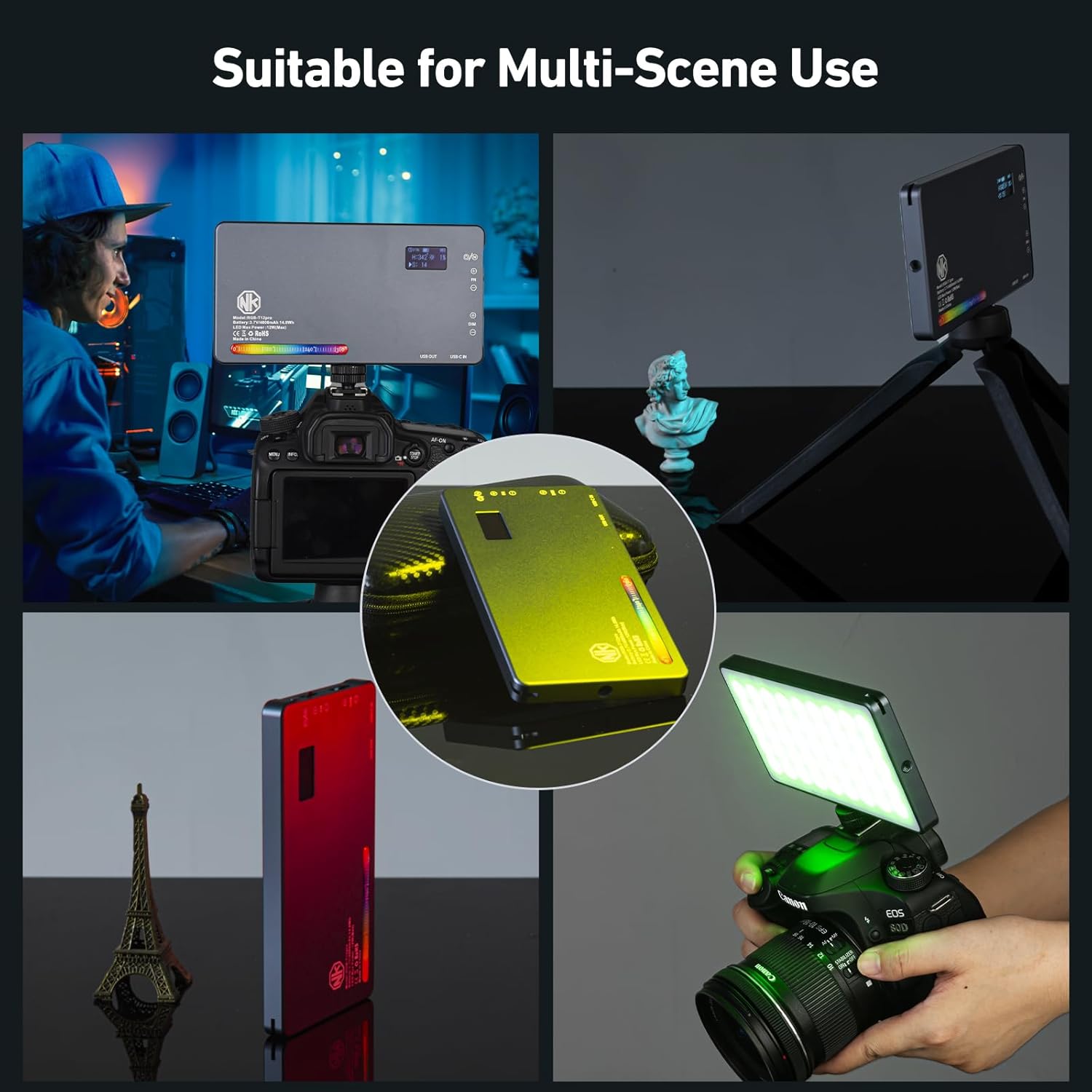
Image 1.1: The Nagnahz T12 Pro RGB Video Light being used in different settings, including mounted on a camera, on a tripod, and handheld. This illustrates its versatility for multi-scene use.
2. Product Overview
2.1 Key Features
- 12W High Brightness & CRI 96+: Offers 0-360° full color and color saturation adjustment, 2500-8000K color temperature control, and dimmable brightness from 0-100%.
- HSI/CCT/21 Scenes Lighting Modes: Includes HSI color mode, CCT mode for white light adjustment, and 21 special lighting effects (e.g., police car, lightning, fireworks, party).
- High Color Quality with Long Battery Life: Built-in 4000mAh rechargeable battery provides up to 1 hour at maximum brightness and up to 12 hours at minimum brightness. Features an all-aluminum alloy body for efficient heat dissipation.
- Portable and Lightweight: Compact design (108*60*11mm, 117g) with a standard 1/4" screw for tripod mounting and a cold shoe mount for camera compatibility.
- LCD Display: Built-in LCD display for accurate readings of settings.
2.2 Package Contents
Upon unboxing, please ensure all items listed below are present:
- T12 Pro RGB Video Light (1 unit)
- On-camera cold shoe mount (1 unit)
- Luxury Carrying Bag (1 unit)
- Type-C Charge Cable (1 unit)
- Portable rope (1 unit)
- Ball Head (1 unit)

Image 2.1: A visual representation of the items included in the Nagnahz T12 Pro RGB Video Light package, showing the light unit, cold shoe mount, carrying bag, Type-C cable, portable rope, and ball head.
2.3 Product Components
Familiarize yourself with the various parts of your T12 Pro RGB Video Light:

Image 2.2: A detailed diagram highlighting the key components of the T12 Pro RGB Video Light, including the OLED Display, 1/4"-20 Bottom Threaded Hole, USB OUT port, USB-C IN charging port, Select/Adjustment Knob, Brightness Knob, Mode Button, and Power Switch.
- OLED Display: Shows current settings (mode, brightness, color temperature, battery level).
- Power Switch: Turns the device on or off.
- Brightness Knob (DIM +/-): Adjusts the light intensity.
- Select/Adjustment Knob (FN +/-): Navigates menus and adjusts parameters within modes.
- Mode Button (M): Cycles through different lighting modes (HSI, CCT, Scene).
- USB-C IN Port: For charging the device.
- USB OUT Port: Can be used for power output (e.g., charging a phone).
- 1/4"-20 Bottom Threaded Hole: For mounting on tripods, light stands, or other accessories.
3. Setup
3.1 Initial Charging
Before first use, fully charge the T12 Pro RGB Video Light. Connect the provided Type-C charging cable to the USB-C IN port on the light and plug the other end into a compatible USB power adapter (not included). The OLED display will indicate the charging status.
Charging time is approximately 2 hours.

Image 3.1: The T12 Pro RGB Video Light highlighting its 12W power output and integrated 4000mAh rechargeable battery, indicating its capacity for extended use.
3.2 Mounting the Light
The T12 Pro RGB Video Light features a standard 1/4"-20 threaded hole at the bottom for versatile mounting options:
- Tripod/Light Stand: Screw the light directly onto any standard tripod or light stand.
- Camera Hot Shoe: Attach the included cold shoe mount to the 1/4"-20 threaded hole, then slide the cold shoe mount into your camera's hot shoe.
- Other Accessories: Use the 1/4"-20 threaded hole to attach the light to various other photography accessories.
4. Operating Instructions
4.1 Power On/Off
Locate the Power Switch on the side of the device. Slide it to the "ON" position to power on the light. Slide it to the "OFF" position to power off.
4.2 Mode Selection (M Button)
Press the Mode (M) Button to cycle through the available lighting modes:
- HSI Mode: Adjust Hue, Saturation, and Intensity (Brightness).
- CCT Mode: Adjust Color Temperature and Brightness.
- Scene Mode: Select from 21 pre-programmed lighting effects.
4.3 Adjusting Brightness (DIM +/-)
Use the Brightness Knob (DIM +/-) to increase or decrease the light intensity from 0% to 100%. The current brightness level will be displayed on the OLED screen.
4.4 HSI Mode Operation
In HSI mode, you can precisely control the color output:
- Press the Select/Adjustment Knob (FN +/-) to switch between Hue (H), Saturation (S), and Intensity (I).
- Rotate the Select/Adjustment Knob (FN +/-) to adjust the selected parameter:
- Hue (H): 0-360° for full color gamut adjustment.
- Saturation (S): 0-100% for color saturation adjustment.
- Intensity (I): 0-100% for brightness adjustment (can also use DIM knob).
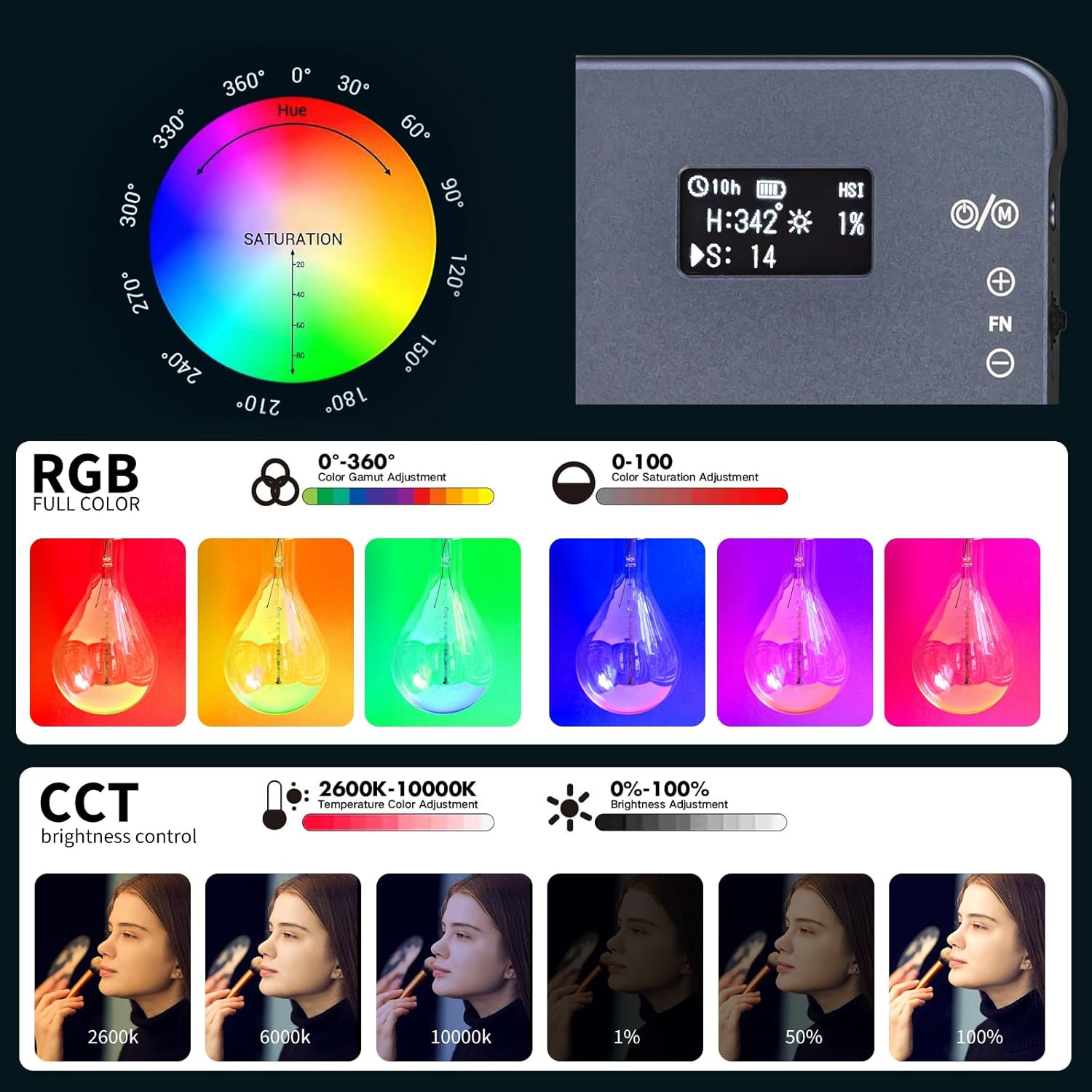
Image 4.1: An illustration of the HSI (Hue, Saturation, Intensity) color wheel and CCT (Correlated Color Temperature) brightness control, demonstrating the range of color and temperature adjustments available on the T12 Pro RGB Video Light.
4.5 CCT Mode Operation
In CCT mode, you can adjust the white light output:
- Press the Select/Adjustment Knob (FN +/-) to switch between Color Temperature (K) and Brightness (%).
- Rotate the Select/Adjustment Knob (FN +/-) to adjust the selected parameter:
- Color Temperature (K): 2500K-8000K for warm to cool white light.
- Brightness (%): 0-100% for light intensity (can also use DIM knob).
4.6 Scene Mode Operation (21 Effects)
The T12 Pro offers 21 pre-programmed lighting effects for creative scenarios:
- Press the Select/Adjustment Knob (FN +/-) to select a major category (A-G).
- Toggle the Select/Adjustment Knob (FN +/-) to select a specific effect within that category (1-3).

Image 4.2: A visual guide to the 21 special effect modes available on the T12 Pro RGB Video Light, categorized from A to G, including effects like Flash, Candle, Police, Strobe Lights, Chase, Fire Work, Club, and Romantic.
Effect Categories:
- A: Flash, Flash Fast, TV Screen
- B: Candle, Flame 1, Flame 2
- C: Police, Ambulance, Fire Truck
- D: Strobe Lights 1, Strobe Lights 2, Strobe Lights 3
- E: Chase Slow, Chase Mid, Chase Fast
- F: Fire Work 1, Fire Work 2, Fire Work 3
- G: Club 1, Club 2, Romantic
4.7 OLED Display Information
The OLED display provides real-time information about the light's status and settings:
- Battery Level: Indicates remaining battery percentage.
- Current Mode: Shows HSI, CCT, or Scene mode.
- Parameter Values: Displays Hue, Saturation, Intensity, Color Temperature, or selected Scene effect.
5. Maintenance
5.1 Cleaning
- Ensure the device is powered off and disconnected from any power source before cleaning.
- Wipe the exterior of the light with a soft, dry cloth.
- For stubborn marks, slightly dampen the cloth with water. Do not use harsh chemicals, solvents, or abrasive cleaners.
- Avoid getting moisture into any ports or openings.
5.2 Battery Care
- To prolong battery life, avoid fully discharging the battery frequently.
- Charge the device regularly, even if not in use, to prevent deep discharge.
- Store the light in a cool, dry place when not in use for extended periods.
5.3 Storage
When storing the T12 Pro RGB Video Light, especially for long periods, use the provided luxury carrying bag to protect it from dust, scratches, and impacts.
6. Troubleshooting
If you encounter issues with your Nagnahz T12 Pro RGB Video Light, please refer to the following common problems and solutions:
| Problem | Possible Cause | Solution |
|---|---|---|
| Light does not turn on. | Battery is depleted. Power switch is off. | Charge the light using the Type-C cable. Ensure the power switch is in the "ON" position. |
| Light does not charge. | Charging cable is faulty. USB power adapter is not working. USB-C port is dirty. | Try a different Type-C cable. Try a different USB power adapter or USB port. Gently clean the USB-C port with a dry, soft brush. |
| Brightness or color cannot be adjusted. | Incorrect mode selected. Knobs are not responding. | Ensure you are in the correct mode (HSI, CCT, or Scene) for the desired adjustment. Power off and restart the device. If the issue persists, contact customer support. |
| OLED display is blank or flickering. | Low battery. Device malfunction. | Charge the device. Power off and restart. If the problem continues, contact customer support. |
If the problem persists after trying these solutions, please contact Nagnahz customer support for further assistance.
7. Specifications
| Feature | Specification |
|---|---|
| Model | T12 Pro |
| Power Output | 12W |
| Color Temperature Range | 2500K-8000K |
| CRI (Color Rendering Index) | 96+ |
| Hue Adjustment | 0-360° Full Color |
| Saturation Adjustment | 0-100% |
| Brightness Adjustment | 0-100% Dimmable |
| Battery Capacity | 4000mAh Lithium Ion |
| Max Brightness Battery Life | Up to 1 hour |
| Min Brightness Battery Life | Up to 12 hours |
| Charging Port | USB Type-C |
| Charging Time | Approximately 2 hours |
| Dimensions (L x W x H) | 108 x 60 x 11 mm (4.25 x 2.36 x 0.43 inches) |
| Weight | 117g (4.13 ounces) |
| Mounting | 1/4"-20 Threaded Hole |
| Special Effects | 21 Scene Modes |
8. Warranty and Support
8.1 Warranty Information
The Nagnahz T12 Pro RGB Video Light comes with a manufacturer's warranty. Please refer to the warranty card included in your product packaging or visit the official Nagnahz website for detailed warranty terms and conditions. Keep your purchase receipt as proof of purchase for warranty claims.
8.2 Customer Support
For any questions, technical assistance, or warranty claims, please contact Nagnahz customer support. Contact information can typically be found on the product packaging, the official Nagnahz website, or through your point of purchase.
Nagnahz Official Store: Visit Nagnahz Store on Amazon