
1. Introduction
This manual provides detailed instructions for the MURAUX 6K Camcorder Model A10. Please read this manual thoroughly before using the device to ensure proper operation and to maximize its performance and longevity. This camcorder is designed for capturing high-quality video and photos, suitable for vlogging, family events, and general video recording.
2. What's in the Box
Verify that all items listed below are included in your package. If any items are missing or damaged, please contact customer support.
- MURAUX 6K Camcorder Body
- External Microphone
- 2.4G Remote Control
- 2 x Lithium Polymer Batteries (NP-40 type)
- 32GB SD Card
- USB Cable
- User Manual

Image: The complete package contents for the MURAUX 6K Camcorder, showing the camera, external microphone, remote control, two batteries, a 32GB SD card, a USB cable, and the user manual.
3. Product Overview
Familiarize yourself with the main components of your MURAUX 6K Camcorder.
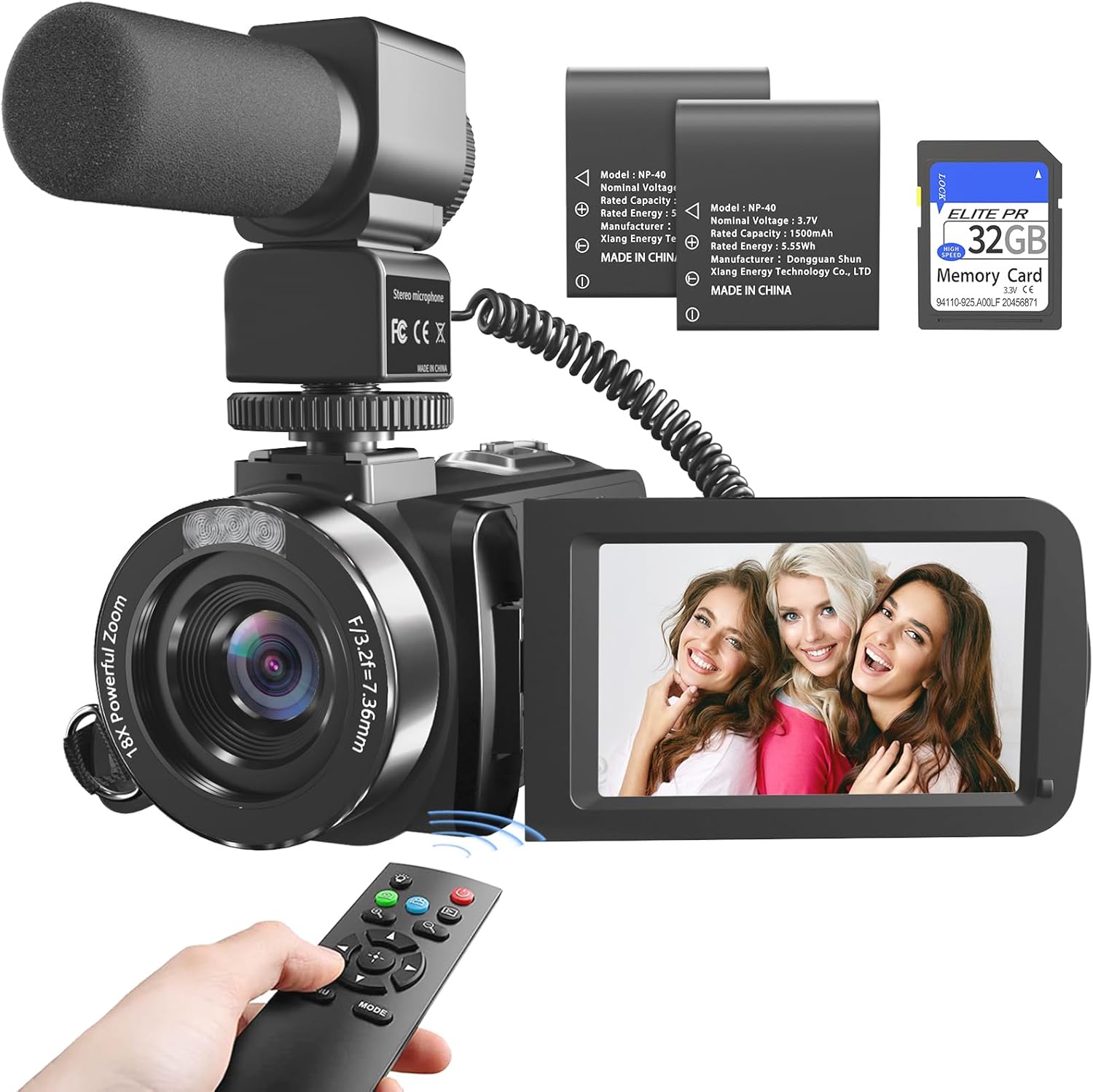
Image: A comprehensive view of the MURAUX 6K Camcorder, highlighting its main body, the attached external microphone, the 3.0-inch rotatable touchscreen display, and the included remote control, batteries, and SD card.
Key Components:
- Lens: Main optical component for capturing images.
- 3.0" Touch Screen: Rotates 270 degrees for flexible viewing and control.
- Power Button: Turns the camera on/off.
- Record/Shutter Button: Initiates video recording or captures a still photo.
- Zoom Lever: Controls the 18X digital zoom.
- Mode Dial: Selects between video, photo, and playback modes.
- Battery Compartment: Houses the rechargeable Lithium Polymer batteries.
- SD Card Slot: For inserting the memory card.
- USB Port: For data transfer and charging.
- HDMI Port: For connecting to an HDTV.
- Microphone Input: For connecting the external microphone.
- Hot Shoe Mount: For attaching the external microphone or other accessories.
4. Setup
4.1. Battery Installation and Charging
- Open the battery compartment cover located at the bottom of the camcorder.
- Insert the provided Lithium Polymer battery (NP-40) into the compartment, ensuring the correct orientation.
- Close the battery compartment cover securely.
- To charge, connect the camcorder to a power source using the supplied USB cable. The charging indicator light will illuminate.
- A full charge typically takes approximately 2-3 hours. The indicator light will change or turn off once charging is complete.
4.2. SD Card Installation
- Locate the SD card slot on the side of the camcorder.
- Insert the 32GB SD card with the metal contacts facing downwards until it clicks into place.
- To remove, gently press the SD card until it pops out.
- Ensure the camcorder is powered off before inserting or removing the SD card to prevent data loss.
4.3. External Microphone Installation
- Slide the external microphone onto the hot shoe mount located on top of the camcorder.
- Connect the microphone's 3.5mm audio jack into the microphone input port on the camcorder.
- Ensure the microphone is securely attached and connected for optimal audio recording.

Image: The MURAUX 6K Camcorder with its external microphone attached, demonstrating its use in a casual outdoor setting. The image also highlights the microphone's noise-canceling feature and the 2.4G remote control.
4.4. Remote Control Setup
The 2.4G remote control allows for convenient operation from a distance.
- Ensure the remote control has working batteries (not specified in product info, assume standard small batteries like CR2025).
- Point the remote control towards the front of the camcorder.
- The remote can control functions such as recording start/stop, zoom, and mode selection.
5. Operating Instructions
5.1. Power On/Off
- To power on, open the 3.0" touch screen display or press the Power button.
- To power off, close the touch screen display or press and hold the Power button.
5.2. Basic Video and Photo Recording
- Select Mode: Use the Mode dial or touch screen menu to select between Video Recording mode or Photo Capture mode.
- Start Recording/Capture: Press the Record/Shutter button to begin video recording or take a photo.
- Stop Recording: Press the Record/Shutter button again to stop video recording.
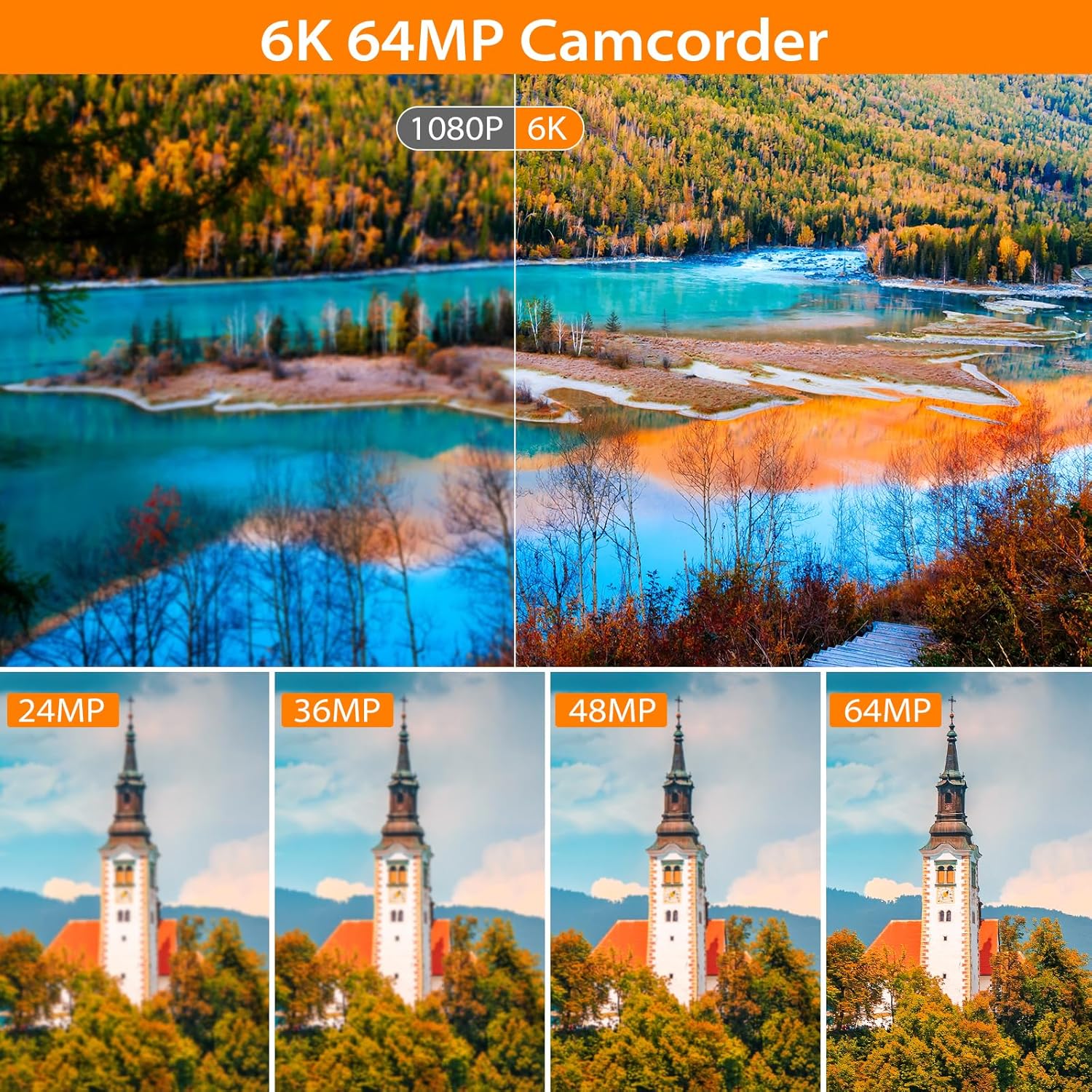
Image: Visual comparison demonstrating the difference in quality between 1080p and 6K video resolutions, and various photo resolutions from 24MP to 64MP, highlighting the camera's high-definition capabilities.
5.3. Zoom Function
- Use the zoom lever (W/T) to adjust the 18X digital zoom.
- Move the lever towards 'T' (Telephoto) to zoom in on distant subjects.
- Move the lever towards 'W' (Wide) to zoom out and capture a broader scene.

Image: This image illustrates the 18X digital zoom feature, showing how the camera can magnify distant subjects. It also demonstrates the IR Night Vision function, comparing a scene with night vision off (dark) and on (clear black and white).
5.4. IR Night Vision
- To activate IR Night Vision, press the dedicated IR button or select it from the menu.
- This feature allows for clear black-and-white recording in low-light or dark environments.
- Press the button again to deactivate.
5.5. WiFi Connectivity (HelloCam App)
Connect your camcorder to a smartphone for real-time sharing and control.
- Download the "HelloCam" app from your smartphone's app store (available for iOS and Android).
- Turn on the camcorder's WiFi function via the menu settings. The camcorder will display a WiFi network name (e.g., HDV6K) and password (e.g., 12345678).
- On your smartphone, go to WiFi settings and connect to the camcorder's WiFi network using the provided password.
- Open the "HelloCam" app and tap "Connect Camera".
- You can now view live footage, transfer photos/videos, and control recording functions from your smartphone.

Image: This image demonstrates the WiFi connectivity feature, showing the MURAUX 6K Camcorder wirelessly connected to a smartphone via the "HelloCam" app, enabling easy sharing of photos and videos to social media platforms.
5.6. Webcam Function
- Connect the camcorder to your computer using the USB cable.
- Select "PC Camera" or "Webcam" mode on the camcorder's screen when prompted.
- Your computer should recognize the camcorder as a webcam, allowing its use for live streaming or video calls.
5.7. Special Recording Features
- Loop Recording: Records video in segments, overwriting the oldest footage when the memory card is full.
- Time-Lapse: Captures a series of still images at set intervals and combines them into a video.
- Video Pause: Allows you to pause and resume recording within a single video file, avoiding multiple file segments.
- Slow Motion: Records video at a higher frame rate for slow-motion playback.
- Continuous Shooting: Captures multiple photos in quick succession.
- Self-Timer: Sets a delay before taking a photo.

Image: This composite image illustrates several advanced recording features: Continuous Shooting (multiple frames of a dog running), Pause Function (a video paused during a horse race), and Time Lapse (a sequence of sunrise photos over a body of water).
5.8. HDMI TV Output
- Connect the camcorder to an HDTV using an HDMI cable (not included).
- Select the appropriate HDMI input on your TV.
- You can now view your recorded videos and photos on a larger screen.
6. Maintenance
- Cleaning the Lens: Use a soft, lint-free cloth specifically designed for camera lenses. Avoid harsh chemicals.
- Cleaning the Screen: Wipe the touch screen gently with a microfiber cloth.
- Storage: Store the camcorder in a cool, dry place away from direct sunlight and extreme temperatures. Remove batteries if storing for extended periods.
- Battery Care: Fully charge batteries before first use. Avoid overcharging or completely draining batteries frequently to prolong their lifespan.
- SD Card Care: Format the SD card periodically within the camera to maintain optimal performance. Back up important data before formatting.
7. Troubleshooting
| Problem | Possible Cause | Solution |
|---|---|---|
| Camcorder does not power on. | Battery is drained or incorrectly inserted. | Charge the battery. Ensure the battery is inserted with correct polarity. |
| Cannot record video/take photos. | SD card is full, locked, or not inserted. Incorrect mode selected. | Check SD card capacity, unlock it, or insert it correctly. Select the appropriate recording mode. |
| Poor image/video quality. | Lens is dirty. Insufficient lighting. Incorrect settings. | Clean the lens. Use adequate lighting or IR Night Vision. Adjust resolution settings. |
| WiFi connection issues. | Incorrect password. App not functioning. | Verify WiFi password. Restart camcorder and smartphone. Reinstall "HelloCam" app. |
| Remote control not working. | Batteries are dead. Obstruction between remote and camera. | Replace remote control batteries. Ensure clear line of sight to the camcorder. |
8. Specifications
| Feature | Detail |
|---|---|
| Brand | MURAUX |
| Model Number | A10 |
| Video Capture Resolution | 6K (30FPS) |
| Still Image Resolution | 64MP |
| Digital Zoom | 18X |
| Screen Size | 3.0 Inches (270° Rotatable Touch Screen) |
| Connectivity | WiFi, USB, HDMI |
| Special Features | IR Night Vision, Fill Light, 2.4G Remote Control, Webcam Function, Pause Function, Continuous Shooting, Time-Lapse, Slow Motion, Self-Timer, External Microphone, Built-in Noise Reduction, Filter Options, Image Stabilization |
| Storage Media | SD Card (32GB included) |
| Battery Type | Lithium Polymer (NP-40) |
| Item Weight | 1.1 pounds |
| Photo Sensor Technology | CMOS |
| Video Capture Format | MP4 |
| Supported Audio Format | AAC |
9. Warranty and Support
MURAUX products are designed for reliability and performance. For specific warranty details, please refer to the warranty card included with your product or visit the official MURAUX website. If you encounter any issues or require technical assistance, please contact MURAUX customer support through the contact information provided on the product packaging or their official website.
For additional resources and frequently asked questions, you may visit the MURAUX Store on Amazon.