
Introduction
Thank you for choosing the SEUNKWANG V3 Wireless Keyboard and Mouse Combo. This product offers versatile connectivity options (Bluetooth 5.0 and 2.4GHz) and is designed for comfort and efficiency across various devices. This manual provides detailed instructions to help you set up, operate, and maintain your new keyboard and mouse combo.

The SEUNKWANG V3 Wireless Keyboard and Mouse Combo, featuring a full-size keyboard with single backlighting and a matching silent mouse, presented in a vibrant green color.
Package Contents
- V3 Wireless Keyboard
- Wireless Silent Mouse
- USB Receiver (stored in mouse)
- Type-C Charging Cable
- User Manual
Key Features
Dual Connection Modes
The V3 combo supports both Bluetooth 5.0 and 2.4GHz wireless connections, offering flexibility for various devices and environments. The 2.4GHz mode utilizes a shared USB receiver for both keyboard and mouse, ensuring a stable connection up to 10 meters (33 feet).

Illustration highlighting the dual 2.4G and Bluetooth connectivity of the V3 combo, offering greater versatility compared to single-mode devices.
Rechargeable Battery
Equipped with a 2000mAh rechargeable battery, the keyboard and mouse can be charged via the included Type-C cable. This allows for uninterrupted use during charging, eliminating the need for disposable batteries.
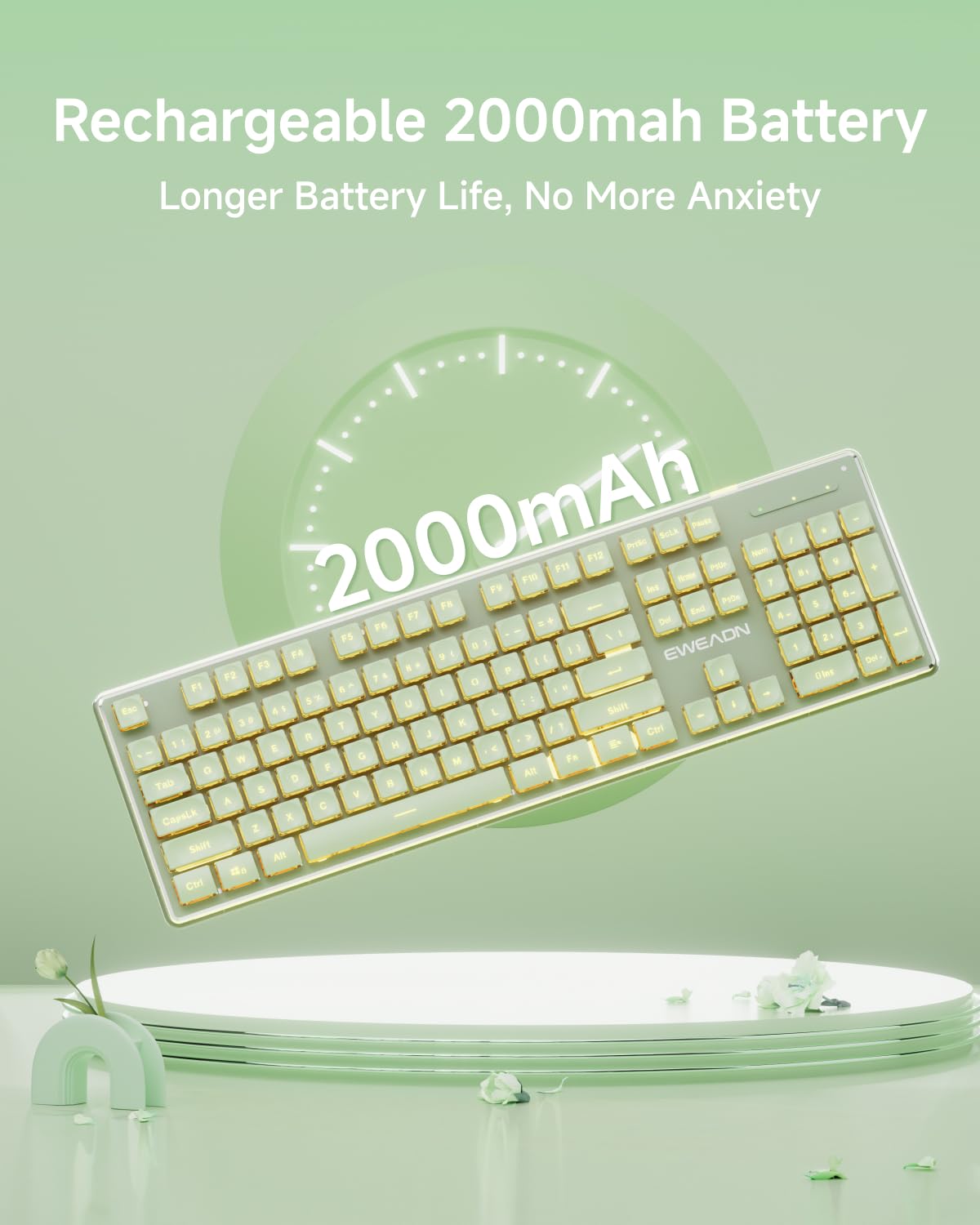
The keyboard features a 2000mAh rechargeable battery, providing extended usage and reducing battery anxiety.
Thickened Metal Panel & Single Backlight
The keyboard features a thickened metal panel for enhanced durability and an upgraded tactile feel. It includes a single warm backlight with 5 adjustable brightness levels, providing clear visibility in various lighting conditions.
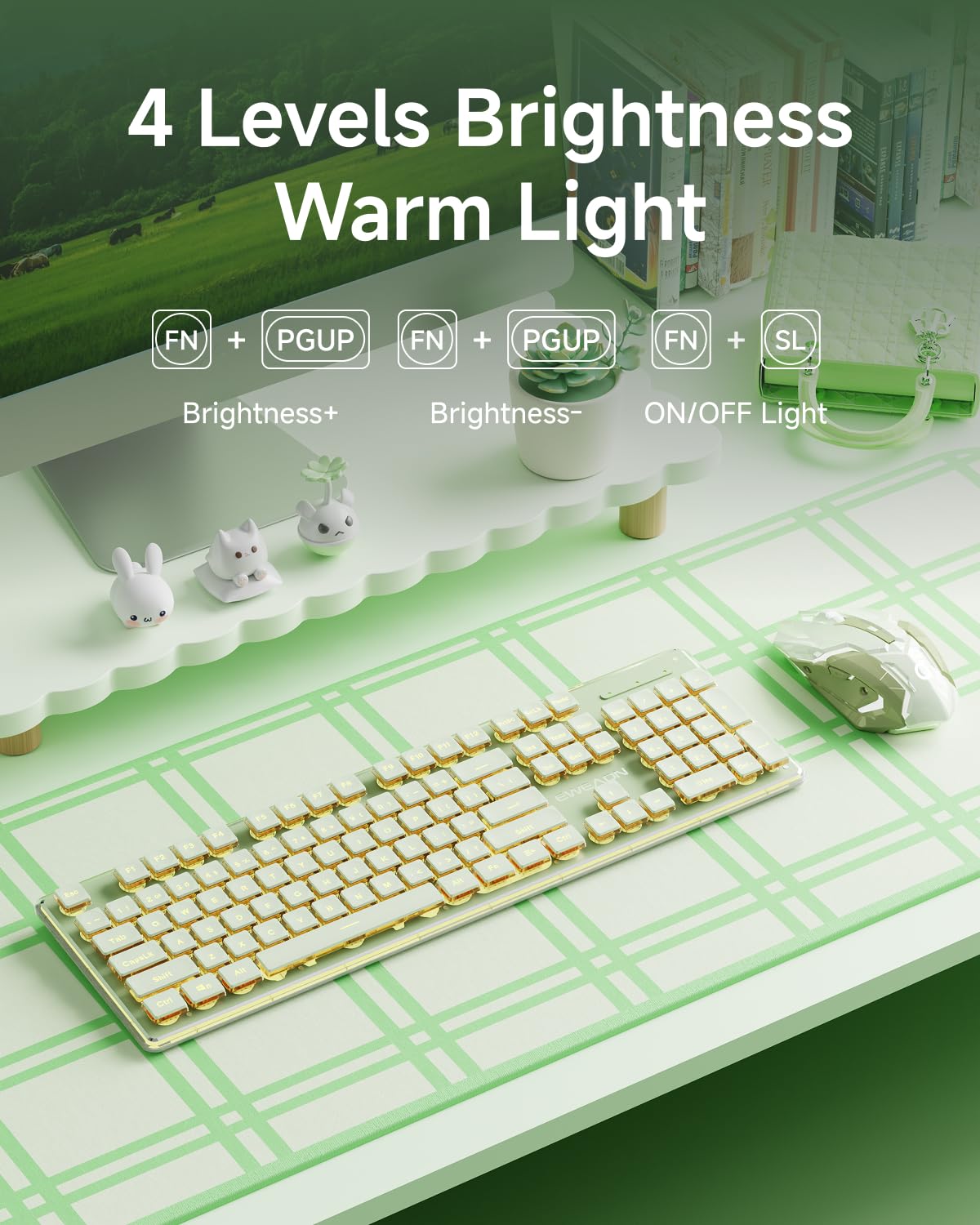
The keyboard offers 4 levels of warm light brightness, adjustable using FN + PGUP/PGDN, and can be turned ON/OFF with FN + SL.
Unique Water Drop Pudding Keycaps
The keycaps are designed with a concave and convex surface, conforming to fingertips for comfortable and effortless typing. The membrane keyboard construction ensures consistent force per keystroke and reduces typing noise by 95% for a quieter experience.
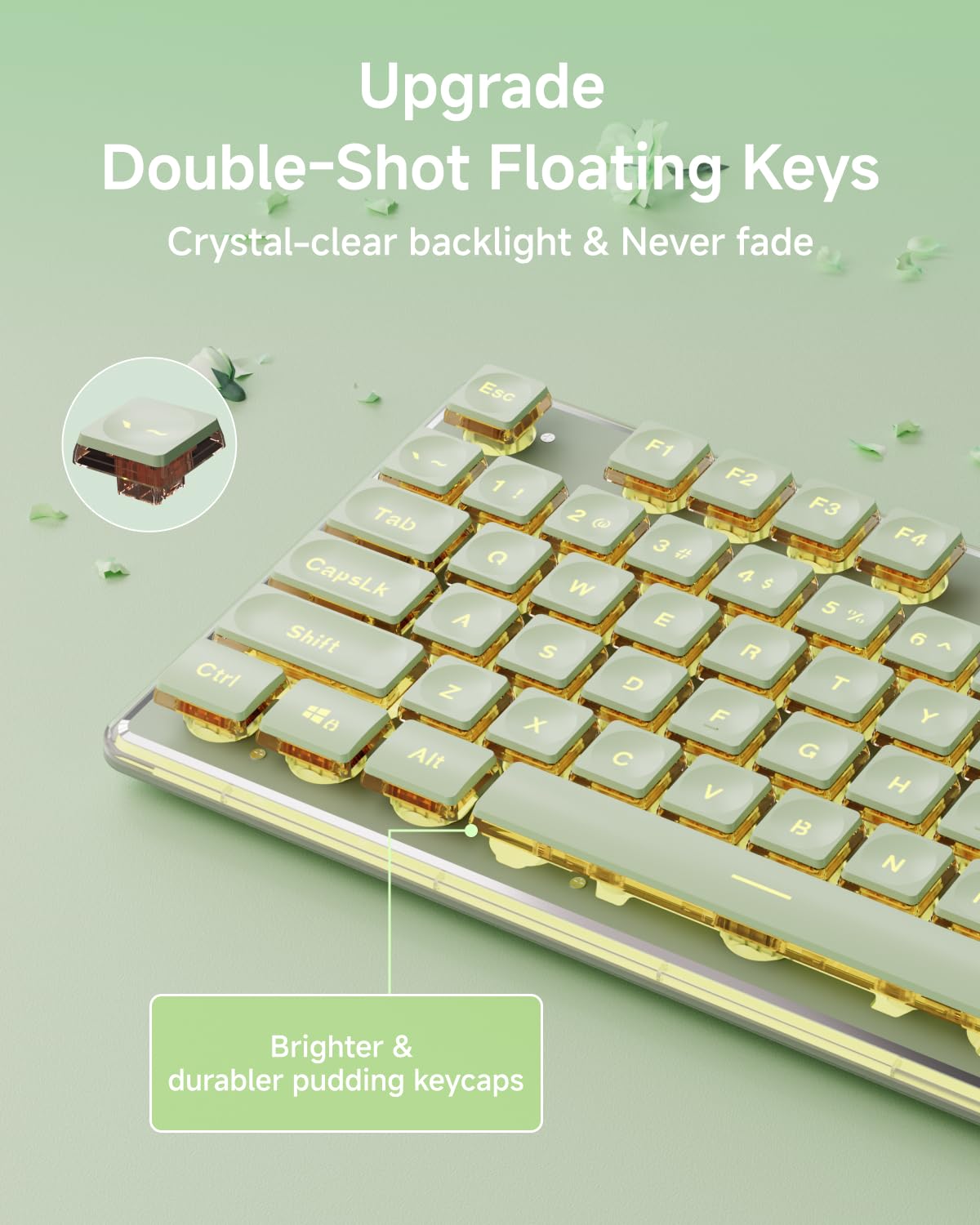
Detailed view of the keyboard's double-shot floating keys, also known as water drop pudding keycaps, which provide crystal-clear backlighting and are designed for durability.
Ergonomic Design & Anti-ghosting
The keyboard features an ergonomic design with a 7° tilt (adjustable via two footrests) for comfortable typing and reduced hand fatigue. It supports 26-key anti-ghosting, ensuring accurate and fast response during gaming or typing.
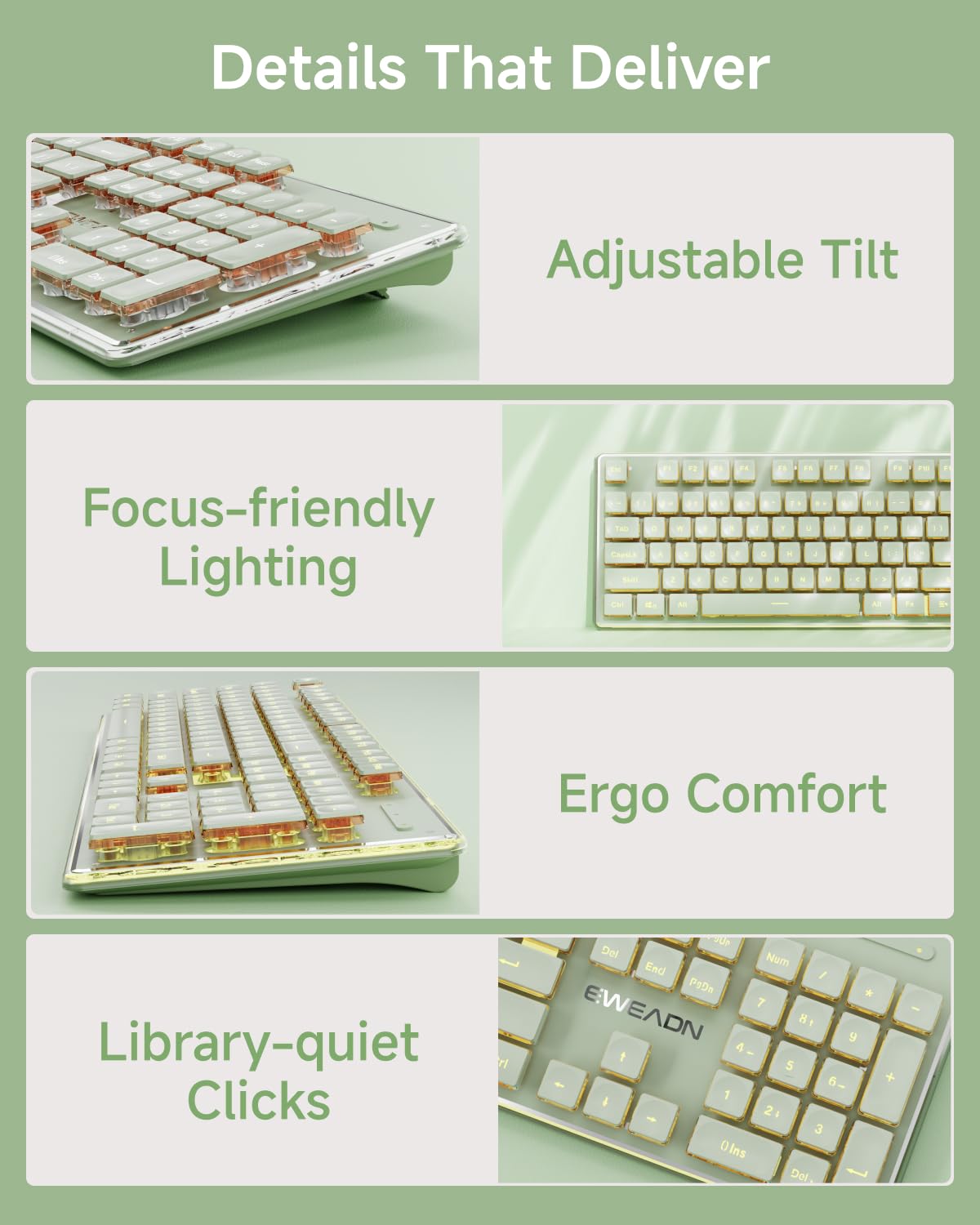
Visual representation of the keyboard's adjustable tilt, focus-friendly lighting, ergonomic comfort, and library-quiet clicks.
Wireless Silent Mouse & Universal Compatibility
The included wireless mouse is silent and supports Type-C charging. It offers 3 adjustable sensitivity levels. The combo is compatible with Windows, Linux, Chrome, and Mac operating systems, working seamlessly with PCs, desktops, laptops, notebooks, and even gaming consoles or tablets.
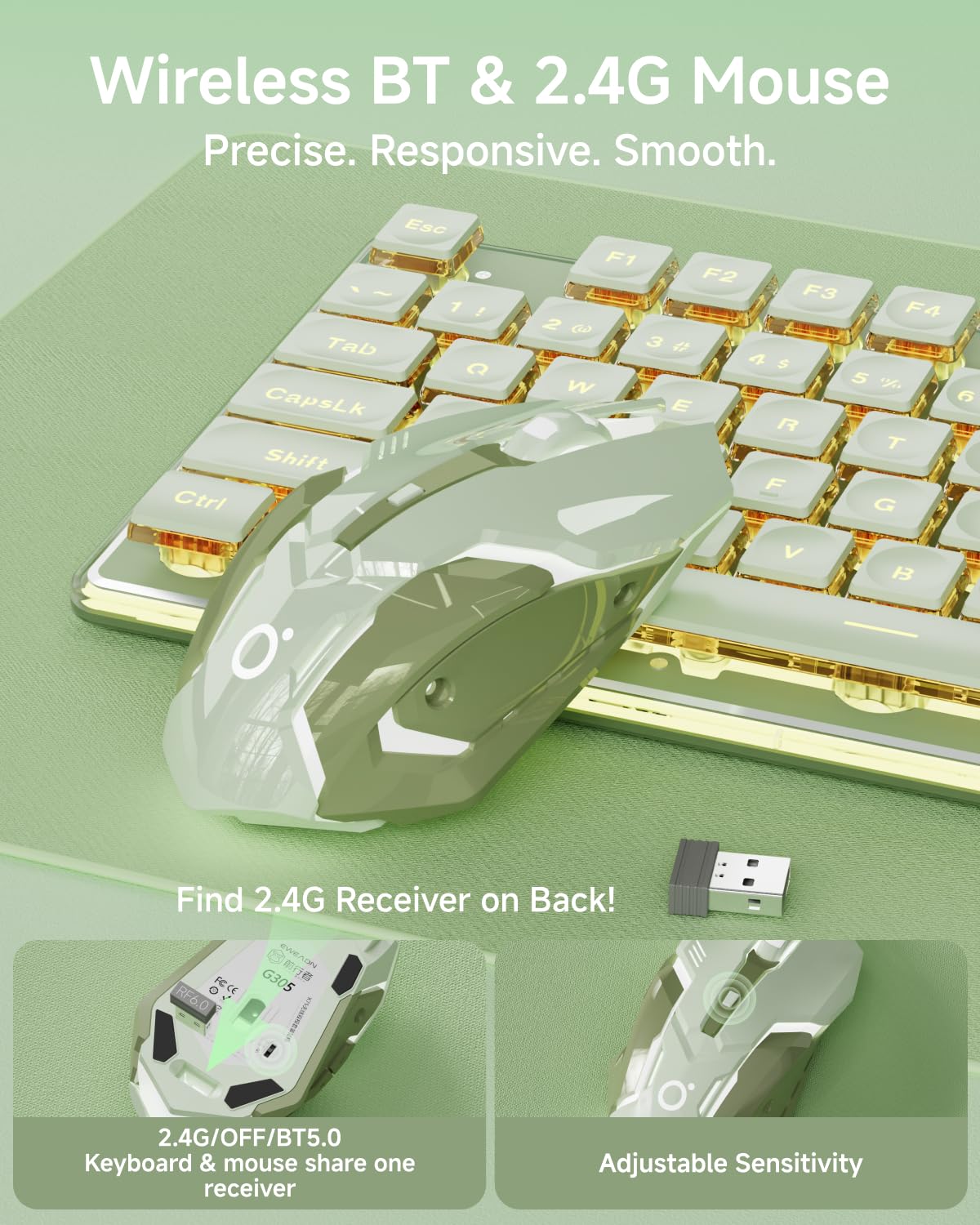
The wireless mouse supports both BT and 2.4G connections. The 2.4G receiver is conveniently stored on the back of the mouse, and its sensitivity is adjustable.
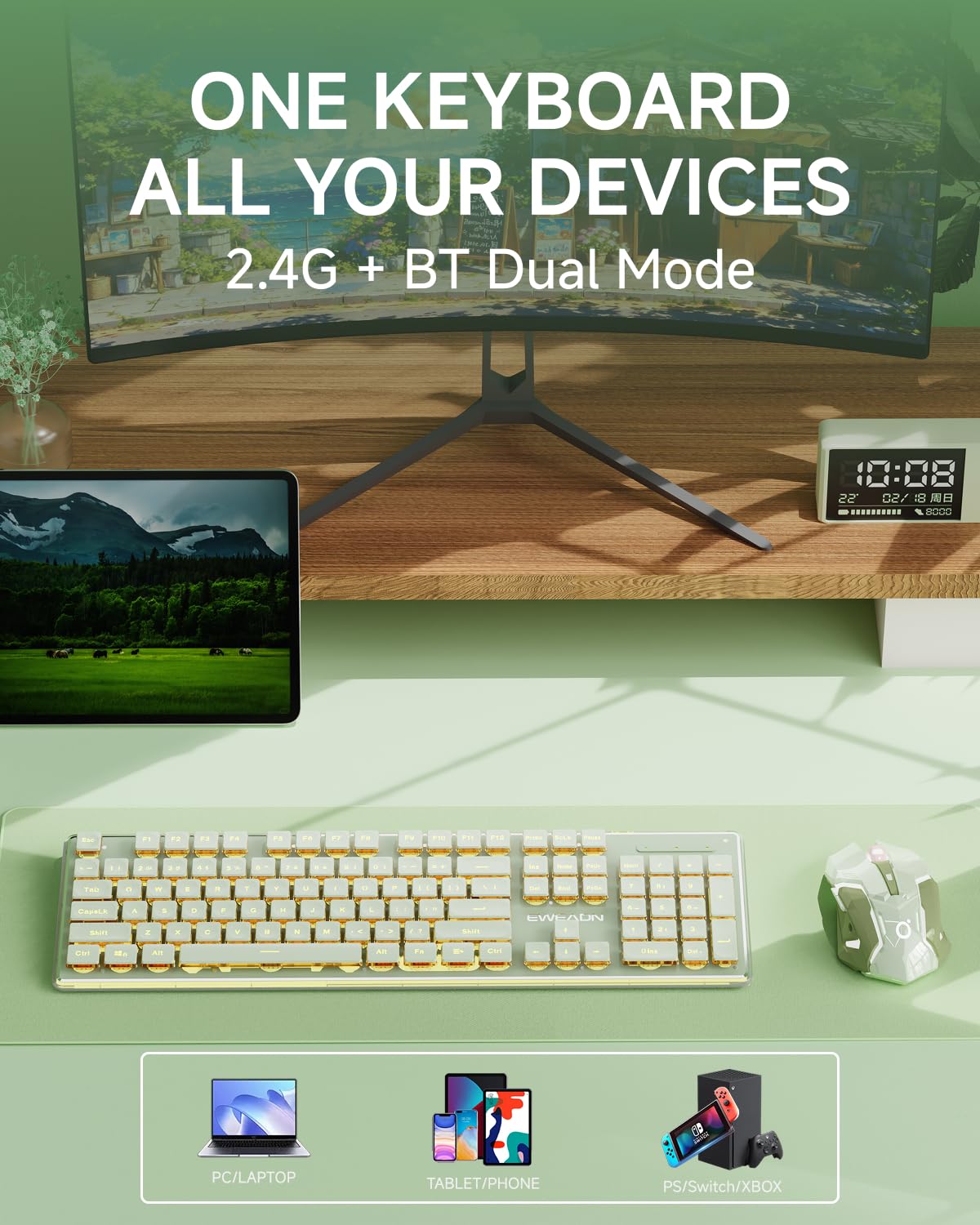
The V3 keyboard and mouse combo offers 2.4G + BT dual mode connectivity, allowing it to be used with various devices including PCs, laptops, tablets, phones, PS, Switch, and Xbox.
Setup Instructions
1. Charging the Devices
Before first use, fully charge both the keyboard and mouse using the provided Type-C charging cable. Connect the cable to the charging port on the devices and a USB power source. The indicator light will show charging status.
2. Connecting the Keyboard and Mouse
The keyboard and mouse share a single USB receiver. The receiver is typically stored in a compartment on the underside of the mouse.
2.1. 2.4G Wireless Connection:
- Locate and remove the USB receiver from the mouse.
- Plug the USB receiver into an available USB port on your computer or device.
- Ensure the keyboard is switched to 'ON' and the mouse is switched to '2.4G' mode.
- The devices should automatically connect. If not, press Fn + 1 on the keyboard to enter 2.4G mode.
2.2. Bluetooth Connection:
- Ensure the keyboard is switched to 'ON' and the mouse is switched to 'BT' mode.
- On the keyboard, press Fn + 2 for BT 1 mode or Fn + 3 for BT 2 mode. The indicator light will flash, indicating pairing mode.
- On your device, go to Bluetooth settings and search for 'V3 Keyboard' or 'V3 Mouse'.
- Select the device to pair. Follow any on-screen prompts.
Operating Instructions
Keyboard Functions:
- Backlight Adjustment:
- Increase Brightness: Fn + PgUp
- Decrease Brightness: Fn + PgDn
- Turn Lights ON/OFF: Fn + SL
- Multimedia Shortcut Keys (Fn + F-keys):
- Multimedia: Fn + F1
- Volume Down: Fn + F2
- Volume Up: Fn + F3
- Mute: Fn + F4
- Stop: Fn + F5
- Previous Song: Fn + F6
- Play/Pause: Fn + F7
- Next Song: Fn + F8
- Mail: Fn + F9
- Home: Fn + F10
- Keyboard Lock: Fn + F11
- Calculator: Fn + F12
- Adjustable Tilt: The keyboard features two foldable footrests on the underside to adjust the typing angle for ergonomic comfort.
Mouse Functions:
- Sensitivity Adjustment: The mouse has 3 adjustable DPI (sensitivity) levels. Press the DPI button (usually located behind the scroll wheel) to cycle through the settings.
- Side Buttons: The mouse includes side buttons for forward and backward navigation in web browsers or file explorers.
Maintenance
- Cleaning: Use a soft, dry cloth to clean the surface of the keyboard and mouse. For stubborn dirt, a slightly damp cloth with mild soap can be used, ensuring no liquid enters the device. Avoid abrasive cleaners.
- Battery Care: To prolong battery life, avoid fully discharging the devices frequently. Charge them when the low battery indicator appears. If storing for an extended period, charge them to about 50% and recharge every few months.
- Storage: Store the devices in a cool, dry place away from direct sunlight and extreme temperatures.
Troubleshooting
| Issue | Possible Solution |
|---|---|
| Keyboard/Mouse not connecting |
|
| Keys not responding or typing incorrectly |
|
| Backlight not working |
|
| Mouse movement is erratic |
|
Specifications
| Feature | Detail |
|---|---|
| Product Dimensions | 17.72 x 1.97 x 8.66 inches |
| Item Weight | 2.12 pounds |
| Model Number | V3 |
| Batteries | 1 Lithium Ion battery required (included) |
| Connectivity Technology | 2.4G & Bluetooth 5.0 |
| Special Features | Backlit, Ergonomic, Hotkeys and Media Keys, Rechargeable, Spill Proof, WIN & MAC Compatible |
| Compatible Devices | Laptop, PC, Gaming Console, Tablet, Smartphone |
Warranty and Support
SEUNKWANG provides a 48-month brand support for this product. Our expert team is available to assist you with any pre-sales questions, troubleshooting, accessory reissues, or returns and exchanges.
For support, please contact us via email at: eweadnkeyboard@outlook.com