
1. Introduction
Thank you for choosing the VIRAN V10 5K Action Camera. This manual provides essential information for setting up, operating, and maintaining your camera to ensure optimal performance and longevity. The VIRAN V10 is designed to capture your adventures in stunning 5K resolution, featuring advanced stabilization, waterproofing, and versatile shooting modes.

Image 1.1: The VIRAN V10 5K Action Camera shown with its included accessories, including a carrying case, remote control, battery, and charger.
2. What's in the Box
Upon opening your VIRAN V10 package, please verify that all the following components are included:
- Camera Body
- Battery
- USB Cable
- User Manual (this document)
- Remote Control
3. Setup
3.1. Battery Installation and Charging
- Open the battery compartment cover on the camera.
- Insert the included Lithium Ion battery, ensuring the correct orientation.
- Close the battery compartment cover securely.
- Connect the camera to a power source using the provided USB cable for charging. The camera supports fast charging, reaching 80% capacity in approximately 18 minutes.

Image 3.1: The VIRAN V10 camera connected via USB for charging, illustrating its fast-charging capability.
3.2. Micro SD Card Insertion
The VIRAN V10 uses a Micro SD card for storage. Insert a compatible Micro SD card (not included) into the designated slot until it clicks into place. Ensure the card is formatted correctly for optimal performance.
3.3. Initial Power On
Press and hold the power button (usually located on the front or top of the camera) for a few seconds until the screen illuminates. The camera will boot up and display the main interface.
3.4. Remote Control Pairing
To pair the wireless remote control, ensure the camera is on. Follow the instructions in the remote control's specific manual (if provided) or navigate to the camera's settings menu to initiate pairing. Once paired, you can control recording without touching the camera.

Image 3.2: The wireless remote control being used by a cyclist, demonstrating its convenience for hands-free operation.
3.5. Connecting to the Mobile App (Wi-Fi)
Download the official VIRAN app on your mobile phone or tablet. Enable Wi-Fi on your camera and connect your mobile device to the camera's Wi-Fi network. This allows for quick sharing, editing, and remote control of the camera via your smartphone.
4. Operating the Camera
4.1. Basic Operation
- Power On/Off: Press and hold the power button.
- Start/Stop Recording: Press the record button (usually indicated by a red dot or circle).
- Mode Switching: Use the mode button or the touch screen to cycle through video, photo, and playback modes.

Image 4.1: The camera's display showing recording settings, including 4K 30FPS resolution.
4.2. Key Features
- 5K30FPS Video & 20MP Photos: The VIRAN V10 captures video at up to 5K resolution at 30 frames per second and still images at 20 megapixels, ensuring high-quality visuals.
- 170° Adjustable Wide Angle: Customize your field of view with the 170-degree adjustable wide-angle lens, allowing you to capture more of the scene or narrow it down as needed.
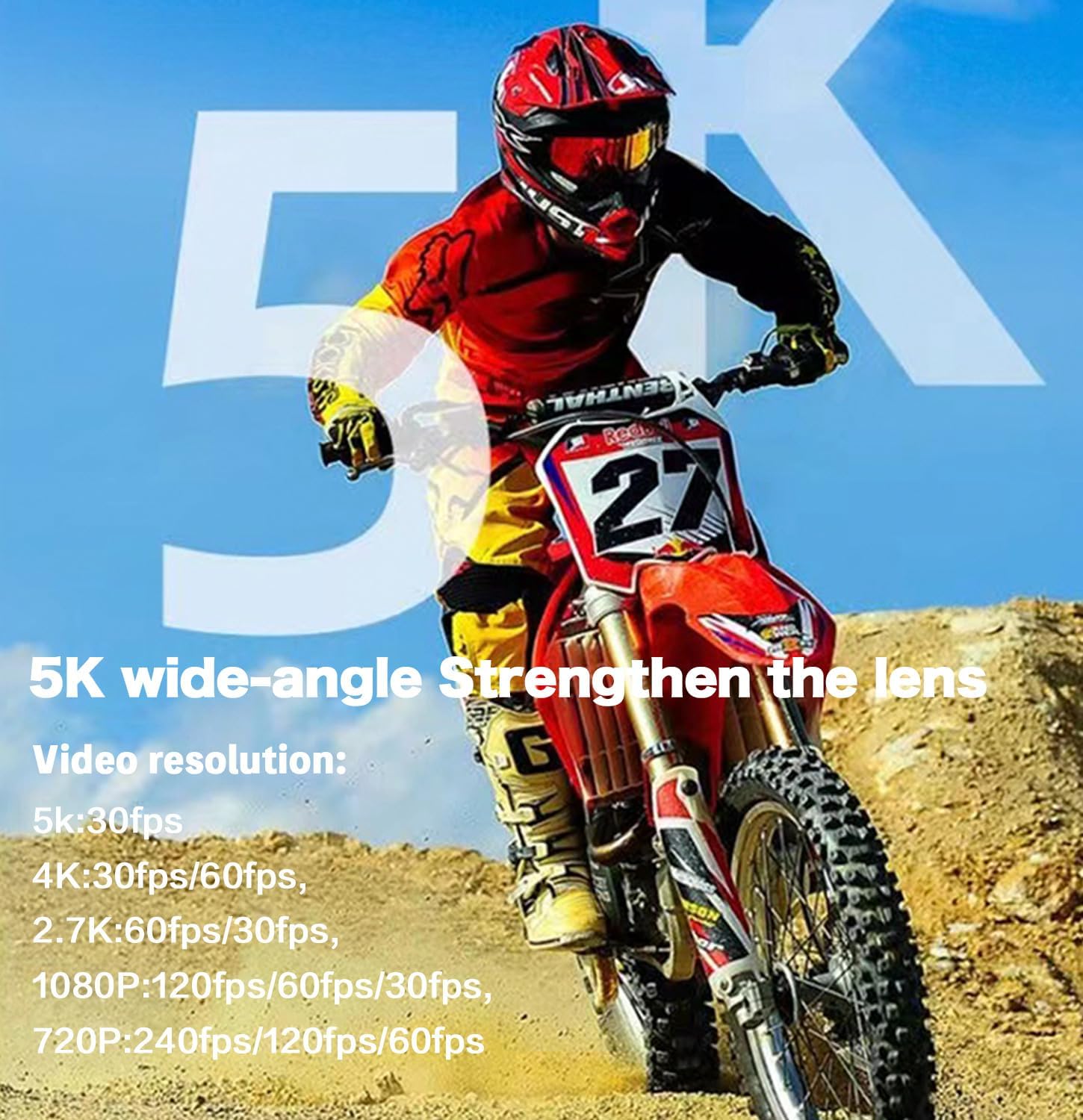
Image 4.2: A motocross rider captured with the VIRAN V10, highlighting its 5K wide-angle capabilities.

Image 4.3: A visual representation of the camera's 170-degree wide-angle field of view.
- IP68 Waterproofing: The camera is waterproof up to 5 meters (16 feet) without an additional case, making it suitable for swimming and light water activities. For deeper dives (up to 30 meters), a separate waterproof case is required. The diving mode corrects underwater colors for natural and realistic footage.

Image 4.4: A diver exploring underwater, demonstrating the camera's 10-meter waterproof capability without an external case.
- Electronic Image Stabilization (EIS): The built-in 6-axis gyroscope anti-shake technology ensures smooth and stable footage, even during intense activities like cycling or surfing.

Image 4.5: A visual comparison showing the effectiveness of smooth video stabilization (ON) versus no stabilization (OFF) during motion.

Image 4.6: A person cycling through a forest, illustrating the camera's ability to maintain stable footage even with movement.
- Touch Color Screen: The intuitive touch screen allows for easy navigation, settings adjustment, and mode switching with sensitive response.

Image 4.7: A hand interacting with the camera's touch screen, demonstrating its ease of use for tuning and mode selection.
- Multifunction Modes: The camera offers various shooting modes including Loop Recording, Time-Lapse Video, Slow/Fast Motion, and Continuous Shooting.
- Driving Mode & Inversion Mode: The VIRAN V10 can function as a car dashcam using Driving Mode and Inversion Mode, automatically recording when the vehicle starts.

Image 4.8: The camera mounted in a car, illustrating its use as a drive recorder in Driving Mode.
- Pre-recording Function: Capture moments even before you hit record with the pre-recording feature, ensuring you don't miss any action.

Image 4.9: A visual demonstration of the pre-recording function, capturing a fish jumping out of the water.
- Low Temperature Resistance: The camera is designed to operate in temperatures as low as -20°C, capable of recording for up to 80 minutes in such conditions.

Image 4.10: A skier on a snowy slope, illustrating the camera's ability to perform in cold environments.
5. Maintenance and Care
Proper maintenance ensures the longevity and optimal performance of your VIRAN V10 camera:
- Lens Cleaning: After each use, gently clean the camera lens with a microfiber cloth to remove dust, smudges, or water spots. Avoid abrasive materials that could scratch the lens.
- Water Exposure: If used in water, especially saltwater, rinse the camera with fresh water immediately after use. Ensure all ports are closed before rinsing.
- Battery Care: Do not allow the battery to drain completely. Charge it regularly and store the camera in a cool, dry place when not in use.
- Protective Housing: For extreme activities or environments, consider using additional protective housing to safeguard the camera from impacts.
- Firmware Updates: Periodically check the VIRAN website or app for firmware updates to ensure your camera has the latest features and performance improvements.
6. Troubleshooting
6.1. Common Issues and Solutions
| Problem | Possible Cause | Solution |
|---|---|---|
| Camera does not power on | Low battery; Battery not inserted correctly; Firmware issue | Charge the battery; Reinsert battery; Perform a factory reset (refer to advanced settings) |
| Recording stops unexpectedly | SD card full; SD card error; Overheating | Delete files or replace SD card; Reformat SD card; Allow camera to cool down |
| Poor image/video quality | Dirty lens; Incorrect settings; Low light conditions | Clean the lens; Adjust resolution/FPS settings; Ensure adequate lighting |
| Wi-Fi connection issues | Incorrect password; Out of range; App issue | Verify password; Move closer to camera; Restart app/camera |
7. Specifications
| Feature | Detail |
|---|---|
| Brand | VIRAN |
| Model Number | 128G |
| Video Capture Resolution | 5K (5K30FPS), 4K (4K60FPS), 2.7K, 1080P, 720P |
| Photo Resolution | 20MP |
| Waterproof Depth | Up to 5 meters (without case); Up to 30 meters (with optional waterproof case) |
| Image Stabilization | 6-axis Gyroscope Anti-Shake (EIS) |
| Screen Size | 2 Inches (Touch Screen) |
| Connectivity | Wi-Fi, Wireless Remote Control |
| Battery Type | Lithium Ion (included) |
| Storage | Micro SD (not included) |
| Item Weight | 1.21 pounds |
| Operating Temperature | Down to -20°C |
8. Warranty and Support
For warranty information and customer support, please refer to the documentation included with your purchase or visit the official VIRAN website. If you encounter any issues not covered in this manual, please contact VIRAN customer service for assistance.
VIRAN Store Link: Visit the VIRAN Store on Amazon


