
1. Introduction
Thank you for choosing the Jimveo E18 Projector. This portable projector is designed to provide a high-quality viewing experience with its 1080P resolution, electric focus, auto keystone correction, and versatile connectivity options including Wi-Fi 6 and Two-Way Bluetooth 5.2. Its compact design and 360° adjustable stand make it ideal for various environments, from home cinema to outdoor entertainment. Please read this manual carefully before using the projector to ensure proper operation and to maximize its lifespan.
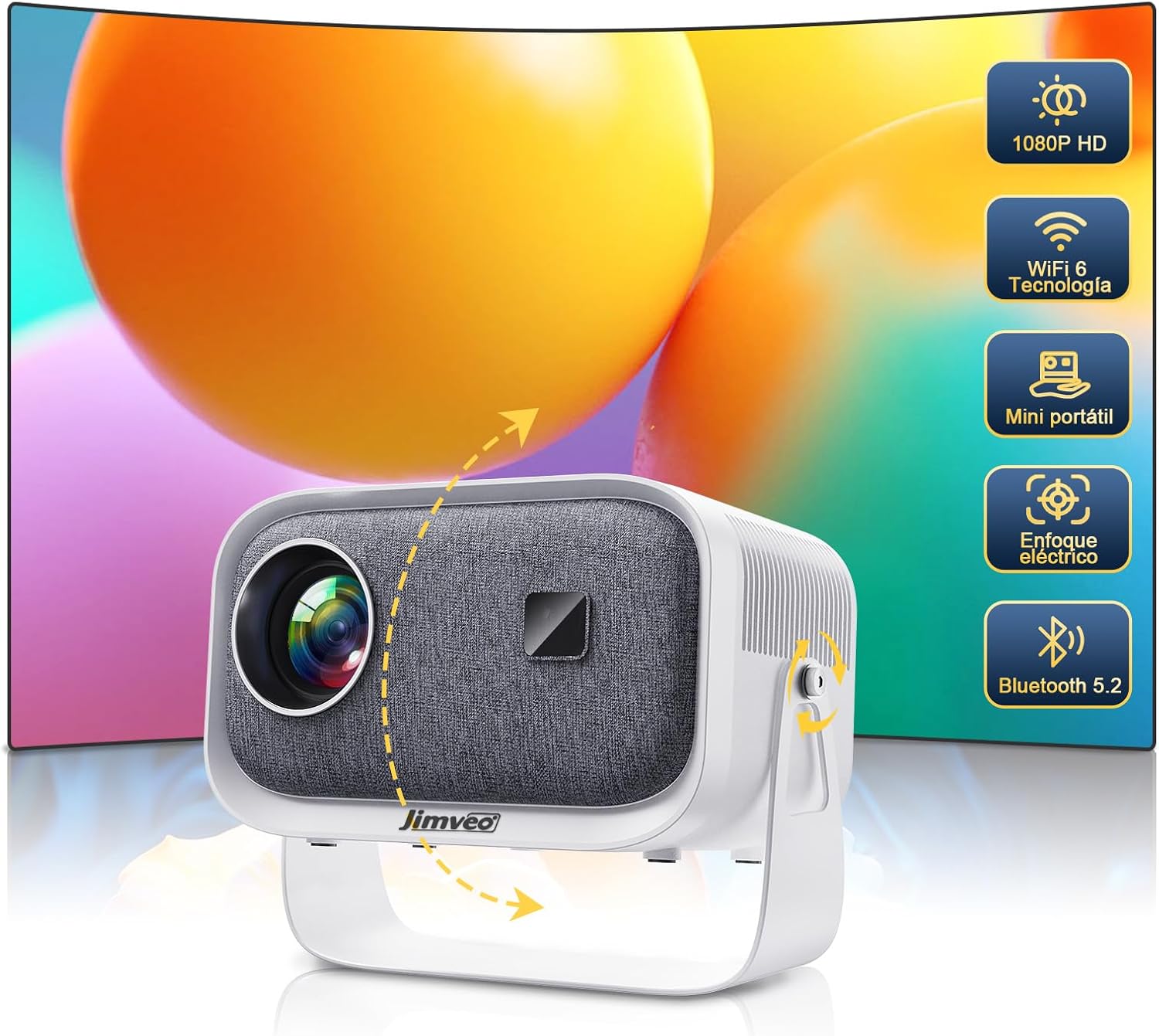
Image: The Jimveo E18 Projector, showcasing its compact design and key features like 1080P HD, WiFi 6, portability, electric focus, and Bluetooth 5.2.
2. Safety Information
To ensure safe and optimal operation, please observe the following safety precautions:
- Do not look directly into the projector lens when the lamp is on. The intense light can cause eye damage.
- Do not block the ventilation openings. Proper airflow is essential to prevent overheating.
- Place the projector on a stable, level surface to prevent it from falling.
- Avoid exposing the projector to water, moisture, or extreme temperatures.
- Use only the power adapter supplied with the projector.
- Do not attempt to disassemble or repair the projector yourself. Refer all servicing to qualified personnel.
- Keep the projector away from children and pets.
3. Package Contents
Verify that all items are present in your package:
- Jimveo E18 Projector
- Remote Control
- Power Adapter
- HDMI Cable
- User Manual
4. Product Overview
Familiarize yourself with the various parts of your Jimveo E18 Projector.

Image: A visual representation of the Jimveo E18 Projector highlighting its key technological features such as Wi-Fi 6, 1080P resolution, electric focus, auto keystone correction, 360-degree adjustable stand, and Bluetooth 5.2.
Front View:
- Projection Lens: Emits the image.
- Focus Sensor: Detects distance for electric focus.
Rear View:
- Power Port: Connects to the power adapter.
- HDMI Port: Connects to HDMI-enabled devices (laptops, gaming consoles, TV sticks).
- USB Port: Connects to USB drives for media playback.
- Audio Out (3.5mm): Connects to external speakers or headphones.
Side View:
- Ventilation Grilles: Ensure proper heat dissipation. Do not obstruct.
Bottom View:
- 360° Adjustable Stand: Allows for flexible projection angles.
5. Setup
5.1. Placement
The Jimveo E18 Projector features a 360° adjustable stand, offering significant flexibility in placement. You can project onto a wall, ceiling, or screen.

Image: The Jimveo E18 Projector demonstrating its 360-degree rotation stand, allowing projection onto a ceiling for flexible viewing.
- Choose a dark environment for the best image quality.
- Place the projector on a stable surface.
- Adjust the 360° stand to achieve the desired projection angle and height.
5.2. Power Connection
- Connect the power adapter to the projector's power port.
- Plug the power adapter into a wall outlet.
- The projector will power on automatically or can be turned on using the power button on the unit or remote control.
6. Operating Instructions
6.1. Initial Setup and Navigation
- Upon first power-on, the projector may guide you through initial language and network settings.
- Use the remote control's navigation buttons (Up, Down, Left, Right) and OK button to navigate the on-screen menu.
- The projector features electric focus and auto keystone correction, which will automatically adjust the image for clarity and rectangular shape. Manual adjustments can be made via the settings menu if needed.
6.2. Connectivity
The Jimveo E18 offers multiple ways to connect your devices:
6.2.1. Wi-Fi Connection (Wi-Fi 6)
The projector supports dual-band Wi-Fi 6 (2.4GHz/5GHz) for smoother streaming and lag-free gaming.

Image: The Jimveo E18 Projector connected via Dual-Band Wi-Fi 6, projecting a high-speed racing game, illustrating smooth performance.
- Go to the projector's settings menu and select 'Network' or 'Wi-Fi'.
- Enable Wi-Fi and select your desired network from the list.
- Enter the Wi-Fi password using the on-screen keyboard.
6.2.2. HDMI Connection
Connect devices like laptops, gaming consoles, or TV sticks using an HDMI cable.

Image: The Jimveo E18 Projector demonstrating its compatibility with various devices through USB, HDMI, and headphone connections, including DVD players, smartphones, PCs/laptops, tablets, USB drives, and external stereos.
- Connect one end of the HDMI cable to the HDMI port on the projector.
- Connect the other end to the HDMI output of your device.
- Select the HDMI input source from the projector's main menu.
6.2.3. USB Connection
Play media files directly from a USB flash drive.
- Insert your USB drive into the USB port on the projector.
- Navigate to the 'Media' or 'USB' section in the projector's menu.
- Browse and select the files you wish to play.
6.2.4. Screen Mirroring (Wireless)
Mirror content from your smartphone or tablet wirelessly. Note: Due to copyright restrictions, some streaming services (e.g., Netflix, Disney+) may not support direct wireless mirroring. A TV stick (not included) is recommended for these services.

Image: The Jimveo E18 Projector paired with a TV stick, displaying a streaming service interface, indicating how to access unlimited content despite copyright restrictions on direct mirroring.
- Ensure your projector and mobile device are connected to the same Wi-Fi network.
- Select the 'Screen Mirroring' or 'Wireless Display' option on the projector's menu.
- On your mobile device, enable screen mirroring (e.g., AirPlay for iOS, Smart View/Cast for Android) and select the projector from the list of available devices.
6.3. Audio Output (Two-Way Bluetooth 5.2)
The Jimveo E18 features Two-Way Bluetooth 5.2, allowing it to connect to external Bluetooth speakers or act as a Bluetooth speaker itself.

Image: The Jimveo E18 Projector illustrating its Two-Way Bluetooth 5.2 capability, showing it can connect to external speakers for enhanced audio or function as a standalone Bluetooth speaker.
6.3.1. Connecting to External Bluetooth Speaker:
- Enable Bluetooth on your external speaker and set it to pairing mode.
- On the projector, go to 'Settings' > 'Bluetooth'.
- Scan for devices and select your speaker from the list to pair.
6.3.2. Using Projector as a Bluetooth Speaker:
- Select the 'Bluetooth Speaker Mode' option in the projector's audio settings.
- On your mobile device, search for Bluetooth devices and connect to the Jimveo E18.
6.4. Focus and Keystone Correction
The E18 features electric focus and auto keystone correction for a clear and perfectly rectangular image.

Image: The Jimveo E18 Projector showcasing its electric focus and keystone correction capabilities, ensuring a clear and properly aligned projected image.
- Electric Focus: The projector automatically adjusts focus. If needed, use the remote control's focus buttons to fine-tune.
- Auto Keystone: The projector automatically corrects image distortion. Manual keystone adjustment options are available in the settings menu for specific scenarios.
7. Maintenance
Regular maintenance helps ensure the longevity and performance of your projector.
- Lens Cleaning: Use a soft, lint-free cloth specifically designed for optical lenses. Do not use abrasive cleaners or cloths.
- Exterior Cleaning: Wipe the projector's exterior with a soft, dry cloth. For stubborn marks, slightly dampen the cloth with water.
- Ventilation: Periodically check and clean the ventilation grilles to prevent dust buildup, which can impede airflow and cause overheating. Use a soft brush or compressed air.
- Storage: When not in use for extended periods, store the projector in a cool, dry place, ideally in its original packaging or a protective case.
8. Troubleshooting
If you encounter issues with your Jimveo E18 Projector, refer to the following common problems and solutions:
| Problem | Possible Cause | Solution |
|---|---|---|
| No image on screen | Power not connected; Incorrect input source; Cable issue | Ensure power is connected; Select correct input source (HDMI, USB, Screen Mirroring); Check HDMI/USB cable connections. |
| Blurry image | Out of focus; Projector too close/far | Use electric focus via remote; Adjust projector distance from screen. |
| Distorted image (trapezoid) | Projector not perpendicular to screen | Allow auto keystone to correct; Manually adjust keystone in settings if needed. |
| No sound | Volume too low; Muted; Incorrect audio output; Bluetooth not connected | Increase volume; Unmute; Check audio output settings; Reconnect Bluetooth speaker. |
| Wi-Fi connection issues | Incorrect password; Weak signal; Router issue | Re-enter password; Move projector closer to router; Restart router and projector. |
| Remote control not working | Dead batteries; Obstruction | Replace batteries; Ensure no obstruction between remote and projector. |
If the problem persists after trying these solutions, please contact Jimveo customer support.
9. Specifications
| Feature | Detail |
|---|---|
| Brand | Jimveo |
| Model Number | E18 |
| Color | White |
| Display Resolution | 1920 x 1080 (1080P Supported) |
| Connectivity Technology | USB, HDMI, Bluetooth 5.2, Wi-Fi 6 (2.4GHz/5GHz) |
| Special Features | Built-In Wi-Fi, Portable, Wireless, Electric Focus, Auto Keystone, 360° Adjustable Stand, Two-Way Bluetooth |
| Product Dimensions | 17.3 x 14.17 x 8 cm |
| Item Weight | 998 g |
| Power/Wattage | 5 watts |
| Recommended Uses | Home Cinema, Travel, Entertainment, Video Games |
10. Warranty and Support
Jimveo is committed to providing high-quality products and excellent customer service.

Image: Jimveo's commitment to customer support, detailing 24-hour response, 30-day returns, 36-month free replacement, and lifetime technical support.
- 36-Month Free Replacement: Your projector is covered for free replacement within 36 months of purchase.
- 30-Day Return Policy: Enjoy a 30-day no-questions-asked return policy.
- Lifetime Technical Support: Jimveo provides lifetime technical assistance for your product.
- 24-Hour Response Time: Expect a response to your inquiries within 24 hours.
For any questions, technical support, or warranty claims, please contact Jimveo customer service at: Support_us@jimveo.com


