
Introduction
This manual provides detailed instructions for the setup, operation, and maintenance of your Phomemo PM-246S-BT Bluetooth 4x6 Shipping Label Printer. Please read this manual thoroughly before using the device to ensure proper functionality and to prevent damage.
Package Contents

Image: Contents of the Phomemo PM-246S-BT package, including the printer, cables, and quick start guide.
Before you begin, please verify that all items are present in the package:
- Phomemo PM-246S-BT Label Printer
- USB Cable
- Power Cable + Adapter
- Quick Start Guide
- 4x6 inch Label Roll (sample)
Setup
1. Hardware Setup
Connect Power: Plug the power adapter into the printer and then into a power outlet.
Load Labels: Open the printer cover. Insert the label roll with the labels facing up. Adjust the label guides to fit the width of your labels. Close the cover.
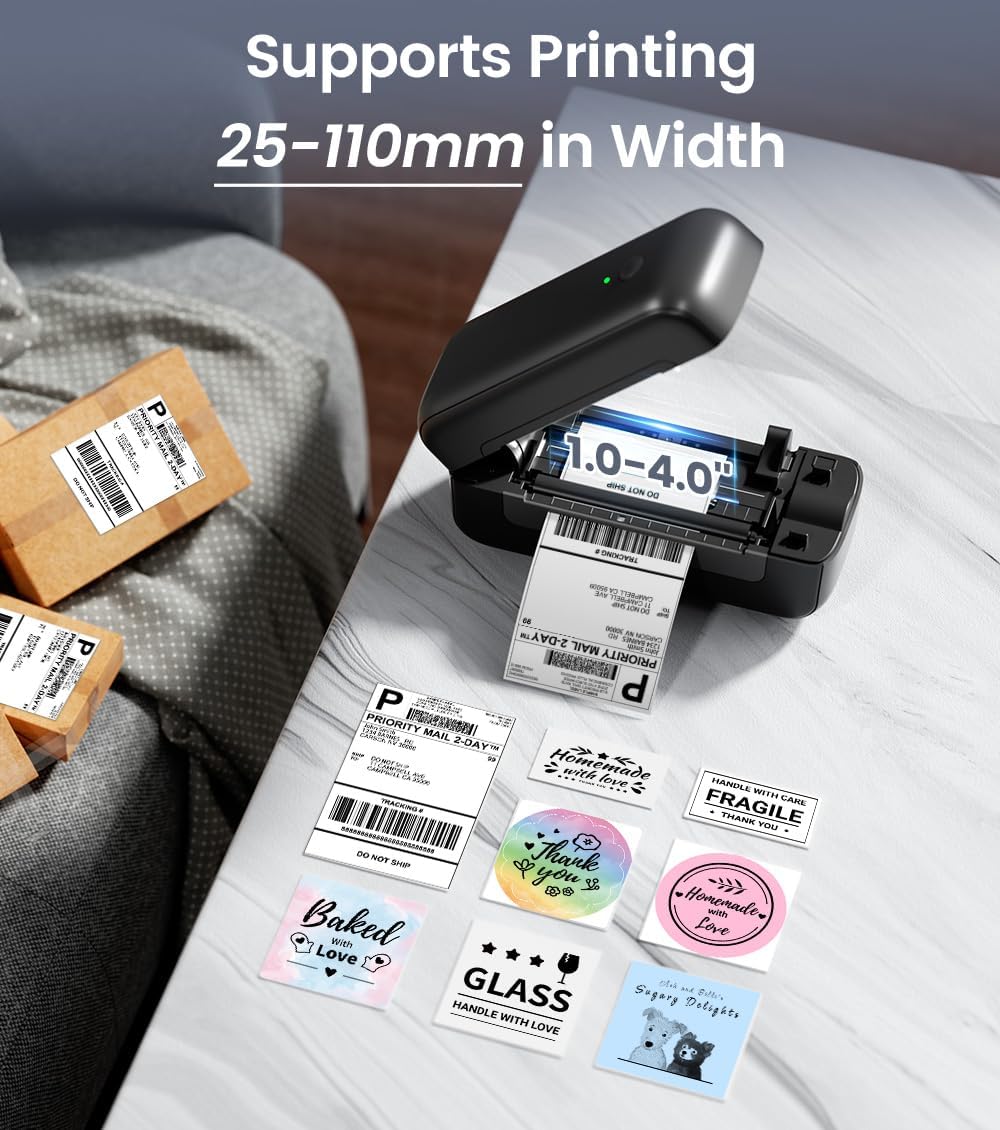
Image: The Phomemo PM-246S-BT printer demonstrating support for various label widths, from 1 to 4 inches (25-110mm).
Power On: Press the power button. The indicator light will turn on.
2. Software Installation & Connectivity
The PM-246S-BT supports both Bluetooth and USB connectivity for various operating systems.
Bluetooth Connection (iOS/Android/Mac OS/Windows/Chrome OS)

Image: The printer's wireless printing capabilities, showing Bluetooth connection to mobile devices and USB connection to computers.
Download Labelife App: For mobile devices (iOS/Android), download the "Labelife" app from the App Store or Google Play Store. For desktop (Mac OS/Windows/Chrome OS), download the Labelife software from the official Phomemo website.

Image: Instructions for connecting the printer via Bluetooth using the Labelife mobile application.
Enable Bluetooth: Ensure Bluetooth is enabled on your mobile device or computer.
Pair Device: Open the Labelife app/software, search for the PM-246S-BT printer, and pair with it. The printer's indicator light may change to confirm connection.
USB Connection (Mac OS/Windows/Linux/Chrome OS)
Connect USB: Connect the printer to your computer using the provided USB cable.
Install Drivers: For Windows, Mac OS, and Linux, download and install the appropriate printer drivers from the official Phomemo website. Chrome OS typically does not require separate driver installation.
Verify Connection: After driver installation, the printer should be recognized by your computer's operating system.
Operating Instructions
1. Printing Labels
The PM-246S-BT is designed for high-speed, high-quality thermal printing.

Image: The Phomemo PM-246S-BT printer in action, demonstrating fast and clear label printing at 72 labels/min and 203 DPI.
Prepare Your Document: Create or open the label you wish to print using your preferred software (e.g., Labelife app, shipping platform interface, PDF viewer).
Select Printer: In your software's print dialog, select "Phomemo PM-246S-BT" as the printer.
Adjust Settings: Ensure the label size and orientation settings match your physical labels. The printer supports labels from 1 to 4 inches (25-116 mm) in width.
Print: Initiate the print command. The printer will automatically feed and print the labels.
2. Supported Applications and Platforms
The PM-246S-BT is compatible with a wide range of e-commerce and shipping platforms, making it versatile for various labeling needs.

Image: The Phomemo PM-246S-BT printer is compatible with major platforms like Amazon, Etsy, eBay, Shopify, DHL, FedEx, UPS, and more.
Common uses include:
- 4x6 inch Shipping Labels (e.g., for Amazon FBA, Etsy, Shopify, Royal Mail, DHL, FedEx, UPS)
- Address Labels
- Barcode Labels
- Circular Logo Labels
- Price Labels
- Storage Labels

Image: Examples of labels that can be printed, such as shipping labels, address labels, circular labels, and barcode labels.
3. Using the Labelife App
The Labelife app provides tools for creating and customizing labels, including pre-defined templates for retail and craft businesses.
Template Library: Access a variety of pre-designed label templates.
Customization: Edit text, add images, QR codes, barcodes, and borders to create unique labels.
Direct Printing: Print directly from the app after designing your labels.
Maintenance
Regular maintenance ensures optimal performance and extends the lifespan of your printer.
Cleaning the Print Head: Use an alcohol wipe or a specialized print head cleaning pen to gently clean the thermal print head. Ensure the printer is off and cooled down before cleaning.
Cleaning the Roller: Use a soft, damp cloth to wipe the rubber roller to remove any dust or label residue.
Dust Removal: Keep the printer free from dust and debris. Use a soft brush or compressed air to clean the exterior and interior (when powered off).
Label Quality: Use high-quality thermal labels to prevent paper jams and ensure clear prints.
Troubleshooting
| Problem | Possible Cause | Solution |
|---|---|---|
| Printer not powering on | Power cable not connected; power outlet issue | Check power connections; try a different outlet. |
| No print output | Labels loaded incorrectly; printer not connected; driver issue | Ensure labels are loaded correctly (facing up); verify Bluetooth/USB connection; reinstall printer drivers. |
| Faint or unclear prints | Print head dirty; low-quality labels; print density settings | Clean the print head; use recommended thermal labels; adjust print density in software settings. |
| Paper jam | Labels loaded incorrectly; label residue | Open cover, remove jammed labels carefully; clean roller and label path. |
| Bluetooth connection issues | Bluetooth not enabled; device not paired; interference | Ensure Bluetooth is on; re-pair device in Labelife app; move closer to printer; restart devices. |
Specifications
| Feature | Detail |
|---|---|
| Model Name | PM-246S-BT |
| Printing Technology | Thermal |
| Connectivity | Bluetooth, USB |
| Print Resolution | 203 dpi |
| Max Print Speed | 150 mm/s (72 labels/minute) |
| Label Width Support | 25 - 116 mm (1 - 4 inches) |
| Compatible OS | iOS, Android, Windows, Mac OS, Linux, Chrome OS |
| Item Weight | 1.36 Kilograms |
| Product Dimensions | 22P x 8.8l x 8.8H centimeters |
| Max Paper Capacity (Input) | 20 sheets (or equivalent roll length) |
Warranty and Support
The Phomemo PM-246S-BT printer comes with a 30-day limited warranty. For technical support, warranty claims, or any questions regarding your product, please contact Phomemo customer service through their official website or the contact information provided in your Quick Start Guide.
For additional resources and software downloads, visit the official Phomemo website: www.phomemo.com


