
ROCAM CR1025pro
ROCAM Alarm Clock Radio User Manual
Model: CR1025pro | Brand: ROCAM
1. Introduction
This manual provides comprehensive instructions for the setup, operation, maintenance, and troubleshooting of your ROCAM Alarm Clock Radio (Model: CR1025pro). Please read this manual thoroughly before using the device to ensure proper functionality and longevity.
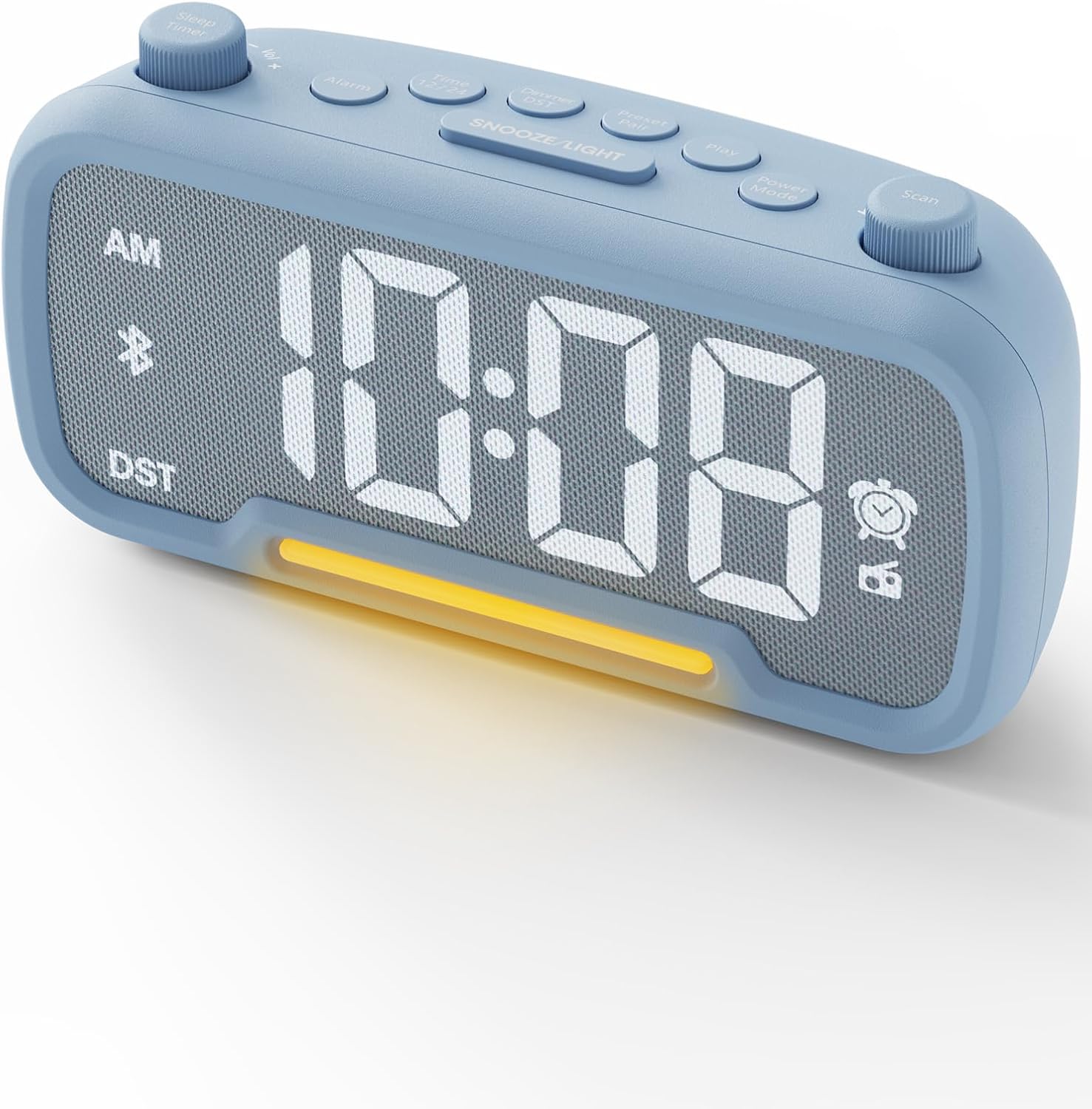
Figure 1: ROCAM Alarm Clock Radio (Model: CR1025pro)
The ROCAM Alarm Clock Radio is a versatile device combining an FM radio, Bluetooth speaker, and alarm clock with additional features such as a nightlight, battery backup, and USB/Type-C charging ports. Its modern design and intuitive controls make it suitable for various room settings.

Figure 2: Innovative Design Overview
2. Product Components
Familiarize yourself with the main components of your alarm clock radio:
- Digital Display: Shows time, alarm status, and radio frequency.
- Control Buttons: Located on the top panel for various functions (Alarm, Time Set, Dimmer, Play, Mode, Scan).
- Rotary Knobs: Two knobs for time/volume adjustment and tuning/power.
- Night Light: Integrated LED light at the base.
- USB-A Output Port: For charging external devices.
- USB-C Input/Output Port: For power input and charging external devices.
- DC 5V/2A Power Input: Main power connection.
- CR2032 Battery Compartment: For backup battery.
- FM Antenna: Integrated wire for radio reception.

Figure 3: Stepless Rotary Knob for precise adjustments
3. Setup
3.1 Power Connection
- Connect the provided USB-C to DC 5V/2A power cable to the "DC IN" port on the back of the alarm clock.
- Plug the other end of the cable into a compatible USB power adapter (DC 5V/2A recommended, not included).
- Plug the power adapter into a wall outlet. The display will light up.

Figure 4: Power Connection and Battery Backup
3.2 Battery Backup Installation
The alarm clock requires one CR2032 button battery (not included) for backup. This battery preserves time and alarm settings during power outages, but the clock requires main power to function and display time.
- Locate the battery compartment on the bottom of the unit.
- Pull out the drawer-type battery holder.
- Insert one CR2032 battery with the positive (+) side facing up.
- Slide the battery holder back into the compartment until it clicks into place.
4. Operating Instructions
4.1 Setting the Time
- Press and hold the "Time Set" button. The hour digits will flash.
- Rotate the right knob (labeled "Scan" / "TU +/-") to adjust the hour.
- Press "Time Set" again to confirm the hour and move to minutes. The minute digits will flash.
- Rotate the right knob to adjust the minutes.
- Press "Time Set" once more to save the time.
To switch between 12-hour and 24-hour format, press the "Time Set" button briefly when the time is displayed. The display will show "AM" or "PM" for 12-hour format.
To enable or disable Daylight Saving Time (DST), press the "DST" button (if available, or refer to the manual for specific button). One press will switch to DST mode, adjusting the time automatically.

Figure 5: Time Formats (12H, 24H, DST)
4.2 Setting the Alarm
The clock supports two independent alarms.
- Press the "Alarm" button once to set Alarm 1. The alarm time will flash.
- Rotate the right knob to adjust the hour, then press "Alarm" to confirm.
- Rotate the right knob to adjust the minutes, then press "Alarm" to confirm.
- Rotate the right knob to select the alarm sound source: "Buzzer" or "FM Radio". Press "Alarm" to confirm.
- Press "Alarm" again to save Alarm 1 settings.
- Repeat the process by pressing "Alarm" twice to set Alarm 2.
To activate or deactivate an alarm, press the "Alarm" button briefly until the corresponding alarm icon (e.g., bell icon) appears or disappears on the display.
When the alarm sounds, press the "SNOOZE/LIGHT" button to activate snooze for 9 minutes. To turn off the alarm completely, press any other button.

Figure 6: Alarm Functionality
4.3 FM Radio Operation
- Press the "Mode" button to switch to FM Radio mode. The display will show the radio frequency.
- Automatic Scan: Press and hold the "Scan" button (right knob) to automatically scan and save available FM stations (87.5MHz to 108.0MHz). Up to 20 stations can be preset.
- Manual Tuning: Briefly rotate the right knob to manually tune to a specific frequency.
- Selecting Presets: Briefly press the "Play" button to cycle through saved preset stations.
- Adjust volume using the left knob (labeled "Sleep Timer" / "VOL +/-").
Ensure the FM antenna wire on the back of the unit is fully extended for optimal reception.

Figure 7: FM Radio Interface
4.4 Bluetooth Speaker Function
- Press the "Mode" button to switch to Bluetooth mode. The display will show "bt" and the Bluetooth icon will flash, indicating it's ready for pairing.
- On your mobile device, enable Bluetooth and search for "CR1025" or "ROCAM Alarm Clock".
- Select the device to pair. Once connected, the Bluetooth icon on the clock's display will stop flashing and remain solid.
- You can now play audio from your device through the alarm clock's speaker.
- Adjust volume using the left knob. The clock offers 16 volume settings.
The wireless pairing distance is approximately 10 meters (33 feet).

Figure 8: Bluetooth Speaker Components and Pairing
4.5 Night Light Function
The integrated night light provides soft illumination.
- Press the "SNOOZE/LIGHT" button briefly to turn the night light on or off.
- Press and hold the "SNOOZE/LIGHT" button to adjust the brightness of the night light.

Figure 9: Night Light in use
4.6 Display Dimmer
The display brightness can be adjusted to suit your preference.
- Press the "Dimmer" button repeatedly to cycle through 5 levels of display brightness, from very bright to barely noticeable.
4.7 Sleep Timer
The sleep timer allows you to fall asleep to the radio, which will automatically turn off after a set period.
- While in FM Radio mode, press the "Sleep Timer" button (left knob) repeatedly to select the desired sleep timer duration (e.g., 15, 30, 60, 90 minutes, or OFF).
- The radio will play for the selected duration and then automatically turn off.
4.8 USB Charging Ports
The alarm clock is equipped with USB-A and USB-C ports for charging your mobile devices.
- Connect your device's charging cable to either the USB-A or USB-C port on the back of the alarm clock.
- Ensure the alarm clock is connected to its main power source for charging functionality.

Figure 10: USB Output & Type-C Input/Output
5. Maintenance
- Cleaning: Wipe the unit with a soft, dry cloth. Do not use abrasive cleaners or solvents.
- Battery Replacement: Replace the CR2032 backup battery annually or when the clock fails to retain settings during a power outage.
- Storage: If storing the unit for an extended period, disconnect it from power and remove the backup battery. Store in a cool, dry place.
6. Troubleshooting
| Problem | Possible Cause | Solution |
|---|---|---|
| Clock display is off. | No main power. | Ensure the power adapter is securely plugged into the clock and a working wall outlet. |
| Clock loses time after power outage. | Backup battery is dead or not installed. | Install or replace the CR2032 backup battery. |
| Poor FM radio reception. | Antenna not extended or interference. | Fully extend the FM antenna wire. Try repositioning the unit to reduce interference. |
| Bluetooth not pairing. | Clock not in Bluetooth mode or device too far. | Ensure the clock is in Bluetooth mode ("bt" displayed). Move your device closer to the clock (within 10m). |
| Alarm not sounding. | Alarm not activated or volume too low. | Verify the alarm icon is displayed. Check alarm volume settings. |
7. Specifications
- Brand: ROCAM
- Model Number: CR1025pro
- Display Type: Digital LED
- Power Source: Corded Electric (DC 5V/2A)
- Backup Battery: 1 x CR2032 (not included)
- Product Dimensions: Approximately 6.6" (Width) x 3.3" (Height) x 2.3" (Depth). (Note: JSON lists 3.31"W x 6.61"H)
- Item Weight: 11.3 ounces
- Special Features: FM Radio, Bluetooth Speaker (5.0), Charging Ports (USB-A, USB-C), Night Light, Sleep Timer, Dimmer, Battery Backup, DST
- FM Frequency Range: 87.5MHz - 108.0MHz
- Bluetooth Range: Up to 10 meters (33 feet)
- Material: Fabric (frame)

Figure 11: Product Dimensions
8. Warranty and Support
For warranty information or technical support, please refer to the product packaging or contact ROCAM customer service directly. Contact details are typically available on the manufacturer's official website or through your point of purchase.
You can visit the ROCAM Store for more information: ROCAM Official Store
Related documentsCR1025pro


Ask a question about this manual
Ask about setup, troubleshooting, compatibility, parts, safety, or missing instructions. Manuals+ will review the question and use this page’s manual context to help answer it.