
Introduction
This manual provides detailed instructions for the setup, operation, and maintenance of your nuphy Air75 V2 Low Profile Wireless Mechanical Keyboard. The Air75 V2 is a versatile keyboard designed for various operating systems, offering multiple connectivity options and customizable features.
Product Overview
The nuphy Air75 V2 is a 75% layout mechanical keyboard featuring low-profile Gateron Brown switches. It supports Bluetooth, 2.4G wireless, and USB-C wired connectivity, making it compatible with Windows, macOS, and Linux systems. The keyboard is hot-swappable, allowing for easy switch replacement, and features customizable RGB backlighting and key functions via QMK/VIA software.

Image: The nuphy Air75 V2 keyboard in white, showcasing its compact 75% layout and low-profile design.

Image: A side view of the nuphy Air75 V2 keyboard, highlighting its slim profile and the internal structure.
Setup
Connectivity Options
The Air75 V2 keyboard offers three primary connection methods: Bluetooth, 2.4G wireless, and USB-C wired.
-
USB-C Wired Connection:
Connect the provided USB-C cable from the keyboard to your computer's USB port. The keyboard will automatically switch to wired mode and begin charging.
-
2.4G Wireless Connection:
Insert the 2.4G USB receiver into an available USB port on your computer. Switch the keyboard's mode selector to 2.4G. The keyboard should connect automatically. For optimal performance, ensure the receiver is within close proximity to the keyboard.
-
Bluetooth Connection:
Switch the keyboard's mode selector to Bluetooth. On your device (computer, laptop, tablet), navigate to Bluetooth settings and search for new devices. Select "nuphy Air75 V2" from the list of available devices to pair. The keyboard supports multiple Bluetooth profiles, allowing you to switch between paired devices.
Operating System Compatibility
The keyboard features a switch to toggle between Windows/Android and macOS/iOS layouts. Ensure this switch is set correctly for your operating system to ensure proper key mapping and functionality.
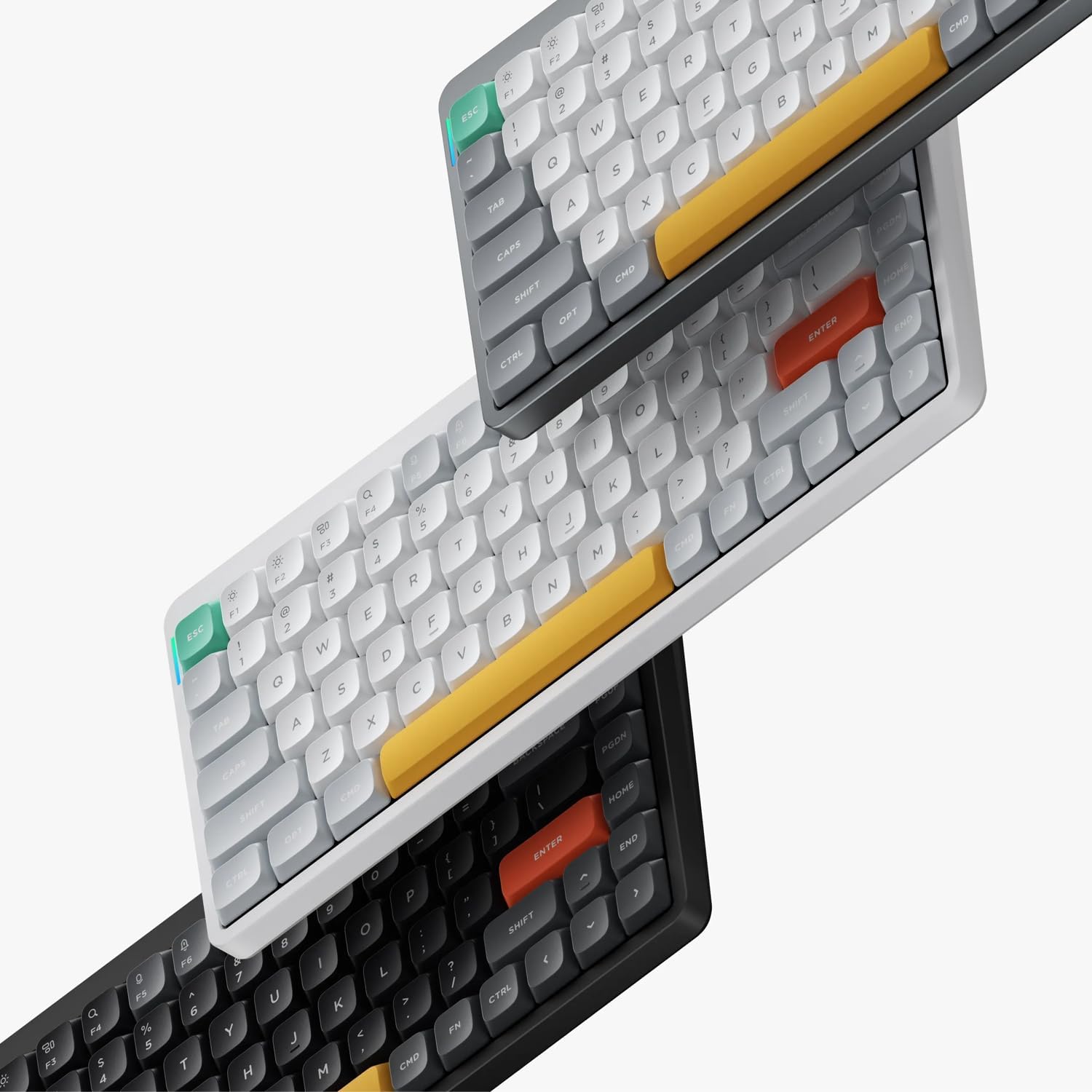
Image: The nuphy Air75 V2 keyboard positioned in front of a laptop, demonstrating its use with a computer.
Operating Instructions
RGB Backlighting and Key Customization
The Air75 V2 supports RGB backlighting and extensive key customization through QMK/VIA software.
- QMK/VIA Software: Download the QMK/VIA software from the official nuphy website. This software allows you to remap keys, create macros, and customize RGB lighting effects and colors.
- RGB Backlighting: Adjust brightness, patterns, and colors of the RGB backlight to suit your preferences.
Polling Rate
The keyboard achieves a 1000Hz polling rate in both 2.4G wireless and wired modes, ensuring rapid response times for gaming and efficient typing.
LED Light Bar Indicators
The LED light bars located on the top two sides of the keyboard provide real-time status information:
- Power Status: Indicates the current battery level.
- CAPS Lock: Shows whether the CAPS Lock function is active.
- Customization: The color of these light bars can also be customized via QMK/VIA.
Hot-Swappable Switches
The Air75 V2 features hot-swappable sockets, allowing you to change the mechanical switches without soldering. This enables customization of typing feel and sound.

Image: A close-up view of Gateron Brown 2.0 mechanical switches, detailing their components and specifications. These switches are tactile with a pre-travel of 1.7±0.4mm and a total travel of 3.2±0.2mm.
Maintenance
Keycaps
The keycaps are made from Double-shot PBT material, known for its durability and resistance to shine and fading. This ensures that characters remain clear and legible even after extended use.
Cleaning
To clean your keyboard, gently wipe the keycaps and frame with a soft, damp cloth. Avoid using harsh chemicals or abrasive materials. For deeper cleaning, keycaps can be carefully removed using a keycap puller (not included) and cleaned separately. Ensure the keyboard is powered off and disconnected before cleaning.
Troubleshooting
Connectivity Issues
- Keyboard not responding: Ensure the keyboard is charged. Check the connection mode switch (Bluetooth, 2.4G, USB-C) is set correctly. For wireless modes, ensure the keyboard is paired or the 2.4G receiver is properly inserted.
- Lag or dropped keystrokes: For wireless connections, try moving the keyboard closer to the receiver or device. Ensure there are no strong interference sources nearby. Update keyboard firmware if available.
- Bluetooth pairing failure: Ensure the keyboard is in Bluetooth pairing mode. Remove previous pairings from your device's Bluetooth settings and attempt to pair again.
Key Functionality
- Incorrect key output: Verify the operating system switch (Windows/Android vs. macOS/iOS) is set to match your device. If keys are remapped, check your QMK/VIA settings.
- Non-responsive keys: If a specific key is not working, it may be due to a faulty switch. As the keyboard is hot-swappable, try replacing the switch with a known working one.
Firmware Updates
Regularly check the official nuphy website for firmware updates. Firmware updates can resolve bugs, improve performance, and add new features. Follow the instructions provided on the website carefully when performing updates.
Specifications
| Feature | Detail |
|---|---|
| Product Name | Air75 V2 Mechanical Keyboard |
| Dimensions | 316.4 mm x 132.5 mm x 13.5 mm (12.46"L x 5.22"W x 0.53"H) |
| Weight | 598 grams (1.32 pounds) |
| Material | Frame: Aluminum, Bottom Case: ABS, Keycap: PBT |
| Switches | Gateron Brown (Tactile, 55gf) |
| Connectivity | Bluetooth, 2.4G Wireless, USB-C Wired |
| Polling Rate | 1000Hz (2.4G and Wired modes) |
| Backlighting | RGB, customizable via QMK/VIA |
| Compatibility | Windows, macOS, Linux, Android, iOS |
| Special Features | Hot-swappable switches, Double-shot PBT keycaps, LED light bar indicators |
Warranty and Support
For warranty information and technical support, please refer to the official nuphy website or contact nuphy customer service directly. Keep your purchase receipt as proof of purchase.
Official Website: www.nuphy.com


