
Introduction
This manual provides detailed instructions for the setup, operation, and maintenance of your Portronics Toad 7 Wireless Mouse. Please read this manual thoroughly before using the device to ensure optimal performance and longevity.
Package Contents
- 1 x Portronics Toad 7 Wireless Mouse
- 1 x USB Receiver
- 1 x Charging Cable
- 1 x Documentation (This Manual)
Product Overview
The Portronics Toad 7 is a versatile wireless mouse offering dual connectivity options (Bluetooth 5.3 and 2.4 GHz wireless) and adjustable DPI settings for precise control. It features a rechargeable built-in battery and an ergonomic design for comfortable use.

Image: Top-down view of the Portronics Toad 7 Wireless Mouse, highlighting its ergonomic shape and button layout.
Setup
1. Charging the Mouse
Before first use, ensure the mouse is fully charged. Connect the provided charging cable to the mouse's charging port and to a USB power source (e.g., computer USB port, USB wall adapter). The charging indicator light will illuminate during charging and turn off when fully charged.

Image: The Portronics Toad 7 mouse being charged via its USB-C port, illustrating the rechargeable built-in battery feature.
2. Connecting via 2.4 GHz USB Receiver
- Locate the USB receiver, typically stored in a compartment on the underside of the mouse.
- Insert the USB receiver into an available USB port on your computer.
- Turn on the mouse using the power switch located on the underside.
- The mouse should automatically connect to your computer.
3. Connecting via Bluetooth 5.3
- Turn on the mouse using the power switch.
- Press and hold the Bluetooth pairing button (if available, or switch the mode to Bluetooth) on the underside of the mouse until the indicator light flashes, indicating pairing mode.
- On your device (computer, tablet, smartphone), navigate to Bluetooth settings.
- Search for available devices and select "Portronics Toad 7" (or similar name) from the list.
- Follow any on-screen prompts to complete the pairing process.

Image: The Portronics Toad 7 mouse connected to a laptop via 2.4 GHz dongle and a tablet via Bluetooth, illustrating its dual wireless connectivity.

Image: The Portronics Toad 7 mouse connected to multiple devices, showcasing its ability to easily pair and switch between them.
Operating Instructions
Power On/Off
Use the power switch on the underside of the mouse to turn it on or off. Turning off the mouse when not in use conserves battery life.
DPI Adjustment
The Portronics Toad 7 mouse features adjustable DPI (Dots Per Inch) settings, allowing you to customize cursor sensitivity. Press the DPI button, usually located behind the scroll wheel, to cycle through available DPI levels (e.g., 1200, 1600, 2400, 3200 DPI). Each press will change the sensitivity.

Image: A visual representation of the adjustable DPI settings on the Portronics Toad 7 mouse, indicating sensitivity levels from 1200 to 3200 DPI.
Multi-Device Switching
If your mouse supports multi-device pairing, use the dedicated switch or button (refer to the mouse's underside or specific button layout) to switch between connected devices (e.g., 2.4 GHz mode, Bluetooth 1, Bluetooth 2).
Silent Clicks
The mouse is designed with silent click buttons to minimize noise during use, providing a quieter working environment.

Image: A user operating the Portronics Toad 7 mouse, emphasizing its noise-free and quieter clicking feature.
Ergonomic Design
The Portronics Toad 7 features an ergonomic design intended to provide a comfortable grip for extended periods of use.

Image: A hand demonstrating the comfortable grip provided by the ergonomic design of the Portronics Toad 7 mouse.
Wide Compatibility
The Portronics Toad 7 Wireless Mouse is compatible with various devices, including desktops, laptops, tablets, and smartphones, offering broad usability across different platforms.
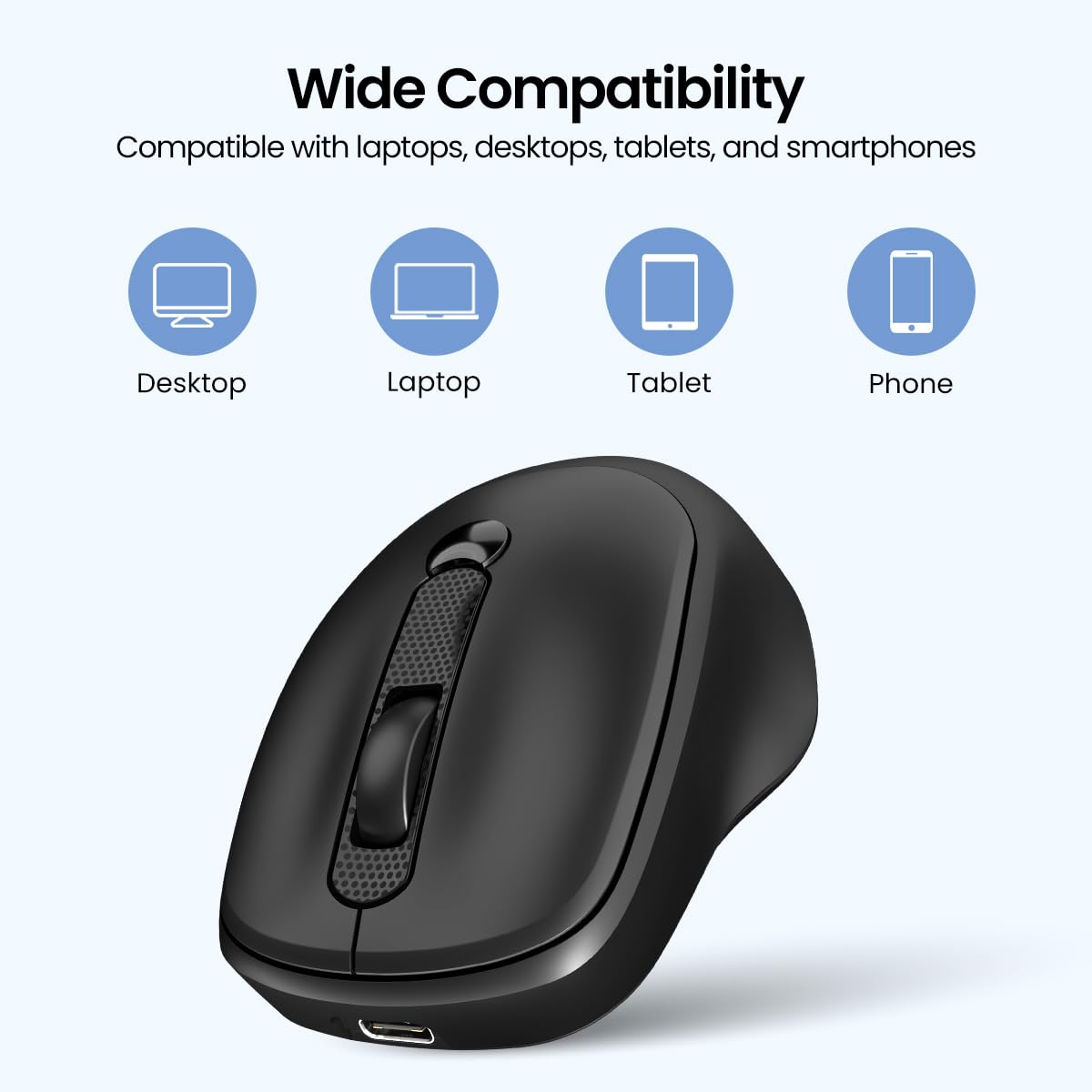
Image: The Portronics Toad 7 mouse shown with icons for various devices, indicating its wide compatibility with desktops, laptops, tablets, and smartphones.
Maintenance
- Cleaning: Use a soft, dry cloth to clean the mouse. Avoid using harsh chemicals or abrasive materials.
- Storage: Store the mouse in a cool, dry place when not in use.
- Battery Care: To prolong battery life, avoid fully discharging the mouse frequently. Charge it when the battery low indicator appears.
- USB Receiver: When transporting the mouse, store the USB receiver in its designated compartment to prevent loss.
Troubleshooting
| Problem | Possible Solution |
|---|---|
| Mouse not responding |
|
| Lagging or erratic cursor movement |
|
| Cannot pair via Bluetooth |
|
Specifications
| Feature | Detail |
|---|---|
| Brand | Portronics |
| Model Name | Toad 7 |
| Item Model Number | POR-2780 |
| Connectivity Technology | Bluetooth 5.3 & 2.4 GHz Wireless |
| Movement Detection Technology | Optical |
| Adjustable DPI | Up to 3200 DPI (e.g., 1200, 1600, 2400, 3200) |
| Power Source | Rechargeable Built-in Battery |
| Item Weight | 116 g |
| Product Dimensions (LxWxH) | 14 x 8.5 x 0.1 cm |
| Country of Origin | China |
Warranty and Support
For warranty information, technical support, or service inquiries, please refer to the warranty card included with your product or visit the official Portronics website. You may also contact Portronics customer support directly:
Email: help@portronics.com
Phone: +91 9555-245-245
Please retain your purchase receipt for warranty claims.


