
Introduction
This manual provides detailed instructions for the setup, operation, and maintenance of your iSinbox Projector, Model GC357. Please read this manual thoroughly before using the product to ensure proper functionality and safety.
The iSinbox Projector is designed to provide a high-quality visual experience with its native 1080P resolution and 4K support. It features advanced connectivity options including WiFi 6 and Bluetooth 5.2, and incorporates smart automation for focus and keystone correction.
Product Features
- Full Automation: Features auto-focus, auto-keystone correction, auto-obstacle avoidance, and auto-screen alignment for simplified setup.
- High Visual Quality: Native 1080P resolution with 4K support and 850 ANSI lumens brightness for clear and vibrant images.
- Advanced Connectivity: Dual-band 2.4G/5G WiFi 6 and Bidirectional Bluetooth 5.2 for stable streaming and audio connections.
- Robust Performance: Powered by the MTK9269 chip, supporting PPT playback and projection sizes up to 300 inches with 50-100% zoom.
- Personalized Settings: Customizable image modes, brightness levels, and wallpapers, including a unique companion mode.
What's in the Box
Upon opening the package, verify that all the following items are included:
- iSinbox Projector (Model GC357)
- AV Cable
- HDMI Cable
- Power Cord
- Remote Control
- User Manual (this document)
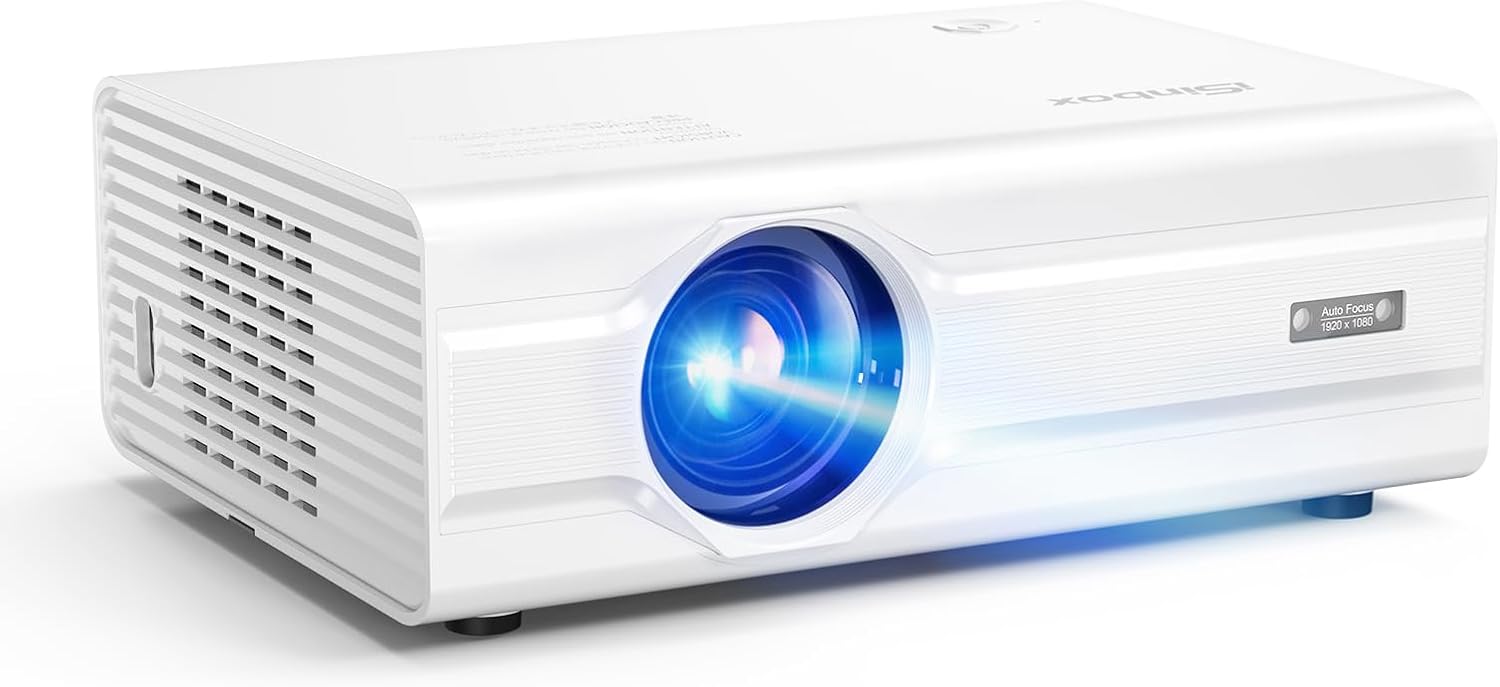
Image: The iSinbox Projector and its standard accessories, including cables, remote, and user manual.
Setup
1. Placement
Place the projector on a stable, flat surface. Ensure there is adequate ventilation around the projector to prevent overheating. For optimal viewing, position the projector directly in front of the screen or wall.

Image: Illustration of the projector's automatic focus and keystone correction features, demonstrating ideal placement for a clear image.
2. Power Connection
- Connect the power cord to the projector's power input port.
- Plug the other end of the power cord into a wall outlet.
- Press the power button on the projector or remote control to turn it on.
3. Connecting Devices
The projector supports various input sources. Use the appropriate cable to connect your device.
- HDMI: Connect a TV stick, laptop, gaming console, or Blu-ray player using an HDMI cable.
- USB: Insert a USB drive for direct media playback or office presentations (PPT, Word, Excel).
- AV: Use the provided AV cable for older devices.
- Bluetooth: Pair with external Bluetooth speakers or use the projector as a Bluetooth speaker.
- Wi-Fi: Connect to your wireless network for streaming content.

Image: The projector connected to a TV stick, illustrating its compatibility with various streaming devices and operating systems.

Image: The projector displaying an office presentation, highlighting its ability to read files directly from a USB drive.
Operating Instructions
1. Initial Power On and Auto-Adjustment
Once powered on, the projector will automatically perform auto-focus, auto-keystone correction, and auto-obstacle avoidance to optimize the image. Allow a few moments for these adjustments to complete.
2. Navigation and Input Selection
Use the remote control to navigate the projector's menu. Press the "Source" or "Input" button to select your desired input (HDMI, USB, AV, Wi-Fi).
3. Adjusting Image Settings
Access the "Settings" menu to customize image modes, brightness, contrast, and color. The projector supports personalized settings for an optimized viewing experience.

Image: Diagram illustrating the MTK chip and various personalized settings available, such as DIY image brightness, image modes, and wallpaper.
4. Wi-Fi and Bluetooth Connectivity
- Wi-Fi: Go to Network Settings, select your Wi-Fi network, and enter the password. The projector supports 2.4G and 5G networks.
- Bluetooth: In Bluetooth settings, enable Bluetooth and search for devices. You can connect to external speakers (Bluetooth Output) or use the projector as a speaker (Bluetooth Input).

Image: The projector connected via WiFi 6, illustrating faster and smoother streaming capabilities compared to older Wi-Fi standards.

Image: The projector demonstrating its two-way Bluetooth 5.3 functionality, allowing it to connect to external speakers or act as a standalone Bluetooth speaker.
5. Zoom Function
The projector features a digital zoom function, allowing you to adjust the screen size from 50% to 100% without moving the projector. Access this setting in the image or display menu.
Maintenance
1. Cleaning the Lens
Gently wipe the projector lens with a soft, lint-free cloth specifically designed for optical surfaces. Do not use abrasive cleaners or excessive force, as this can scratch the lens.
2. Cleaning the Exterior
Use a soft, dry cloth to clean the exterior of the projector. For stubborn marks, a slightly damp cloth can be used, followed by a dry cloth. Avoid using harsh chemicals.
3. Ventilation
Ensure that the ventilation vents are clear of dust and obstructions. Blocked vents can lead to overheating and reduce the lifespan of the projector. Periodically use compressed air to clear dust from the vents.
4. Storage
When not in use for extended periods, store the projector in a cool, dry place, away from direct sunlight and extreme temperatures. It is recommended to use the original packaging or a protective case.
Troubleshooting
| Problem | Possible Cause | Solution |
|---|---|---|
| No image displayed |
|
|
| Image is blurry or out of focus |
|
|
| Image is distorted (trapezoid shape) |
|
|
| No sound or low volume |
|
|
| Cannot connect to Wi-Fi |
|
|
Specifications
| Feature | Detail |
|---|---|
| Brand | iSinbox |
| Model Number | GC357 |
| Display Resolution | Native 1920 x 1080 (1080P), 4K Support |
| Brightness | 850 ANSI Lumens |
| Connectivity Technology | Wi-Fi 6 (2.4G/5G), Bluetooth 5.2 (Bidirectional), HDMI, USB, 3.5mm Jack |
| Special Features | Auto Focus, Auto Keystone, Auto-obstacle avoidance, Auto Screen Alignment, Personalized User Experience, MTK9269 Chip |
| Recommended Uses | Home Cinema, Outdoor Movies, Gaming, Business Presentations, Education |
| Product Dimensions | 6.97 x 3.46 x 9.37 inches |
| Item Weight | 3.41 pounds |
| Color | White |
Warranty and Support
iSinbox provides comprehensive after-sales support to ensure your satisfaction. For any issues or inquiries regarding your projector, please refer to the following:
- Warranty Information: Please refer to the warranty card included with your product for specific terms and conditions.
- Customer Service: For technical support or service requests, please contact iSinbox customer service through the contact information provided on the official iSinbox website or your purchase platform.
- Online Resources: Visit the official iSinbox store on Amazon for FAQs and additional product information: iSinbox Amazon Store.
Your satisfaction is our priority. We are committed to providing effortless and enjoyable experience with your iSinbox projector.


