
1. Introduction
This manual provides detailed instructions for the InnoView 16" 2K 240Hz Portable Monitor. Please read this manual thoroughly before using the product to ensure proper operation and to maximize its performance and lifespan. Keep this manual for future reference.
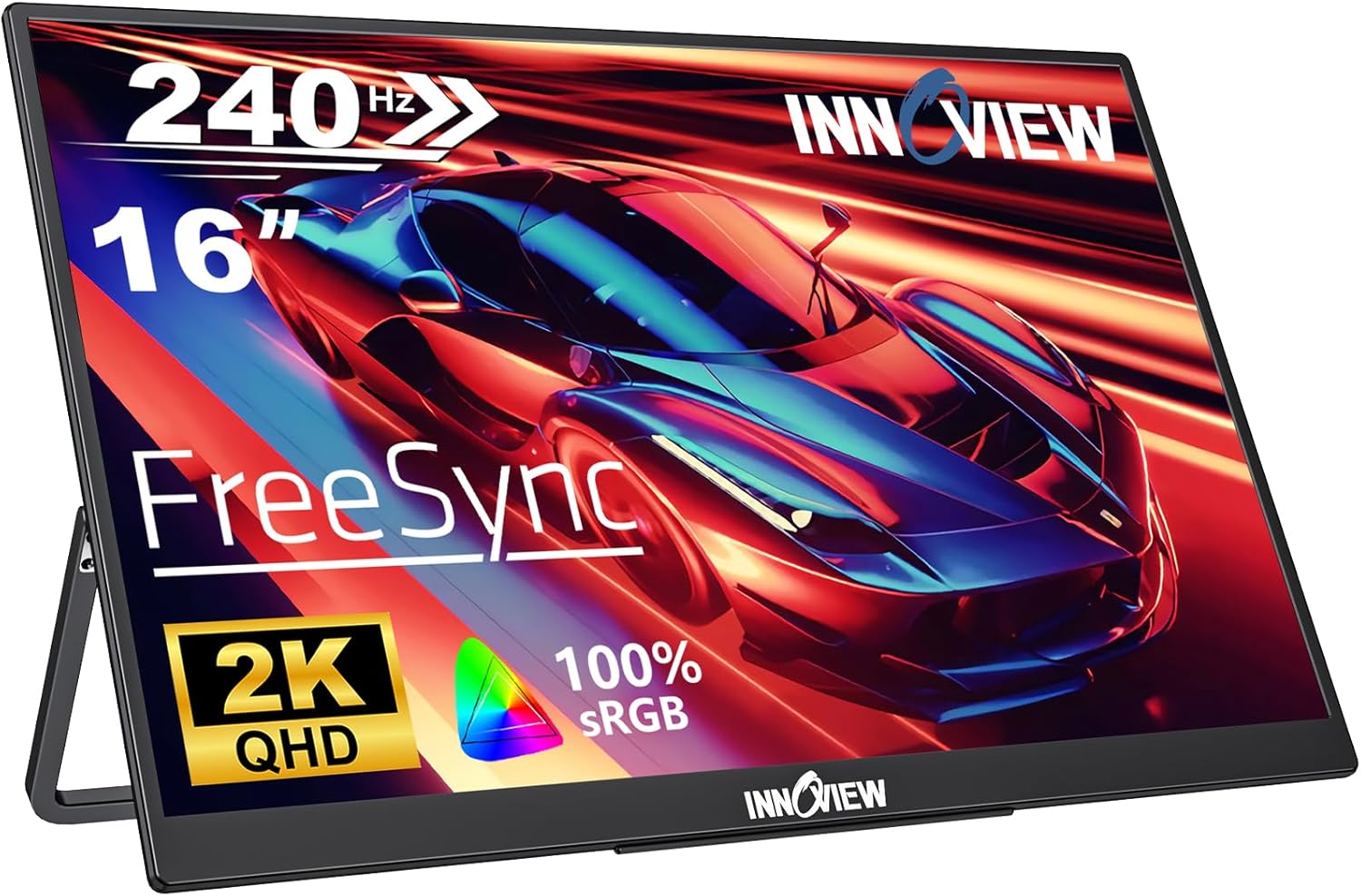
Image 1.1: The InnoView 16" 2K 240Hz Portable Monitor with its integrated stand.
2. Package Contents
Verify that all items are present in the package:
- InnoView 16" 2K 240Hz Portable Monitor
- USB-C to USB-C Cable (for power and video signal)
- HDMI to HDMI Cable (for video signal)
- USB-A to USB-C Cable (for power supply)
- Power Adapter
- User Manual
3. Product Features
- Exceptional Visual Experience: Features a 2K resolution (2560x1600 pixels) for sharp, detailed images and vibrant colors.
- Smooth Gaming Performance: A 240Hz refresh rate reduces screen tearing and latency, providing a responsive experience for fast-paced content.
- Portability: The 16-inch screen size offers ample display space while maintaining a portable design for use in various environments.
- IPS Screen with 100% sRGB: Equipped with an IPS panel and 100% sRGB color gamut for accurate and vivid color reproduction, suitable for professional use.
- Plug and Play: No driver installation required. Features 2 full-featured Type-C ports and 1 HDMI port for broad compatibility.
- Built-in Speakers: Integrated audio output for convenience.
- 180° Adjustable Stand: An integrated stand allows for flexible viewing angles.

Image 3.1: Visual comparison illustrating the smoothness of 240Hz refresh rate versus 60Hz.

Image 3.2: Comparison of 2K QHD resolution against 1080p, highlighting increased detail.

Image 3.3: The monitor's compact dimensions (14.07in x 9.44in) demonstrating its portability.
4. Product Overview (Ports and Buttons)
Familiarize yourself with the monitor's ports and control buttons:
- Power Button: Turns the monitor on/off.
- Menu Button: Accesses the On-Screen Display (OSD) menu and navigates options.
- Audio Port (3.5mm): Connect external headphones or speakers.
- Type-C Ports (x2): Full-featured ports for power, video, and data transmission.
- HDMI Port: For video input from compatible devices.

Image 4.1: Diagram showing the location of the power button, menu button, audio port, Type-C ports, and HDMI port on the monitor.
5. Setup
Follow these steps to connect your InnoView portable monitor to various devices.
5.1 Powering the Monitor
The monitor can be powered via a USB-C connection. Connect the provided USB-A to USB-C cable from a power adapter (included) or a powered USB-A port on your device to one of the monitor's Type-C ports.
5.2 Connecting to Devices
The monitor supports various devices including laptops, PCs, smartphones, and gaming consoles (PS4, PS5, Switch, Xbox).

Image 5.1: The monitor connected to a Nintendo Switch, PlayStation 5, Xbox, and a laptop, demonstrating wide compatibility.
5.2.1 Using USB-C (Full-Featured)
For devices with a full-featured USB-C port (supporting DisplayPort Alternate Mode and power delivery), a single USB-C to USB-C cable can provide both power and video signal.
- Connect one end of the USB-C to USB-C cable to your device's USB-C port.
- Connect the other end to one of the monitor's Type-C ports.
- The monitor should automatically detect the signal. If not, manually select the input source in the OSD menu.
5.2.2 Using HDMI
For devices with an HDMI output, use the HDMI cable for video and a separate USB-C cable for power.
- Connect one end of the HDMI cable to your device's HDMI port.
- Connect the other end to the monitor's HDMI port.
- Connect the monitor to a power source using the USB-A to USB-C cable and power adapter.
- The monitor should automatically detect the signal. If not, manually select the input source in the OSD menu.
Note: For Nintendo Switch, the maximum resolution is 1080p. Switch (OLED model) requires HDMI only; Type-C connection is not supported for video output directly from the console.
6. Operating Instructions
6.1 On-Screen Display (OSD) Menu
The OSD menu allows you to adjust various display settings. Use the Menu button and other control buttons (if present) to navigate and select options.
- Press the Menu button to open the OSD menu.
- Use the navigation buttons (often the volume/brightness buttons) to move through the menu options.
- Press the Menu button again to select an option or confirm a setting.
- To exit the OSD menu, navigate to the 'Exit' option or wait for the menu to time out.
Common OSD Settings:
- Brightness/Contrast: Adjust the display's luminance and contrast levels.
- Color Settings: Modify color temperature, hue, and saturation.
- Audio Settings: Control volume and mute status for built-in speakers or connected headphones.
- Input Source: Manually select between Type-C and HDMI inputs.
- Aspect Ratio: Adjust the display aspect ratio (e.g., 16:10, 16:9, Full).
- FreeSync: Enable or disable FreeSync for compatible graphics cards.

Image 6.1: Step-by-step guide on navigating the OSD menu to change the aspect ratio from 16:10 to 16:9.
6.2 Using the Adjustable Stand
The monitor features an integrated 180° adjustable stand for versatile positioning.
- Gently pull the stand outwards from the back of the monitor.
- Adjust the stand to your desired viewing angle. The stand provides stable support across its 180-degree range.
- Ensure the monitor is placed on a stable, flat surface.

Image 6.2: The monitor showcasing its 180-degree adjustable metal stand, providing stability and flexible viewing angles.
7. Troubleshooting
If you encounter issues with your monitor, refer to the following common problems and solutions:
- No Signal:
- Ensure all cables (USB-C, HDMI) are securely connected to both the monitor and the source device.
- Verify the monitor is receiving power. Check the power adapter and USB-C power cable.
- Manually select the correct input source in the OSD menu.
- Test with a different cable or source device to rule out cable or device issues.
- No Power:
- Confirm the power adapter is plugged into a working outlet.
- Ensure the USB-C power cable is firmly connected to the monitor's power input port.
- If using a single USB-C cable for power and video, ensure your device's USB-C port supports power delivery.
- Display Flickering or Unstable Image:
- Check cable connections for looseness.
- Reduce the refresh rate or resolution on your source device to see if the issue persists.
- Ensure your source device's graphics driver is up to date.
- Disable FreeSync in the OSD menu if enabled.
- No Audio:
- Increase the volume in the OSD menu and on your source device.
- Ensure the correct audio output device is selected on your source device.
- If using external speakers/headphones, ensure they are properly connected to the monitor's audio port.
- Monitor Overheating:
- Ensure adequate ventilation around the monitor.
- Reduce screen brightness if the monitor feels excessively warm.
- Avoid placing the monitor in direct sunlight or enclosed spaces.
8. Specifications
| Feature | Specification |
|---|---|
| Model Number | CA-PM408-A |
| Screen Size | 16 inches |
| Resolution | 2560 x 1600 Pixels (2K QHD) |
| Refresh Rate | 240Hz |
| Panel Type | IPS |
| Color Gamut | 100% sRGB |
| Aspect Ratio | 16:10 |
| Brightness | 300 Candela (Nits) |
| Screen Surface | Matte |
| Connectivity | 2x Type-C (Full-featured), 1x HDMI, 1x 3.5mm Audio Jack |
| Product Dimensions | 9.45 x 14.06 x 0.53 inches |
| Item Weight | 3.61 pounds |
9. Care and Maintenance
- Cleaning the Screen: Use a soft, lint-free cloth slightly dampened with water or a screen-cleaning solution. Avoid harsh chemicals or abrasive materials.
- Cleaning the Casing: Wipe the monitor casing with a soft, dry cloth.
- Storage: When not in use, store the monitor in a cool, dry place, preferably in its original packaging or a protective sleeve to prevent scratches and damage.
- Handling: Avoid applying excessive pressure to the screen or dropping the monitor.
- Power Off: Always power off the monitor when not in use to conserve energy and extend its lifespan.
10. Warranty and Support
For warranty information and technical support, please refer to the warranty card included with your product or visit the official InnoView website. Keep your purchase receipt as proof of purchase for warranty claims.
Online Support: For the latest drivers, FAQs, and support resources, please visit the InnoView official support page.


