
FOXWELL T2000 Pro and NT604 Elite
FOXWELL T2000 Pro TPMS Relearn Tool & NT604 Elite OBD2 Scanner User Manual
Model: T2000 Pro, NT604 Elite
1. Introduction
This manual provides detailed instructions for the operation and maintenance of your FOXWELL T2000 Pro TPMS Relearn Tool and FOXWELL NT604 Elite OBD2 Scanner. This comprehensive kit is designed to assist mechanics and DIY enthusiasts in performing essential automotive diagnostics and maintenance, particularly for Tire Pressure Monitoring Systems (TPMS) and core vehicle systems like Engine, ABS, SRS, and Transmission.
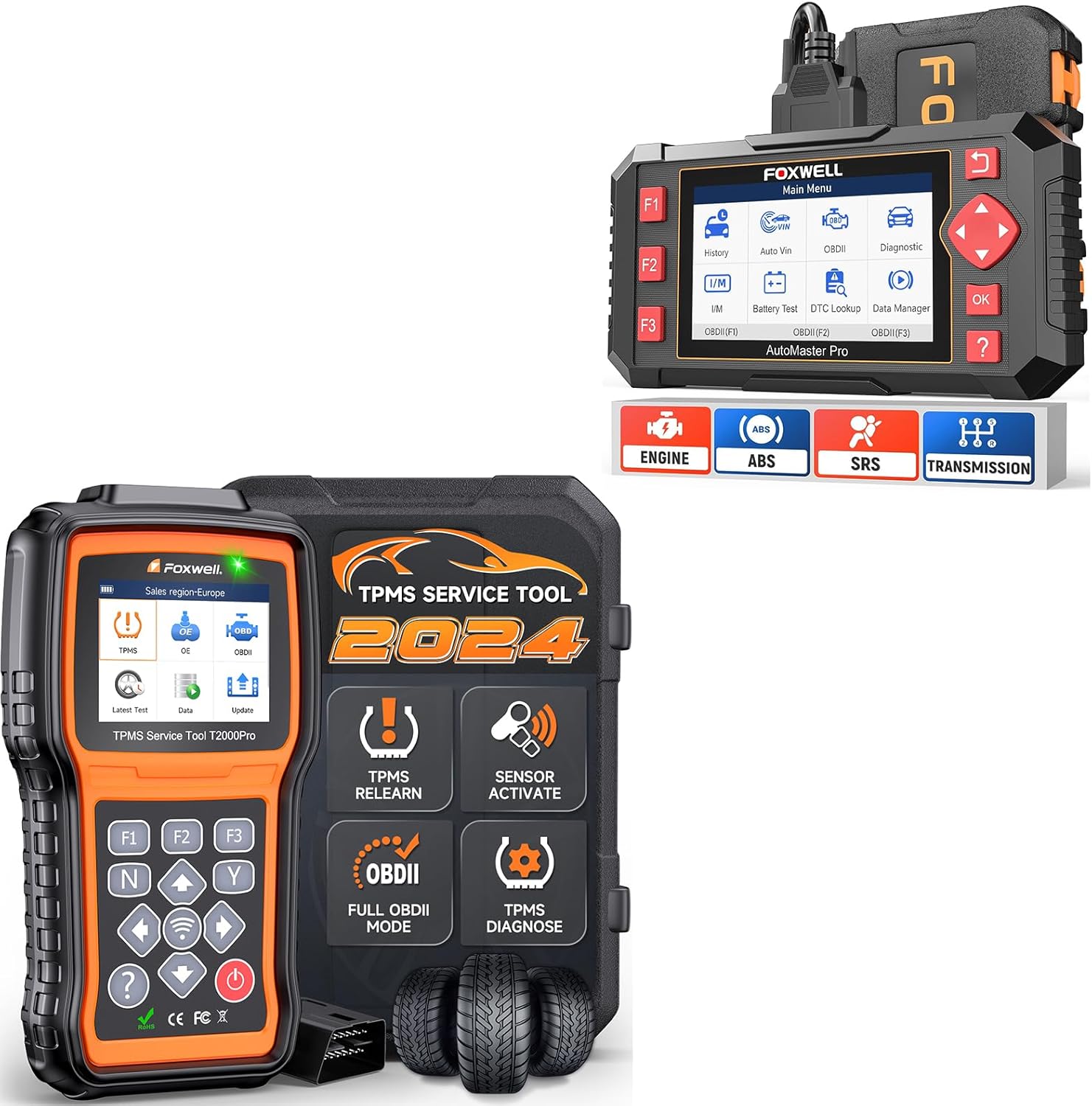
Figure 1.1: FOXWELL T2000 Pro TPMS Relearn Tool and NT604 Elite OBD2 Scanner Kit.
The T2000 Pro offers a one-stop solution for TPMS services, including sensor activation, relearn procedures, and programming for T10 sensors. The NT604 Elite provides quick and accurate diagnostics for Engine, Anti-lock Braking System (ABS), Supplemental Restraint System (SRS), and Transmission systems, helping to identify and resolve common vehicle issues.
2. Setup and Initial Use
The FOXWELL T2000 Pro and NT604 Elite are designed for ease of use and can be operated directly out of the box. Follow these simple steps to begin your diagnostic process:
- Plug into OBDII Port (16-pin): Locate the 16-pin OBDII diagnostic port in your vehicle, typically found under the dashboard on the driver's side. Connect the diagnostic tool's cable securely to this port.

Figure 2.1: Steps for initial setup, including connecting to the OBDII port and turning on ignition.
- Turn on Ignition: Turn your vehicle's ignition to the "ON" position. The engine does not need to be running.
- Select Menu to Start Diagnosis: The tool will power on automatically. Navigate through the on-screen menu using the directional buttons to select the desired diagnostic function (e.g., TPMS, OBDII, Diagnostic).
3. Operation
3.1. FOXWELL T2000 Pro TPMS Tool Operations
The T2000 Pro is a dedicated TPMS service tool designed to manage and maintain your vehicle's tire pressure monitoring system.
- TPMS Sensor Activation:
This function allows you to activate all known TPMS sensors to retrieve their data. Follow the on-screen prompts:
- Press the "Trigger" button on the tool to initiate sensor activation.
- The T2000 Pro will receive data from the sensor, including Sensor ID, Tire Pressure, Tire Temperature, Battery Status, Sensor Position, and Frequency.
- A confirmation message will indicate successful sensor activation.

Figure 3.1: Steps for activating TPMS sensors using the T2000 Pro.
- TPMS Sensor Relearn:
After tire rotation, sensor replacement, or tire changes, the vehicle's ECU needs to relearn the new sensor IDs and positions. The T2000 Pro supports multiple relearn methods:
- Stationary Relearn: Requires the vehicle to be in a specific learning mode. The tool triggers sensors to learn their positions.
- Auto Relearn: Can be completed by driving the vehicle for a specified period, allowing the vehicle to automatically learn sensor positions.
- OBD Relearn: The T2000 Pro writes sensor IDs directly to the vehicle's ECU via the OBD interface.
- Clone Sensor: Allows copying existing sensor IDs to new programmable sensors.

Figure 3.2: Overview of TPMS relearn methods available with the T2000 Pro.
- TPMS Diagnostics:
Perform comprehensive diagnostics on the TPMS system:
- Read and clear TPMS Diagnostic Trouble Codes (DTCs).
- View live data from TPMS sensors.
- Check sensor ID matching and ECU information.
- Turn off the TPMS warning light (MIL) after issues are resolved.

Figure 3.3: TPMS diagnostic capabilities for real-time monitoring.
- TPMS Programming (T10 Sensor Only):
The T2000 Pro can program FOXWELL T10 sensors. This allows you to create new sensor IDs or copy existing ones for replacement sensors.
3.2. FOXWELL NT604 Elite OBD2 Scanner Operations
The NT604 Elite is designed to diagnose the four main systems of your vehicle: Engine, Transmission, ABS, and SRS.
- Enhanced 4-System Diagnosis:
The NT604 Elite provides comprehensive diagnostic capabilities for the following systems:
- Engine System: Read and clear engine fault codes, view live data, and turn off the Check Engine Light (MIL).
- Transmission System: Diagnose transmission issues, read and clear transmission fault codes, and view live data related to transmission performance.
- ABS (Anti-lock Braking System): Read and clear ABS fault codes, and view live data from ABS sensors to identify braking system malfunctions.
- SRS (Supplemental Restraint System): Read and clear SRS (airbag) fault codes. Note: Airbag crash/collision data cannot be cleared even after replacing the airbag.

Figure 3.4: Overview of the 4-system diagnostic capabilities of the NT604 Elite.
- Reading and Clearing Codes:
Access the "Diagnostic" menu to read current, pending, and historic Diagnostic Trouble Codes (DTCs). After repairs are made, use the "Clear Codes" function to turn off warning lights.
- Live Data Stream:
View real-time data parameters from the vehicle's sensors and modules, which can help in pinpointing intermittent issues.
4. Maintenance
- Software Updates:
Both the T2000 Pro and NT604 Elite offer lifetime free updates to ensure compatibility with new vehicle models and to provide the latest diagnostic features. The T2000 Pro supports updates via WiFi and USB, while the NT604 Elite comes with the latest software out of the box.

Figure 4.1: Information on lifetime updates and vehicle coverage.
- Cleaning:
Wipe the device with a soft, damp cloth. Do not use abrasive cleaners or solvents.
- Storage:
Store the tools in a clean, dry environment, away from extreme temperatures and direct sunlight, when not in use.
5. Troubleshooting
- Tool Does Not Power On:
Ensure the OBDII cable is securely connected to both the tool and the vehicle's OBDII port. Verify the vehicle's ignition is in the "ON" position.
- Cannot Connect to Vehicle ECU:
Check all cable connections. Ensure the vehicle's ignition is on. Verify the vehicle's battery has sufficient charge. Some vehicles may require specific ignition cycles or procedures; refer to your vehicle's service manual.
- TPMS Sensor Activation Failure:
Ensure the tool is held correctly near the sensor. Check if the sensor battery is low or dead. Verify the sensor type is compatible with the tool's activation frequency.
- Warning Light Remains On After Clearing Codes:
This indicates that the underlying issue causing the code has not been fully resolved. Perform further diagnosis to identify and fix the root cause. For SRS, remember that airbag crash/collision data cannot be cleared by the tool.
6. Specifications
| Feature | Description |
|---|---|
| Brand | FOXWELL |
| Model Numbers | T2000 Pro, NT604 Elite |
| ASIN | B0DGLPQKYD |
| Date First Available | September 13, 2024 |
| TPMS Sensor Activation | Activates all known TPMS sensors |
| TPMS Relearn Methods | Stationary, Auto, OBD, Clone Sensor |
| TPMS Programming | Supports FOXWELL T10 sensors only |
| OBD2 Scanner Functions | Engine, Transmission, ABS, SRS system diagnostics (read/clear codes, live data) |
| Updates | Lifetime Free Updates (T2000 Pro: WiFi+USB) |
| Vehicle Coverage | Approximately 99% of vehicles (check compatibility before purchase) |
| Supported Languages | 18 Languages |
7. Warranty and Support
FOXWELL products are designed for reliability and performance. While specific warranty details are not provided in this manual, please refer to the product packaging or the official FOXWELL website for the most up-to-date warranty information.
For technical support, product inquiries, or assistance with software updates, please contact FOXWELL customer service through their official channels. Keep your product's serial number and purchase information ready when contacting support.
Remember to utilize the lifetime free software updates to ensure your tool remains compatible with the latest vehicle models and features.
Related documentsT2000 Pro and NT604 Elite


Ask a question about this manual
Ask about setup, troubleshooting, compatibility, parts, safety, or missing instructions. Manuals+ will review the question and use this page’s manual context to help answer it.