1. Introduction
The DmgicPro Portapack H2 is a versatile Software Defined Radio (SDR) kit designed for radio enthusiasts and amateur professionals. This portable device offers a wide frequency range and advanced signal processing capabilities, making it suitable for various communication and signal analysis tasks.

Figure 1: Portapack H2 Software Defined Radio Kit with included accessories.
Key Features:
- Full Band Transceiver: Supports 1 MHz to 6 GHz frequency range for half-duplex operation.
- High-Precision Signal Processing: Features 20 million samples per second and 8-bit quadrature sampling (I/Q) for accurate signal recording and playback.
- Convenient Operation: Equipped with a 3.2-inch 240x320 TFT color LCD resistive touchscreen, four-way buttons, and a selection wheel.
- Portable Design: Built-in 2000mAh battery allows independent operation without a computer. Lightweight ABS plastic shell (approx. 0.46 lb).
- Open Source Support: Benefits from an active open-source community for firmware updates and technical resources.
2. Setup Guide
2.1 Package Contents
Before proceeding, ensure all components are present in your package:
- Portapack H2 Device
- Antennas (as supplied with your kit)
- USB Cable (for charging and data transfer)
- Built-in Lithium Ion Battery
2.2 Charging the Battery
The Portapack H2 comes with a built-in 2000mAh Lithium Ion battery. For first use, it is recommended to fully charge the device.
- Connect the provided USB cable to the USB port on the Portapack H2.
- Connect the other end of the USB cable to a standard USB power adapter (not included) or a computer's USB port.
- The device will indicate charging status on the screen. A full charge typically takes several hours.

Figure 2: Portapack H2 powered by its internal 2000mAh battery and charged via USB cable.
2.3 Connecting Antennas and Peripherals
Proper antenna connection is crucial for optimal performance.
- Locate the antenna (ANT) port on the device. Carefully screw in the provided antenna until snug. Do not overtighten.
- If using external clock sources, connect them to the CLKIN and CLKOUT ports as required.
- For audio output, connect headphones or speakers to the 3.5mm audio jack.
- For voice input, plug a compatible microphone into the 3.5mm audio jack.
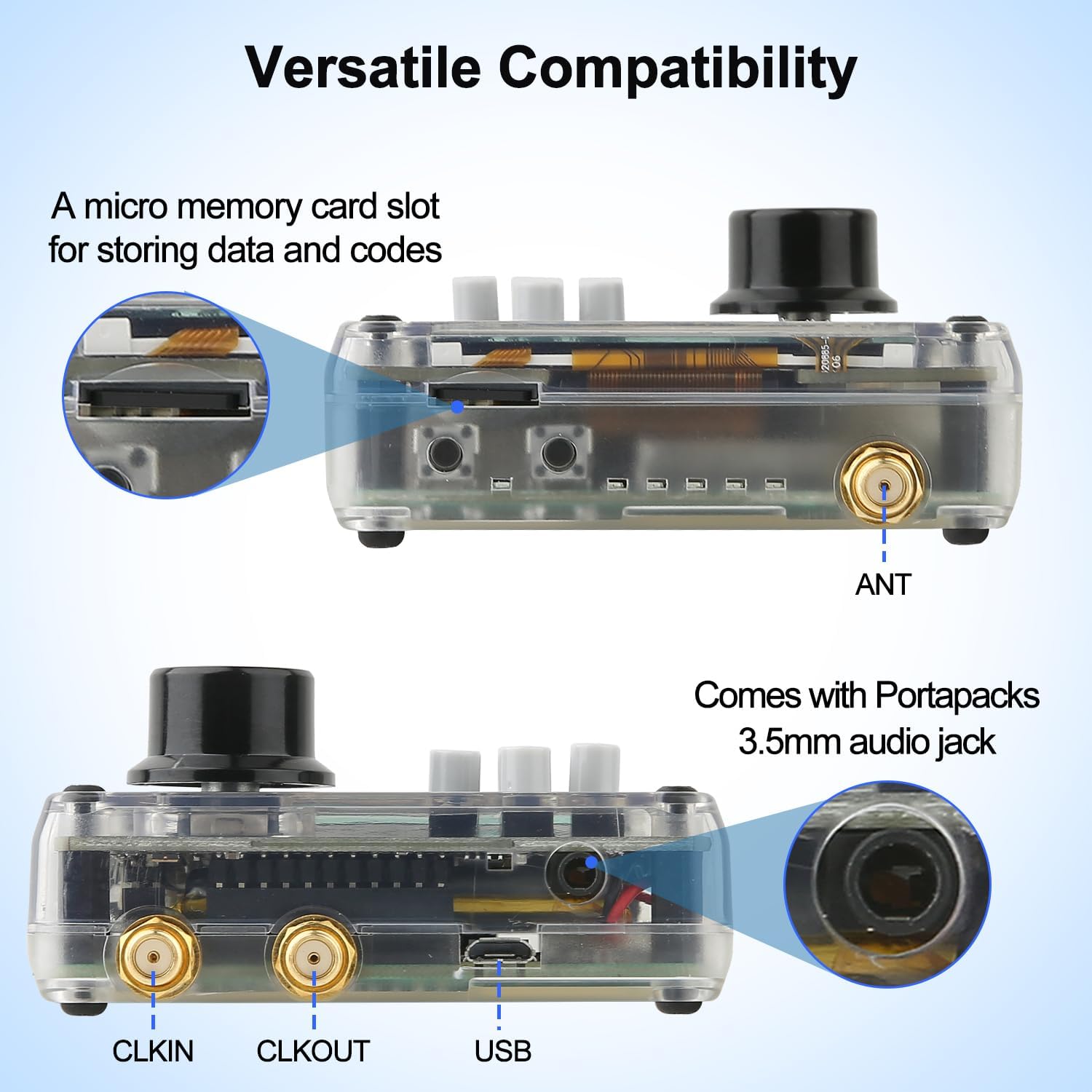
Figure 3: Detailed view of the Portapack H2's various input/output ports.
2.4 Powering On/Off
To power on the device, press and hold the power button (location may vary slightly based on specific model revision, typically on the side or top). To power off, press and hold the power button again until the device shuts down.
3. Operating Instructions
3.1 Display and Navigation
The Portapack H2 features a 3.2-inch TFT color LCD with a resistive touchscreen. Navigation is primarily done via the touchscreen, four-way buttons, and the selection wheel.
- Touchscreen: Tap on menu items to select them.
- Four-way Buttons: Use for directional navigation within menus.
- Selection Wheel: Rotate to scroll through options or adjust values. Press to confirm selection.

Figure 4: Interacting with the Portapack H2's touchscreen display.
3.2 Frequency Range and Signal Processing
The device supports a broad frequency range from 1 MHz to 6 GHz, enabling reception and transmission (half-duplex) across various bands.
- Signal Recording and Playback: The Portapack H2 can record and playback wideband (18MHz) signals. Navigate to the "Capture" or "Replay" options in the main menu.
- Supported Modes: Supports SSB, AM, narrowband FM (NFM), and wideband FM (WFM) audio reception.

Figure 5: The Portapack H2 supports a wide frequency range from 1 MHz to 6 GHz.
3.3 Audio Functions (ADC, DAC)
The 3.5mm audio jack allows for both audio output and input.
- Listening to Audio: Connect speakers or headphones to the 3.5mm audio jack to listen to standard NFM and WFM audio signals.
- Voice Input: To use the voice input function (e.g., for transmitting audio):
- Plug a microphone into the 3.5mm audio jack.
- Press and hold the designated button (refer to on-screen prompts or specific application instructions) to activate voice transmission.

Figure 6: Voice input and output capabilities of the Portapack H2.
3.4 Specific Applications
The Portapack H2 supports various applications through its firmware, including:
- ADS-B Reception: Easily enable ADS-B reception for tracking aircraft.
- Capture/Replay: Record and replay wireless signals, useful for analyzing various transponders (e.g., automotive, utility meters).
- Scanner: Utilize the scanner function to sweep through frequencies.
3.5 Firmware Updates
The Portapack H2 benefits from an open-source community. Users can update the firmware (e.g., Mayhem firmware) to access new features and optimizations. Refer to the official open-source community resources for detailed instructions on firmware updates.
4. Maintenance
4.1 Cleaning
To maintain the device's appearance and functionality:
- Wipe the exterior with a soft, dry cloth.
- For stubborn marks, slightly dampen the cloth with water. Avoid harsh chemicals or abrasive cleaners.
- Keep the screen clean using a microfiber cloth.
4.2 Battery Care
To prolong the life of the built-in Lithium Ion battery:
- Avoid fully discharging the battery frequently.
- Store the device with a partial charge (around 50%) if not used for extended periods.
- Avoid exposing the device to extreme temperatures.
4.3 Storage
When not in use, store the Portapack H2 in a cool, dry place, away from direct sunlight and moisture. The durable ABS plastic shell provides good protection against impact and abrasion.
5. Troubleshooting
If you encounter issues with your Portapack H2, refer to the following common troubleshooting steps:
| Problem | Possible Cause | Solution |
|---|---|---|
| Device does not power on. | Low or depleted battery. | Connect the device to a power source using the USB cable and allow it to charge for at least 30 minutes before attempting to power on again. |
| No signal reception. | Antenna not connected or faulty; incorrect frequency/mode settings. | Ensure the antenna is securely connected. Verify that the frequency and modulation settings match the signal you are trying to receive. Try a different antenna if available. |
| No audio output. | Headphones/speakers not connected; volume too low; incorrect audio settings. | Check that headphones or speakers are properly plugged into the 3.5mm audio jack. Increase the volume. Verify audio output settings in the device menu. |
| Screen is unresponsive. | Software glitch; resistive touchscreen calibration issue. | Try restarting the device. If the issue persists, check for firmware updates that might include touchscreen calibration tools or fixes. |
For more advanced troubleshooting or specific firmware-related issues, consult the active open-source community forums and documentation for the Portapack H2.
6. Specifications
| Feature | Detail |
|---|---|
| Model Number | H2 |
| Brand | DmgicPro |
| Frequency Range | 1 MHz to 6 GHz |
| Display | 3.2-inch 240x320 TFT Color LCD with Resistive Touchscreen |
| Battery | 1 Lithium Ion battery (2000mAh, included) |
| Item Weight | ~11.7 ounces (0.46 lb) |
| Package Dimensions | 7.95 x 6.02 x 2.09 inches |
| Country of Origin | China |
| Tuner Technology | HF |
| Water Resistance Level | Not Water Resistant |
| Included Components | Battery (device comes with built-in battery) |
7. Warranty Information
The DmgicPro Portapack H2 Software Defined Radio Kit comes with a 1-year warranty from the date of purchase. This warranty covers manufacturing defects and malfunctions under normal use. Please retain your proof of purchase for warranty claims.
The warranty does not cover damage caused by misuse, accidents, unauthorized modifications, or improper maintenance.
8. Customer Support
For further assistance, technical support, or warranty inquiries, please contact DmgicPro customer service through the platform where you purchased the product. You may also find valuable resources and community support through the official open-source channels for the Portapack H2.


