1. Product Overview
The EazeID TZe-631 label tape is a 12mm (0.47 inch) wide laminated tape with black text on a yellow background. It is designed for use with various Brother P-Touch label makers. This tape features a durable construction that withstands water, oil, high temperatures, corrosion, and fading, making it suitable for both indoor and outdoor labeling tasks. The split backing allows for easy peeling and application without leaving residue.
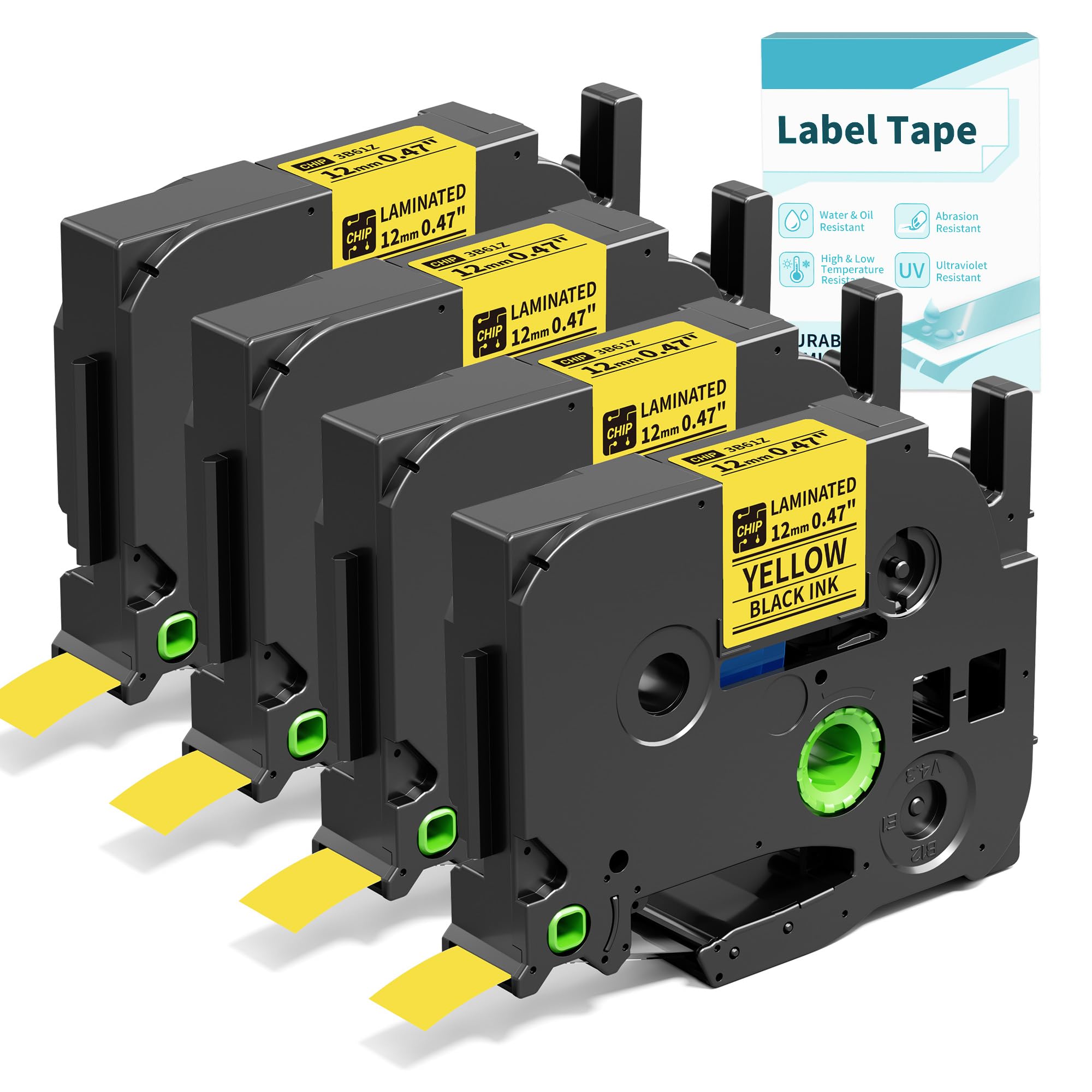
Image 1.1: EazeID TZe-631 label tape cartridge, black on yellow, 12mm width.
2. Compatibility
This label tape is compatible with a wide range of Brother P-Touch label makers, including but not limited to:
- PT-H110, PT-D200, PT-D210, PT-D220, PT-D410, PT-D215E
- PTD400, PTD400AD, PTD600, PTD610BT, PTD600VP
- PTH100, PTP300BT, PTP700
- PT-1230PC, PT-1890C, PT2730VP, PTD450, PT-d400, PT-D200, PT1880C, PT-1880, PT-H500LI, PT2730, PT-1890w, PT-2430PC, PT9700PC, PT-2300, PT-1280SR, PT2030AD, PT-1090, PT-1290, PT-1880w, PT-9600

Image 2.1: Visual representation of several Brother P-Touch label maker models compatible with EazeID TZe-631 tape.
3. Setup and Installation
- Open the Label Maker Cover: Locate the tape compartment cover on your Brother P-Touch label maker and open it. Refer to your label maker's specific manual for exact instructions if needed.
- Prepare the Tape Cassette: Before inserting, ensure the tape end is properly aligned with the tape guides. Extend approximately 1.5 inches (3-4 cm) of the label tape from the cassette for easy access. Turn the green gear on the label tape cassette in the direction of the arrow until the tape is taut.
- Insert the Tape Cassette: Place the EazeID TZe-631 tape cassette into the label maker's tape compartment. Ensure it clicks firmly into place.
- Close the Cover: Close the tape compartment cover securely.

Image 3.1: Steps for preparing the EazeID TZe-631 tape cassette before insertion into the label maker.
Powering the Label Maker (if applicable):
Some label makers can be powered by AAA batteries (not included) or via a Type-C USB cable (included with some label maker models). Ensure your device is powered correctly before operation.
Video 3.1: This video demonstrates the installation of the label tape into an EazeID D210S label maker and basic operation. (Creator: Seller)
4. Operating Instructions
- Turn On: Press the power button on your label maker.
- Enter Text: Use the keyboard to type the desired text for your label.
- Customize Label (Optional):
- Adjust font size, style, and width using the dedicated buttons.
- Add symbols or frames from the available options.
- Print: Press the "Print" button. The label maker will print the label and automatically cut it (if your model has an auto-cutter) or indicate where to cut manually.
- Peel and Apply: The EazeID TZe-631 tape features a split backing. Bend the label slightly along the split to easily peel off the backing. Apply the label to a clean, dry surface.

Image 4.1: Instructions for peeling the split backing of the label tape for easy application.
Video 4.1: This video showcases the EazeID D210S label maker in use, demonstrating various labeling applications for personal belongings, office items, and kitchen organization. (Creator: Seller)
5. Maintenance
- Cleaning the Print Head: Regularly clean the print head of your label maker according to its specific manual to ensure clear print quality.
- Storage: Store unused label tape cassettes in a cool, dry place away from direct sunlight to maintain adhesive quality and tape integrity.
- Tape Removal: When replacing a tape cassette, gently pull it out from the compartment. Do not force it.
6. Troubleshooting
| Problem | Possible Cause | Solution |
|---|---|---|
| Poor print quality / Faded text | Dirty print head; Low batteries; Incorrect tape insertion. | Clean the print head. Replace batteries or connect to power. Re-insert tape cassette correctly. |
| Tape not feeding | Tape jammed; Cassette not inserted properly; Tape end not extended. | Open cover, clear any jam. Re-insert cassette firmly. Extend 1.5 inches of tape before closing. |
| Label not sticking | Surface is dirty, oily, or wet; Tape is old or damaged. | Clean and dry the application surface thoroughly. Use a new tape cassette. |
7. Specifications
- Model: TZe-631
- Tape Width: 12mm (0.47 inch)
- Tape Length: 8 meters (26.25 feet)
- Print Color: Black
- Tape Color: Yellow
- Material Type: Laminated Plastic
- Features: Water-resistant, Oil-resistant, High-temperature resistant, Corrosion-resistant, Fade-resistant, Abrasion-resistant.
- Backing: Split backing for easy peeling.

Image 7.1: Cross-section view of the EazeID laminated label tape, showing its multi-layered construction for durability.
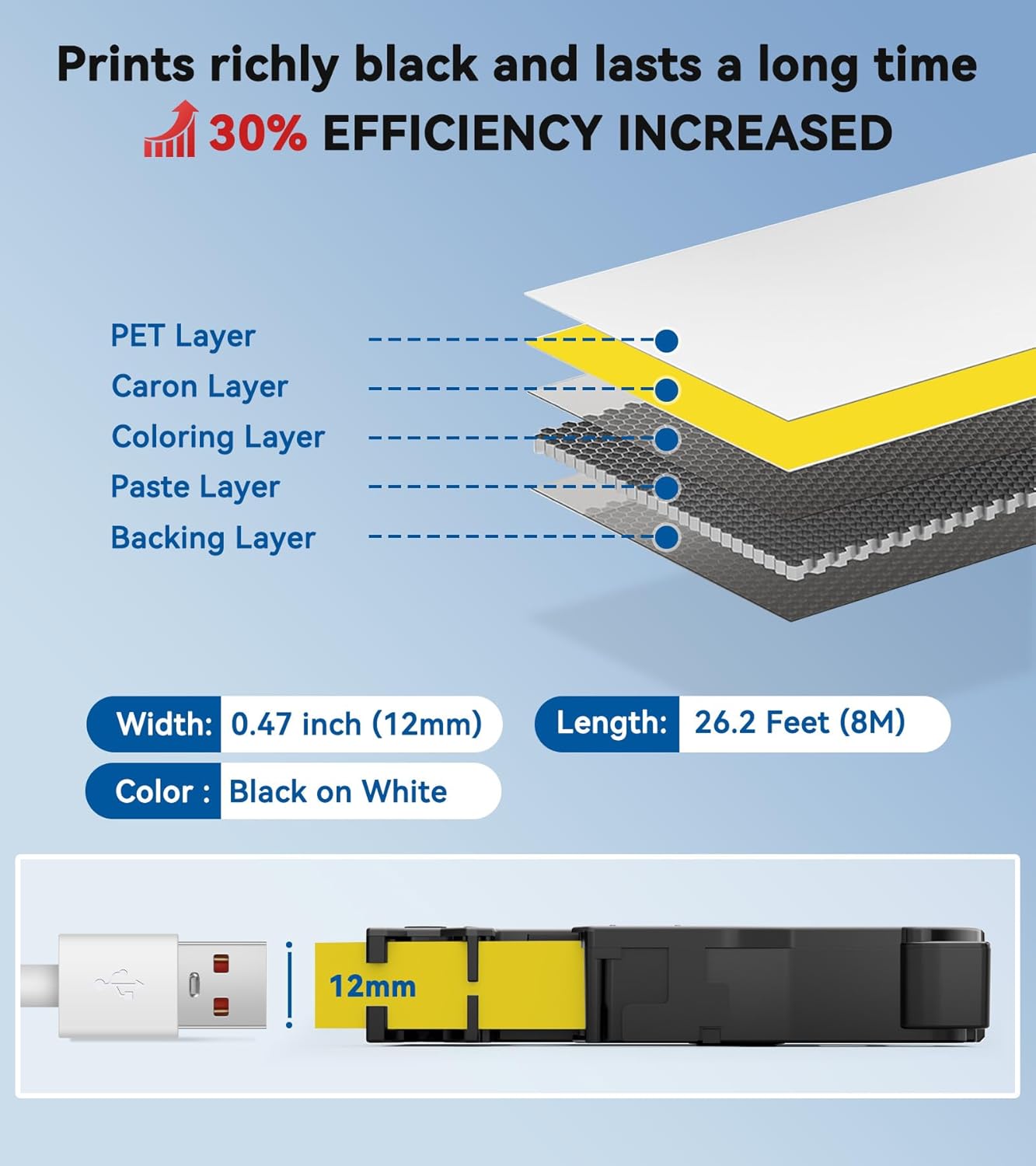
Image 7.2: Demonstrations of EazeID labels' resistance to water, fading, chemicals, and abrasion.
8. Warranty and Support
For any issues or questions regarding your EazeID TZe-631 label tape, please contact EazeID customer support. Refer to the packaging or the official EazeID website for specific warranty information and contact details.
Manufacturer: EazeID
Website: EazeID Official Store


