
Introduction
Welcome to the user manual for your new Dell Inspiron 7440 2-in-1 Laptop. This guide provides essential information for setting up, operating, maintaining, and troubleshooting your device. The Inspiron 7440 is a versatile 14-inch touch FHD+ laptop powered by an Intel Core i5-1334U processor, featuring 16GB DDR5 RAM, a 512GB SSD, and Windows 11 Home. Its 2-in-1 design allows for flexible use in various modes, complemented by an Active Pen for enhanced interaction.
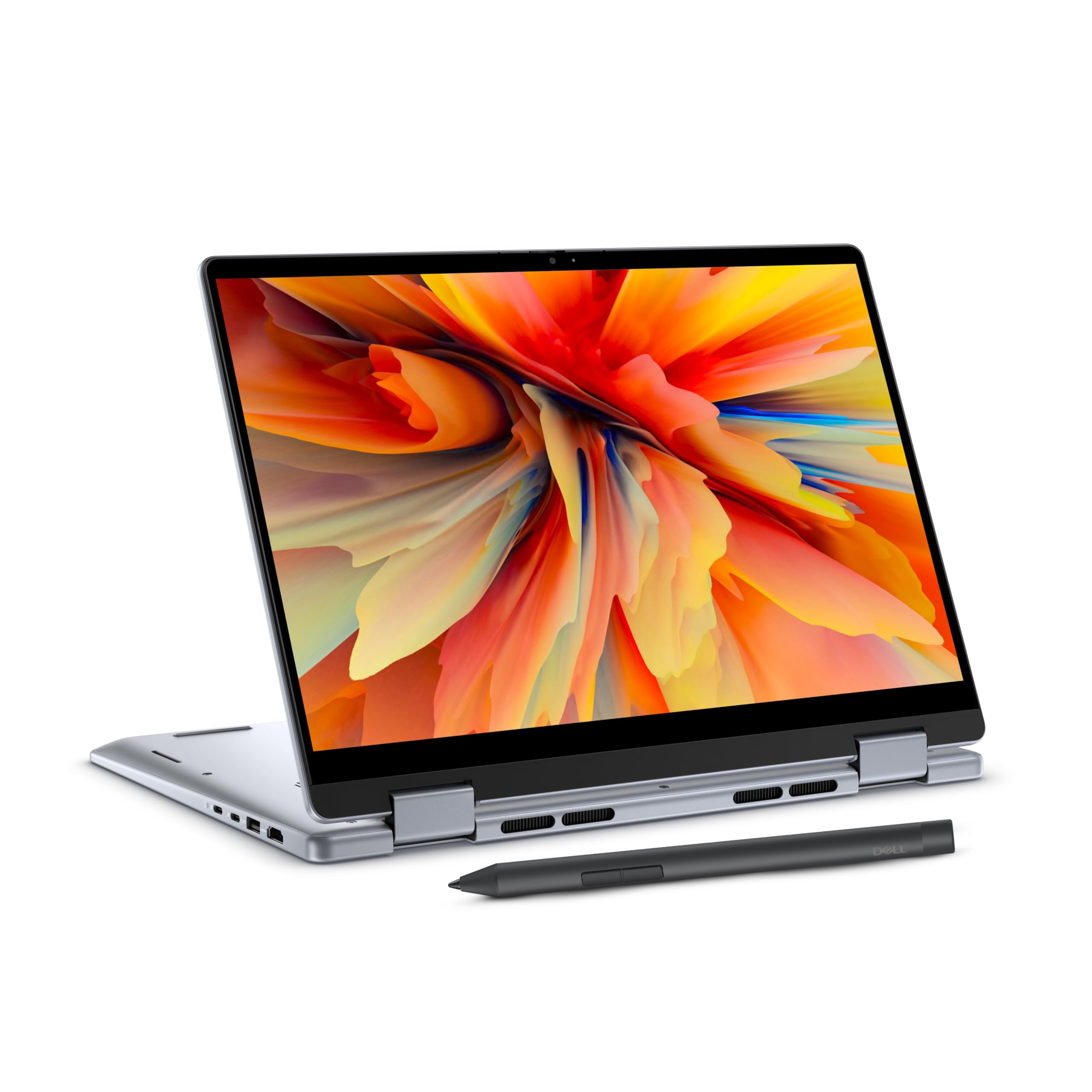
Image: The Dell Inspiron 7440 2-in-1 Laptop displayed in its standard laptop configuration.

Image: A visual representation highlighting the powerful performance of the Dell Inspiron 7440 2-in-1 Laptop, featuring Intel Core processors and DDR5 memory.
What's in the Box
Verify that all items are present in the packaging:
- Dell Inspiron 7440 2-in-1 Laptop
- Power Cable
- Active Pen
- User Manual (this document)
Product Overview
Physical Features and Ports
Familiarize yourself with the various ports and features of your Dell Inspiron 7440 2-in-1 Laptop.

Image: A diagram illustrating the various ports on the Dell Inspiron 7440 2-in-1 Laptop, including USB 3.2 Gen 1 Type-C, USB 3.2 Gen 1 Type-A, HDMI 1.4, Headset Jack, and SD card slot.
- USB 3.2 Gen 1 Type-C: Connect USB-C devices.
- USB 3.2 Gen 1 Type-A: Connect standard USB devices.
- HDMI 1.4: Connect to an external display or projector.
- Headset Jack: Connect headphones or a headset.
- SD Card Slot: Insert an SD card for additional storage or data transfer.
- Power Button with Fingerprint Reader: Press to power on/off or use for secure login.
- Backlit Keyboard: For typing in low-light conditions.
- Touchscreen Display: Interact directly with the screen.
Setup
1. Initial Power-On and Charging
- Connect the power adapter to the laptop's power port and then to a wall outlet.
- Open the laptop lid or press the power button to turn on the device.
- Allow the battery to charge fully before initial use for optimal battery health.
2. Windows 11 Home Setup
Follow the on-screen instructions to complete the Windows 11 Home setup process. This includes:
- Selecting your region and keyboard layout.
- Connecting to a Wi-Fi network.
- Signing in with or creating a Microsoft account.
- Setting up a PIN or password.
- Configuring privacy settings.
3. Active Pen Setup
Your Dell Inspiron 7440 comes with an Active Pen for enhanced interaction.
- Ensure the pen has a working battery.
- The pen should automatically pair with your laptop via Bluetooth. If not, go to Settings > Bluetooth & devices > Add device and select the Active Pen.
- Customize pen settings in Windows Settings for shortcuts and sensitivity.
Operating Instructions
Power Management
- Power On: Press the power button located on the side of the laptop.
- Sleep Mode: Close the lid or press the power button briefly.
- Shut Down: Go to Start > Power > Shut down in Windows.
- Restart: Go to Start > Power > Restart in Windows.
Using 2-in-1 Modes
The 360-degree hinge allows you to use your laptop in various configurations:
- Laptop Mode: Standard laptop configuration for typing and productivity.
- Tent Mode: Fold the display back to form a tent shape, ideal for presentations or watching videos.
- Stand Mode: Fold the display back with the keyboard facing down, suitable for touch interaction.
- Tablet Mode: Fold the display completely back against the base for a tablet experience.

Image: The Dell Inspiron 7440 2-in-1 Laptop demonstrating its versatile usability in tent mode, highlighting the 360-degree hinge.
Touchscreen and Active Pen
- Touchscreen: Use gestures for navigation, zooming, and scrolling.
- Active Pen: Use the Active Pen for precise input, drawing, and note-taking. The pen supports pressure sensitivity for a natural writing experience.
Keyboard and Touchpad
- Backlit Keyboard: Press Fn + F10 (or the key with the backlight icon) to toggle keyboard backlighting.
- Touchpad: Supports multi-touch gestures for navigation. Refer to Windows settings for customization.
Fingerprint Reader
The power button integrates a fingerprint reader for secure and quick login.
- Go to Settings > Accounts > Sign-in options > Fingerprint recognition (Windows Hello).
- Follow the on-screen instructions to register your fingerprints.
Dell ComfortView
Dell ComfortView is a software solution designed to reduce harmful blue light emissions, enhancing eye comfort during extended viewing periods. This feature is automatically managed or can be adjusted through Dell display settings.

Image: A user enjoying the Dell Inspiron 7440 2-in-1 Laptop outdoors, illustrating the benefit of Dell ComfortView for eye comfort.
Enhanced Audio with Dolby Atmos
Experience realistic and immersive audio with Dolby Atmos technology. Ensure your content supports Dolby Atmos for the best experience.

Image: The Dell Inspiron 7440 2-in-1 Laptop highlighting its enhanced audio capabilities with Dolby Atmos.
Maintenance
Cleaning Your Laptop
- Screen: Use a soft, lint-free cloth lightly dampened with water or a screen cleaner. Avoid harsh chemicals.
- Keyboard and Chassis: Use a soft, dry cloth. For stubborn dirt, a slightly damp cloth with mild soap solution can be used, ensuring no liquid enters openings.
- Ports: Use compressed air to gently clear dust from ports.
Battery Care
- Avoid extreme temperatures.
- Do not fully discharge the battery frequently.
- For long-term storage, charge the battery to about 50-60%.
- The laptop supports ExpressCharge, allowing up to 80% charge in approximately 60 minutes. This feature can be managed via Dell Power Manager software.
Software Updates
- Regularly check for Windows updates via Settings > Windows Update.
- Install Dell driver and firmware updates using the Dell Update application or by visiting the Dell support website.
Troubleshooting
This section addresses common issues you might encounter.
| Problem | Possible Solution |
|---|---|
| Laptop does not power on. |
|
| Display is blank or not working. |
|
| Wi-Fi or Bluetooth connectivity issues. |
|
| Active Pen not responding. |
|
Specifications
Key technical specifications for the Dell Inspiron 7440 2-in-1 Laptop:
- Model Name: Inspiron 7440
- Processor: Intel Core i5-1334U (13th Gen)
- RAM: 16 GB DDR5
- Storage: 512 GB SSD
- Display: 14-inch Touch FHD+ (1920 x 1200) LED
- Graphics: Integrated Intel UHD Graphics
- Operating System: Windows 11 Home Single Language, English
- Weight: 1.71 Kg
- Dimensions (L x W x Thickness): 22.6 x 31.4 x 1.6 cm
- Ports: USB 3.2 Gen 1 Type-C, USB 3.2 Gen 1 Type-A (x2), HDMI 1.4, Headset Jack, SD Card Reader
- Wireless Connectivity: 802.11ac, Bluetooth
- Special Features: Backlit Keyboard, Fingerprint Reader, Active Pen, Dell ComfortView, Dolby Atmos Audio
- Battery: Lithium Ion, 48 Watt Hours (with ExpressCharge support)
Warranty and Support
Warranty Information
Your Dell Inspiron 7440 2-in-1 Laptop comes with a 1 Year Accidental Damage Protection Manufacturing Warranty. Please refer to the warranty card included in your packaging or visit the official Dell support website for full terms and conditions.
Customer Support
For technical assistance, troubleshooting beyond this manual, or warranty claims, please contact Dell Customer Support.
- Dell Support Website: Visit www.dell.com/support for drivers, manuals, and diagnostic tools.
- Contact Information: Refer to the documentation provided with your laptop for regional contact numbers or online chat support.


