
Introduction
Welcome to your Maxwell Fusion Smart Watch. This manual provides essential information for setting up, operating, and maintaining your device. Please read it carefully to ensure optimal performance and longevity of your smartwatch.
What's in the Box
- Maxwell Fusion Smart Watch
- Wireless Charger
- Strap
- User Manual (this document)
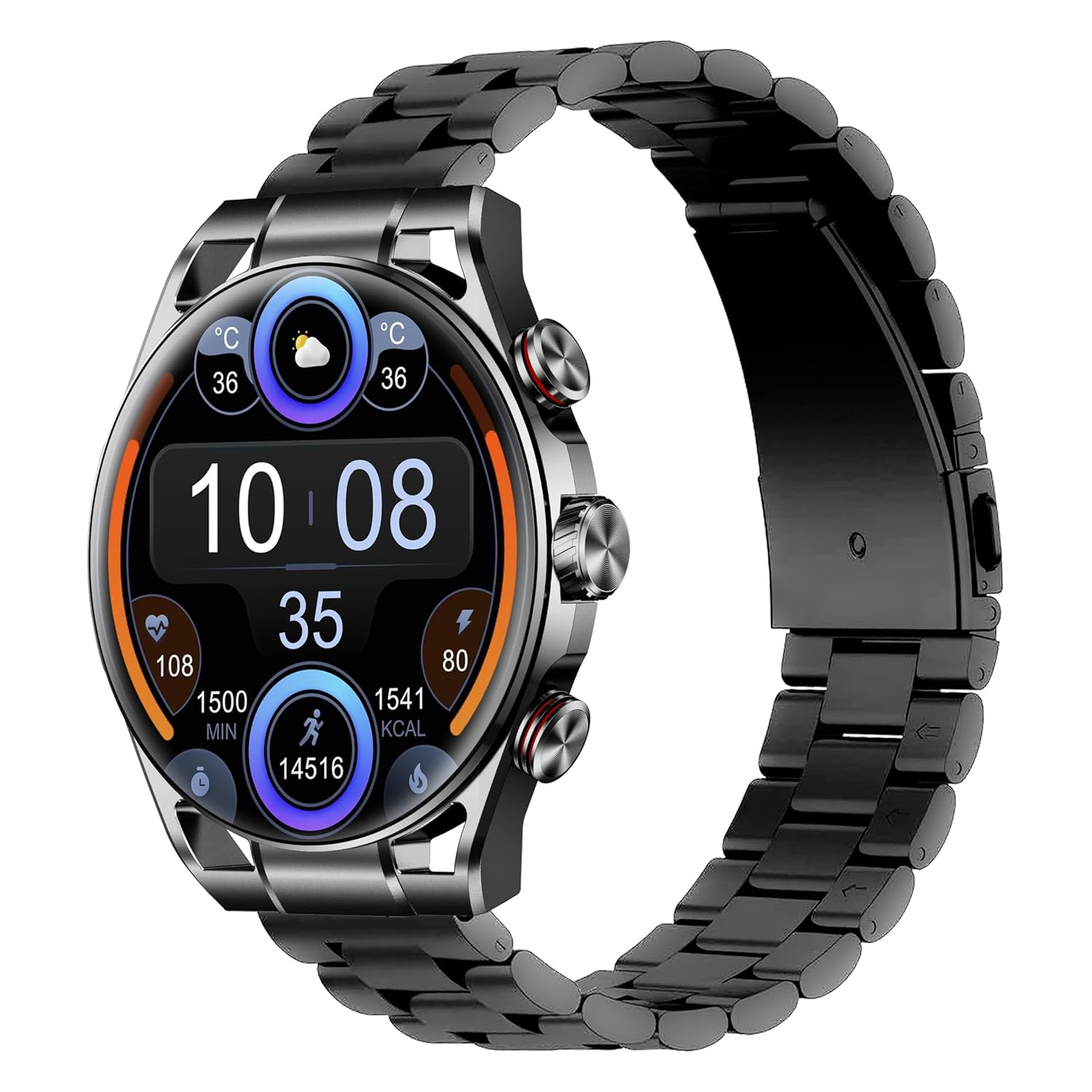
Image: The Maxwell Fusion Smart Watch with a black metal strap, displaying time and fitness metrics.
Setup
1. Charging the Smart Watch
Before first use, fully charge your Maxwell Fusion Smart Watch. Connect the wireless charger to a power source and place the watch onto the charging pad. The watch will indicate charging status. A full charge typically takes approximately 2 hours.
The watch offers an extended standby time of up to 40 days on a single charge.
2. App Installation
To unlock the full functionality of your smartwatch, download and install the companion application on your smartphone. Scan the QR code below with your phone's camera or visit the provided links.

Image: Product packaging displaying technical specifications and QR codes for the companion app.
Download the app:
3. Pairing with Your Smartphone
- Ensure your smartphone's Bluetooth is enabled.
- Open the installed companion app on your phone.
- Follow the in-app instructions to search for and connect to your Maxwell Fusion Smart Watch. The watch uses Bluetooth 5.2 for a stable connection.
- Confirm the pairing request on both your watch and smartphone.
The Maxwell Fusion Smart Watch is compatible with both iOS and Android devices.
Operating Instructions
Basic Navigation
The Maxwell Fusion Smart Watch features a responsive AMOLED Retina touchscreen and three physical buttons for navigation. Swipe across the screen to access different functions and menus. Press the buttons for specific actions such as returning to the home screen or accessing quick settings.

Image: The Maxwell Fusion Smart Watch showcasing its Super AMOLED Retina screen with bright, clear visuals.
Call and SMS Functionality
Once paired with your smartphone, you can dial and answer calls directly from your wrist. You will also receive SMS notifications on your watch. Ensure your watch is within Bluetooth range of your phone for these features to work.
Sports Modes and Activity Tracking
The watch includes various sports modes to track your physical activities. Access these modes through the watch menu to monitor metrics such as steps, distance, calories burned, and activity duration. The watch supports custom activity tracking.

Image: The Maxwell Fusion Smart Watch face with icons indicating features such as water resistance, iOS/Android compatibility, sport mode, 1400 NITS brightness, and heart rate monitoring.
Health Monitoring
The Maxwell Fusion Smart Watch is equipped with a Heart Rate Monitor and supports Cycle Tracking. Access these features through the watch or the companion app to monitor your health data.
Water Resistance (IP68)
Your smartwatch has an IP68 waterproof rating, making it suitable for swimming and other water-related activities. It can withstand immersion up to 1.4 meters. Avoid hot water or steam, as this can compromise the seal.

Image: A person wearing the Maxwell Fusion Smart Watch in a swimming pool, emphasizing its IP68 waterproof rating.
Display Brightness
The AMOLED Retina screen offers a brightness of up to 1400 NITS, ensuring clear visibility even in bright sunlight. Adjust the brightness settings through the watch menu for optimal viewing in various environments.
Maintenance
Cleaning
Regularly clean your watch and strap with a soft, damp cloth. Avoid using harsh chemicals or abrasive materials, which can damage the finish or sensors.
Battery Care
To prolong battery life, avoid fully discharging the watch frequently. Charge it when the battery level is low. Store the watch in a cool, dry place if not used for extended periods.
Water Resistance Precautions
While the watch is IP68 waterproof, it is not suitable for diving or high-pressure water activities. Do not expose the watch to hot water, steam, or detergents, as this may compromise its water resistance.
Troubleshooting
- Watch not turning on: Ensure the watch is fully charged. Connect it to the wireless charger for at least 30 minutes.
- Unable to pair with phone:
- Ensure Bluetooth is enabled on your phone and the watch.
- Make sure the watch is within range of your phone.
- Restart both the watch and your phone, then try pairing again.
- Check if the companion app is updated to the latest version.
- Notifications not appearing:
- Verify that notifications are enabled in the watch's settings and the companion app.
- Ensure the watch is properly connected to your phone via Bluetooth.
- Check your phone's notification settings to allow the app to send notifications.
- Inaccurate health data: Ensure the watch is worn snugly on your wrist, but not too tight. Clean the sensors regularly.
Specifications
| Feature | Detail |
|---|---|
| Model Number | Fusion |
| Display Type | AMOLED Retina Screen |
| Connectivity | Bluetooth 5.2, Wi-Fi |
| Battery Capacity | 360 mAh |
| Battery Life (Standby) | Up to 40 Days |
| Charging Time | Approx. 2 Hours |
| Water Resistance | IP68 (Waterproof up to 1.4 meters) |
| Memory Storage Capacity | 64 MB |
| Compatible Devices | iOS & Android Smartphones |
| Human Interface Input | Touchscreen, 3 Buttons |
| Metrics Measured | Heart Rate, Activity |
| Material | Silicone (Band) |
| Weight | 200 Grams |
Warranty and Support
Maxwell provides a standard manufacturer's warranty for this product. Please refer to the warranty card included in your packaging or visit the official Maxwell website for detailed warranty terms and conditions.
For technical support, troubleshooting assistance, or service inquiries, please contact Maxwell customer support through their official channels.


