
1. Introduction and Overview
The Jectse Smart Gateway is a central hub designed to connect your smart door locks to your home's Wi-Fi network, enabling advanced remote control and voice command functionalities. This device acts as a bridge, allowing you to manage your smart locks from anywhere using a compatible mobile application, such as the DD Lock App or TT Lock App, and integrate with voice assistants for hands-free operation.
This manual provides comprehensive instructions for setting up, operating, and maintaining your Jectse Smart Gateway to ensure optimal performance and security.
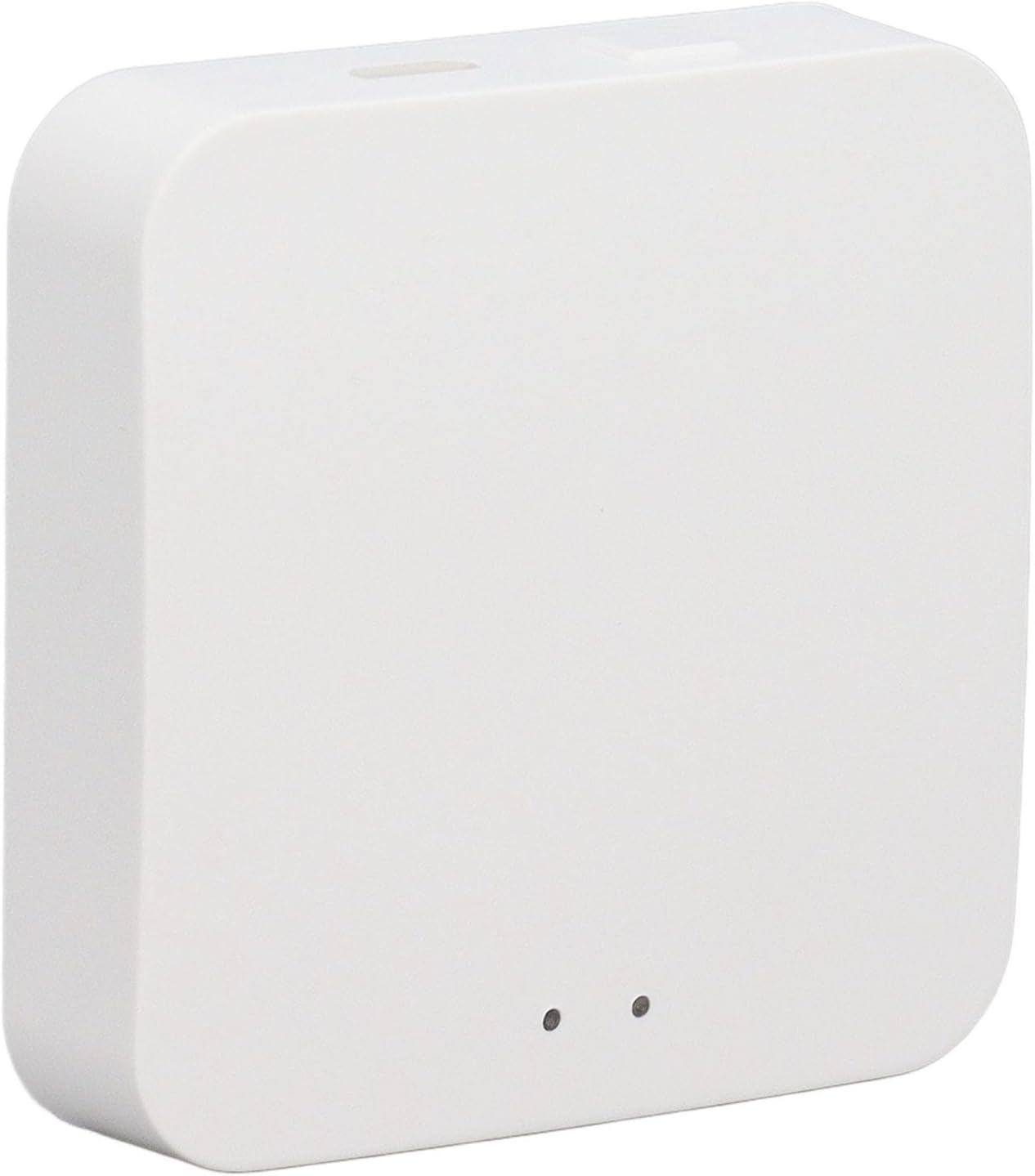
Figure 1.1: Front view of the Jectse Smart Gateway. This compact white device features a minimalist design with two small indicator lights on its top surface, signifying its operational status.
2. Key Features
The Jectse Smart Gateway offers a range of features designed to enhance the convenience and security of your smart door locks:
- Voice Control: When paired with compatible smart locks, the gateway enables voice control through various voice assistants, providing a convenient hands-free method for managing your door locks.
- Remote Control: Connects to smart locks via the DD Lock App or TT Lock App, allowing for real-time viewing of door lock status, remote setting of custom passwords, and other remote management functions from anywhere with an internet connection.
- Multifunctional Connectivity: This smart Wi-Fi gateway can be paired with multiple smart door locks under the same user account, enabling centralized control of several locks simultaneously.
- Durable Construction: Manufactured from high-quality ABS material, ensuring the device is strong, abrasion-resistant, and designed for a long service life.
- Wide Application: Suitable for a variety of environments including homes, offices, hotels, studios, villas, and apartments, providing versatile smart lock management.

Figure 2.1: The Jectse Smart Gateway's role in a smart home. This diagram illustrates how the gateway centrally connects various smart devices, including door locks, across different rooms and floors, enabling comprehensive smart home integration.

Figure 2.2: Optimal placement for the Jectse Smart Gateway. This image demonstrates how central placement of the gateway ensures maximum Wi-Fi coverage, allowing it to effectively communicate with smart locks throughout your property.
3. Setup and Installation
Follow these steps to set up your Jectse Smart Gateway:
- Unpack the Device: Carefully remove the Jectse Smart Gateway from its packaging. Ensure all components are present.
- Power On: Connect the gateway to a power source using the provided USB cable and a compatible power adapter (not always included). The indicator lights on the device will illuminate, indicating it is powered on.
- Placement: Place the gateway in a central location within your home or office, ideally equidistant from your smart door locks and your Wi-Fi router, to ensure optimal signal strength and connectivity.
- App Download: Download the "DD Lock App" or "TT Lock App" from your smartphone's app store (iOS App Store or Google Play Store).
- Network Connection: Open the app and follow the on-screen instructions to add the Jectse Smart Gateway to your account. This typically involves connecting the gateway to your home's 2.4GHz Wi-Fi network.
- Pair with Smart Locks: Once the gateway is connected to Wi-Fi, use the app to pair your smart door locks with the gateway. Refer to your smart lock's individual manual for specific pairing instructions.

Figure 3.1: Side view of the Jectse Smart Gateway. This image highlights the USB power input port and a small reset button, essential for initial setup and troubleshooting.

Figure 3.2: Top view of the Jectse Smart Gateway. The two indicator lights provide visual feedback on the device's status, such as power, network connection, and pairing activity.
4. Operating Instructions
Once your Jectse Smart Gateway is set up and paired with your smart locks, you can utilize its full range of features:
- Remote Lock Management: Open the DD Lock App or TT Lock App on your smartphone. From the app, you can remotely lock or unlock your doors, view real-time lock status (e.g., locked, unlocked, battery level), and access activity logs.
- Custom Password Setting: The app allows you to generate and manage temporary or permanent access codes for your smart locks, which can be shared with guests or service providers.
- Voice Control Integration: If you have a compatible voice assistant (e.g., Amazon Alexa, Google Assistant) set up, link your DD Lock or TT Lock account within the voice assistant's app. You can then use voice commands to control your smart locks (e.g., "Alexa, lock the front door").
- Multi-Lock Control: If you have multiple smart locks paired with the gateway, you can manage all of them from a single interface within the app, simplifying control for larger properties or multiple doors.
5. Maintenance
To ensure the longevity and optimal performance of your Jectse Smart Gateway, follow these simple maintenance guidelines:
- Cleaning: Gently wipe the exterior of the gateway with a soft, dry cloth. Avoid using abrasive cleaners, solvents, or excessive moisture, as these can damage the device.
- Environment: Keep the gateway in a dry environment, away from direct sunlight, extreme temperatures, and high humidity.
- Firmware Updates: Periodically check the DD Lock App or TT Lock App for any available firmware updates for the gateway. Keeping the firmware updated ensures you have the latest features and security enhancements.
- Power Supply: Use only the recommended power supply to prevent damage to the device.
6. Troubleshooting
If you encounter issues with your Jectse Smart Gateway, refer to the following troubleshooting tips:
| Problem | Possible Cause | Solution |
|---|---|---|
| Gateway not powering on. | No power, faulty cable/adapter. | Check power connection. Try a different USB cable or power adapter. Ensure the power outlet is functional. |
| Cannot connect to Wi-Fi. | Incorrect Wi-Fi password, 5GHz network, weak signal. | Ensure correct 2.4GHz Wi-Fi network and password. Move gateway closer to router. Restart router and gateway. |
| Smart locks not pairing with gateway. | Locks out of range, pairing mode not activated, app issue. | Ensure locks are within range of the gateway. Activate pairing mode on the smart lock (refer to lock manual). Restart the app and try again. |
| Remote control or voice control not working. | No internet connection, app not linked, voice assistant issue. | Verify gateway has internet access. Ensure DD Lock/TT Lock app is linked to your voice assistant. Check voice assistant settings. |
If the problem persists after trying these solutions, please refer to the support section for further assistance.
7. Specifications
Key technical specifications for the Jectse Smart Gateway:
| Attribute | Detail |
|---|---|
| Manufacturer | Jectse |
| Item Weight | 60 g |
| Package Dimensions | 6.5 x 6.5 x 4 cm |
| Material | Acrylonitrile Butadiene Styrene (ABS) |
| Batteries Required? | No (Powered via USB) |
| Recommended Uses | Home, Office, Hotel, Studio, Villa, Apartment |

Figure 7.1: Dimensions of the Jectse Smart Gateway. This image provides precise measurements of the device, indicating its compact and portable design.
8. Warranty and Support
For warranty information and customer support, please refer to the documentation included with your product packaging or visit the official Jectse website. The website typically provides detailed warranty terms, frequently asked questions, and contact information for technical assistance.
Keep your purchase receipt as proof of purchase for any warranty claims.