1. Introduction
This manual provides essential instructions for setting up, operating, and maintaining your mingwear S998 4G Smartwatch. Please read this guide thoroughly to ensure proper usage and to maximize the device's capabilities.

Figure 1.1: The mingwear S998 4G Smartwatch, featuring a large display and sleek design.
2. Safety Information
- Do not attempt to disassemble, repair, or modify the device.
- Keep the device away from extreme temperatures, direct sunlight, and moisture.
- Use only approved chargers and accessories.
- Avoid exposing the device to strong magnetic fields.
- Consult a medical professional before using the heart rate monitor if you have a pacemaker or other internal medical device.
3. Package Contents
Verify that all items are present in your product package:
- mingwear S998 4G Smartwatch
- Charging Cable (Type-C)
- User Manual (this document)
4. Device Overview
Familiarize yourself with the physical components of your smartwatch.

Figure 4.1: Overview of the mingwear S998 4G Smartwatch, highlighting its 2.64-inch screen, Android 11.0 system, 4G network, GPS, and 500W HD dual camera.
- 2.64-inch HD Display: High-resolution touchscreen for clear visuals.
- Dual HD Cameras: Integrated cameras for photos, videos, and video calls.
- SIM Card Slot: Supports independent 4G communication.
- Type-C Charging Port: For convenient charging.
- Side Buttons: Power/Wake button and other function buttons.
- Sensors: Heart rate, step counter, and other health monitoring sensors on the rear.
5. Setup
5.1 Charging the Device
Before first use, fully charge your smartwatch. Connect the Type-C charging cable to the watch's charging port and plug the other end into a compatible USB power adapter.

Figure 5.1: The smartwatch connected to its Type-C charging cable, indicating its 1200mAh battery capacity.
5.2 Inserting a SIM Card
The smartwatch supports an independent SIM card for 4G communication. Follow these steps to insert the SIM card correctly:
- Locate the SIM card slot on the side of the watch.
- Gently open the SIM card tray cover.
- Place the Nano-SIM card into the tray with the chip facing down, ensuring correct orientation.
- Carefully push the tray back into the slot until it clicks into place.
Video 5.2: Demonstrates the correct procedure for inserting a SIM card into the 4G smartwatch.

Figure 5.3: The smartwatch featuring a standalone SIM card slot, enabling 4G full network communication for calls and messages.
5.3 Initial Power-On and Setup
Press and hold the power button until the screen lights up. Follow the on-screen prompts to complete the initial setup, including language selection, time zone, and Wi-Fi connection.
5.4 Connecting to Wi-Fi
Navigate to Settings > Network & Internet > Wi-Fi. Select your desired network and enter the password to connect.
6. Operating Instructions
6.1 Basic Navigation
The smartwatch features a responsive touchscreen. Swipe left/right, up/down, and tap to navigate through menus and applications.
6.2 Making and Receiving Calls
With a SIM card inserted, you can make and receive calls directly from your watch. Use the Phone app to dial numbers or access contacts.
6.3 Sending and Receiving Messages
Access the Messages app to send and receive SMS. The on-screen keyboard allows for text input.
6.4 Using GPS Navigation
The built-in GPS allows for real-time trajectory tracking and precise location viewing. Open a navigation application (e.g., Google Maps) to utilize this feature.

Figure 6.1: The smartwatch screen showing real-time GPS navigation, useful for outdoor activities and travel.
6.5 Using the Dual HD Camera
The smartwatch is equipped with dual HD cameras. Open the Camera app to take photos or record videos. You can also use them for video chat.
Video 6.2: Instructions on how to manage the shutter sound settings for the smartwatch camera.
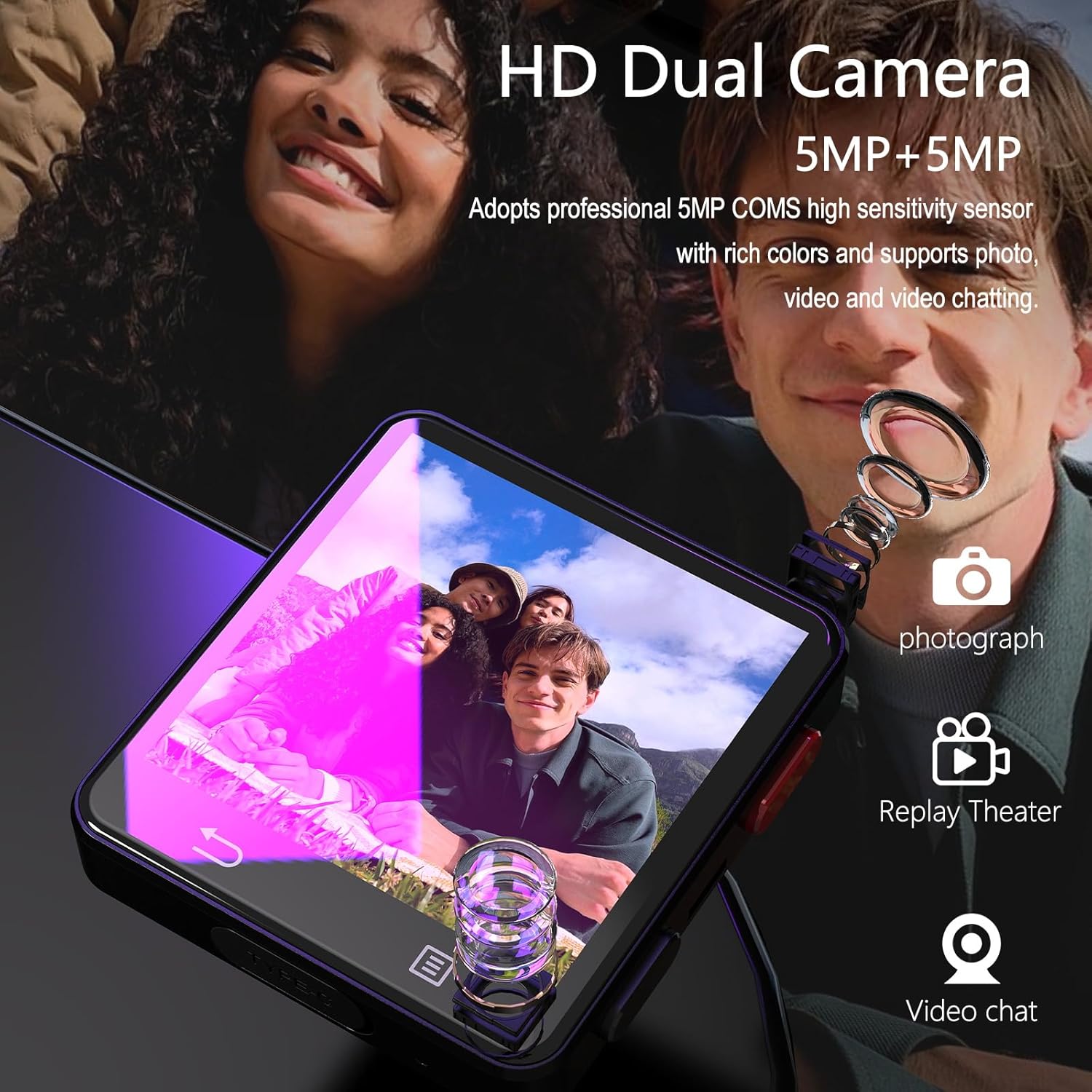
Figure 6.3: The smartwatch highlighting its dual HD cameras (5MP+5MP) for capturing moments and facilitating video communication.
6.6 Downloading Applications
The smartwatch runs on Android V11.0, allowing you to download various applications from the Play Store to expand its functionality.
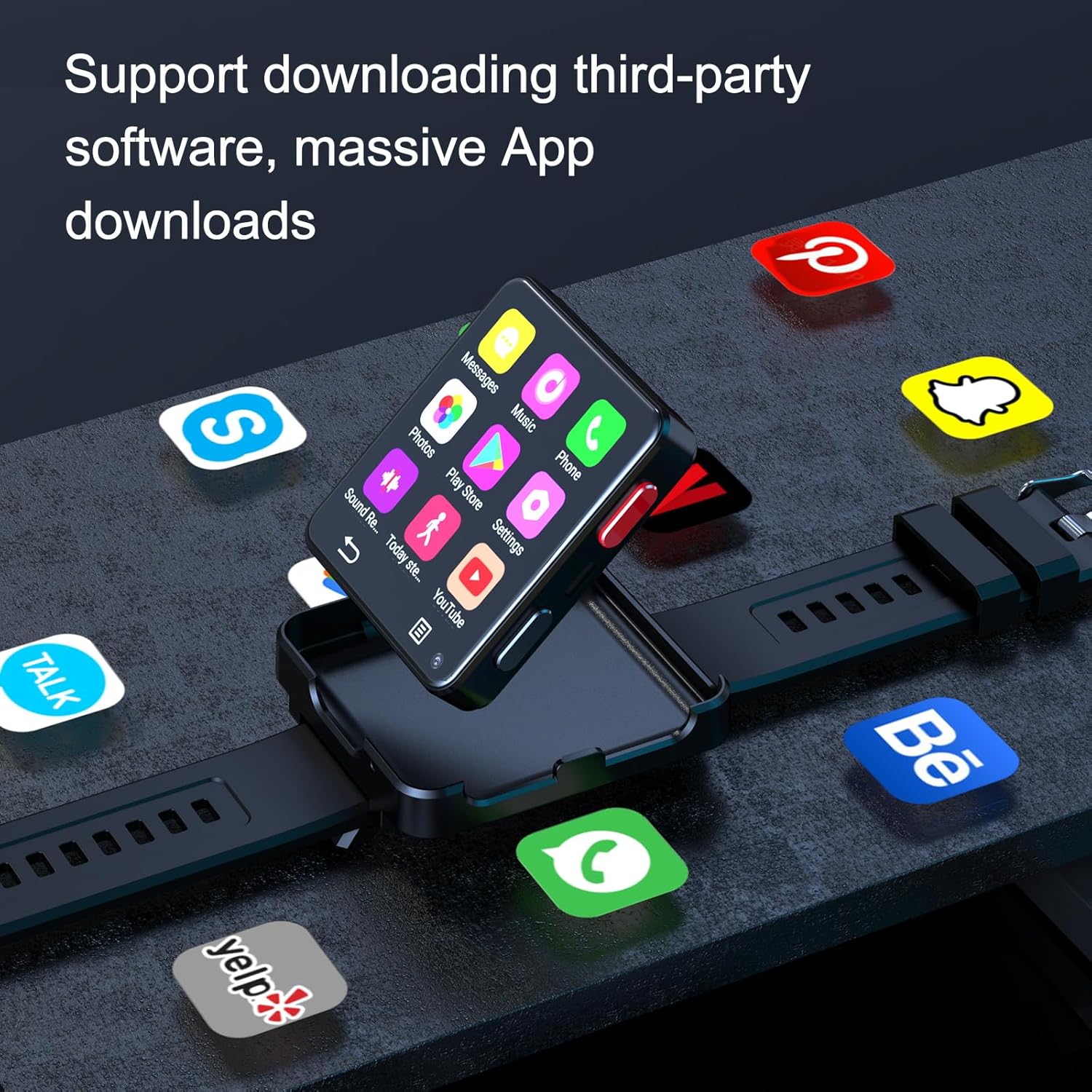
Figure 6.4: The smartwatch display showcasing various third-party applications available for download, enhancing device utility.
6.7 Music Playback
Store and play music directly on your smartwatch. Use the Music app to manage your audio files.
6.8 Video Chat
Leverage the 4G network and Wi-Fi connectivity for smooth HD video calls using compatible applications.

Figure 6.5: The smartwatch screen showing an active HD video chat, demonstrating its capability for high-speed and stable network connections.
6.9 Fitness Tracking
The smartwatch includes features for tracking steps, heart rate, and sleep patterns. Access the respective apps for detailed information.
6.10 Customizing Watch Faces
Personalize your smartwatch by choosing from various pre-installed watch faces or downloading new ones.

Figure 6.6: A selection of personalized dials available on the smartwatch, offering high-definition display and sensitive touch for a smooth user experience.
6.11 File Transfer
You can transfer files to and from your smartwatch using a USB connection. Connect the watch to a computer and select the 'File Transfer' option when prompted.
Video 6.7: Guide on how to establish a connection for file transfer between the smartwatch and another device.
7. Maintenance
7.1 Cleaning
Wipe the watch screen and body with a soft, dry cloth. Avoid using harsh chemicals or abrasive materials.
7.2 Software Updates
Periodically check for software updates in the device settings to ensure optimal performance and access to new features. Navigate to Settings > System > System update.
8. Troubleshooting
- Device not turning on: Ensure the battery is charged. Connect to the charger for at least 30 minutes.
- Cannot connect to network: Check if the SIM card is inserted correctly and activated. Verify Wi-Fi settings.
- Apps crashing: Try restarting the device. If the issue persists, consider clearing the app's cache or reinstalling it.
- GPS inaccuracy: Ensure you are in an open area with a clear view of the sky.
9. Specifications
| Feature | Detail |
|---|---|
| Model Name | S998 |
| Display Size | 2.64 Inches (actual product spec says 1.85 inches, but marketing images say 2.64, using 2.64 as per title) |
| Operating System | Android V11.0 |
| Connectivity | 4G LTE, Wi-Fi, Bluetooth |
| GPS | Built-in GPS |
| Camera | Dual HD Cameras (5MP+5MP interpolation) |
| Battery Capacity | 1200mAh |
| Charging Port | Type-C |
| Processor | MTK6739 Quad-Core |
| RAM/ROM | 3GB RAM / 32GB EMMC (from A+ content, product spec says 1.85 inches) |

Figure 9.1: Detailed product parameters for the smartwatch, including display, battery, system, processor, and connectivity.
10. Warranty and Support
For warranty information and technical support, please refer to the official mingwear website or contact customer service through your retailer. Keep your purchase receipt as proof of purchase.
